How Does Squirrly Determine if a Keyword is Easy to Rank for?
For keyword research: To determine if a keyword is easy to rank for, we look at the TOP 10 positions in Google for that keyword and compare your web authority against theirs.
We use our Market Intelligence for this. You can learn more about it below:
Over 8 years of stored data inside our databases, using APIs from our own Squirrly SPY, ContentLook, Workers (processing technology created by Squirrly), Crawlers, SERP Checker Cloud by Squirrly.
Plus APIs from: MOZ, Majestic, Piwik, Google Search Console, Google Analytics, SEMrush. Plus Plus: data collected and stored from those APIs for many years.
We have propiretary technology and algorithms working around the clock for our Market Intelligence service that we use in Squirrly SEO tools such as:
SEO Audit,
Focus Pages,
Keyword Research.
Such proprietary tech designed by the Squirrly Company was used by Telenav, Microsoft, Ann Handley, Neil Patel, Top Gear, CyberGhost, SeedCamp.
Is it possible to work with Squirrly without using GA/Search Console?
Yes, it is possible to work with Squirrly without using Google Analytics and/or Google Search Console.
However, those integrations are necessary if you want to use Squirrly SEO at its full potential. We use those to show you complete reports for Focus Pages and complete Audits. For example, if you don’t connect GA, we won’t be able to show you data regarding the traffic your pages receive.
So, while we absolutely recommend enabling Squirrly’s connection to Google Analytics and Google Search Console, it’s NOT a requirement to using Squirrly.
How is the Visitors’ Privacy Handled by Squirrly SEO and our Site Data Kept Safe?
In the beginning, we were using a custom Piwik that WE were hosting, instead of Analytics, but sadly it was not popular with our users and we had to drop it.
Based on feedback we’ve received from users, we’ve added making an integration with privacy-oriented analytics tools such as Plausible.io to the roadmap. Once more users will request the same thing (or something similar) we will start working on it.
Many things we’ve built over the years have come from user feedback, and we’re certainly keeping it that way.
We only keep total numbers and we don’t track information about website visitors ourselves.
We keep data on private computers that we have with Hetzner in Germany.
And we don’t sell any data, because our data is the most valuable thing we have and we’d be ruining our incredible advantage over our competitors.
For example: we only keep words when people create content on our Cloud App. Otherwise, it’s all keywords and numbers.
Can I Use Squirrly for My eCommerce Store on Shopify?
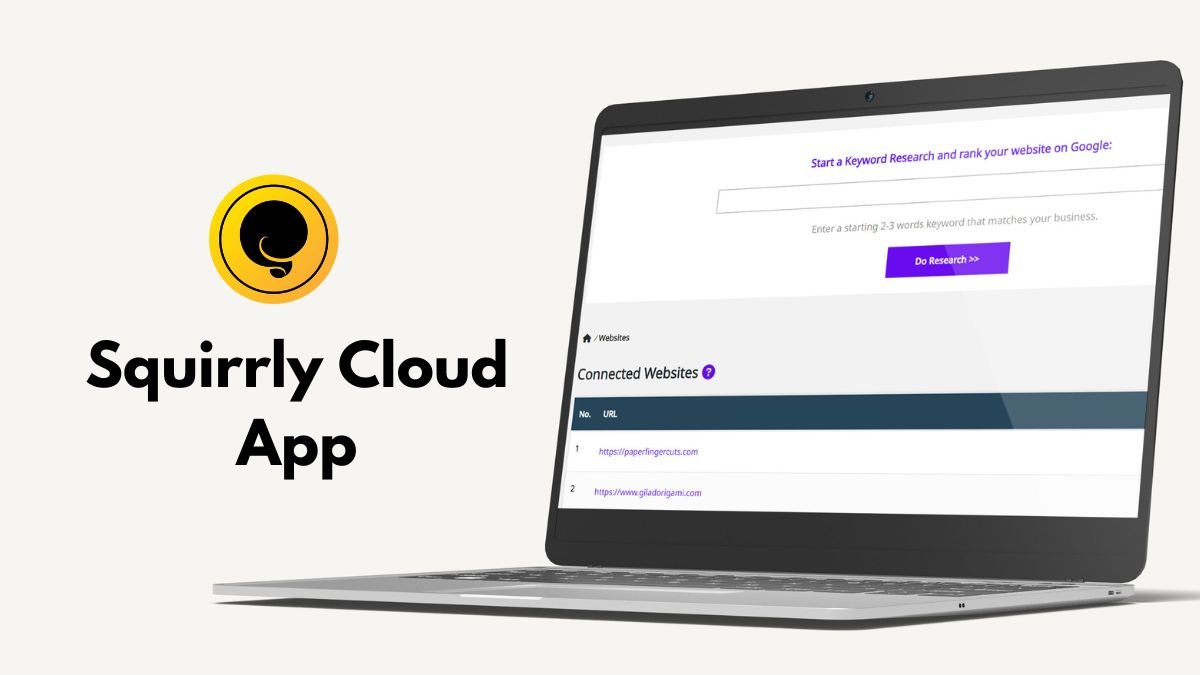
If you want to use Squirrly for a Shopify site, you can do that using the Squirrly Cloud app.
Our very own Shopify app for Squirrly SEO is used from the Cloud App, so you won’t need to install it inside Shopify to use it.
Here are the differences between Squirrly SEO for WordPress and Squirrly SEO for Shopify:
https://completeseofunnel.com/squirrlyshopify/
As you will see from that graphic, if you are just using the Cloud App, you wouldn’t be getting these:
Also, the Cloud App won’t help you optimize the meta data and descriptions. However, Shopify has built-in options for that, so you don’t need an app for that.
Many Shopify sites rank high just by using keyword research and then creating amazing content for product and category pages by using the SEO Live Assistant from our Cloud App.
After that, the SEO Audit and Google Rankings sections will do the trick if there is anything that needs fixing.
I Create YouTube Videos. How Can Squirrly Help Me Rank My Videos?
You can use some of the features from Squirrly for platforms like YouTube.
For example, you can use the keyword research tool to determine what topics you should tackle when creating content that you want to distribute via YouTube.
Using the SEO LIVE Assistant feature, you can also optimize your video descriptions for your target keyword (you can do the optimization inside the Cloud App or using the WordPress plugin and then simply copy/paste the optimized content as your YouTube description).
Can I use Squirrly for a Site That’s Not Built on WordPress?
The Squirrly Cloud App can help if you want to use Squirrly for sites that are NOT on WordPress.
Watch the VIDEO below to learn more about how to use Squirrly with Wix, SquareSpace, Shopify, or any CMS.
Some features such as Focus Pages are not available, but the Cloud App can be used to:
perform keyword research
build your keyword portfolio
optimize using the SEO Live Assistant
Audit pages
Monitor rankings
+ more
A comparison between Squirrly SEO for WordPress and Squirrly SEO Cloud App (for all other kinds of websites) can be seen here:
https://completeseofunnel.com/squirrlyseocloud
^^ The ! mark you see on the graphic means that you need to look further inside that place and you will see that some features have red dots with NO, which means they are not included in the Cloud App.
So perfect green means all is included. Green with! requires attention, because some parts of that are not included in Cloud, only in Plugin+Cloud.
Related Questions:
Q: If I don’t use WordPress, can I still use all the features? Would there be any feature I can’t use? How much will the fact that I’m not on WordPress and can only use your cloud version affect my ability to rank high on Google?
A: Some features are not available in the Cloud App. For example, you will not be able to use Focus Pages. Because of how the Focus Pages system works, we are unable to offer this feature unless you use WordPress. Also, the Cloud App won’t help you optimize the metadata and descriptions. That is only available with the Squirrly SEO WordPress plugin.
However, all the following features are included Cloud version, which means you can use the cloud app to perform key SEO tasks to rank higher.
Keyword Research;
Briefcase;
SEO Audit;
SEO Live Assistant to optimize content in real-time;
SERP Checker Cloud (if you are on a plan that includes this)
^^ all are included. So it’s still a solid SEO software, even though it’s missing: Next SEO Goals and Focus Pages, which we can only fully provide when used together with the WordPress plugin.
Q: For non-WordPress sites, do we install a script, or does Squirrly connect to GA and GSC or something?
A: Squirrly connects to Google Analytics and Google Search Console.
Q: My website is done by a third party (Promote my Place) and I’ve not been able to add any personal plugin which is why have never used Yoast. Can I still use Squirrly?
A: Yes, if you can’t install the plugin, then you can use the Cloud App, which doesn’t require you installing anything on your website.
Q: Can Squirrly SEO be used as a stand-alone application? Or does it have to be implemented as a WordPress plug-in to function properly?
A: The Cloud App can be used for websites that are NOT on WordPress as a standalone app.
Q: Is this application valid for an drop shipping store?
– Keyword research. You can use Squirrly’s keyword research tool to find keywords that people are typing into Google and analyze their potential;
– Keyword Management for different SEO Strategies using Labels;
– On-Page SEO. You can use the SEO Live Assistant to create optimized product descriptions or optimized blog posts, for example. (you would create the optimized content on the Cloud App and then copy-paste it on your website)
- SEO Audits for the pages you want to track
– Google Ranking monitoring
What gets configured automatically in SEO Beginner mode?
SEO Beginner and SEO Expert are the two links at the right end of the dark top bar on every Squirrly screen. SEO Beginner hides the advanced options and SEO Expert shows them; neither link turns a feature on or off. The features are switched on by the mode you pick in the onboarding.
This page lists what each view shows in Squirrly SEO 14.2.9, the 20 settings that SEO Recommended Mode and SEO Expert Mode turn on, and what stays off.
Where the SEO Beginner / SEO Expert switch is
Open any Squirrly screen, for example Squirrly > Technical SEO.
Look at the top bar, right of the plugin name. The current view is underlined and in bold.
Click SEO Expert to see the advanced options, or SEO Beginner to hide them.
The demo site in SEO Beginner view, the default on a new install.
The click saves the setting sq_seoexpert right away, for every user of the site. Only a Squirrly SEO Admin or an administrator can change it; other users get “You do not have permission to perform this action”. Squirrly User Roles explains the roles.
What SEO Beginner hides and SEO Expert shows
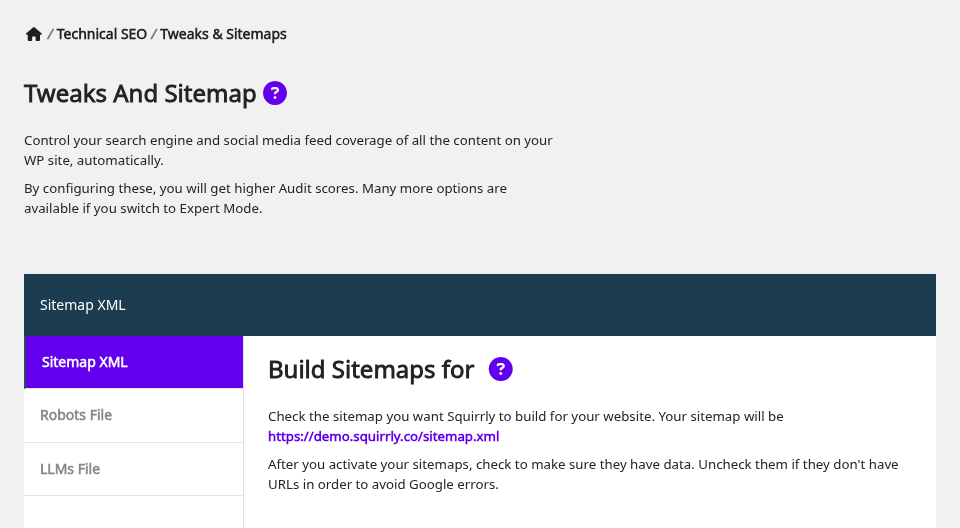
The Tweaks & Sitemaps screen says it in its own intro: “Many more options are available if you switch to Expert Mode.”
Tweaks & Sitemaps in SEO Beginner view: three tabs, no Advanced Settings.
In SEO Beginner view, the options below are hidden but keep the value they have. A sitemap with Include Images in Sitemap on keeps listing the images, even though you can’t see the switch.
Screen
Extra options in SEO Expert
Technical SEO > Tweaks & Sitemaps, Sitemap XML
Blogging Frequency, Google News, Include Images in Sitemap, Include Videos in Sitemap, Automatically Exclude URLs With ‘Noindex’, Sitemap Pagination, and Combine Languages in Sitemap when Polylang is installed
Technical SEO > Tweaks & Sitemaps
The Advanced Settings tab, and Add Apple Touch Icons in Website Icon
Technical SEO > SEO Metas
Optimize Keywords, Add Canonical Meta Link, Add Dublin Core Meta, Add Robots Meta, Add the Post tags in Keyword META, and the Advanced Settings tab
Technical SEO > Social Media
Facebook App ID, Facebook Admin ID, Share Large Images, and the Advanced tab
Technical SEO > Rich Snippets
Set this person as a global author, Add Custom Data for WooCommerce Products, Remove other Json-LD from page, and the Advanced tab
Technical SEO > Connect Tools
Google Tracking Mode, Load Tracking for Logged Users, Track IP addresses in Google Analytics, Norton Safe Web Code
Technical SEO > Import & Data
The Export as Json button next to Download Backup
Optimize > Settings
Fetch Snippet on Social Media, Download Remote Images, Show Tooltips, Live Assistant Type, META Lengths
Focus Pages > Settings
Maximum Inner Links Per Keyword, Maximum Inner Links Per Target, Default NoFollow Inner Links, Linking Template
Inner Links, add a link
NoFollow Link and Open in New Tab, shown at once (SEO Beginner has a More Options link for them)
Automation
The Advanced tab
SEO Snippet in the editor
The Author Link field on the Open Graph tab
SEO Metas in SEO Beginner view
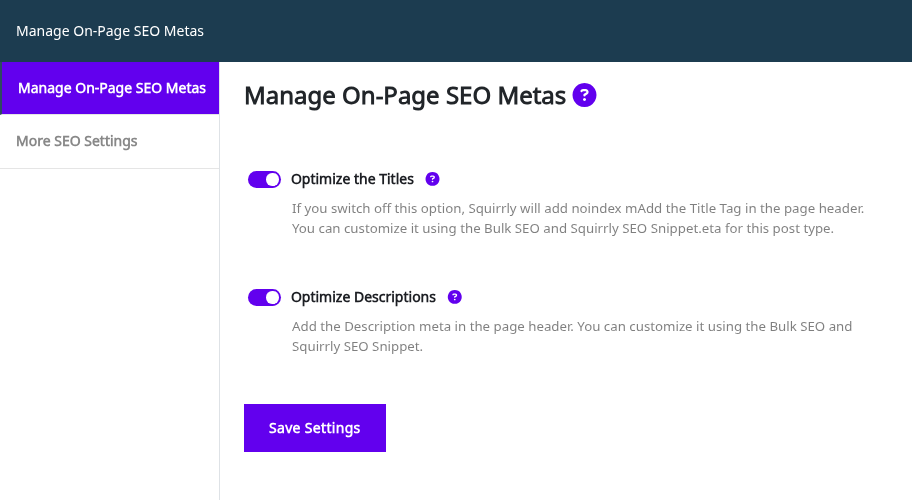
On the demo site, SEO Metas shows two switches and two tabs in SEO Beginner view. Optimize Keywords, Add Canonical Meta Link and Add Robots Meta are on by default, so the canonical and robots tags are printed while their switches are hidden.
Manage On-Page SEO Metas in SEO Beginner view.
Live Assistant Settings in SEO Beginner view
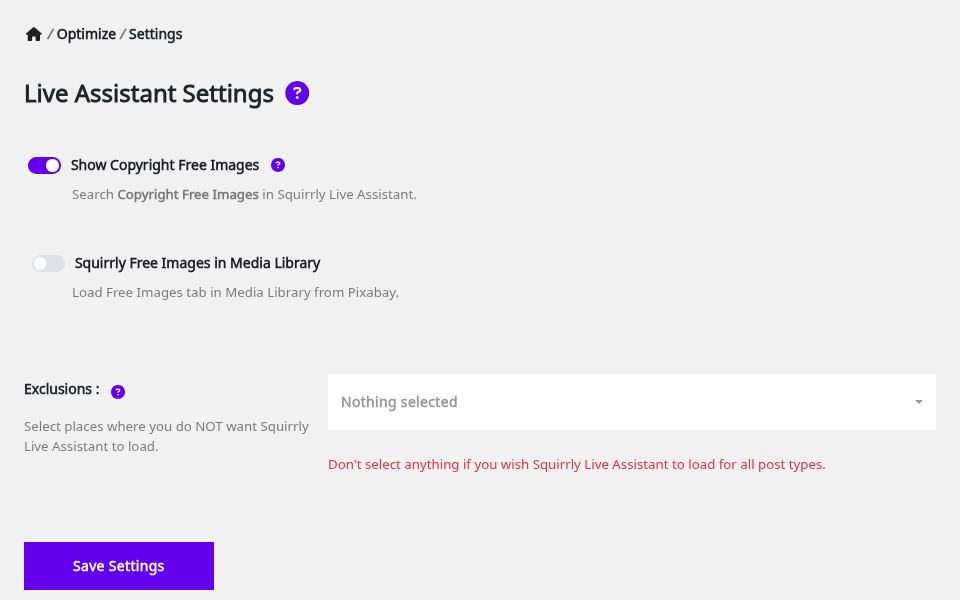
Squirrly > Optimize > Settings keeps Show Copyright Free Images, Squirrly Free Images in Media Library and Exclusions. The five options in the table appear after you click SEO Expert. Live Assistant settings explains each one.
Live Assistant Settings with the advanced options hidden.
What the onboarding modes turn on
The first onboarding screen has three buttons: No SEO Configuration, SEO Recommended Mode and SEO Expert Mode. On a new install, Home shows “First, you need to activate the recommended mode or the expert mode!” with a Let’s do this button that opens it.
SEO Recommended Mode and SEO Expert Mode turn on the same 20 settings. The only difference is the view: Recommended keeps SEO Beginner, Expert switches to SEO Expert.
Setting
Where you find it
New install
SEO Automation
Optimize > Automation
Off
On-Page SEO METAs
Technical SEO > SEO Metas
Off
Frontend SEO Snippet
Technical SEO > SEO Metas
Off
Sitemap XML
Technical SEO > Tweaks & Sitemaps
Off
Ping New Posts to Search Engines (no switch since 14.2.9, Google retired the ping)
None
Off
Automatically Exclude URLs With ‘Noindex’
Sitemap XML (SEO Expert view)
Off
Redirect Attachments Page
SEO Links and Redirects
Off
Robots.txt File
Tweaks & Sitemaps, Robots File
Off
Llms.txt File
Tweaks & Sitemaps, LLMs File
On
JSON-LD Structured Data
Technical SEO > Rich Snippets
Off
Open Graph Optimization
Technical SEO > Social Media
Off
Twitter Card Optimization
Technical SEO > Social Media
Off
Fetch Snippet on Social Media
Optimize > Settings (SEO Expert view)
Off
Google Analytics Tracking
Connect Tools, Place Trackers
Off
Facebook Pixel Tracking
Connect Tools, Place Trackers
Off
Webmaster Tools
Connect Tools, Webmaster Extras
Off
Load the AMP Support on AMP pages
Connect Tools, AMP
Off
Auto-Indexing
LLM Indexing
On
Use Inner Links Assistant
Focus Pages > Settings
Off
Redirects
Redirects (needs the Squirrly SEO Advanced Pack)
Off
Turning a switch on doesn’t fill in your data. Webmaster Tools prints a verification tag only for the codes you add in Webmaster Extras, and Google Analytics Tracking needs your tracking ID in Connect Tools.
No SEO Configuration sets the same 20 settings off, plus Favicon Site Icon, and skips to step 5, Mention the topic of your site. Install Squirrly SEO Plugin walks through the other onboarding steps.
What stays off in both modes
These switches aren’t part of the onboarding set, so they keep their default after you pick a mode.
The onboarding isn’t in the left menu. Open admin.php?page=sq_onboarding in your WordPress admin and click one of the three buttons.
Clicking SEO Recommended Mode or SEO Expert Mode again sets all 20 switches from the table back on, including any you turned off by hand. Write down your changes first, or make a backup in Import and Data. To change only the view, use the switch in the top bar instead.
Troubleshooting
An option from a tutorial isn’t on my screen
Click SEO Expert in the top bar and reload the screen. Most options marked as advanced in the table above only show in that view.
Tweaks & Sitemaps is missing from the menu
The tab shows when Sitemap XML, SEO Links, Robots.txt File, Llms.txt File or Favicon Site Icon is on, or in SEO Expert view. Turn one of them on in Squirrly > All Features.
The SEO Beginner and SEO Expert links aren’t in the top bar
The top bar shows them only while the menu option show_seo is on. On a plugin rebuilt with the Web Dev Kit, the menu options come from the Dev Kit, so check them there.
“You do not have permission to perform this action” after the click
Your user doesn’t have the Squirrly SEO Admin role. Ask an administrator to change it in Users > All Users.
Frequently asked questions
Does SEO Expert turn on more features?
No, it only shows more options; the onboarding mode and All Features decide what is on.
Is SEO Recommended Mode different from SEO Expert Mode?
Both turn on the same 20 settings, and SEO Expert Mode also switches the view to SEO Expert.
Is the view saved for each user?
No, it is one setting for the whole site.
Do hidden options stop working in SEO Beginner view?
No, a hidden option keeps its saved value and keeps working.
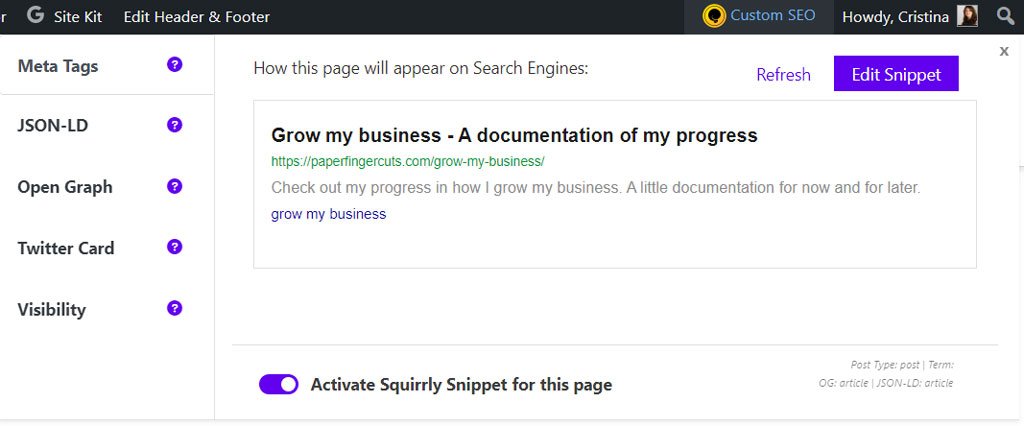
3) You can use the snippet from the front-end of your site. Once on the front end look for the Custom SEO orange button on the admin bar above.
How do I make sure all my settings are made properly and that I can get results in the first 14 Days?
Question/Issue:
“Greetings! I just signed up for your SEO software for my news blog. I will upgrade if results are achieved within these 14 days. Kindly let me know and take a look at my account if the setting is done correctly for optimization.”
Answer:
You’ll know if the settings are made properly just by following the Next SEO Goals for each of the 14 days and by looking in the Squirrly Assistant sidebar. If you see grey elements/tasks in the right sidebar, that don’t have a check mark next to them, click on them to see how to complete them.
Once you complete all the Next SEO Goals it means you’ve successfully set everything up.
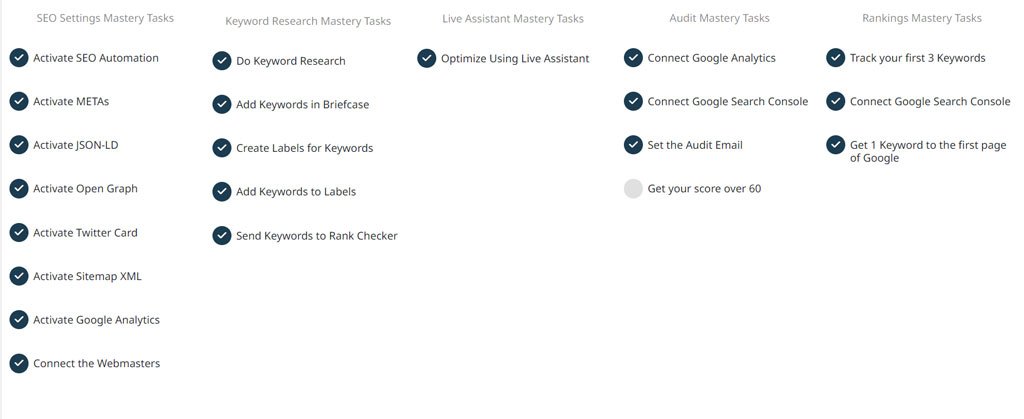
You can also use the Squirrly Settings Assistant and complete all of the Mastery Tasks it shows you for:
SEO Configuration
Keyword Research
Live Assistant
SEO Audit
Google Rankings
Before you leave
Future of AEO GEO and AI Search!
Free Now. Free Forever.
Trusted by 139,000+ students who've learned from AISQ Growth