
Rich Snippets: Reusable Schemas
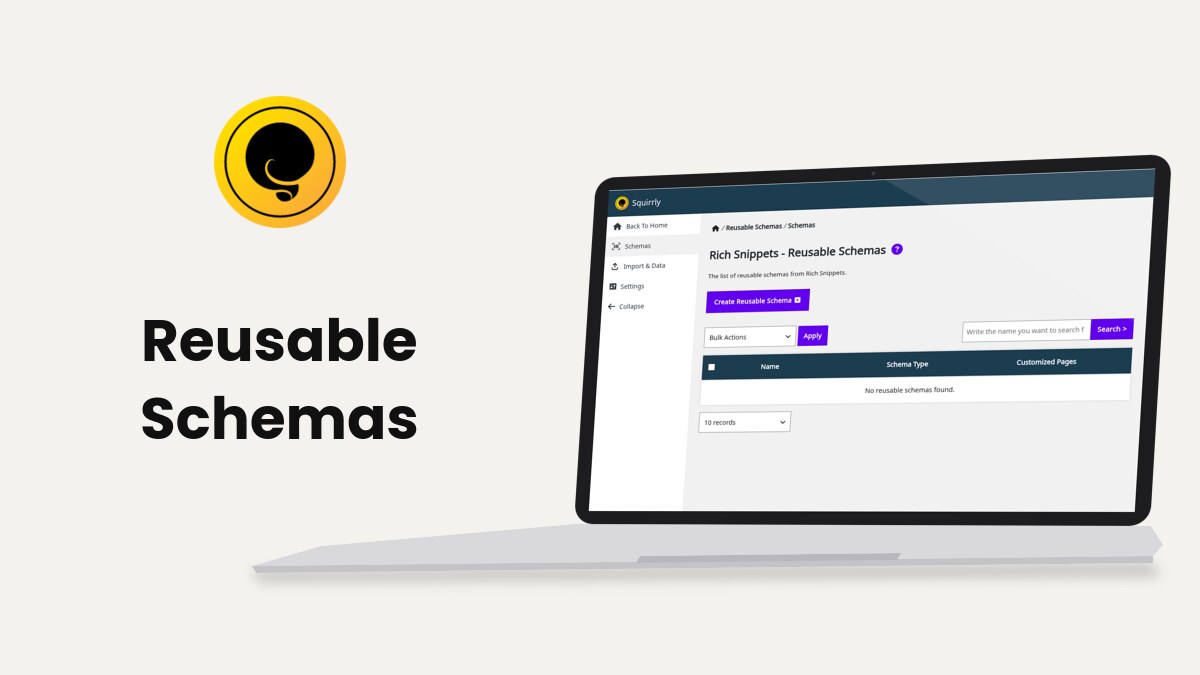
Reusable Schemas lets you build a schema once in Squirrly > Reusable Schemas > Schemas and use it on every page of a post type, with values that change from page to page. It needs the Squirrly SEO Advanced Pack.
The screens come from demo.squirrly.co, a test store for cat food, with Squirrly SEO 14.2.9 and the Advanced Pack 2.5.11.
What a reusable schema does
A reusable schema is a schema form with patterns in its fields instead of fixed text. A Product schema with {{title}} in the name and {{customfield(price)}} in the price works on every product, because each page fills the patterns with its own values.
Pages that use a reusable schema follow it live. Change the template, and every page that didn’t save its own values shows the change on the next load.
The All Features card puts it in one sentence: it creates “templates that match custom fields and post types, which can then be automatically applied” to your pages.
Turn on Reusable Schemas
- Install and activate the Squirrly SEO Advanced Pack. The free plugin offers it on Squirrly > Technical SEO > Rich Snippets with Install now – it’s free.
- Go to Squirrly > All Features and type “schema” in the search box (“Enter a feature you want to search for”).
- Turn on Custom Rich Snippets if it’s off.
- Turn on Reusable Schemas.

Reusable Schemas is off by default. The Reusable Schemas menu item shows only when both switches are on, and JSON-LD Structured Data has to be on for any schema to reach the page. JSON-LD Structured Data covers that switch.
Where to find it
The screen is called Rich Snippets – Reusable Schemas, with the line “The list of reusable schemas from Rich Snippets.” Its left menu has three items:
| Menu item | What it opens |
|---|---|
| Schemas | The list of reusable schemas |
| Import & Data | Squirrly > Technical SEO > Import & Data, with the schema backups |
| Settings | Squirrly > Technical SEO > Rich Snippets |
Create a reusable schema from the list
- Go to Squirrly > Reusable Schemas > Schemas.
- Click Create Reusable Schema.
- In the Add New Schema window, click the + next to the schema type, for example Product or Recipe.
- In Edit Reusable Schema, change Reusable Name. It starts as “Reusable” plus the type, such as “Reusable Product”.
- Fill the fields with fixed text or with patterns.
- Click Save.


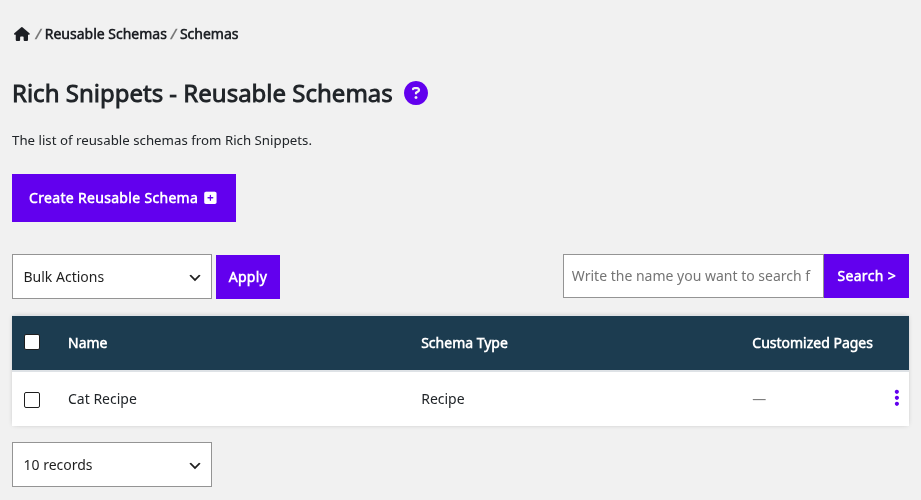
Pick a name that says where the schema goes, for example “Product with brand” or “Recipe with video”. The name is what you’ll see in Automation and in the SEO Snippet.
Save a page’s schema as reusable
The other way starts from a page that already has the schema you want, set in its SEO Snippet. Use a page with its custom fields filled in, so the patterns for those fields show up.
- Open the page in the editor, or find it in Squirrly > Optimize > Bulk SEO.
- In the SEO Snippet box, go to Rich Snippets. On the Schemas tab, click the edit icon of the schema.
- Change the fields and pick patterns where a value should come from the page.
- Click Save As Reusable, type the Reusable Name and click Save Reusable.
The form says “You’ll need to add it manually from reusable schemas after you save.” The page you started from keeps its own schema until you add the reusable one to it. A schema that is already reusable shows “It’s already a reusable.” instead of the button.
Patterns from custom fields
When you edit a schema on a page, the pattern list of each field includes the custom fields saved on that page. A plain field appears as {{customfield(field_name)}}. A field that stores an array, like an ACF group or a serialized meta, gets one {{customfields(field_name|key)}} per key, and each of those reads one key. The list says “Custom field data based on the current post ID.” The Squirrly SEO Patterns List has the other patterns.
Fields from ACF and from themes both show up, as long as the page has a value in them. Fields whose names start with _, like _thumbnail_id, are left out of the list. Use ACF fields in Squirrly SEO schemas covers relation fields, like an author picked from a People post type.
Example: one Recipe schema for every recipe
The demo store keeps the times and the yield of each recipe in custom fields: recipe_prep_time, recipe_cook_time and recipe_yield, plus recipe_instructions for the steps. The Cat Recipe reusable schema points its fields at them:
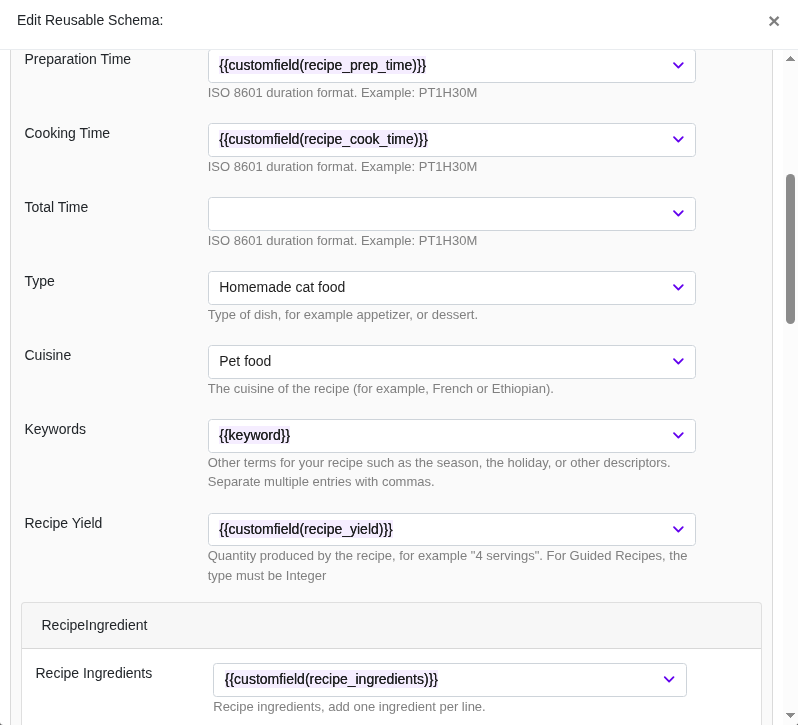
Each recipe page then prints its own values. “Turkey purée for older cats” gets "prepTime": "PT5M" and "cookTime": "PT20M", and its steps in recipeInstructions. A pattern takes the whole value of the field, so a field that holds several items gives one line, not a list.
Google only shows a Recipe that has ingredients and instructions, and Squirrly doesn’t publish a Recipe schema with either one empty. Fill both, with fixed text or with patterns.
Use a reusable schema on pages
| For | Where | What to do |
|---|---|---|
| Every page of a post type | Squirrly > Optimize > Automation | Click the post type and pick the reusable schema by its name in JSON-LD Type, then Save Settings |
| One page | The page’s SEO Snippet > Rich Snippets | Click Add Reusable Schema, then the + next to the schema, then Save |

The Add Reusable Schema window has a Search Schema box for long lists. With no reusable schema saved, it says “No reusable schemas found.” and links to the list.
On a page that gets the schema from Automation, the schema name in the SEO Snippet is followed by “(Automation)”. Automation explains how several JSON-LD types work on one post type.
Customized Pages and Update All Pages
The list has three columns: Name, Schema Type and Customized Pages. The tooltip of the last one says: “Pages that saved their own values on top of this reusable schema. All the other pages already follow it.”
A page counts as customized once its SEO Snippet has saved values of its own for that schema. The page keeps those values, and the reusable schema fills only the fields left empty.
To bring every page back to the template:
- On Squirrly > Reusable Schemas > Schemas, open the three-dot menu of the schema.
- Click Update All Pages.
- Confirm the message: “This updates every page using this reusable schema. The values changed on those pages will be replaced by the reusable schema. Continue?”
Squirrly reports the count, for example “Updated 3 pages with this reusable schema.” The values typed on those pages are deleted, so note any you want to keep before you confirm. Items added to the template later, such as extra FAQ questions or reviews, then reach every page.
Edit or delete a reusable schema
Open the three-dot menu of a schema:
- Edit Schema opens the form with the saved values. Pages that follow the schema get the change on the next load.
- Delete Schema asks “Do you want to delete Schema?” and removes it.
- Update All Pages resets the customized pages, as described above.
To delete several schemas, tick them, pick Delete in Bulk Actions and click Apply. Use the search box (“Write the name you want to search for”) to find a schema by name.
Back up, restore and import schemas
The Advanced Pack adds three panels to Squirrly > Technical SEO > Import & Data:
| Panel | Button | What it does |
|---|---|---|
| Backup Schemas | Download Schemas | Downloads all the Squirrly schemas for Rich Snippets |
| Restore Schemas | Restore Schemas | Uploads a file you saved with Download Schemas |
| Import Schemas | Import Schemas | Copies the schemas from Rank Math |

The import warns “Note! It will overwrite the same schemas you already set.” Download a backup first. Import and Data covers the other panels on that screen.
Troubleshooting
The Reusable Schemas menu item is missing
Turn on both Custom Rich Snippets and Reusable Schemas in Squirrly > All Features.
“Unable to delete reusable schema. Check if it’s in use.”
Some pages still have their own saved copy of the schema, and the Customized Pages column counts them. Remove the schema from those pages in their SEO Snippet, then delete it again.
“No reusable schemas found.”
The Add Reusable Schema window shows this when the list is empty. Create one in Squirrly > Reusable Schemas > Schemas.
“Not published yet – Google needs: …”
On that page, a required field of the schema has no value. The message names the field. Fill the custom field on the page, or put a fixed value in the template.
“Error! The backup is not valid.”
The file you uploaded in Restore Schemas isn’t a schema backup from Squirrly. Use the file from Download Schemas.
Frequently asked questions
Does Reusable Schemas work without the Advanced Pack?
No, the feature is part of the Squirrly SEO Advanced Pack.
Do pages update when I edit the reusable schema?
Yes, except the values a page saved on its own, which stay until you run Update All Pages.
Can one post type use two reusable schemas?
Yes, JSON-LD Type in Automation takes several types, and reusable schemas are listed there by name.
Which plugin can I import schemas from?
Rank Math is the plugin listed in Import Schemas.
Related tutorials
- JSON-LD Structured Data: the Rich Snippets settings behind every schema.
- Use ACF fields in Squirrly SEO schemas: author, reviewer and other ACF values in a reusable schema.
- Automation: give a post type its JSON-LD types.
- How to Incorporate Values from Custom Fields: custom field patterns in schemas and metas.
- Review and AggregateRating schemas: how ratings differ from the other types.







0 Comments