Sitemap XML Settings
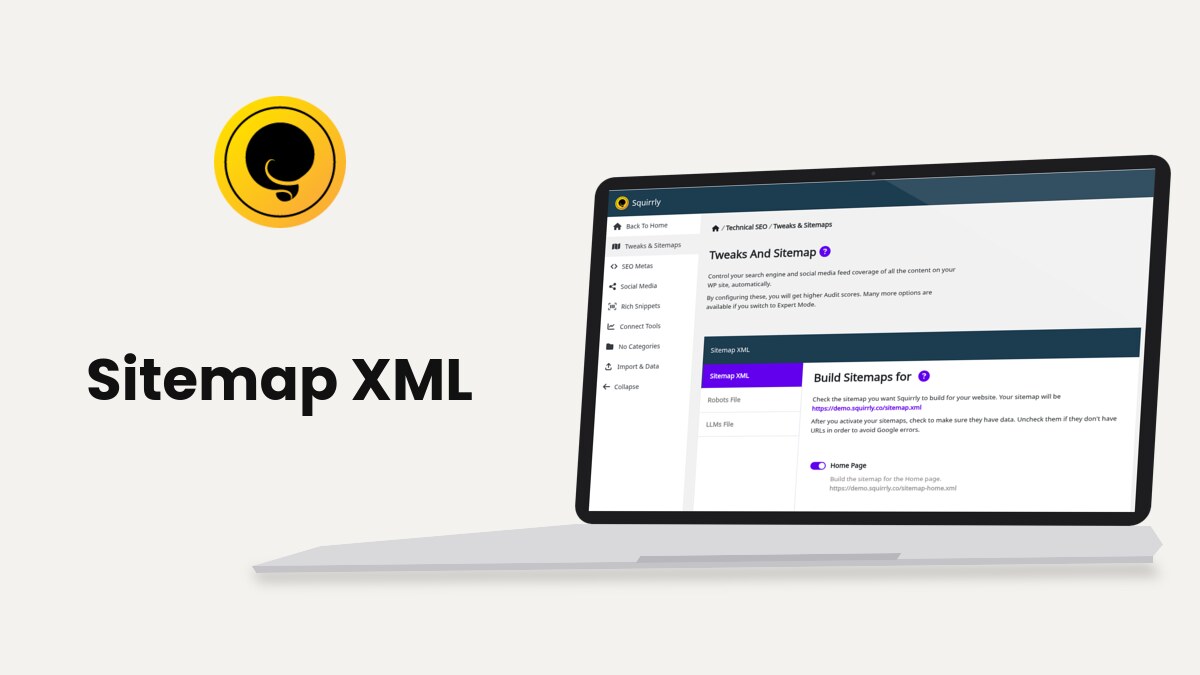
Squirrly SEO builds your XML sitemap at /sitemap.xml from Squirrly > Technical SEO > Tweaks & Sitemaps > Sitemap XML, with one sub-sitemap for each content type you switch on. The same tab sets images, videos, the cache, the browser style and the number of links per sitemap page.
The screenshots and the sitemap below come from demo.squirrly.co, a test store for cat food, with Squirrly SEO 14.2.11 and the Advanced Pack 2.5.12.
What the Squirrly sitemap contains
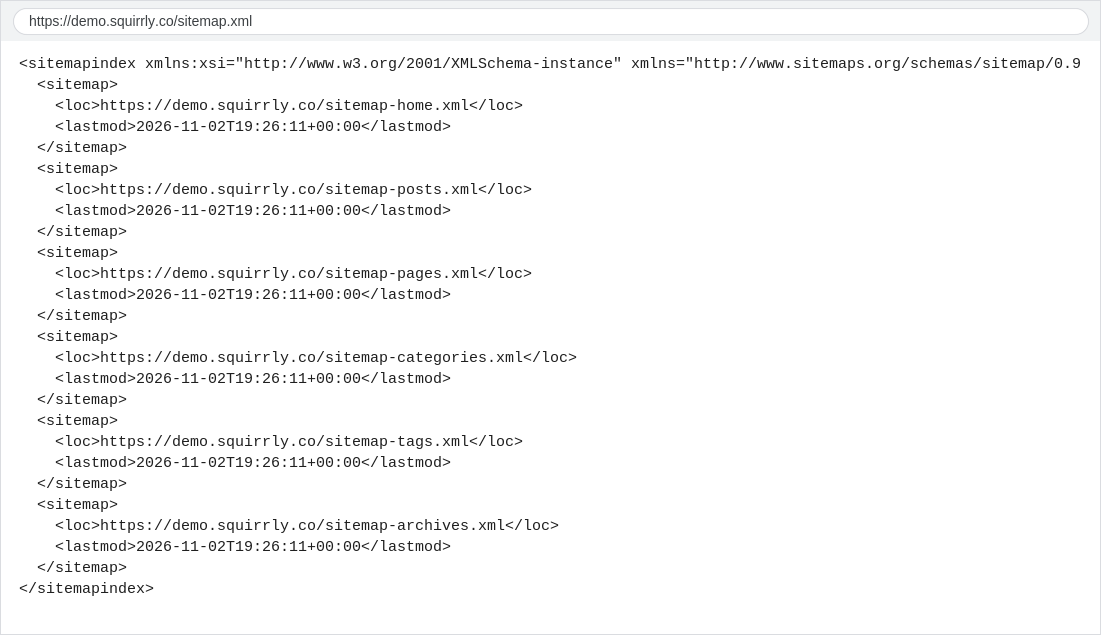
/sitemap.xml is an index. It lists one sub-sitemap per content type that is on and has published content. On the demo site it lists six: sitemap-home.xml, sitemap-posts.xml, sitemap-pages.xml, sitemap-categories.xml, sitemap-tags.xml and sitemap-archives.xml.
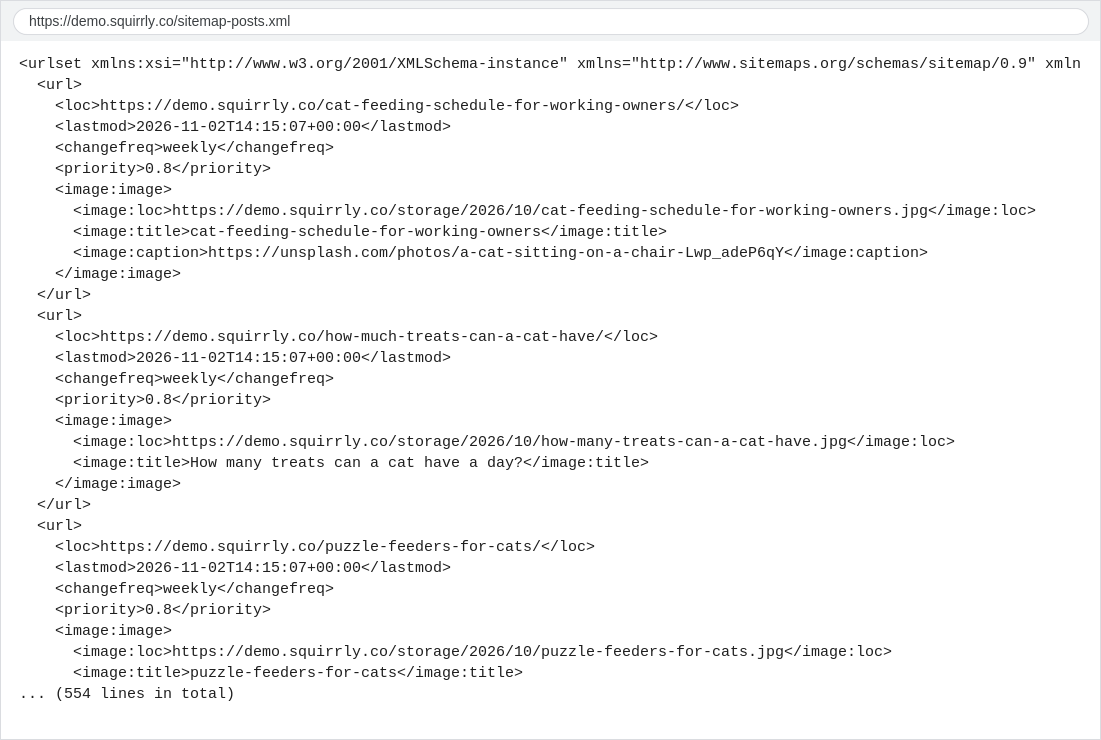
Each entry in a sub-sitemap has the URL, the last change date, a change frequency, a priority and, when the post has a featured image, an image tag. This is the first post in https://demo.squirrly.co/sitemap-posts.xml, shortened:
<url>
  <loc>https://demo.squirrly.co/cat-feeding-schedule-for-working-owners/</loc>
  <lastmod>2026-11-02T14:15:07+00:00</lastmod>
  <changefreq>weekly</changefreq>
  <priority>0.8</priority>
  <image:image>
    <image:loc>https://demo.squirrly.co/storage/2026/10/cat-feeding-schedule-for-working-owners.jpg</image:loc>
  </image:image>
</url>
Squirrly leaves out password-protected posts and any page with Show it in Sitemap.xml switched off in its SEO Snippet. A post type with Include In Sitemap off in Automation is left out too, and the Sitemap XML tab marks it “Deactivated from SEO Automation.” in red.
When the Robots.txt File feature is on, every active sitemap is also listed in robots.txt as a “Sitemap:” line.
Turn on the sitemap and find the settings
- Go to Squirrly > All Features.
- On the Sitemap XML card, click the switch if it reads click to activate.
- Click start feature setup >>, or go to Squirrly > Technical SEO > Tweaks & Sitemaps and click Sitemap XML in the left column of the panel.
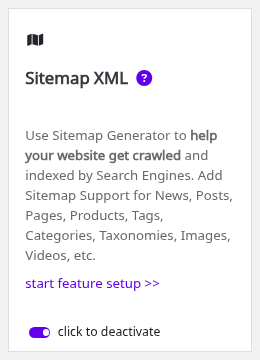
The switch is off on a new install. The setup wizard turns it on when you pick SEO Recommended Mode or SEO Expert Mode.
When you save the tab, Squirrly renames a physical sitemap.xml in the WordPress root to sitemap_ren followed by a timestamp, so the web server stops sending the old file.
Choose the sitemaps to build
The screen asks you to check each sitemap you activate for data, and to uncheck the empty ones to avoid errors in Google.
- Go to Squirrly > Technical SEO > Tweaks & Sitemaps > Sitemap XML.
- Under Build Sitemaps for, switch on the content types your site publishes.
- Click Save Settings.
- Open each link under a switch, for example https://demo.squirrly.co/sitemap-posts.xml, and check that it lists URLs.
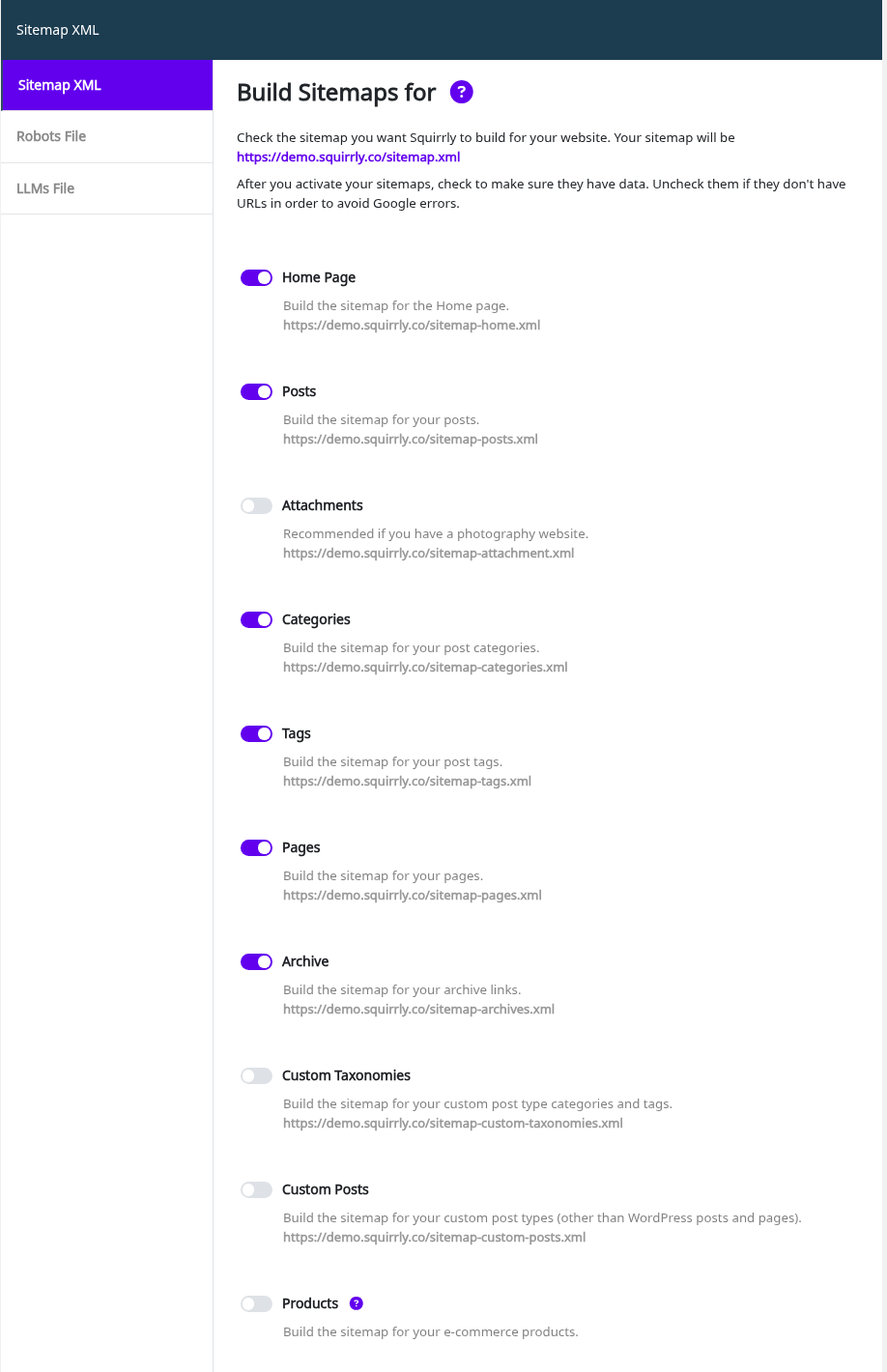
| Switch | File | Default |
|---|---|---|
| Home Page | sitemap-home.xml | On |
| Google News (Expert) | sitemap-news.xml | Off |
| Posts | sitemap-posts.xml | On |
| Attachments | sitemap-attachment.xml | Off |
| Categories | sitemap-categories.xml | On |
| Tags | sitemap-tags.xml | On |
| Pages | sitemap-pages.xml | On |
| Archive | sitemap-archives.xml | On |
| Custom Taxonomies | sitemap-custom-taxonomies.xml | Off |
| Custom Posts | sitemap-custom-posts.xml | Off |
| Products (WooCommerce only) | sitemap-product.xml | On |
Attachments is marked “Recommended if you have a photography website.” Custom Posts covers every public post type other than posts and pages, like the cat_recipe type on the demo site.
Archive lists one URL for every month that has posts, plus the archive page of custom post types. Attachments stays out of the sitemap while attachment pages redirect to the file. WordPress does that by default since version 6.4, and so does Redirect Attachments Page in SEO Links.
WooCommerce products
The Products switch shows only when WooCommerce is active. Product categories and product tags are custom taxonomies, so they go in sitemap-custom-taxonomies.xml once Custom Taxonomies is on. Empty terms are left out.
Leave products out of the sitemap
Switch Products off for the whole catalog. For single products, switch off Show it in Sitemap.xml in the product’s SEO Snippet in Bulk SEO. Out-of-stock products can be removed with a short filter, see Exclude out-of-stock products from the sitemap.
Include product searches in the sitemap
New in Squirrly SEO 14.2.7. Squirrly can turn WooCommerce product searches into indexable /search/term/ pages and list them in sitemap-search.xml.
- Go to Squirrly > Technical SEO > Rich Snippets > WooCommerce.
- Switch on Include Product Searches In Sitemap.
- Click Save Settings.
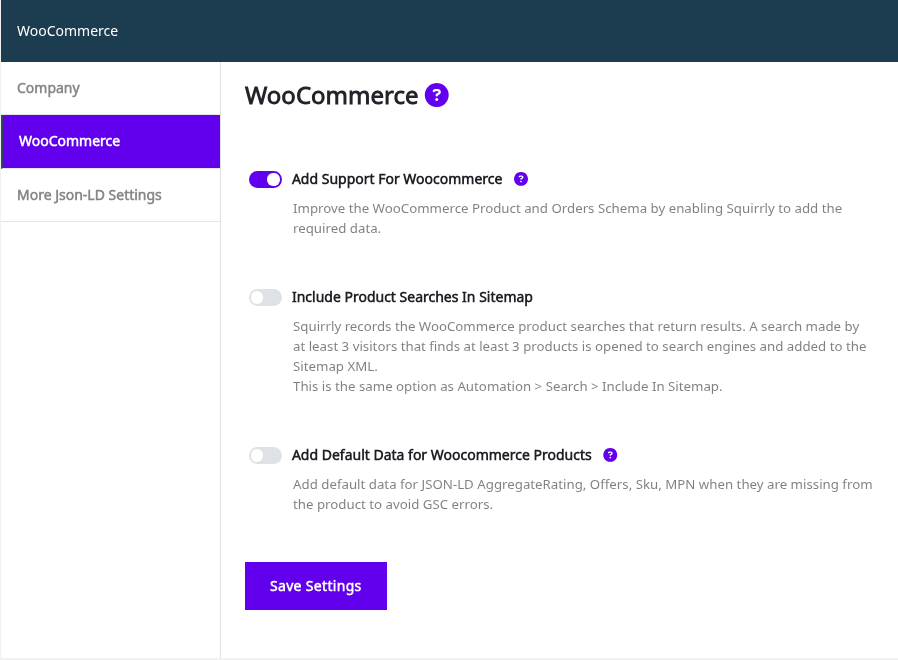
The help text explains the rule: a search made by at least 3 visitors that finds at least 3 products is opened to search engines and added to the sitemap. Bots and logged-in editors don’t count as visitors. All other searches keep noindex.
The option shows only when WooCommerce and the Squirrly sitemap are both on. It is the same switch as Automation > Search > Include In Sitemap, and sitemap-search.xml appears in the index only after the first search qualifies.
Leave a post type or a page out of the sitemap
A public post type that has its own pages, like a plugin’s chat threads or forms, shows up in sitemap-custom-posts.xml until its Automation settings say otherwise. To take a whole post type out:
- Go to Squirrly > Optimize > Automation and add the post type with Add Post Type (see SEO Automation).
- Open its tab, switch off Include In Sitemap and click Save Settings.
The post type’s sitemap is then empty and no longer listed in sitemap.xml. To take out single pages, such as cart, checkout or login pages:
- Edit the page and open the Visibility tab of its SEO Snippet. For many pages, use the same tab in Bulk SEO.
- Switch off Show it in Sitemap.xml and save.
Another way is to set those pages to noindex and turn on Automatically Exclude URLs With ‘Noindex’ (SEO Expert view). A Disallow rule in robots.txt doesn’t change the sitemap: the sitemap doesn’t read robots.txt.
Post types that aren’t publicly queryable
sitemap-custom-posts.xml takes only public post types registered with publicly_queryable set to true. A custom post type registered with publicly_queryable set to false stays out of the sitemap, whatever its Automation tab says. In Custom Post Type UI, the setting is called Publicly Queryable.
With that setting off, WordPress doesn’t run front-end queries for the post type, so its posts have no public pages. To keep the pages and drop only the sitemap entries, switch off Include In Sitemap as shown above.
Blogging Frequency
Blogging Frequency answers “How often do you write new posts?” and sets the changefreq and priority values in every sub-sitemap. The choices are every hour, every day, 1-3 times per week (the default), 1-3 times per month and 1-3 times per year. With 1-3 times per week, posts get weekly and priority 0.8, as in the example above.
This option and the ones below marked Expert show only after you click SEO Expert in the top bar of any Squirrly screen. What gets configured automatically in SEO Beginner mode? lists what stays hidden.
All Sitemap XML options
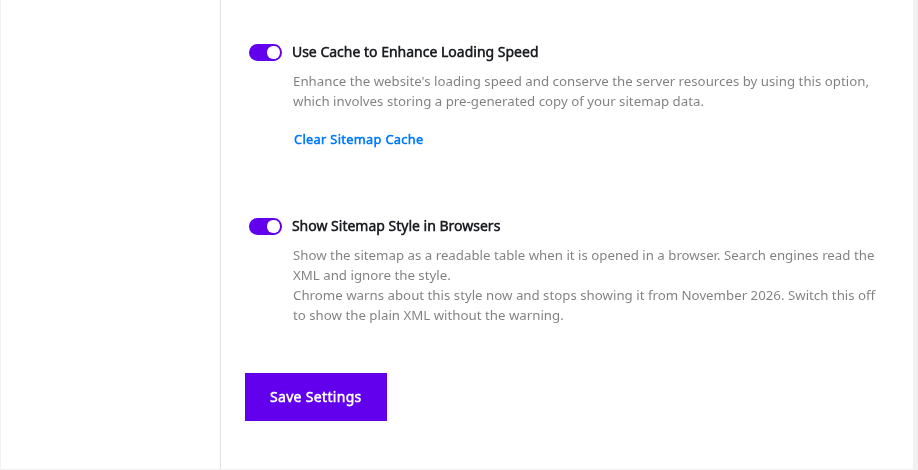
| Label | What it does | Default |
|---|---|---|
| Combine Languages in Sitemap (Expert, Polylang only) | Puts every language in the same sitemap.xml. Off means one sitemap per language, for example /en/sitemap.xml | Off |
| Include Images in Sitemap (Expert) | Adds an image tag for each post with a featured image | On |
| Include Videos in Sitemap (Expert) | Adds a video tag for each post with an embedded video | On |
| Automatically Exclude URLs With ‘Noindex’ (Expert) | Removes pages that have noindex from the sitemap | Off |
| Use Cache to Enhance Loading Speed | Serves a stored copy of the sitemap. Clear Sitemap Cache rebuilds it | On |
| Show Sitemap Style in Browsers | Shows the sitemap as a readable table in a browser. Search engines read the XML | On |
| Sitemap Pagination (Expert) | Links per sitemap page: 5, 10, 50, 100, 500, 1000 or 5000 | 500 |
The setup wizard switches on Automatically Exclude URLs With ‘Noindex’ when you pick SEO Recommended Mode or SEO Expert Mode.
Google News sitemap
The help text says “Only if you have a News website. Make sure you submit your website to Google News first.” Switch on Google News under Build Sitemaps for (Expert mode) to build sitemap-news.xml. Each post type has its own Include In Google News Sitemap switch in Automation, on for posts by default.
Images in the sitemap
With Include Images in Sitemap on, each post with a featured image gets an image:image block with the image URL, title and caption. The demo posts above show it.
Videos in the sitemap
Include Videos in Sitemap adds a video tag for each post with an embedded video. JSON-LD Video Schema covers the video data on the page itself.
Ping new posts (removed in 14.2.9)
Squirrly SEO 14.2.9 removed the Ping New Posts to Search Engines switch, because Google retired its sitemap ping. New and updated posts now reach search engines through LLM Indexing (IndexNow and the Google Indexing API). Submit the sitemap in Google Search Console once, too.
Sitemap cache
Squirrly stores each sitemap after it builds it. If a new post doesn’t show up, click Clear Sitemap Cache. Empty sitemap pages and sitemap-search.xml are never cached.
Show Sitemap Style in Browsers
New in Squirrly SEO 14.2.7. The style turns the XML into a table when a person opens the sitemap in a browser. The help text says “Chrome warns about this style now and stops showing it from November 2026. Switch this off to show the plain XML without the warning.” Search engines get the same XML either way.
Sitemap pagination
Sitemap Pagination splits long sitemaps into pages. At the default of 500, a store with 1,200 products gets three product sitemap pages, all listed in /sitemap.xml.
Multilingual sites with Polylang
Combine Languages in Sitemap shows only when Polylang or Polylang Pro is installed. Off, each language has its own sitemap under its language slug.
Check your sitemap
Open /sitemap.xml on your domain. It is an index that lists one sitemap for each content type you picked:
Each sitemap lists the URLs with their last change date and, when Images in the sitemap is on, the images of the page:
Submit the sitemap to Google Search Console
- Open Google Search Console and pick your property.
- Go to Sitemaps.
- Type sitemap.xml in Add a new sitemap and click Submit.
Google reads the index and finds every sub-sitemap from it. How to Submit Your sitemap.xml has the same steps for Bing. New URLs can also go out right away through LLM Indexing.
Troubleshooting
/sitemap.xml shows a 404 page
Check that the Sitemap XML card is on. Without pretty permalinks the sitemap lives at /?sq_feed=sitemap, and the link under Build Sitemaps for always shows the right address. If the server answers 404 before WordPress loads, the rules for Apache and NGINX are in How to Set up sitemap.xml on Apache Servers? and How to Set up sitemap.xml on NGINX Servers?.
“Deactivated from SEO Automation.”
The post type has Include In Sitemap off in Automation. Click the red link to open that post type and switch it on.
A new post is missing from the sitemap
Click Clear Sitemap Cache. If it’s still missing, check Show it in Sitemap.xml and the noindex setting in the post’s SEO Snippet.
Chrome shows a warning on the sitemap
Switch off Show Sitemap Style in Browsers and save. The sitemap opens as plain XML.
Frequently asked questions
Where is my sitemap?
At https://yourdomain.com/sitemap.xml, with the exact link under Build Sitemaps for.
Does Squirrly write a sitemap.xml file on the server?
No, WordPress builds the sitemap on request, and the cache keeps its copies in a Squirrly cache folder, not in the site root.
Can I remove noindex pages from the sitemap?
Yes, switch on Automatically Exclude URLs With ‘Noindex’ in Expert mode.
Why don’t I see Blogging Frequency or Sitemap Pagination?
They show only in SEO Expert mode.
Do product searches need the Advanced Pack?
No, Include Product Searches In Sitemap is in the free plugin and needs WooCommerce.
Related tutorials
- What’s A Sitemap And Why Do I Need One?: the short version.
- Robots.txt File Settings: where your sitemaps get listed for crawlers.
- Automation: the sitemap, noindex and Google News switches per post type.
- Remove the no-index pages from the sitemap: one option, step by step.
- LLM Indexing: push new URLs to IndexNow and Google.
- How to Include Web Stories in Your Sitemap using Squirrly: Web Stories as a custom post type.