Squirrly SEO Live Assistant
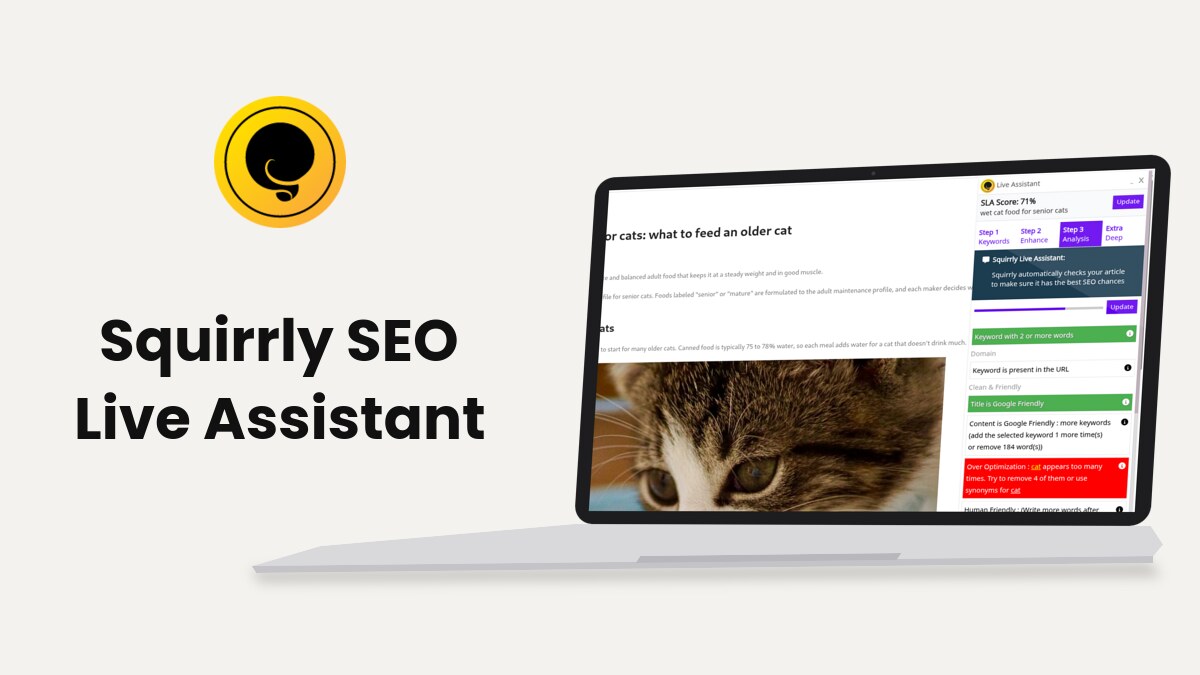
The Squirrly SEO Live Assistant is a box in the WordPress post editor that checks a post, page or product for one or more keywords from your Briefcase and gives it an SLA Score. You open it from Squirrly > Optimize > Optimize Posts or from any post you edit, and you set it up in Squirrly > Optimize > Settings.
The screenshots come from demo.squirrly.co, a test store for cat food, with Squirrly SEO 14.2.10 and the Advanced Pack 2.5.12.
What the Live Assistant does
The box has four tabs: Step 1 Keywords, Step 2 Enhance, Step 3 Analysis and Extra Deep. You pick keywords in step 1, find images and sources in step 2, and turn the tasks green in step 3. Extra Deep sends the page to Focus Pages for a deeper audit.
The Live Assistant needs the plugin connected to Squirrly Cloud. The keywords come from the Briefcase, so do the keyword research first.
Where to find it
| Place | What you do there |
|---|---|
| Squirrly > Optimize > Optimize Posts | Click Add New and pick a post type to start new content with the Live Assistant |
| The post editor | The box loads on every public post type you didn’t exclude in Settings |
| Posts, Pages, Products lists | The Squirrly column shows the optimization bar and the keyword, or Optimize it with SLA for posts with no keyword yet |
| Squirrly > AI Research > Briefcase | Optimize for this in a keyword’s menu opens a new post with that keyword loaded |
| Squirrly > Optimize > Settings | Live Assistant Settings, covered below |
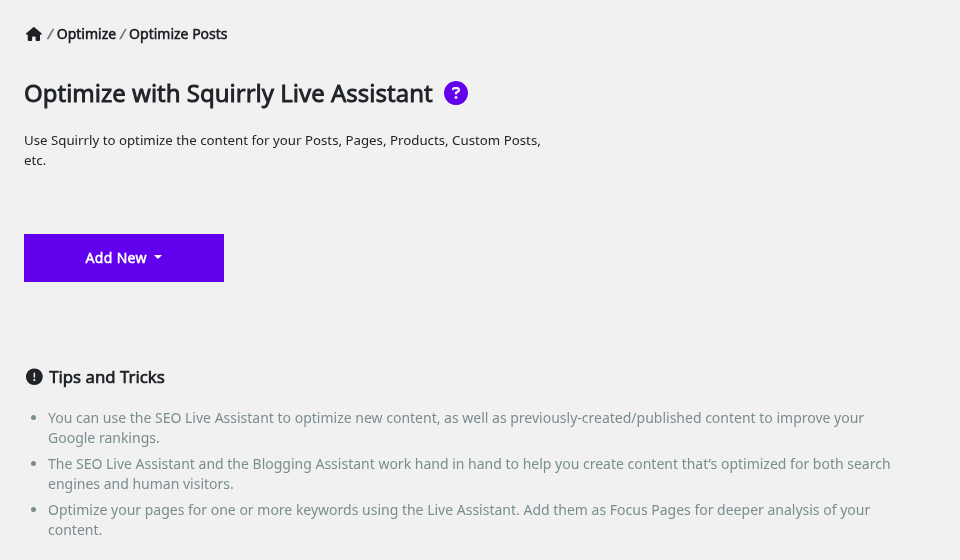
The Live Assistant box in the editor
On the demo site the box sits minimized in the bottom right corner of the block editor, with the link Add a keyword from Briefcase. That’s the Floating Box, the type the plugin uses by default.
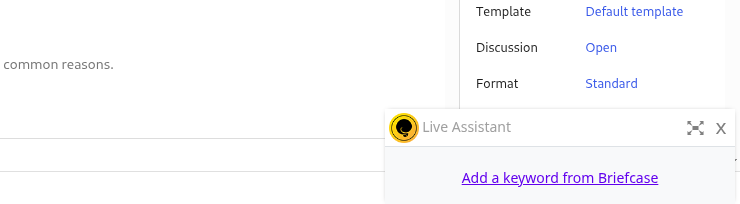
- Click the expand icon to open the box, and _ to minimize it again.
- Drag the box by its header to move it somewhere else on the screen.
- Click x to close it.
The Update button next to the SLA Score reloads the checks after you change the text. If the box never loads, see Troubleshooting.
Step 1: add keywords from the Briefcase
- Open a post in the editor, or start one from Squirrly > Optimize > Optimize Posts > Add New.
- Click Add a keyword from Briefcase, or the Step 1 Keywords tab.
- Type in Search in Briefcase …, or click a colored label bar to show only the keywords with that label.
- Move the mouse over a keyword and click Use Keyword.
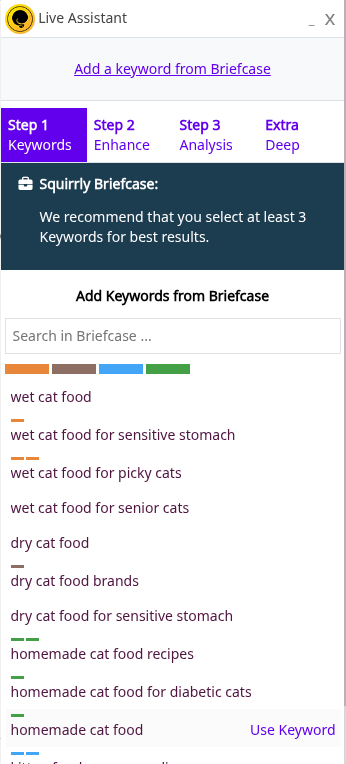
The help panel says “We recommend that you select at least 3 Keywords for best results.” An empty Briefcase shows “There are no keywords saved in briefcase yet”. Add keywords from Find Keywords first.
Optimize one post for several keywords
Each keyword you add gets its own score in step 1. The keyword with the star is the one step 3 analyzes, and its score is the SLA Score at the top. Click another keyword in the list to analyze the post for it.
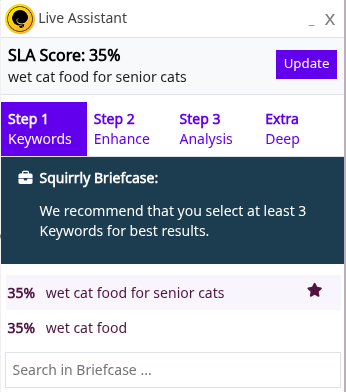
On the demo, post 194 started as “What to feed a senior cat” with “wet cat food for senior cats” as the main keyword and “wet cat food” as the second one. The FAQ on keyword counts answers how many you can add.
Step 2: the Blogging Assistant
Step 2 Enhance opens the Squirrly Blogging Assistant. It searches for the selected keyword and has four tabs, shown as icons.
| Tab | What it finds |
|---|---|
| Images | Images for the keyword, with the filter Show only Copyright Free images |
| Wiki | Wikipedia articles, “to get more insight or quick fact-checking on your topic” |
| Blogs | Topic-related articles written by other bloggers |
| My articles | Posts already on your WordPress site that you can cite or link to |
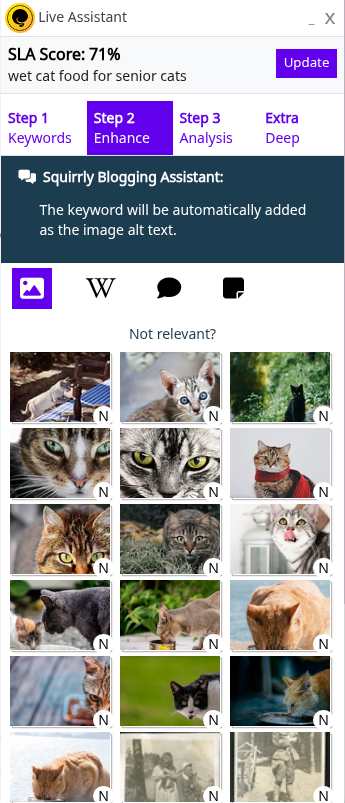
Results come with buttons like Insert it!, Read it! and Insert Link, depending on the tab. When the results don’t match, click Not relevant? and search for other words.
Copyright-free images
With Show only Copyright Free images ticked, the Images tab lists only free images. Each image says “No known copyright restrictions” or “Has creative commons attributes”. An image with attributes goes in with the note “[ ATTRIBUTE: Please check: … to find out how to attribute this image ]”. Replace the note with the credit the license asks for.
The tick box starts checked when Show Copyright Free Images is on in Squirrly > Optimize > Settings, which is the default. The Advanced Pack adds Squirrly Free Images in Media Library on the same screen, a Free Images tab from Pixabay in the WordPress Media Library.
SEO images
The help panel in step 2 says “The keyword will be automatically be added as the image alt text.” With Download Remote Images on, the image is also saved in your Media Library with the keyword in the file name, for example wet-cat-food-for-senior-cats.jpg.
Step 3: the analysis tasks
Step 3 Analysis lists the checks for the starred keyword. A green task is done. Click the info icon on a task to read what it wants.
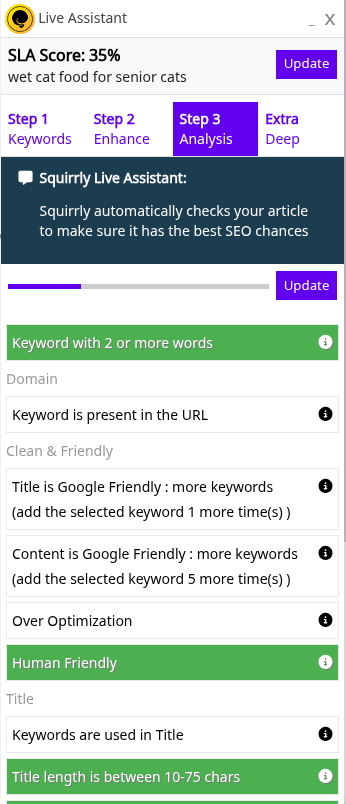
| Group | Task |
|---|---|
| (none) | Keyword with 2 or more words |
| Domain | Keyword is present in the URL |
| Clean & Friendly | Title is Google Friendly, Content is Google Friendly, Over Optimization, Human Friendly |
| Title | Keywords are used in Title, Title length is between 10-75 chars, Title is different from domain name |
| Content | Keywords are used in Content, Bold one of the keywords, Keywords used in headline, Use image(s) in content or featured image, Use keywords in the Alternative Text field of the image |
The tasks give the exact change, for example “(add the selected keyword 5 more time(s) )” or “cat appears too many times. Try to remove 4 of them”.
Keyword is present in the URL
This task reads the post’s permalink. On a new post the slug exists only after you save the draft, so save it, then click Update in the box. The task help says not to add the keyword more than once in the URL.
Turn all tasks green
The demo post went from 35% to 71% for “wet cat food for senior cats” with these edits:
- The title became “Wet cat food for senior cats: what to feed an older cat”.
- A new H2 heading, “Wet cat food for senior cats”, went under the intro.
- The keyword was bolded in the first paragraph of that section.
- An image went in under that paragraph.
- The post was saved and Update was clicked in the box.
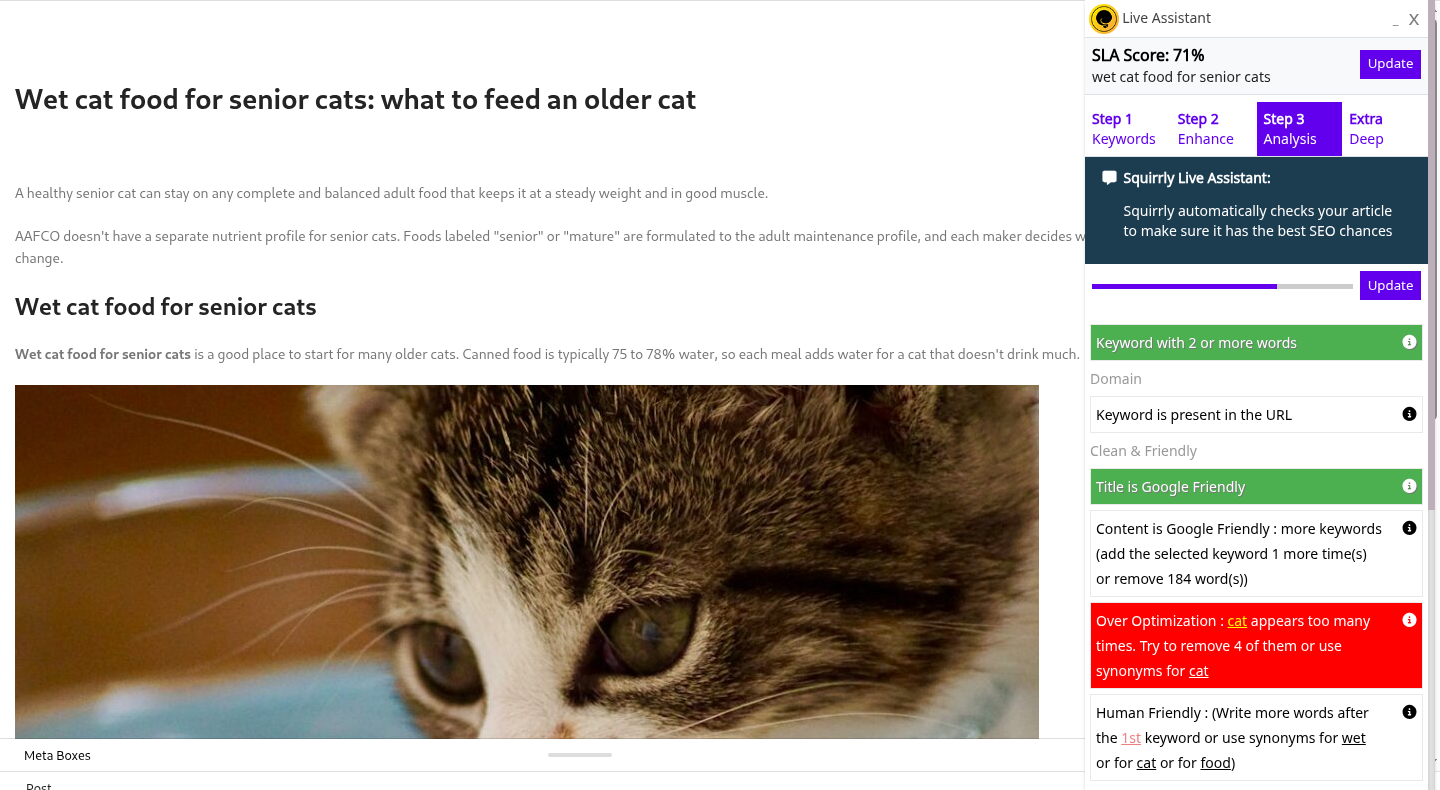
At 71% three tasks were still open. Content is Google Friendly asked to add the keyword 1 more time or remove 184 words. Over Optimization flagged “cat” as too frequent, and Human Friendly asked for more words after the first keyword or synonyms for “wet”, “cat” or “food”.
The Over Optimization task itself suggests synonyms for “cat”. Save the synonyms you use as extra keywords in the Briefcase so they show up in step 1.
After 100% optimization
When every task is green the editor shows “Congratulations! Your article is 100% optimized!” Then check the post’s title, description and social image in Bulk SEO & Snippet, publish it, and send the keyword to Google Rankings from the Briefcase. The 100% green but no traffic FAQ covers what to look at next.
Extra: Deep and Focus Pages
The Extra Deep tab asks “Need a deeper analysis of this content?” and has the button Set Focus Pages. It opens Squirrly > Focus Pages > Add New Page, where the page gets audited for its chance to rank. Focus Pages vs. the Live Assistant explains how the two differ.
Live Assistant settings
- Go to Squirrly > Optimize > Settings.
- Switch to SEO Expert in the top bar to see all the options. SEO Beginner shows only Show Copyright Free Images, the Pack’s free images switch and Exclusions.
- Change the options you need.
- Click Save Settings.
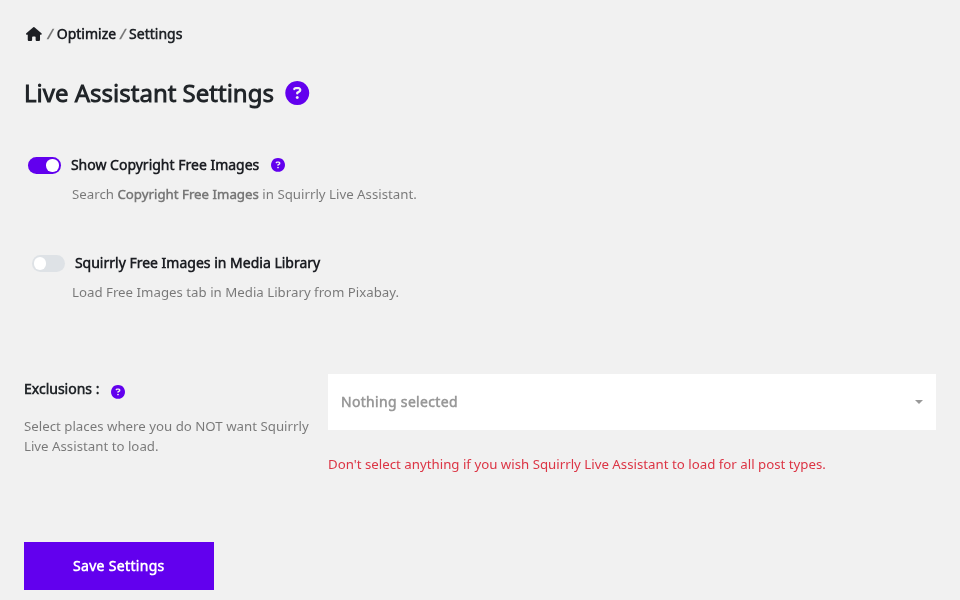
| Label | What it does | Default |
|---|---|---|
| Activate Live Assistant in Frontend | Loads the Live Assistant in page builders. Shown in SEO Expert mode or when a supported builder is installed | Off |
| Show Copyright Free Images | Ticks Show only Copyright Free images in step 2 | On |
| Squirrly Free Images in Media Library | Free Images tab from Pixabay in the Media Library. Needs the Squirrly SEO Advanced Pack | Off |
| Fetch Snippet on Social Media | Asks the Facebook Sharing Debugger to read the page again each time you update it | Off (On after SEO Recommended or Expert setup) |
| Download Remote Images | Saves images from other sites to your Media Library when you save the post | Off |
| Show Tooltips | Shows the help panels and the info icons on tasks | On |
| Live Assistant Type | Auto, Integrated Box or Floating Box | Auto |
| Exclusions | Post types where the Live Assistant doesn’t load | Nothing selected |
Floating Box is the movable box shown above. Integrated Box keeps the Live Assistant as the Squirrly Live Assistant panel in the editor sidebar.
Show Tooltips
With Show Tooltips off, the dark help panels at the top of each step and the info icons next to the tasks are hidden. The checks themselves still run.
Fetch Snippet on Social Media
Facebook keeps its own copy of a shared page’s title, description and image. With this switch on, each update of the post asks the Facebook Sharing Debugger to fetch the page again. Social Media Settings covers the Open Graph data Facebook reads.
Download Remote Images
When you save a post, Squirrly looks for images whose address is on another domain, downloads them to the Media Library and replaces the links in the content. The file name and the image title use the Live Assistant keyword. An image that’s already been downloaded for that post isn’t downloaded twice.
Exclusions: turn it off for a post type
Pick one or more post types in Exclusions and save. The box, the Squirrly optimization bar in the post list and the remote image download stop for those types. The screen warns “Don’t select anything if you wish Squirrly Live Assistant to load for all post types.”
Once any post type is excluded, the Live Assistant also stops loading for Oxygen templates.
Live Assistant in page builders
Turn on Activate Live Assistant in Frontend in Squirrly > Optimize > Settings and save. The box then opens inside the builder’s editor, with the same steps and the Briefcase keywords. After you change the title or add an image in the builder, click Update in the box so the tasks read the new content.
A page optimized in a builder shows a note in the WordPress editor: “Live Assistant was used to optimize this page with the Page Builder. Please go back and resume your optimization work there.”
Elementor
The box loads when you click Edit with Elementor, in the Elementor editor and its preview.
Oxygen
The box loads in the Oxygen builder for pages and for Oxygen templates. Exclude any post type in Exclusions to stop it on templates.
Divi
Works with the Divi Builder plugin and with the Divi theme, in the visual builder.
Thrive Architect
The box loads when you open a page in Thrive Architect.
Bricks
Works with the Bricks theme, in the Bricks builder.
Zion Builder
The box loads in the Zion Builder editor and preview.
WPBakery Page Builder
The box loads in the WPBakery frontend editor.
Beaver Builder
The box loads when the Beaver Builder editor opens a page.
Avada (Fusion Builder)
The settings screen lists it as Fusion Builder. The box loads in the Avada live builder.
Brizy
The box doesn’t load inside the Brizy editor, even with Activate Live Assistant in Frontend on. Open the page in the WordPress editor instead, where the box loads as it does for any other page.
Keywords from other SEO plugins
When a post has no Live Assistant keyword yet, Squirrly reads the focus keyword saved by Rank Math, Yoast SEO, All in One SEO or SEOPress and loads it in the box. The post list shows that keyword in the Squirrly column too. The optimization bar appears only after you optimize the post with the Live Assistant.
Troubleshooting
“Is taking too long to load the live assistant. Try again”
The box couldn’t reach Squirrly Cloud in time. Click Try again. If the message stays, read Squirrly Live Assistant is Not Showing in Edit Post.
“To load the Live Assistant and optimize this page, click to connect to Squirrly Cloud.”
The plugin isn’t connected. Follow Connect to Squirrly Cloud, then reload the post.
“This site was cloned, staged or moved, so Squirrly Cloud can no longer verify it.”
The site address changed. Click the message to reconnect the site.
“This website can’t reach Squirrly Cloud right now.”
The server blocks the outgoing request. Ask your host to allow outgoing connections to api.squirrly.co, as the message says.
Facebook still shows the old image after an update
Turn on Fetch Snippet on Social Media and update the post again, or paste the URL in the Facebook Sharing Debugger yourself.
The box doesn’t show for one post type
Check Exclusions in Squirrly > Optimize > Settings.
The box doesn’t show in the post editor at all
Squirrly adds the Live Assistant to the editor as a box named Squirrly Live Assistant, and WordPress lets each user hide boxes like it. In the classic editor, open Screen Options at the top right and tick Squirrly Live Assistant. In the block editor, open the three-dot menu at the top right, go to Preferences > Panels and switch it on.
Browser extensions that block scripts, such as ad blockers or Privacy Badger, can also stop the box from loading. Open the post in a private window with the extensions off, or in another browser, to check.
Frequently asked questions
Can I optimize posts I published long ago?
Yes, open the post, add the keyword in step 1 and follow the tasks in step 3.
Which keyword does the SLA Score belong to?
The starred keyword in step 1, and you change it by clicking another keyword.
How do I stop the Live Assistant for products?
Select Product in Squirrly > Optimize > Settings > Exclusions and click Save Settings.
Does the Live Assistant work without Squirrly Cloud?
No, the box loads the Briefcase and the checks from Squirrly Cloud, so the plugin has to be connected.
Is the Live Assistant a live agent?
No, the Live Assistant is the box in your WordPress editor that checks the text against your Briefcase keywords as you write, not a chat with a person.
Related tutorials
- Keyword Research and SEO Strategy: find the keywords and save them to the Briefcase.
- Bulk SEO & Snippet: set the title, description and social image after you optimize.
- Focus Pages & Page Audits: audit the pages that should rank for your main keywords.
- Ranking & SERP Checker: track the Google position of the keyword.
- How Do I Know I Haven’t Over-Optimized My Posts?: what the Over Optimization task looks for.