
Submit to LLM & Index/Follow Status
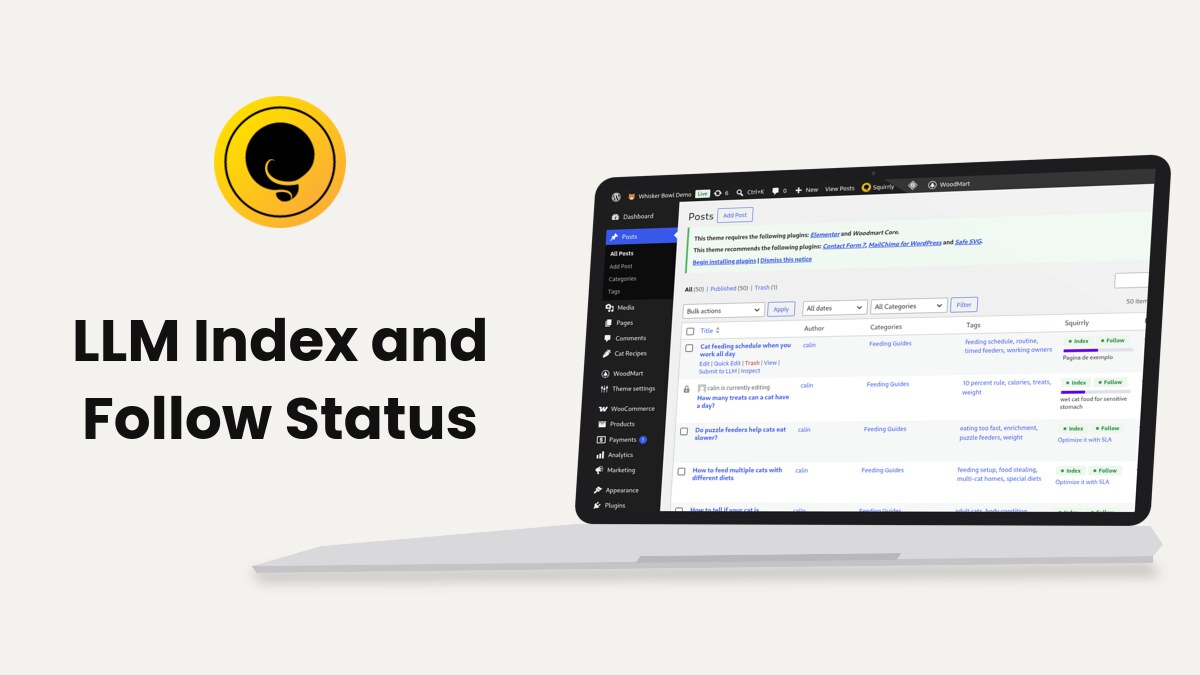
Squirrly SEO adds a Squirrly column to the WordPress lists of posts, pages and products, with the Index and Follow status of each item, and two links under each title: Submit to LLM and Inspect. Category and tag lists get a Visibility column with the same status.
The screenshots come from demo.squirrly.co, a test store for cat food, with Squirrly SEO 14.2.9 and the Advanced Pack 2.5.11.
What the Squirrly column shows
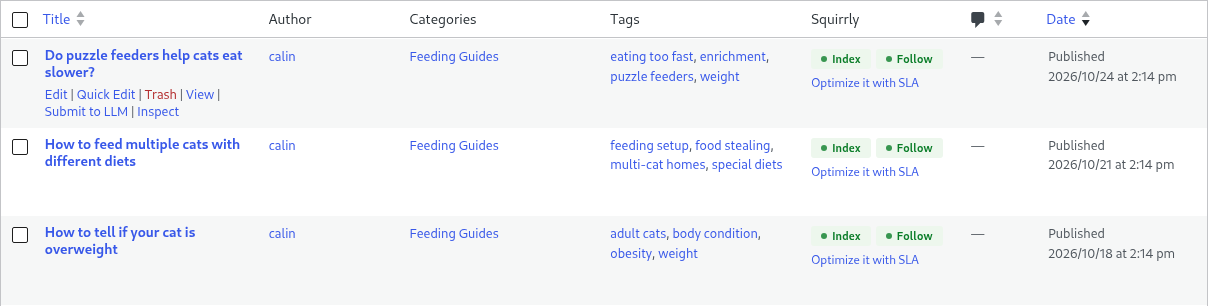
Go to Posts > All Posts. The Squirrly column sits between Tags and Comments. Each cell has the visibility badges on top and the optimization status under them.
| What you see | What it means |
|---|---|
| Index (green) | Search engines may index the page |
| NoIndex (red) | Squirrly adds noindex to the page |
| Follow (green) | Links on the page pass authority |
| NoFollow (red) | Squirrly adds nofollow to the page |
| N/A (gray) | Squirrly SEO is switched off for this page, so it sets no robots meta |
| A purple bar and a keyword | The post was optimized with the Live Assistant. Hover the bar for the score, for example “Optimized: 71%” |
| A keyword without a bar | A keyword is set for the post, with no score yet |
| Optimize it with SLA | No keyword yet. The link opens the post in the editor with the Live Assistant |
The badges read the page’s SEO settings, including the post type rules in Automation. The optimization part shows only for post types where the Live Assistant is on, and it loads after the list itself.
The column needs the plugin connected to Squirrly Cloud. On a site that isn’t connected, the column doesn’t appear.
Change Index or Follow for one page
- Go to Squirrly > Optimize > Bulk SEO, find the page and open its SEO Snippet.
- Open the Visibility tab of the snippet.
- Switch Let Google Index This Page off for NoIndex, or Send Authority to this page off for NoFollow.
- Save the snippet and reload the posts list.
If the post type has noindex set in Automation, the tab says “This Post Type (post) has Noindex set in Automation.” with a link to Squirrly > Automation > Configuration. Change it there for the whole post type. Bulk SEO covers the snippet tabs.
Submit to LLM from the list
Submit to LLM sends the URL of one post to LLM Indexing: IndexNow, plus the Google Indexing API when Google Search Console is connected.
- Move the mouse over a published post in the list.
- Click Submit to LLM in the links under the title.
- Read the notice at the top: “1 page submitted to LLM Indexing.”
For many posts, tick them, choose Submit to LLM Indexing in Bulk actions and click Apply. The notice then says “12 pages submitted to LLM Indexing.” with your own count.
The link shows only on published posts of the post types picked in Squirrly > LLM Indexing > Settings > Automatically Submit Post Types. On the demo site that is Post, so Pages and Products don’t have it.
See the submit status
The posts list doesn’t keep a status per post. Each submit is logged in Squirrly > LLM Indexing > Submit URLs, under LLM Indexing History, with the URL, the answer from IndexNow and the date. What the Message column means lists the codes.
Inspect a page
Inspect opens the Squirrly Inspect URL window over the list, with what Google Search Console reports for that URL. Click the round arrow to refresh it. Inspect URL explains the fields, and the link shows only to users who can manage Focus Pages.
Visibility column for categories and tags
Go to Posts > Categories or Posts > Tags, or the product categories in WooCommerce. The Visibility column shows the same Index or NoIndex and Follow or NoFollow badges for each term.
Troubleshooting
The Squirrly column is missing
Check that Squirrly is connected to Squirrly Cloud, then open Screen Options at the top of the list and tick Squirrly.
“This page was already submitted to LLM Indexing in the last 24 hours and was not sent again to avoid rate limiting (429).”
Squirrly sends a URL at most once a day. Wait 24 hours from the last submit in the History table.
“Error submitting page to LLM Indexing.”
IndexNow refused the URL. Open Squirrly > LLM Indexing > Submit URLs and read the code in the Message column.
“Network Error. Please Refresh.” in the column
The optimization data comes from Squirrly Cloud and the request failed. Reload the list, and check the Cloud connection if the message comes back.
Frequently asked questions
Does NoIndex in the column remove the page from the sitemap?
Only when Automatically Exclude URLs With ‘Noindex’ is on in the Sitemap XML settings, or Show it in Sitemap.xml is off for the page.
Why don’t I see Submit to LLM on drafts?
Squirrly only submits published URLs, so drafts, scheduled and private posts don’t get the link.
Can I submit pages and products too?
Yes, add Page and Product to Automatically Submit Post Types and save.
Related tutorials
- LLM Indexing: Submit URLs, the History table and the settings.
- Bulk SEO & Snippet: change the visibility of any page from one screen.
- Automation: noindex and nofollow rules per post type.
- Inspect URL: Google’s report for one URL.
- Squirrly SEO Live Assistant: the optimization score in the column.







0 Comments