Webmaster Extras
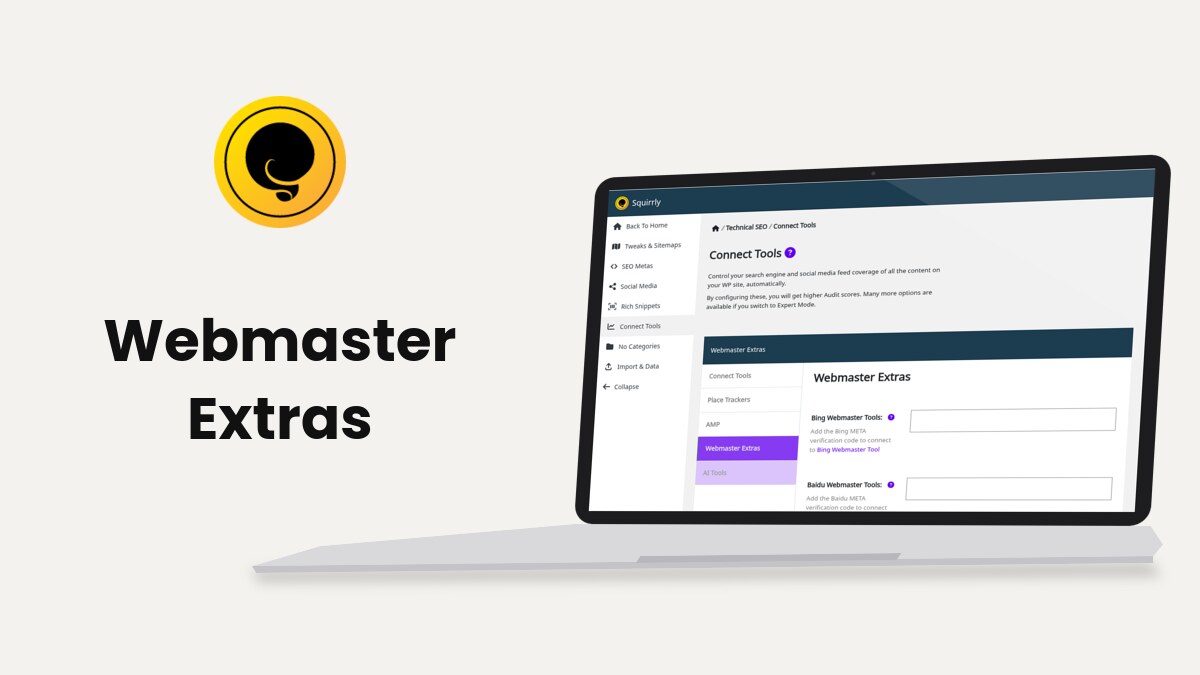
Webmaster Extras is the tab at Squirrly > Technical SEO > Connect Tools > Webmaster Extras where you paste the verification codes for Bing, Baidu, Yandex, Pinterest and Norton Safe Web. Squirrly turns each code into a meta tag on your home page, so the service can confirm you own the site.
The screenshots come from demo.squirrly.co, a test store for cat food, with Squirrly SEO 14.2.8 and the Advanced Pack 2.5.11.
What Webmaster Extras does
Each field holds one code. After you save, Squirrly prints a meta tag with that code in the head of the home page, and nowhere else. The search engine reads the tag when you click its verify button.
| Field | Meta tag Squirrly adds | Shows in |
|---|---|---|
| Bing Webmaster Tools | msvalidate.01 | Beginner and Expert Mode |
| Baidu Webmaster Tools | baidu-site-verification | Beginner and Expert Mode |
| Yandex Webmaster Code | yandex-verification | Beginner and Expert Mode |
| Pinterest Website Validator Code | p:domain_verify | Beginner and Expert Mode |
| Norton Safe Web Code | norton-safeweb-site-verification | Expert Mode only |
| Google Search Console (on the Place Trackers tab) | google-site-verification | Beginner and Expert Mode |
The tips on the screen say it’s not mandatory to fill in every field. Add only the services you use.
Like the other Connect Tools tabs, it needs the plugin connected to Squirrly Cloud.
Where to find it
The tab appears when the Webmaster Tools feature is on. The SEO Recommended Mode and SEO Expert Mode of the setup wizard turn it on, and you can switch it in Squirrly > All Features.
- Go to Squirrly > Technical SEO and click Connect Tools in the left menu.
- Click Webmaster Extras in the list of tabs.
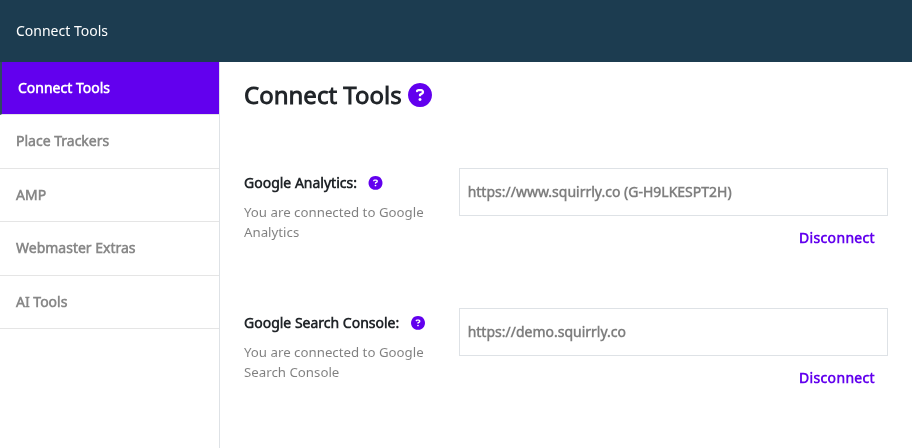
The Norton field and a few others on Connect Tools only show in Expert Mode. Click SEO Expert in the top bar of the Squirrly screen to see them.
How to add a verification code
- Open the verification page of the service and pick the meta tag (HTML tag) method.
- Copy the tag, or only the code inside content=”…”.
- Go to Squirrly > Technical SEO > Connect Tools > Webmaster Extras and paste it in the matching field.
- Click Save Settings.
- Go back to the service and click its verify button.
For Bing, Baidu, Yandex, Pinterest and Google you can paste the whole meta tag. Squirrly keeps only the value of content and drops the rest. The Norton field saves what you type as it is, so paste only the code there.
To check the result, open your home page, view the page source and search for the tag name from the table. If it’s there with your code, the service can verify the site.
Once one code is saved, the task Connect the Webmasters in Technical SEO Mastery Tasks on the right of the screen gets its check mark.
Remove a code
Empty the field and click Save Settings. The meta tag is gone from the home page on the next load, or once your cache plugin drops its saved copy of the page.
Google Search Console
Google Search Console has two separate steps in Squirrly. The sign-in is on the Connect Tools tab and gives Squirrly the clicks and impressions. The verification code is on the Place Trackers tab.
- Go to Squirrly > Technical SEO > Connect Tools and open Place Trackers.
- In Google Search Console, click Get GSC Code if the account is connected, or paste the google-site-verification tag from Google.
- Click Save Settings.
The Get GSC Code button only shows after the sign-in on the first tab. Need Help Connecting Google Search Console is the link the plugin shows under the field, and How To Add Your WordPress Site To Google Search Console covers the Google side.
Bing Webmaster Tools
The line under the field reads “Add the Bing META verification code to connect to Bing Webmaster Tool”. Copy the code from the meta tag option in Bing, paste it here, save, and verify in Bing.
A wrong value shows “The code for Bing is incorrect.” and the field is not saved.
Baidu Webmaster Tools
The field adds the baidu-site-verification tag. The link under it opens Baidu’s site tools, where you add the site and pick the HTML tag check. Leave the field empty if you don’t target search traffic from China.
A wrong value shows “The code for Baidu is incorrect.”
Yandex Webmaster Code
The field adds the yandex-verification tag. In Yandex Webmaster, add the site and choose the meta tag method, then paste the tag here.
A wrong value shows “The code for Yandex is incorrect.”
Pinterest Website Validator Code
The field adds the p:domain_verify tag, which Pinterest reads when you claim your website from a Pinterest business account. The line under the field says it connects your website to your Pinterest account and links the Rich Pins Validator.
Get the Pinterest code
- In Pinterest, start claiming your website and choose the HTML tag option.
- Copy the tag. Squirrly accepts the whole tag or only the content value.
- Paste it in Pinterest Website Validator Code and click Save Settings.
- Go back to Pinterest and finish the claim.
This section used to cover the Alexa code, which is no longer in the plugin, so old links to it land here. A wrong Pinterest value shows “The code for Pinterest is incorrect.”
Norton Safe Web Code
The field adds the norton-safeweb-site-verification tag. The line under it says to add the verification code or ID and links the Norton Ownership Verification Page.
- Click SEO Expert in the top bar so the field shows.
- Paste only the code from Norton, without the meta tag around it.
- Click Save Settings.
Troubleshooting
The Webmaster Extras tab is missing
Turn on Webmaster Tools in Squirrly > All Features. The tab and the Google Search Console field on Place Trackers both depend on it.
The service says it can’t find the tag
The tags are printed on the home page only, and only while Activate Squirrly Snippet for this page is on for the home page. Check it in Bulk SEO, then clear your cache plugin so the new source is served.
“The code for Google Webmaster Tool is incorrect.”
The Google field was empty after Squirrly took out the content value. Copy the tag again from Search Console and paste it whole.
The Norton tag shows the whole HTML
Norton is the one field that keeps what you paste. Replace it with the code alone and save again.
Frequently asked questions
Do I need to fill in all the fields?
No, the tips on the screen say to set up only the connections that fit your site.
Can I paste the full meta tag?
Yes for Google, Bing, Baidu, Yandex and Pinterest, and no for Norton, which needs the code alone.
Which pages get the verification tags?
Only the home page, which is the page the services check.
Why can’t I see the Norton Safe Web field?
It shows in Expert Mode only, so click SEO Expert in the top bar first.
Related tutorials
- Connect Tools: the Google sign-in, the trackers and the AMP switch.
- How To Add Your WordPress Site To Google Search Console: the Google side of the verification.
- Need Help Connecting Google Search Console: tracking code and API connection together.
- Sitemap XML Settings: the sitemap you submit once the site is verified.
- Bulk SEO & Snippet: check that the snippet is active on the home page.