
Connect Squirrly to AI Assistants
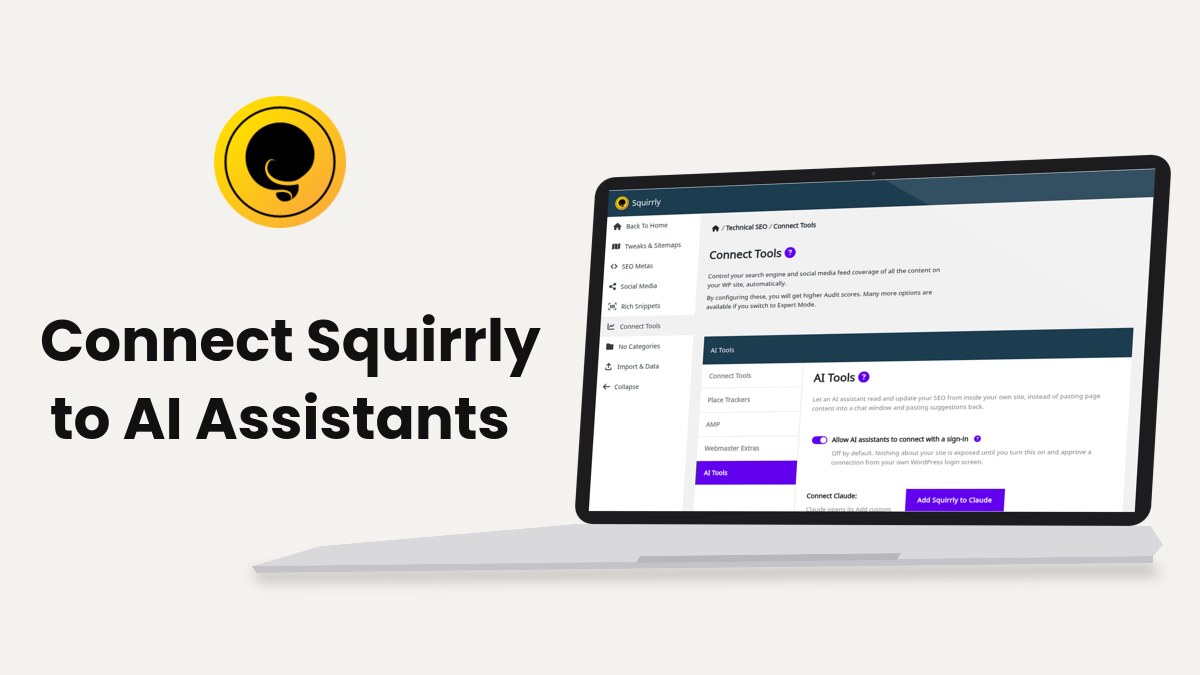
Squirrly SEO connects Claude, ChatGPT and OpenAI Codex to your WordPress site from Squirrly > Technical SEO > Connect Tools > AI Tools. You turn on one switch, the assistant signs in through your own WordPress login screen, and from then on it reads and updates your SEO with the permissions of the user who approved it.
The Home card screenshot comes from demo.squirrly.co, a test store for cat food, with Squirrly SEO 14.2.9 and the Advanced Pack 2.5.11. The AI Tools screenshot was taken on www.squirrly.co.
What the AI Tools connection does
Squirrly registers 16 SEO tools in WordPress and publishes them to AI assistants over MCP (Model Context Protocol). The assistant gets one address, https://yoursite.com/wp-json/mcp/mcp-oauth-server, and signs in with OAuth 2.1, so you never paste a WordPress password into a chat.
When you approve the connection, WordPress creates an Application Password for your user, named after the assistant. Revoking that password cuts the assistant off. The full list of tools, and what each WordPress role allows, is in How to Connect MCP Plugins to Squirrly SEO.
The switch is off on a new install. The text under it says nothing about your site is exposed until you turn it on and approve a connection.
Before you start
The AI Tools tab checks these five things itself. When one fails, a yellow box called Fix this first names it and the switch has nothing to connect yet.
| Requirement | What the Fix this first box says when it’s missing |
|---|---|
| PHP 7.4 or newer | “This needs PHP 7.4 or newer. Your site runs PHP …” |
| WordPress 6.9 or newer | “This needs WordPress 6.9 or newer, where the Abilities API is part of WordPress itself.” |
| An MCP Adapter | Squirrly SEO includes its own copy and uses another plugin’s copy when one is loaded, so this message only shows when the bundled files are missing |
| HTTPS | “Your site address does not start with https://.” |
| Pretty permalinks | “Your permalinks are set to Plain. Go to Settings – Permalinks, choose any other option, and save.” |
You also need a WordPress user that can open Technical SEO. The Connect Tools screen asks for the Squirrly SEO Admin role, which WordPress administrators have by default.
Where to find it
The switch lives on the AI Tools tab of Squirrly > Technical SEO > Connect Tools. Two other screens lead to it:
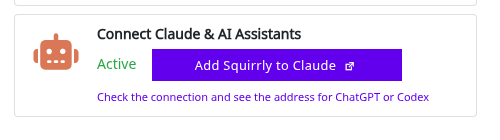
- Squirrly > Home has a card called Connect Claude & AI Assistants. It shows Inactive and a Turn on AI assistants button, or Active and Add Squirrly to Claude.
- Squirrly > All Features has the same switch on the Connect Claude & AI Assistants card, under Integration Features.
How to connect Claude
- Go to Squirrly > Technical SEO > Connect Tools and open the AI Tools tab.
- Turn on Allow AI assistants to connect with a sign-in.
- Click Save Settings. The tab now shows Connect Claude, Your connector address and Can your server be reached.
- Check that both addresses under Can your server be reached have a green mark and the status 200.
- Click Add Squirrly to Claude. Claude opens its Add custom connector box with your site already filled in, named “Squirrly SEO (yourdomain)”.
- Compare the address in Claude with Your connector address, then click Continue in Claude.
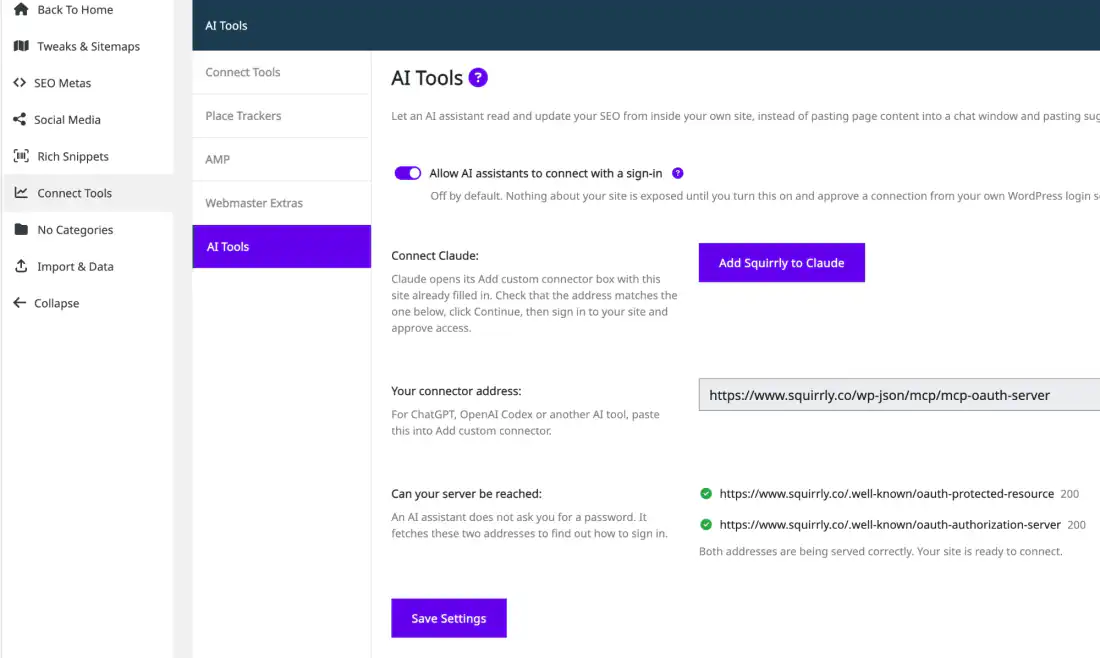
The Add Squirrly to Claude button only appears when both checks pass. With a red check you still see the address, plus a How to fix it block (see Troubleshooting).
The domain is part of the connector name, so several sites stay apart in Claude’s list.
Approve the connection on your site
After Continue, Claude sends you to your own site. Log in if WordPress asks, and a page titled Authorize access to your site? opens.
- Check the line Verified publisher: followed by the publisher, claude for Claude or openai for ChatGPT and Codex. Squirrly trusts those two publishers out of the box.
- Read the paragraph under it. It says an application password will be created for your user and that the assistant will inherit your user’s permissions on this website.
- Click Allow. Click Deny if the publisher line is missing or the name is not the assistant you started from.
You go back to the assistant with the connector connected. Approve while logged in as the user whose role fits the job, because that role is all the assistant gets.
Choose which tools Claude may use
Open the connector in Claude’s connector settings. Claude lists every Squirrly tool by name in two groups: Read-only tools (8) and Write/delete tools (8). Each tool, and each group, has its own setting.
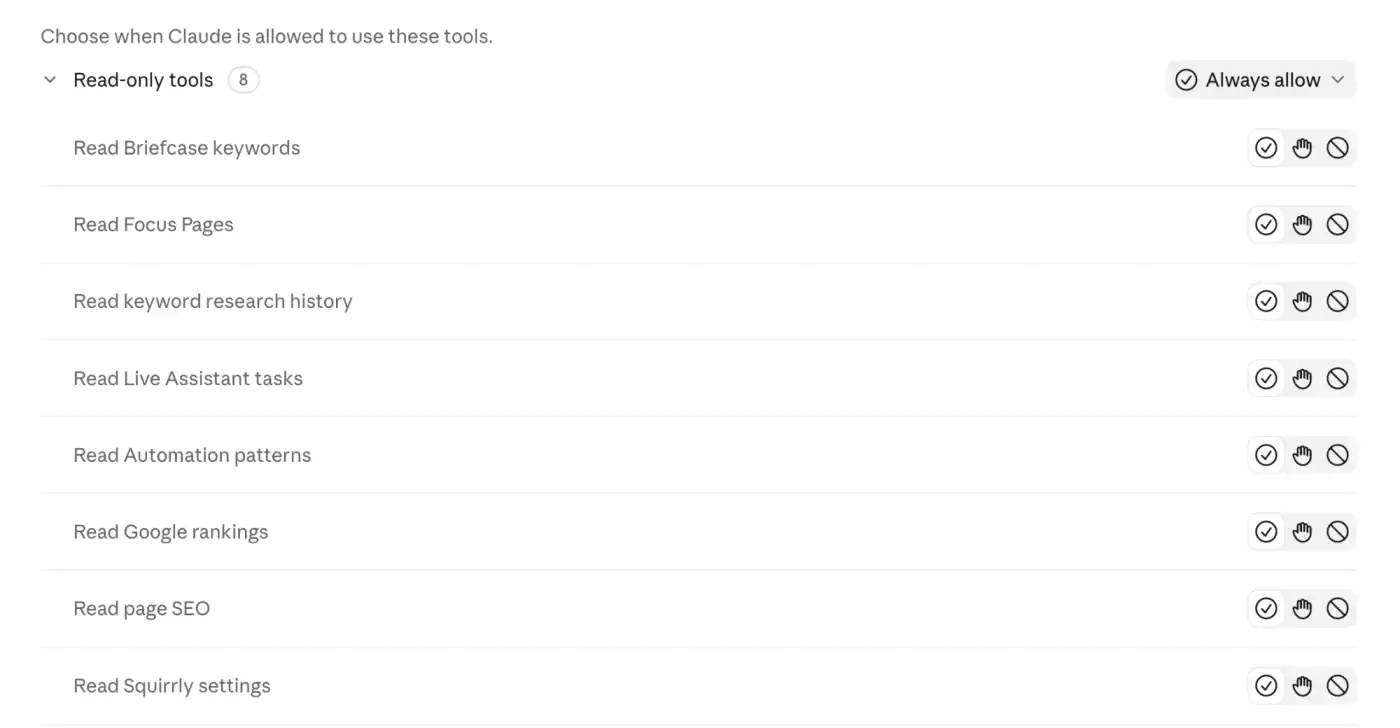
None of the 8 write tools deletes data, even though Claude puts them in a group called Write/delete. Setting that group to ask before each use means Claude stops and asks you before it changes a title or a setting.
Connect ChatGPT or OpenAI Codex
ChatGPT and Codex use the same address and the same approval page. Only the first step happens in a different app.
- Go to Squirrly > Technical SEO > Connect Tools > AI Tools and make sure Allow AI assistants to connect with a sign-in is on and saved.
- Click inside Your connector address. The field selects the whole address for you to copy.
- In ChatGPT or Codex, add a custom connector and paste the address. The tool reads your site’s sign-in details from the two addresses the AI Tools tab checks.
- Start the connection. Your site shows Authorize access to your site? with OpenAI as the verified publisher.
- Click Allow.
For Claude Desktop, Claude Code or another client that runs on your computer, the route is an Application Password instead of a sign-in. How to Connect MCP Plugins to Squirrly SEO has the configuration.
Test the connection
Ask the assistant something it can only answer from your site:
- “What is the SEO title and meta description of my home page?” The assistant calls Read page SEO and should quote the title your home page really has.
- “Which Automation pattern produces that title?” It calls Read Automation patterns and names the pattern, for example the one for the home page.
- “Which keywords are in my Briefcase?” This one needs the site connected to Squirrly Cloud, because the Briefcase is stored there.
If the third answer is “This site is not connected to Squirrly Cloud”, the sign-in works and only the Cloud connection is missing.
What the assistant can do once connected
On every site, the assistant can read and change the SEO title, meta description, keywords, canonical, robots flags, Open Graph, Twitter Card and JSON-LD types of a page. It can read the Automation patterns and switch site-wide features such as the sitemap or llms.txt on and off.
With a Squirrly Cloud connection it also reads your Briefcase, Google Rankings, Focus Pages, keyword research history and Live Assistant tasks. It can add Briefcase keywords, assign a keyword to a page, add Focus Pages and GEO Audit pages, and request an audit.
It can’t delete anything, can’t start a new keyword research (that would spend credits) and never sees your Squirrly API key or Cloud token.
How to disconnect
| Where | What to do | What it stops |
|---|---|---|
| WordPress, Users > Profile | In Application Passwords, click Revoke next to the password named after the assistant | That one assistant |
| The assistant | Remove or disconnect the Squirrly connector in its settings | That assistant, on that account |
| Squirrly > Technical SEO > Connect Tools > AI Tools | Turn off Allow AI assistants to connect with a sign-in and click Save Settings | Every assistant that signed in, and the sign-in addresses |
Revoke in WordPress when a laptop or an account may be compromised, because it works even if you can’t reach the assistant.
Troubleshooting
A check under “Can your server be reached” is red with 403
The screen says “Your web server is refusing every address that begins with a dot, before WordPress ever sees it.” On nginx, look for location ~ /\. { deny all; } and add this rule above it:
location ^~ /.well-known/ {
    try_files $uri $uri/ /index.php?$args;
}
On Apache the same block sits in .htaccess as a rule against dot-folders, and your host can add the exception. Save the AI Tools tab again to rerun the check.
A check is red with 404
Something answers /.well-known/ before WordPress does, often a certificate rule like location ^~ /.well-known/ { root /var/www/letsencrypt; }. Narrow it to location ^~ /.well-known/acme-challenge/ { root /var/www/letsencrypt; } and check that permalinks are not set to Plain.
“This site could not reach its own address”
The check runs from your server to itself, and a firewall or a DNS setting stopped that request. Fix it first, then save the tab again.
Claude reports that authorization failed
Claude could not read the two /.well-known/oauth-... addresses. Open the AI Tools tab, read the status code next to each address and use the matching fix above.
“Unknown OAuth client.” on the approval page
The assistant is not on your site’s list of trusted clients. Claude, ChatGPT and OpenAI Codex are on it by default, and a developer can add others with the sq_mcp_trusted_publishers filter.
Claude shows Execute Ability instead of the Squirrly tool names
The connector was added while the site ran a version older than 14.2.8, which published generic tools. Update Squirrly SEO, remove the connector in Claude and add it again, so Claude reads the new tool list.
The assistant connects but sees no Squirrly tools
Check that the switch is still on and saved. Then remove and re-add the connector, since assistants read the tool list when they connect.
Frequently asked questions
Do I have to install the MCP Adapter plugin?
No, Squirrly SEO includes the MCP Adapter and uses another plugin’s copy only when one is already loaded.
Does the assistant get my WordPress password?
No, approving the connection creates a separate Application Password that you can revoke from your profile at any time.
Can the assistant change settings for the whole site?
Only when the user who approved it has the Squirrly SEO Admin role, which WordPress administrators get by default.
What happens if I never turn the switch on?
Nothing changes on your site, because the sign-in addresses and the connector address are only loaded while the switch is on.
Related tutorials
- How to Connect MCP Plugins to Squirrly SEO: the 16 tools, the role table and local MCP clients.
- Testing the Squirrly abilities: check each layer with WP-CLI, REST and MCP.
- Install Squirrly SEO Plugin: connect the site to Squirrly Cloud for the Briefcase, Rankings and Focus Pages tools.
- Connect Tools: the other tabs on the same screen.
- Automation: the patterns an assistant reads before it changes a title.







0 Comments