Import and Data
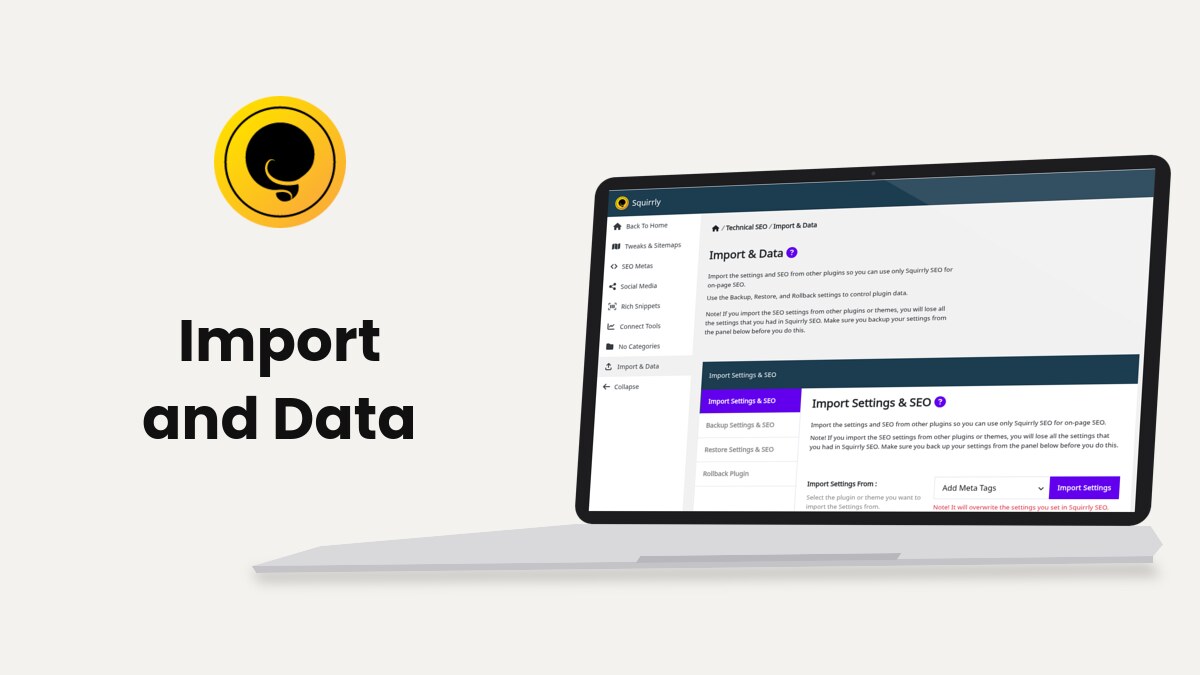
Import & Data is the screen at Squirrly > Technical SEO > Import & Data where you bring settings and page SEO over from another SEO plugin, download backups of your Squirrly data, restore them, and roll the plugin back to the last stable version.
The screenshots come from demo.squirrly.co, a test store for cat food, with Squirrly SEO 14.2.11 and the Advanced Pack 2.5.12.
What Import & Data does
The screen has four tabs. Each one works on its own, and none of them needs Squirrly Cloud.
| Tab | What you do there |
|---|---|
| Import Settings & SEO | Copy settings, titles, descriptions and patterns from another SEO plugin or theme |
| Backup Settings & SEO | Download your Squirrly settings, SEO snippets and Briefcase keywords |
| Restore Settings & SEO | Upload a backup file to bring the data back |
| Rollback Plugin | Install the last stable version or reinstall the current one |
With the Squirrly SEO Advanced Pack, the same tabs also import, back up and restore your redirects and your Rich Snippets schemas.
Where to find it
Go to Squirrly > Technical SEO and click Import & Data in the left menu. When the Advanced Pack is active, the Squirrly > Redirects menu has an Import & Data item that opens the same screen.
The note at the top of the screen says that importing settings from another plugin overwrites the settings you had in Squirrly SEO. Download a backup first (see Backup Settings & SEO).
Import settings and SEO from another plugin
The import reads the other plugin’s data from your WordPress database, so that data must still be there. The other plugin doesn’t need to be active.
Squirrly copies the data and leaves the other plugin’s own data in place. Moving back to Rank Math later depends on Rank Math’s own importer.
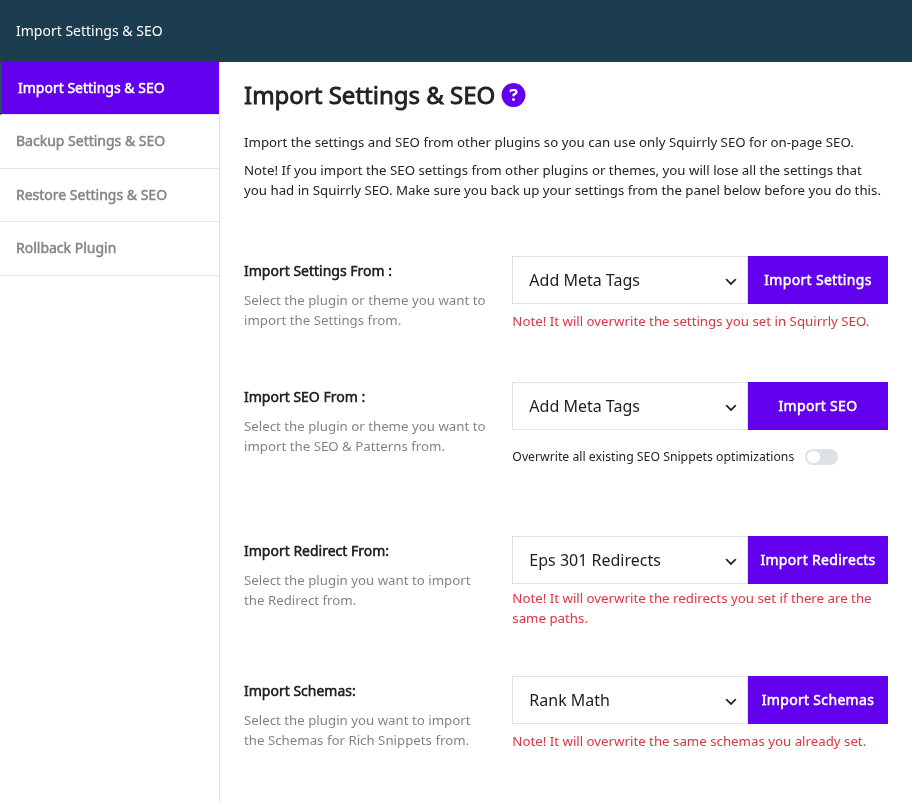
Import the settings
- Go to Squirrly > Technical SEO > Import & Data. The Import Settings & SEO tab opens first.
- In Import Settings From, pick the plugin or theme.
- Click Import Settings.
The red line under the button says “Note! It will overwrite the settings you set in Squirrly SEO.” A good import shows “All the Plugin settings were imported successfully!”. The settings import is written for Yoast SEO, Rank Math, All in One SEO, SEO Framework and SEOPress.
Import the SEO of your pages
- In Import SEO From, pick the plugin or theme. The line under the label says it imports “the SEO & Patterns”.
- Leave Overwrite all existing SEO Snippets optimizations off to keep the pages you already optimized in Squirrly.
- Click Import SEO.
With the switch off, Squirrly fills only the pages that don’t have both a title and a description in Squirrly yet. With it on, the imported values replace everything. The message reads “Success! The import from Yoast SEO was completed successfully and your SEO is safe!”, with the name of the plugin you picked.
| Source | What’s in the list |
|---|---|
| SEO plugins | Yoast SEO, Rank Math, All in One SEO Pack, SEO Framework, SEO Press, Add Meta Tags, Greg’s High Performance SEO, Headspace2, Platinum SEO Pack, SEO Pressor, SEO Title Tag, SEO Ultimate |
| Themes | Builder, Catalyst, Frugal, Genesis, Headway, Hybrid, Thesis, WooFramework |
For four of the older plugins, Import SEO copies these fields of each post that has them:
| Plugin | Fields imported |
|---|---|
| Platinum SEO Pack | Title, description, keywords |
| Headspace2 | Title, description, keywords |
| SEO Pressor | Title, description |
| SEO Title Tag | Title, description |
Check the result in Bulk SEO after the import.
Yoast SEO, Rank Math and All in One SEO have their own migration guides: switching from Yoast SEO, from Rank Math and from All in One SEO.
Import redirects and schemas
These two rows need the Squirrly SEO Advanced Pack. Import Redirect From shows while Redirects is on, and its note says “It will overwrite the redirects you set if there are the same paths.” Import redirects lists the plugins it reads.
Import Schemas shows while Custom Rich Snippets is on and offers Rank Math. Its note says “It will overwrite the same schemas you already set.”
Backup Settings & SEO
The tab says to download what Squirrly keeps for the site before you import the SEO from another plugin or move the site, so you can always go back. Export Everything puts it all in one file.
- Go to Squirrly > Technical SEO > Import & Data and open Backup Settings & SEO.
- Leave on the switches of the parts you want in the file. All of them are on by default.
- Click Export Everything.
- Store the file outside the site, for example on your computer.
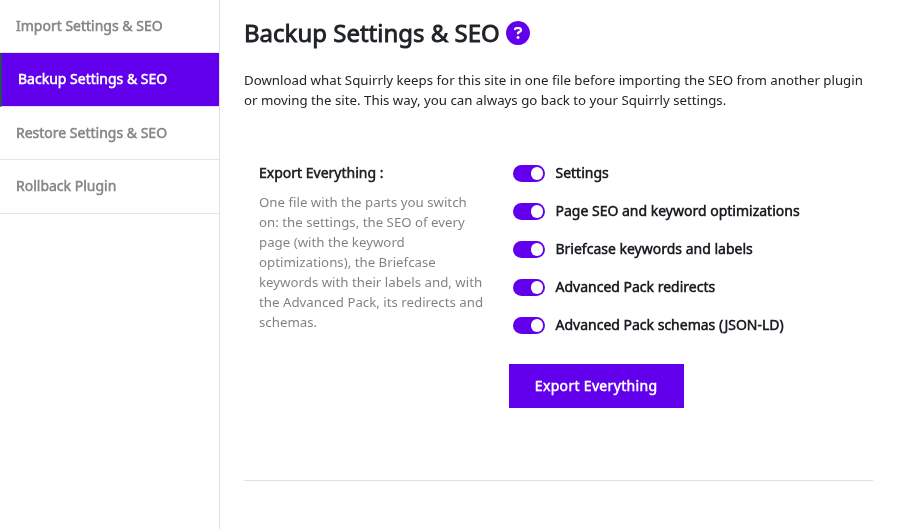
| Switch | What goes in the file |
|---|---|
| Settings | The Squirrly SEO settings of the site |
| Page SEO and keyword optimizations | The SEO Snippet of every page, with the Live Assistant keyword optimizations |
| Briefcase keywords and labels | The Briefcase keywords with their labels, from Squirrly Cloud. The site has to be connected |
| Advanced Pack redirects | The redirect rules. Shows only with the Advanced Pack active |
| Advanced Pack schemas (JSON-LD) | The schemas for Rich Snippets. Shows only with the Advanced Pack active |
You get one compressed file named after the day, for example squirrly-export-2026-11-05.jsonl.gz. Switch a part off to leave it out and make the file smaller.
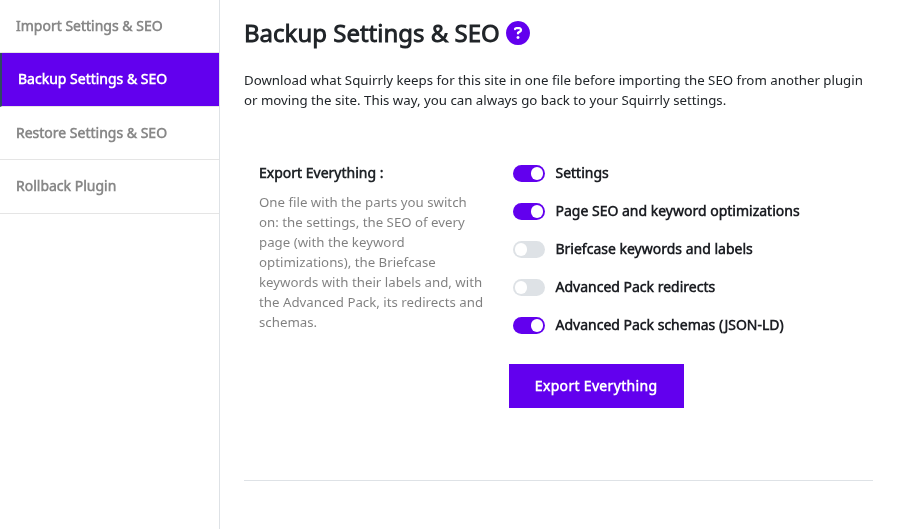
The file never holds the site’s Squirrly Cloud connection or its sign-in keys, so a copy restored on another site doesn’t take over your Cloud connection.
Restore Settings & SEO
- Go to Squirrly > Technical SEO > Import & Data and open Restore Settings & SEO.
- In Import Everything, choose the file.
- Leave on the switches of the parts you want back. A part you switch off is skipped.
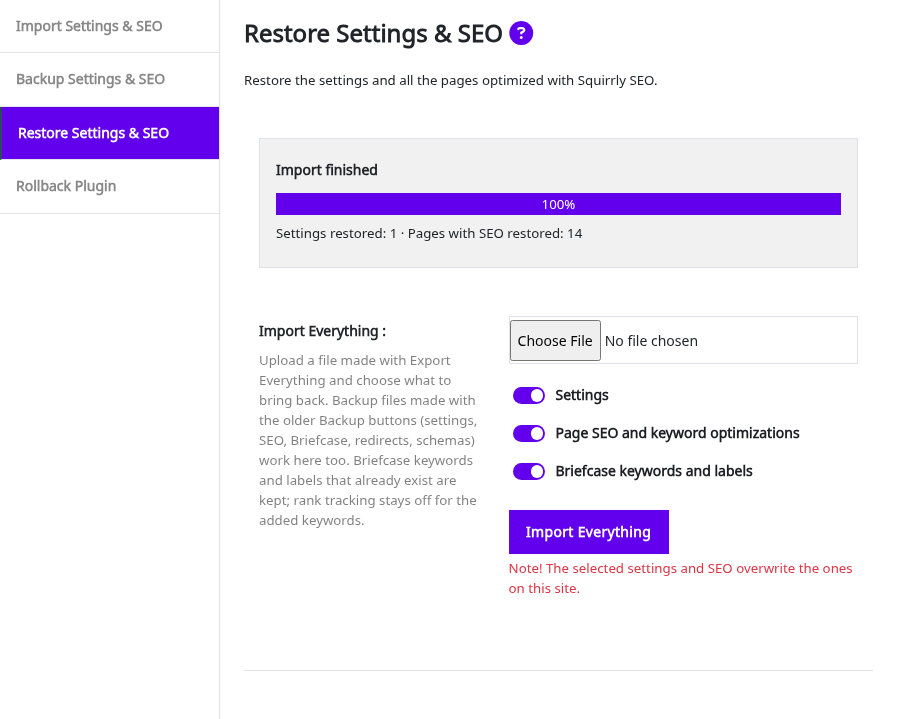
- Click Import Everything and keep the page open until it says “Import finished”.
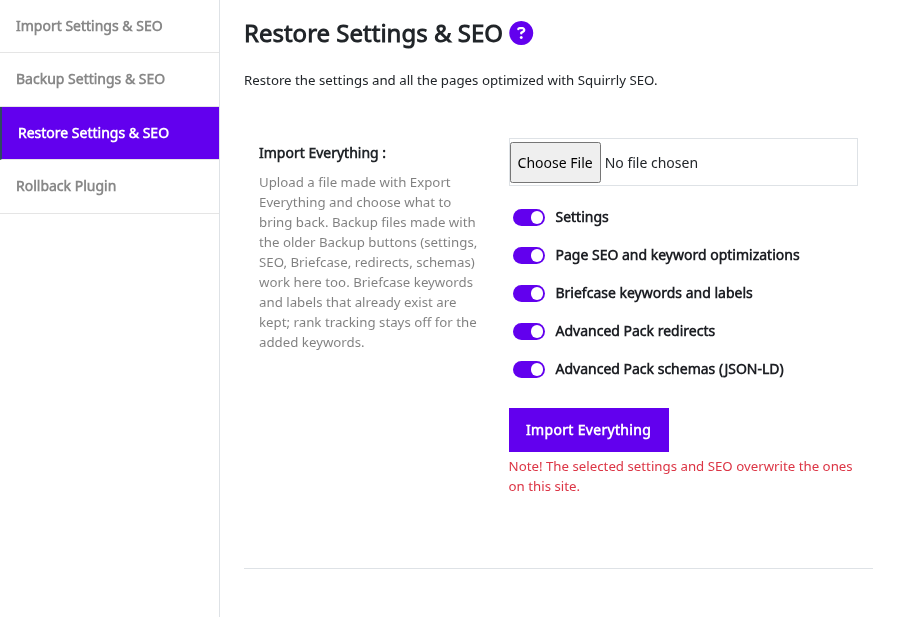
While it runs, a progress box shows the percentage and what was restored so far, with a Cancel button. If the connection drops, a Continue link picks up where it stopped. At the end the box says “Import finished” and counts what came back.
| What you import | What happens on the site |
|---|---|
| Settings | They replace the current Squirrly SEO settings. The site keeps its own Squirrly Cloud connection |
| Page SEO and keyword optimizations | The SEO Snippet of each page in the file replaces the one on the site |
| Briefcase keywords and labels | Keywords and labels that already exist stay. Missing ones are added and each keyword gets its labels back. Rank tracking stays off for the added keywords, so no rank checks are spent |
| Advanced Pack redirects and schemas | They are restored with the Advanced Pack active |
Backup files made with the older Backup buttons also work in Import Everything: the settings .txt file, the SEO .sql file, the Briefcase .txt file and the Advanced Pack’s redirects and schemas .sql files. Switch on the part that matches the file.
Google Rankings history and the GEO Audit stay in your Squirrly account, not in the file. They show up again when the site connects to the same account.
A text file with one keyword per line, or a CSV file with the keyword in the first column, also imports into the Briefcase: upload it in Import Everything with Briefcase keywords and labels on.
Rollback Plugin
The Rollback Plugin tab replaces the plugin files with a version from WordPress.org. Your settings and SEO stay in the database.
- Download a settings and SEO backup first.
- Go to Squirrly > Technical SEO > Import & Data and open Rollback Plugin.
- Next to Rollback to version, click Install Squirrly SEO.
The row says “Install the last stable version of the plugin.” In Squirrly SEO 14.2.11 the last stable version is 14.2.10.
Reinstall the current version
Next to Reinstall version, click Reinstall Current Version to download the version you run (14.2.11 on the demo) again and replace the files. Use it when a plugin file is damaged or was edited by mistake.
Both buttons need a WordPress user who can install plugins. On a site that blocks file changes with DISALLOW_FILE_MODS, they show “You do not have permission to perform this action”.
Troubleshooting
“We couldn’t find any SEO plugin or theme to import from.”
The import list is empty on this site. Use Bulk SEO to fill the titles and descriptions by hand.
“No settings found for this plugin/theme.”
The plugin you picked has no saved settings in this database. Try Import SEO, which reads the page data instead.
“Error! You have to enter a previously saved backup file.”
Import Everything was clicked with no file chosen. Pick the file first, then click the button.
“Select at least one part to export.” or “Select at least one part to import.”
All the switches are off. Switch on at least one part and click the button again.
“The file is larger than this server’s upload limit”
The message shows your server’s limit. Export the parts separately, with the other switches off, or ask your host to raise the upload limit.
Frequently asked questions
Does importing from Yoast SEO change my posts?
No, it copies the Yoast titles, descriptions and settings into Squirrly and leaves the posts and the Yoast data as they are.
Will Import SEO replace pages I already optimized in Squirrly?
Only when Overwrite all existing SEO Snippets optimizations is on.
Can I move my Squirrly settings to another site?
Yes, click Export Everything on one site and Import Everything on the other. The site you import into keeps its own Squirrly Cloud connection.
Can I still use a backup file I made before?
Yes, upload it in Import Everything and switch on the part that matches it, for example Settings for a settings .txt file or Page SEO and keyword optimizations for an SEO .sql file.
Related tutorials
- Migrating Data: How to Switch from Yoast SEO to Squirrly SEO: the full move from Yoast.
- Migrating Data: How to Switch from Rank Math to Squirrly SEO: the same for Rank Math.
- Advanced Redirects Module: the redirects you back up and restore here.
- Back up and restore keywords: the Briefcase file in practice.
- Can Squirrly SEO be used together with Yoast/SEOPress/SEO Pressor/All in One SEO?: running two SEO plugins during a move.