
Websites in Squirrly Cloud
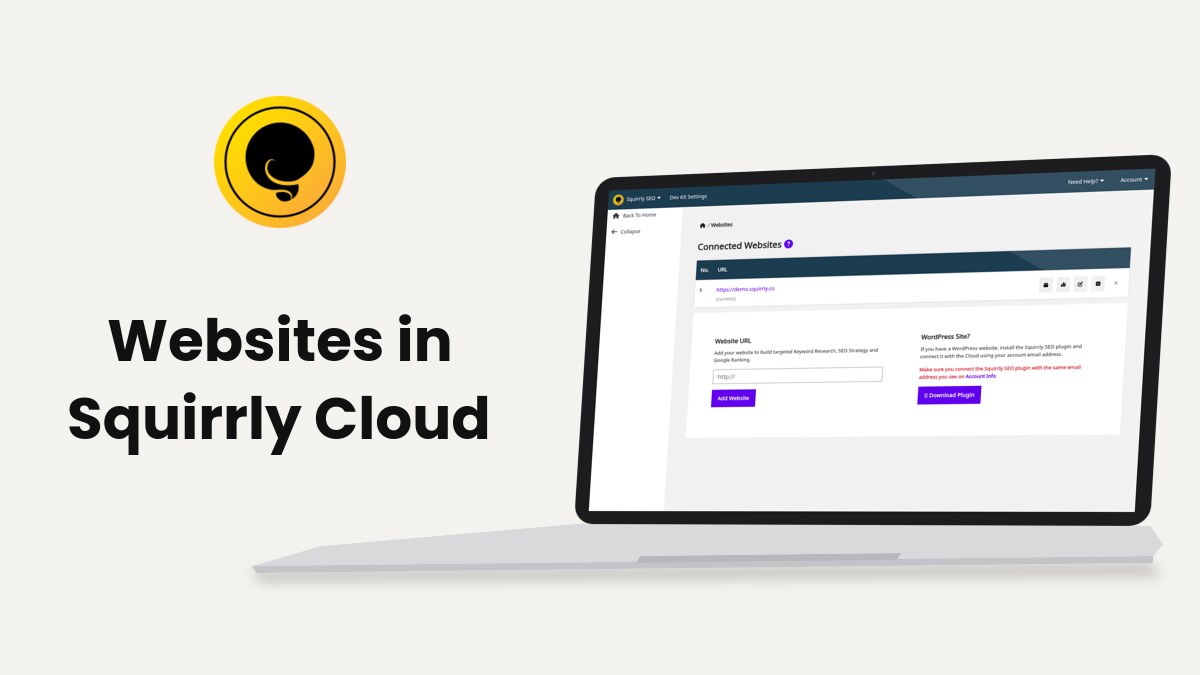
Connected Websites at cloud.squirrly.co/user/blogs lists every website on your Squirrly account. You add, edit, disconnect and delete websites there, and the same list shows on the Dashboard.
The screenshots come from a test account. Squirrly Cloud App explains the rest of the Cloud.
Connected Websites
- Log in at cloud.squirrly.co.
- Click Websites in the left menu of the Dashboard, or open the website selector in the top bar and click Manage Websites.
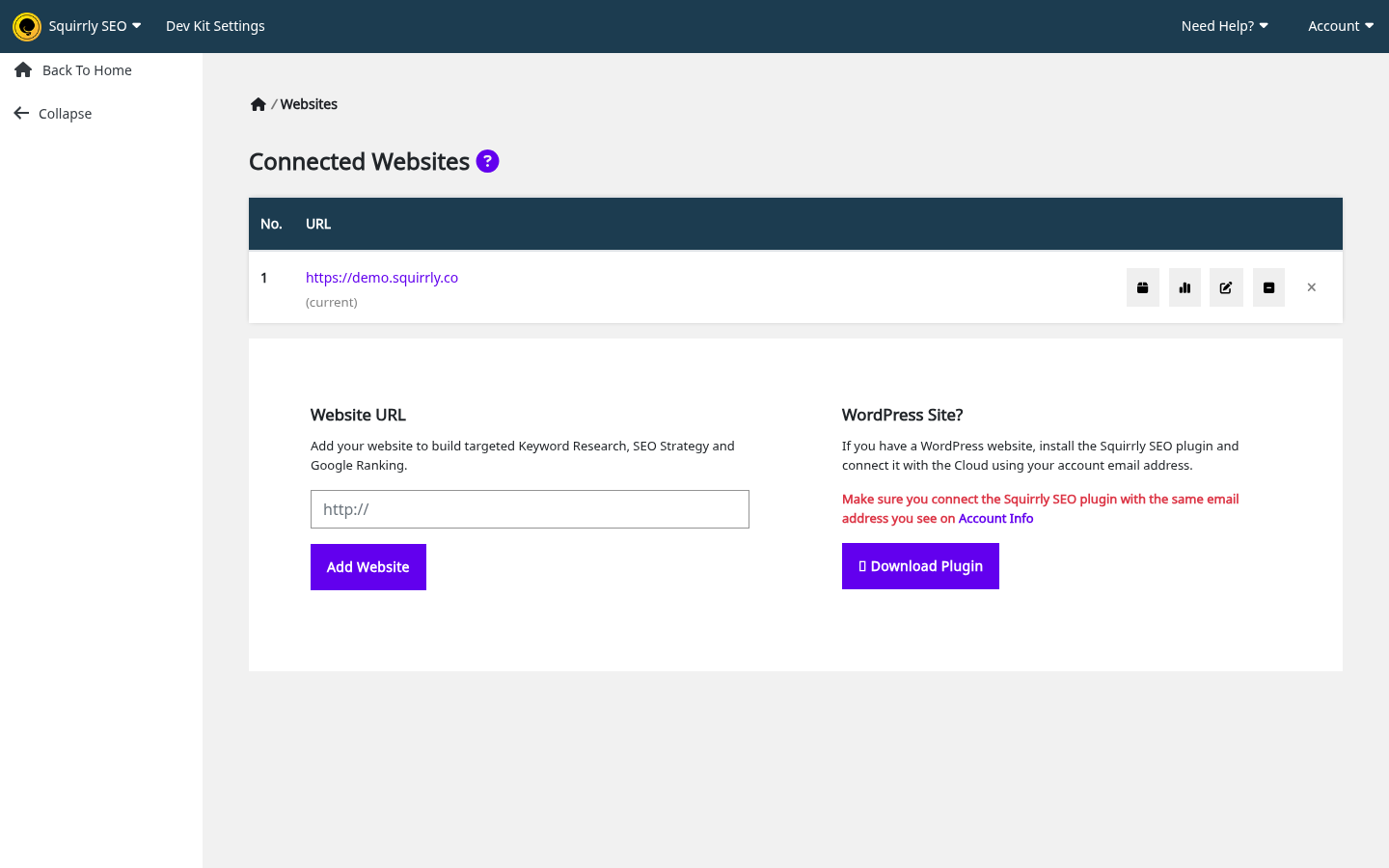
The table has the columns No. and URL, plus two with no title that hold the icons. The selected website shows (current) under its URL. On accounts with a Dev Kit plan, a line under the URL gives the website’s package and limits: “PK: name, KR: n/mo, FP: n, AP: n, SERP: n/mo”.
Icons and states on a row
| What you see | Tooltip or text | What it does |
|---|---|---|
| Bar chart | “Optimizations & Stats” | Opens the stats pop-up |
| Edit icon | “Change the Website URL on Squirrly SEO Cloud” | Opens Change the Website URL for your account: |
| Minus square | “Temporary disconnect the website from this account” | Asks you to confirm, then disconnects the website |
| Plus square, on disconnected rows | “Connect the website back to this account” | Reconnects it, with no confirmation |
| X | “Delete the website and all its optimization history” | Asks you to confirm, then deletes it |
| Warning triangle (the exclamation mark) | “Domain names don’t match. WordPress domain is (…). Change the domain name to match the WordPress domain.” | Opens Fix Website Domain: |
| Box or box with a check, Dev Kit accounts only | “Website Limits & Packages”, or the package name | Opens the pop-up Website Limits & Packages |
| Greyed, faint row | No tooltip | The website is disconnected, or over the plan limit |
| Limit Exceeded link | “Limit Exceeded” | The row is over the limit. The link opens Account Info and only the X stays on the row |

Add a website by URL
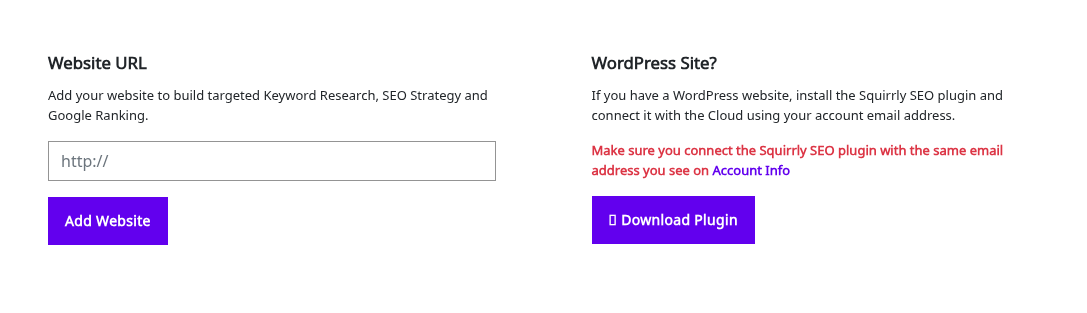
Use this for any site, on WordPress or not. The form is on Websites, and on the Dashboard only while the account has no websites.
- Go to Websites.
- Type the full address in Website URL, with http:// or https://.
- Click Add Website.
Your first website opens the Dashboard. Later ones show “Saved!”. The Cloud keeps the scheme, the host and the path. It drops any query string and the trailing slash, and it lowercases the address. A URL that’s already on the account shows success and adds nothing.
Connect a WordPress site
A WordPress site joins the list by itself when the plugin connects. You don’t have to add it by URL first.
- Click Download Plugin in the WordPress Site? panel and install the plugin. Install Squirrly SEO Plugin has the steps.
- Connect it with the email address you see on Account Info. The screen says it in red: “Make sure you connect the Squirrly SEO plugin with the same email address you see on Account Info”.
- Reload Connected Websites and check the new row.
The plan limit isn’t checked at this moment. A site connected from WordPress past your limit joins the list as a Limit Exceeded row, and the Live Assistant in WordPress shows a warning box.
Select the website you work on
Keyword Research, GEO Audit, Google Rankings and the article list all work on the selected website. There’s no select button on the list. You pick it in the top bar.
- Click the website selector, the address next to Squirrly SEO in the top bar.
- Click a website.
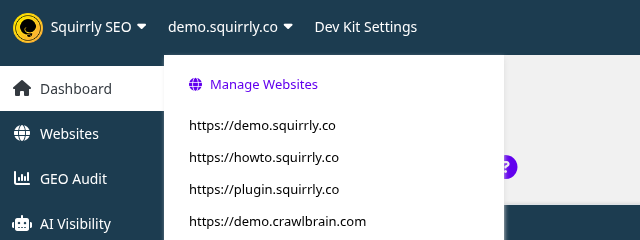
The list leaves out disconnected websites. Your choice is saved on your account, and with no choice saved the Cloud uses your first website. If the selected website gets disconnected, it stays selected and the screens show “This website is disconnected. Please choose another website.”
Change the Website URL
Use this when a site’s address changed and you want its Cloud data to follow. The address must match the WordPress address exactly, because this field isn’t cleaned up or checked the way Add Website is.
- Click the edit icon on the row.
- Type the new address in Change the Website URL for your account:.
- Click Save URL. The Cloud shows “Saved!”.
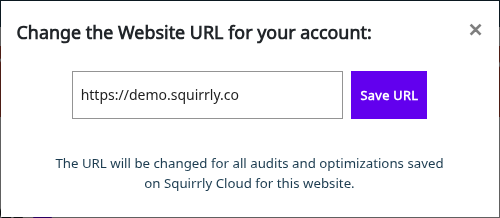
The note in the pop-up says it plainly: “The URL will be changed for all audits and optimizations saved on Squirrly Cloud for this website.” The stored page addresses of that website change with it.
Saving the same URL again clears the stored WordPress domain, and the Cloud still says “Saved!”.
The exclamation mark
The warning triangle appears when the stored WordPress address has a different host from the website URL on the Cloud. It happens after a site moves or is cloned. The Cloud compares hosts only, so www against non-www raises it and http against https doesn’t.
- Click the warning triangle. Fix Website Domain: opens.
- Click the button with the address the website really uses.
| Button | What it does |
|---|---|
| Let the domain name as: <website URL> (green) | Keeps the Cloud URL and clears the stored WordPress address. The mark goes away |
| Change the domain name to: <WordPress address> (yellow) | Sets the Cloud URL to the WordPress address and updates the saved page addresses, same as the edit icon |
If the site is a clone and the original still runs, the clone needs its own connection. See Moved or cloned sites and What causes the exclamation mark.
Disconnect or reconnect a website
- Click the minus icon on the row.
- Confirm “Are you sure you want to disconnect this blog from your account?”.
Nothing is deleted. The website leaves the selector, and the daily audit and research jobs skip it. A plugin connected to that site gets a disconnected message. In WordPress, a login from the plugin then shows “You disconnected your website from https://cloud.squirrly.co/”.
To bring it back, click the plus icon on the greyed row. There’s no confirmation and no limit check at that moment, so the row can turn into Limit Exceeded if the account is over its limit.
Disconnecting from the Cloud is different from Disconnect in the WordPress account menu, which removes the connection on the site’s side. Disconnect a site covers that one.
Delete a website
Delete a website only when you’re sure you won’t need its data again. Download a Briefcase backup first if you want to keep the keywords.
- Click the X on the row.
- Confirm “Are you sure you want to delete the blog and all the optimizations history for it?”.
| Removed for that website | Stays |
|---|---|
| The website row, optimizations, rank data, Briefcase keywords, labels and found keywords | Articles in the Cloud editor and stored audits |
A WordPress site with the plugin still connected comes back at the next plugin connection, so click Disconnect in WordPress first.
Optimizations & Stats pop-up
Click the bar chart icon on a row. Pick a period in Select Report Interval: All Time, Last 365 Days, Last 30 Days or Last 7 Days.
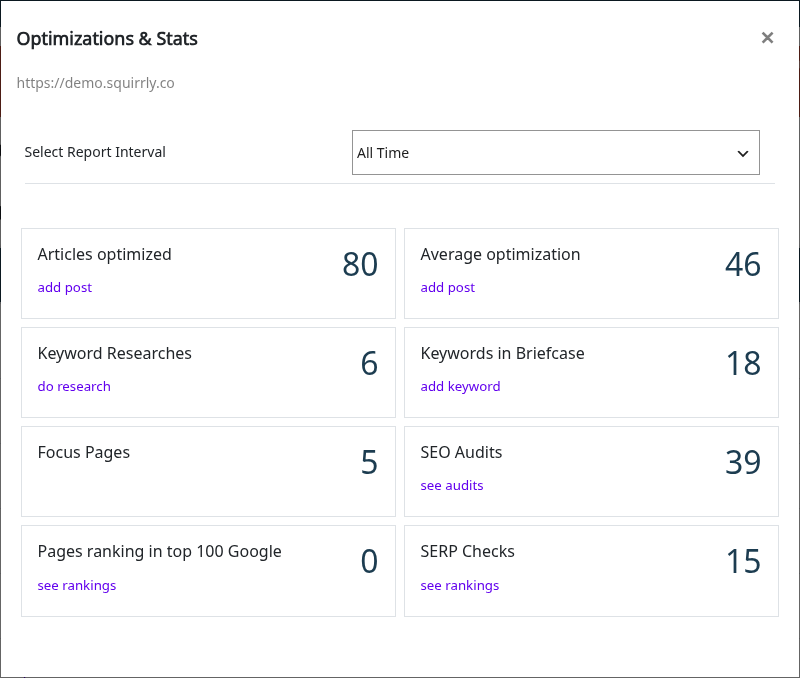
The tiles are:
- Articles optimized
- Average optimization
- Keyword Researches
- Keywords in Briefcase
- Focus Pages
- SEO Audits
- Pages ranking in top 100 Google
- SERP Checks
The pop-up also has the links add post, do research, add keyword, see audits and see rankings. The Focus Pages tile counts what the plugin sends, because the Cloud has no Focus Pages screen.
Website limits
Your limit is on Account > Account Info, under Websites to Connect. The limits of each plan are on the pricing page. Subscriptions stack: when several are active, their website limits add up. See What is License Stacking?.
The two limit checks don’t count the same websites:
| Check | What it counts | Message |
|---|---|---|
| Add Website | All websites, with disconnected ones | “You can’t add more Websites. Check your Account Info” |
| Notice on Connected Websites, greyed rows | Connected websites only | “You reached the maximum number of websites for your account. Please upgrade your plan or add a new subscription. (you can stack multiple subscriptions)” |
So disconnecting a website clears the notice and the greyed row. To add a new website after that, delete one. Websites to Connect on Account Info also counts disconnected websites.
When a paid plan ends, the account falls back to the Free limits with no notice. Websites over the limit turn into Limit Exceeded rows. See When a plan ends.
Download Plugin
Click Download Plugin in the Account dropdown or in the WordPress Site? panel. It opens plugin.squirrly.co/download-squirrly-seo/.
Moved or cloned sites
The Cloud itself shows no error for a moved site beyond the exclamation mark. The notices appear in WordPress, on the site. When the plugin reports a new address, Squirrly calls the old address to see what happened:
| What Squirrly finds at the old address | What it decides |
|---|---|
| The same site answers | The new address is a clone, and it has to reconnect |
| A different site answers | A real move. The website URL and the WordPress address both take the new address |
| No answer | It waits for 3 failures and at least 24 hours, then moves |
| Message in WordPress | What it means | What to do |
|---|---|---|
| “Squirrly Cloud noticed this site’s address changed and is verifying it. This takes about a minute – please refresh the page shortly.” | The check is running | Wait, then refresh |
| “It looks like this website was cloned, staged or moved to a new address, so Squirrly Cloud can no longer verify it. Please reconnect this site to Squirrly Cloud so your SEO data keeps working.” | This copy is a clone, or its key belongs to another site | Click Reconnect this site on the screen This site needs to reconnect to Squirrly Cloud |
A staging copy gets the same notice. After you reconnect, check that Connected Websites has the right address on each row.
Notices on these screens
| What you see | What it means | What to do |
|---|---|---|
| “First you need to add a website to your account Add Website.” | The account has no website yet | Add one on Websites |
| “You can’t add more Websites. Check your Account Info” | All your website slots are in use, disconnected ones included | Upgrade, stack a plan, or delete a website |
| “You reached the maximum number of websites for your account. Please upgrade your plan or add a new subscription. (you can stack multiple subscriptions)” | More connected websites than the plan allows | Upgrade, stack, disconnect or delete |
| “Invalid URL” | The address on the add form isn’t valid | Type the full address with http:// or https:// |
| “Website not found!” | The URL change failed | Contact support |
| “This website is disconnected. Please choose another website.” and “This website was disconnected. Please select another website.” | The selected website is disconnected or banned | Select another, or reconnect it. For a banned website, contact support |
| “(not connected)” after the URL in the Post to WordPress pop-up | The website has no plugin connection | Connect the plugin |
Squirrly Cloud notices and errors has the messages from the other screens.
Troubleshooting
A website isn’t in the website selector
Disconnected websites are left out of the selector. Click the plus icon on its row in Connected Websites.
I disconnected a website and still can’t add a new one
Add Website counts disconnected websites, so delete one or upgrade.
A deleted website came back
The plugin is still connected on that site. Click Disconnect in the WordPress account menu, then delete the row again.
Frequently asked questions
Does disconnecting a website delete its data?
No, disconnecting keeps everything, and the plus icon connects the website back.
Do I need the plugin to add a website?
No, any website can be added by URL, and What works where shows what you get without the plugin.
Why do I see the exclamation mark after adding www to my address?
The Cloud compares hosts, and www.example.com isn’t the same host as example.com.
Do disconnected websites count toward my plan limit?
They count when you add a website, and they don’t count for the over-limit notice.
Can I move a website to another Squirrly account?
Yes, disconnect it in WordPress and connect it with the other account, as How can I change my Squirrly account? shows.
Related tutorials
- Squirrly Cloud App: the menu and what each screen is for.
- Optimize content in Squirrly Cloud: work on the selected website.
- Account, plans and billing in Squirrly Cloud: limits, add-ons and upgrades.
- Squirrly Cloud notices and errors: every message and its fix.
- Web Dev Kit in Squirrly Cloud: packages and client sites.
- Install Squirrly SEO Plugin: connect a WordPress site.






0 Comments