
How To Customize the Squirrly SEO Snippet Image
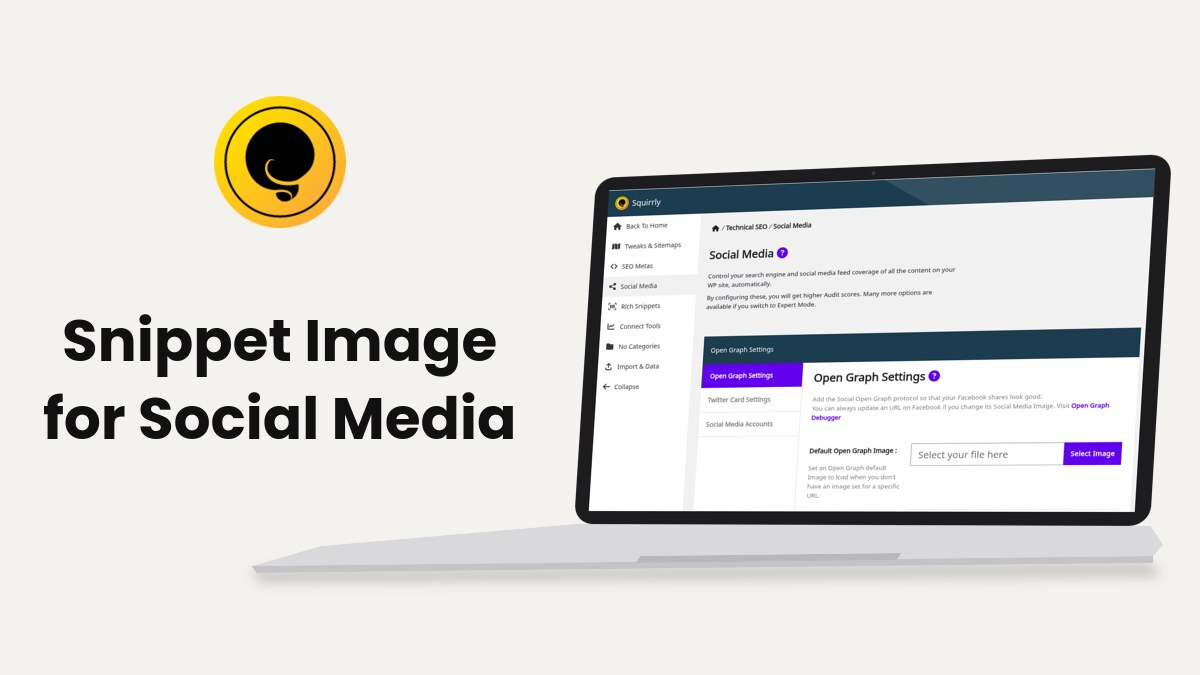
Squirrly SEO picks one image per page for the og:image and twitter:image tags and for the JSON-LD image. You can set that image per page in the SEO Snippet, set a fallback in Squirrly > Technical SEO > Social Media, or change the choice in code with the sq_post_images, sq_open_graph and sq_twitter_card filters.
The examples come from demo.squirrly.co, a test store for cat food, with Squirrly SEO 14.2.9 and the Advanced Pack 2.5.11. The code was checked against Squirrly SEO 14.2.9.
How Squirrly picks the snippet image
For Open Graph and Twitter Card, Squirrly takes the first image it finds in this order:
- The Media Image set in the SEO Snippet of the page, on the Open Graph tab or the Twitter Card tab. Each tab has its own image.
- On an attachment page, the attachment itself. On any other page, the featured image, in full size.
- The first <img> tag in the content. A relative address gets the site URL in front, and an address starting with // gets https: or http:.
- The Default Open Graph Image or the Default Twitter Card Image from Social Media settings.
Steps 2 and 3 are the sq_post_images list, and step 3 runs only when step 2 finds nothing. For an Open Graph type of video, the video’s thumbnail can take the place of the image.
On the demo, post 194 “Wet cat food for senior cats: what to feed an older cat” has no Media Image set. Its og:image is the featured image, what-to-feed-a-senior-cat.jpg, at 1080 x 1554 pixels, and twitter:image is the same file.
Set the image for one page
- Open the page in the editor and scroll to the SEO Snippet box, or open the page’s snippet from Squirrly > Optimize > Bulk SEO.
- Click the Open Graph tab.
- Next to Media Image, click Upload and pick an image from the Media Library.
- Do the same on the Twitter Card tab if X should show the same image.
- Click Save.
The field says “Image size must be at least 500 pixels wide”. Under the fields, “How this page appears on Social Media” previews the image with the title and description. Bulk SEO: Open Graph and Bulk SEO: Twitter Card cover the other fields on those tabs.
Set a default image for the whole site
- Go to Squirrly > Technical SEO > Social Media.
- On Open Graph Settings, click Select Image next to Default Open Graph Image.
- Click Save Settings.
- Open Twitter Card Settings, set Default Twitter Card Image the same way and click Save Settings.
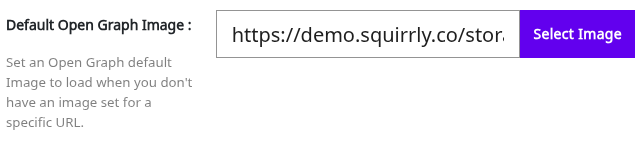

The screen says the default loads “when you don’t have an image set for a specific URL”. A page with a featured image or an image in the text never uses it. Default Open Graph Image and Default Twitter Card Image explain both fields.
Change the image list with sq_post_images
The sq_post_images filter gets the list Squirrly built in steps 2 and 3 and returns the list to use. Each item is an array with src, title, description, width and height. Squirrly uses the first item.
| Output | What it takes from sq_post_images |
|---|---|
| Open Graph | og:image when the page has no Media Image |
| Twitter Card | twitter:image when the page has no Media Image |
| JSON-LD | The image of the page schema |
| Sitemap XML | The images listed for the page in the image sitemap |
| Bulk SEO, Focus Pages, SEO Snippet | The image they check and preview |
The filter runs in all of these places. A list you shorten to one image also gives the image sitemap one image per page.
This example drops the content image and keeps only the featured image, so pages without one fall back to the default image from Social Media settings. Put it in your child theme’s functions.php file or in a small custom plugin.
// Use only the featured image (or the attachment itself) as the snippet image.
add_filter( 'sq_post_images', function ( $images ) {

	// The post Squirrly is loading on the frontend
	$post = SQ_Classes_ObjController::getClass( 'SQ_Models_Frontend' )->getPost();

	if ( ! isset( $post->ID ) || (int) $post->ID == 0 ) {
		return $images;
	}

	if ( wp_attachment_is_image( $post->ID ) ) {
		$attachment_id = $post->ID;
	} elseif ( has_post_thumbnail( $post->ID ) ) {
		$attachment_id = get_post_thumbnail_id( $post->ID );
	} else {
		return array(); // no featured image: let the default image load
	}

	$url        = wp_get_attachment_image_src( $attachment_id, 'full' );
	$attachment = get_post( $attachment_id );

	if ( ! isset( $url[0] ) ) {
		return $images;
	}

	return array(
		array(
			'src'         => esc_url( $url[0] ),
			'title'       => SQ_Classes_Helpers_Sanitize::clearTitle( $attachment->post_title ?? '' ),
			'description' => SQ_Classes_Helpers_Sanitize::clearDescription( $attachment->post_excerpt ?? '' ),
			'width'       => $url[1],
			'height'      => $url[2],
		),
	);
} );
SQ_Models_Frontend::getPost() returns the post Squirrly loaded for the current URL. Its sq property holds the snippet values, for example og_media and tw_media.
Change only the Open Graph or Twitter Card image
The sq_open_graph and sq_twitter_card filters get an array of tags, such as og:image or twitter:image, before Squirrly turns it into meta tags. Squirrly builds the Open Graph array at priority 10 and the Twitter Card array at priority 9, then prints both at priority 99. Hook in at priority 11 to change the values.
This example keeps the Media Image from the snippet when there is one, and otherwise uses the featured image in the large size for Open Graph only.
// Open Graph: Snippet Media Image first, then the featured image in 'large' size.
add_filter( 'sq_open_graph', function ( $og ) {

	$post = SQ_Classes_ObjController::getClass( 'SQ_Models_Frontend' )->getPost();

	if ( ! is_array( $og ) || ! isset( $post->ID ) || (int) $post->ID == 0 ) {
		return $og;
	}

	// 1. The image set on the Open Graph tab of the SEO Snippet
	if ( isset( $post->sq->og_media ) && $post->sq->og_media <> '' ) {
		return $og;
	}

	// 2. The featured image
	if ( has_post_thumbnail( $post->ID ) ) {
		$url = wp_get_attachment_image_src( get_post_thumbnail_id( $post->ID ), 'large' );

		if ( isset( $url[0] ) ) {
			$og['og:image']        = esc_url( $url[0] );
			$og['og:image:width']  = $url[1];
			$og['og:image:height'] = $url[2];
		}
	}

	return $og;
}, 11 );

// Twitter Card: Snippet Media Image first, then the featured image in 'large' size.
add_filter( 'sq_twitter_card', function ( $tw ) {

	$post = SQ_Classes_ObjController::getClass( 'SQ_Models_Frontend' )->getPost();

	if ( ! is_array( $tw ) || ! isset( $post->ID ) || (int) $post->ID == 0 ) {
		return $tw;
	}

	// 1. The image set on the Twitter Card tab of the SEO Snippet
	if ( isset( $post->sq->tw_media ) && $post->sq->tw_media <> '' ) {
		return $tw;
	}

	// 2. The featured image
	if ( has_post_thumbnail( $post->ID ) ) {
		$url = wp_get_attachment_image_src( get_post_thumbnail_id( $post->ID ), 'large' );

		if ( isset( $url[0] ) ) {
			$tw['twitter:image'] = esc_url( $url[0] );
		}
	}

	return $tw;
}, 11 );
The Twitter Card image set in the snippet is tw_media, not og_media. The earlier version of this article read og_media in the Twitter Card example, so a Twitter Card Media Image was ignored.
The is_array() check matters. When Open Graph or Twitter Card is off for a page, the filter gets false, and the code returns it unchanged.
Check the result
- Open the page on the frontend while logged out, or in a private window.
- View the page source and search for og:image and twitter:image.
- For Facebook, paste the URL in the Facebook Sharing Debugger, because Facebook keeps its own copy of the tags.
The Live Assistant setting Fetch Snippet on Social Media asks Facebook to fetch the page again each time you update a post. Check METAs with & without Squirrly SEO shows how to compare the tags with the plugin off.
Troubleshooting
“The image size must be at least 500 pixels wide”
The preview shows this when the Media Image is narrower than 500 pixels. Upload a wider image.
“Please save the post first to be able to edit the Squirrly SEO Snippet.”
The post is still an auto-draft. Save it as a draft and open the snippet again.
“To edit the snippet, you have to activate Squirrly SEO for this page first”
Squirrly SEO is off for that page or post type. Turn it on in the snippet, or check the post type in Automation.
The filter doesn’t change og:image
Check that Load Squirrly Open Graph is on for that post type in Squirrly > Optimize > Automation, and that the function runs at priority 11. A page cache also keeps the old tags until you clear it.
The page shows the default image though it has a photo
Squirrly reads only the featured image and <img> tags in the content. A background image set by a page builder or in CSS isn’t one of them, so set a featured image or a Media Image.
Frequently asked questions
Does the Default Open Graph Image replace my featured images?
No, it loads only on pages with no Media Image, no featured image and no image in the content.
Can Facebook and X show different images?
Yes, the Open Graph and Twitter Card tabs of the SEO Snippet each have their own Media Image.
Where do I put the filter code?
In your child theme’s functions.php file or in a small custom plugin, so a theme update doesn’t remove it.
Does sq_post_images change the image sitemap too?
Yes, the sitemap reads the same list, so whatever the filter returns is what the image sitemap lists.
Related tutorials
- Social Media Settings: the default images, Open Graph and Twitter Card options.
- Bulk SEO & Snippet: edit the snippet of every page from one list.
- Add Custom Open Graph MetaData: more Open Graph code with Squirrly filters.
- Add Custom Twitter Card MetaData: the same for Twitter Card tags.
- Deactivating Specific Features in Squirrly SEO Plugin Using Hooks: other hooks the plugin offers.







0 Comments