Dev Kit Advantages
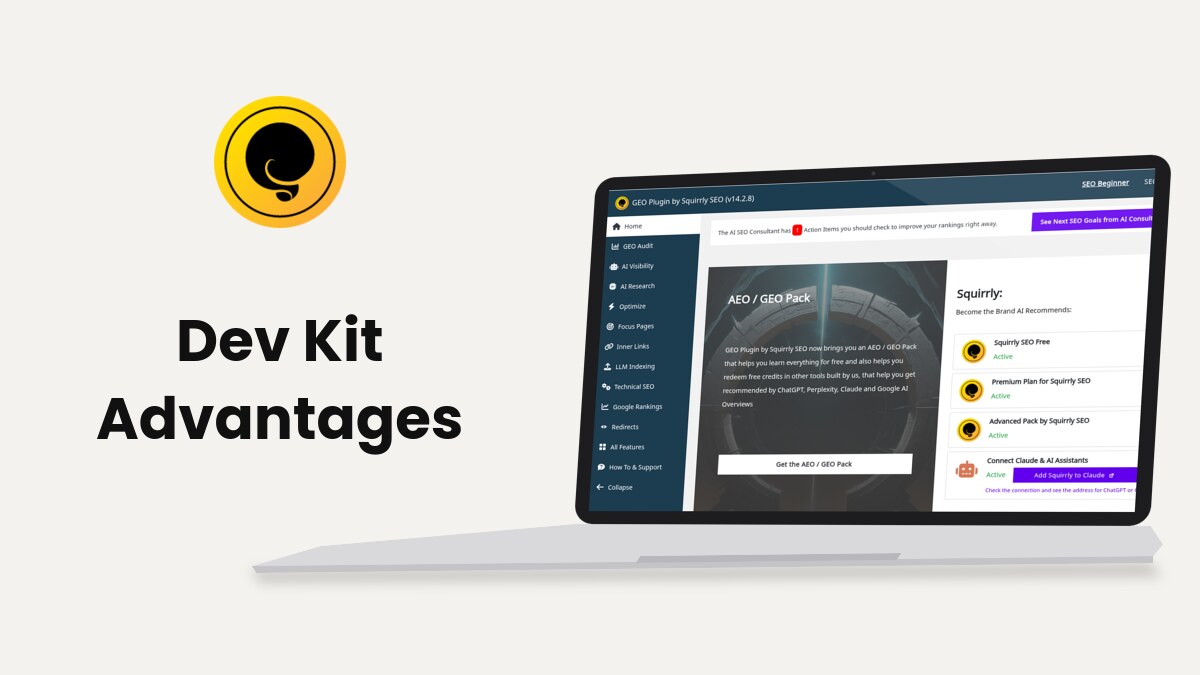
The Dev Kit is the agency option of Squirrly SEO: you set up the plugin once in Dev Kit Settings of your Squirrly Cloud account, download it as a ZIP with your name, logo and menu choices, and install that ZIP on each client site. This page lists what it changes for you and for the client. Web Dev Kit in Squirrly Cloud walks through the screens, the plans and the packages, and Web Dev Kit options explains every switch.
The plugin screenshots come from demo.squirrly.co, a test store with Squirrly SEO 14.2.11 and the Advanced Pack 2.5.12, which runs without the Dev Kit. The Cloud screenshots come from a test account.
What the Dev Kit changes
| Change | Where the client sees it | Details |
|---|---|---|
| Your plugin name | The Plugins screen of WordPress | Plugin Name |
| Your logo | The WordPress menu, the Squirrly header, the Squirrly box in the post editor | Plugin Logo URL |
| Your menu name | The WordPress left menu, the admin bar and the plugin’s top bar | Plugin Menu Name |
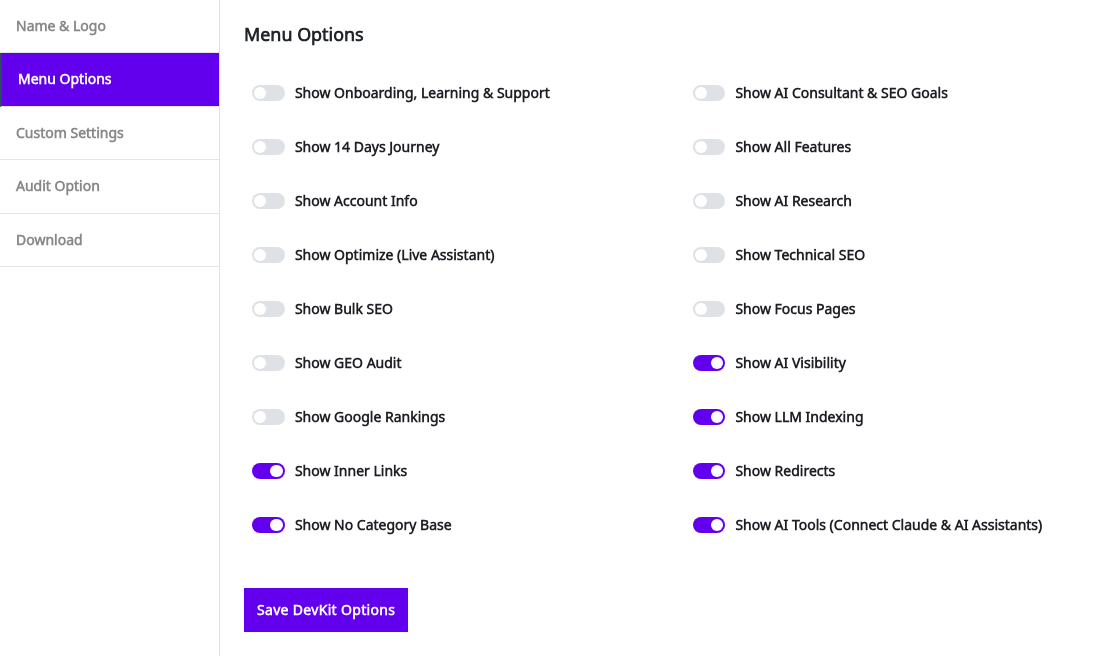
| A shorter Squirrly menu | Only the menu items you leave on | Menu Options |
| Features on from the start | The settings the plugin starts with | Custom Settings |
| Your text in the audit | The passed and failed tasks of the GEO Audit | Audit Option |
| Credit limits per site | The account block, when you leave it visible | Limits and packages |
Each ZIP holds one set of choices. You can make a different ZIP for each project, with its own name and switches, and install the right one on each site. The Cloud keeps only the last saved set, so download each ZIP before you change the options for the next client, and keep the files. The ZIP also carries your account’s token, so treat it like a password.
What your client sees
The client works in a plugin that carries your name in WordPress. The Squirrly menu shows the items you chose, and the rest stay out of sight.
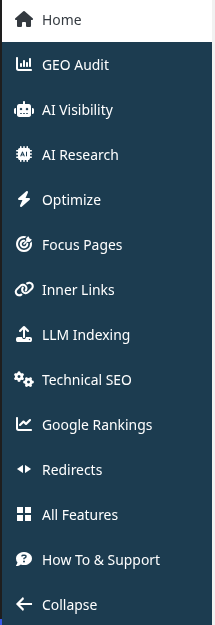
- With Show Account Info off, the plan, the limits and your email are hidden, and the Account Info item is gone.
- Squirrly Cloud links in the plugin open the Cloud login page. A Dev Kit account isn’t signed in with one click from the client’s WordPress.
- The failed tasks of the GEO Audit can show your text next to How to fix this, for example a link to book a call with your team.
- A hidden menu item only disappears from the menu. The feature keeps working in the background.
- The word Squirrly and squirrly.co help links still show in many plugin screens.
What you keep on your side
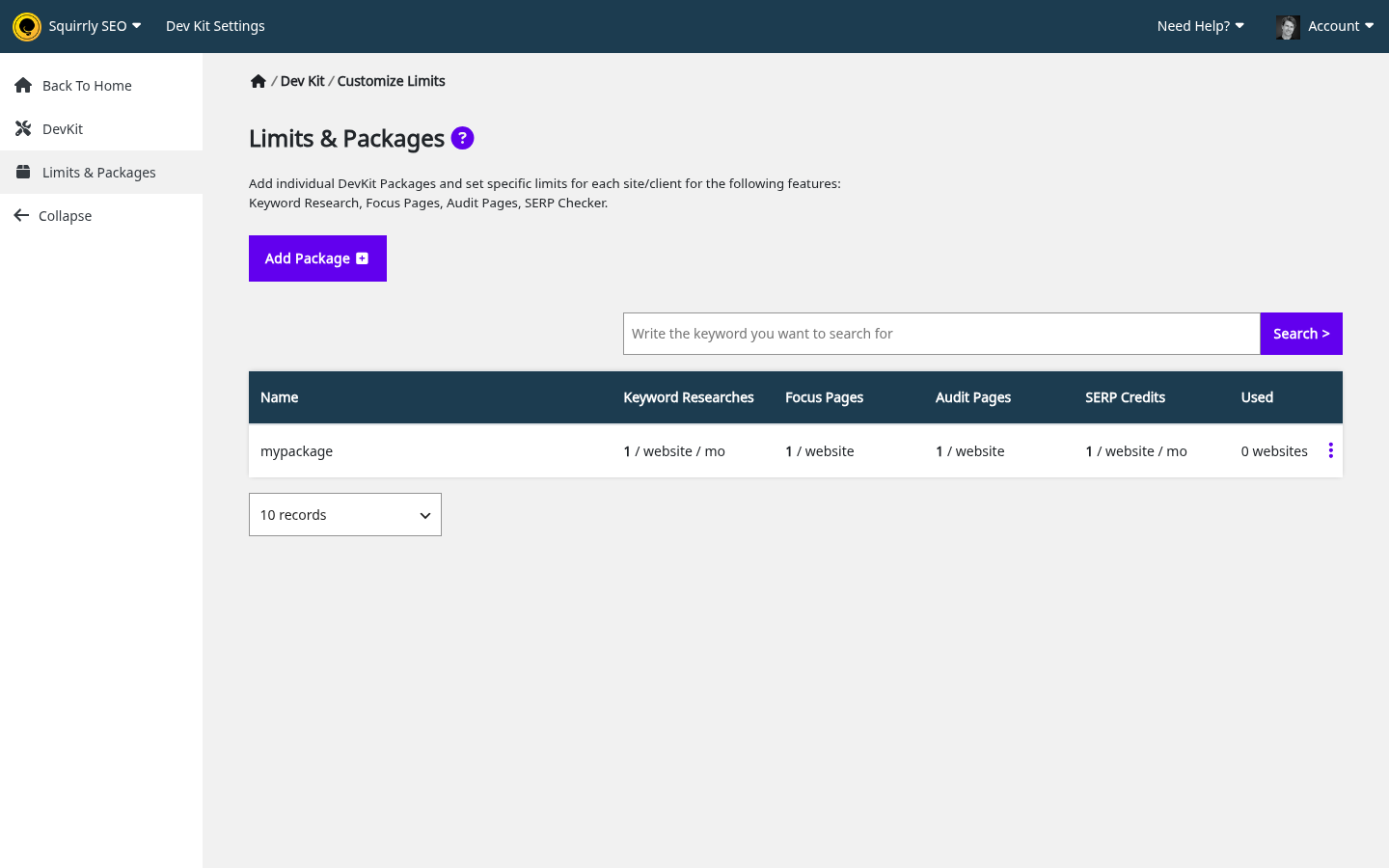
All client sites connect to your Squirrly Cloud account, and clients have no Cloud login. In Dev Kit Settings > Limits & Packages you create packages with limits for Keyword Research, Focus Pages, Audit Pages and SERP Checker and give each site its own package. The limits you can hand out depend on your own plan, and your account’s total still applies.
The Squirrly Cloud App guide covers the account side: the list of connected sites, how to rename them and how to disconnect a website. Reports come from the Optimizations & Stats pop-up on each website and the weekly audit email, since the Cloud has no report generator and no PDF export.
Set it up for a client
- In your Squirrly Cloud account, click Dev Kit Settings.
- Fill in Name & Logo, pick the menu items in Menu Options, the features in Custom Settings and your texts in Audit Option.
- Click Save DevKit Options, then open the Download tab and click Download.
- On the client site, go to Plugins > Add New Plugin > Upload Plugin, install the ZIP and activate it.
On the first load, the plugin copies the settings from the ZIP and deletes the package file. The token in the ZIP connects the site to your account with no login, and the site shows up in Connected Websites. Updates come later through the Plugins screen like any other plugin. You only install a new ZIP when you change the name, the logo, the menu switches, the custom settings or the audit texts.
If the site already runs the standard Squirrly SEO, a ZIP uploaded over it applies on the next page load and the site stays on the account it’s connected to. To move it to your account, back up first. Using the Web Dev Kit on a Website where Squirrly SEO is Already Installed walks through the backup, the removal and the restore.
Check a client site after the install
- Open Plugins and look for your plugin name.
- Look at the WordPress left menu for your menu name and your logo.
- Open the Squirrly menu and check that only the items you left on are there.
- Open GEO Audit, if you left it on, and check your text on a failed task.
- In Squirrly Cloud, check that the site shows in Connected Websites and set its package.
The logo and the menu name need the plugin connected to an account with the Dev Kit. If they still show Squirrly, check the connection in Squirrly > Home.
What the client can still change
Custom Settings only sets the starting values. After the install, the client can turn features on or off in the screens you left visible, for example the sitemap under Technical SEO > Tweaks & Sitemaps. To keep a screen out of reach, hide its menu item in Menu Options.
The name, the logo, the menu switches and the audit texts are different. The client has no screen in WordPress to change them, and they stay until you install a new ZIP.
Multisite networks
On a WordPress multisite, the plugin reads the Dev Kit switches of the main site and applies them to every site in the network. Set up the main site first, then check one of the other sites with the list above.
Backups on client sites
Backup Settings & SEO works the same on a Dev Kit site. When you restore a settings file, the plugin keeps the Dev Kit logo, names, audit texts and menu switches already on the site, so a backup from another site can’t undo your customization.
When a client leaves
You can disconnect the site in your Cloud account or delete it. As an agency, if a client stops using us, what should we do with installed Squirrly on their website? explains the difference, and the optimized content stays on the client’s site either way.
Your own plan matters too. When the Dev Kit subscription lapses, client sites go back to standard Squirrly SEO, as When the subscription lapses explains.
Troubleshooting
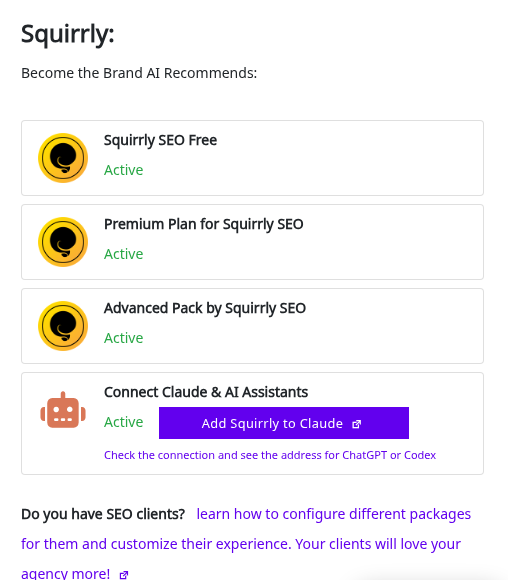
Home still shows “Do you have SEO clients?”
That line shows while the Dev Kit isn’t active on the connected Squirrly account. Check the plan of the account the site is connected to.
The plugin name changed but the menu name didn’t
The name on the Plugins screen applies right after activation, while the menu name and the logo wait for the Cloud connection. Check the connection in Squirrly > Home.
The new switches don’t show on an existing client site
The switches travel in the ZIP. Download a new ZIP after you save the options and install it again.
A Squirrly Cloud link asks for a login
Dev Kit accounts are left out of the one-click Cloud sign-in, so every Cloud link from the plugin opens the login page. Log in with your agency account.
Frequently asked questions
Do my clients need their own Squirrly account?
No, the client sites connect to your account, as this FAQ about Cloud access explains.
Can I give each client a different setup?
Yes, make one ZIP per project with its own options and keep the files, because the Cloud keeps only the last saved set.
Can clients still reach a hidden feature?
Yes, a hidden item only leaves the menu, and its screen still opens from a direct link.
Can I hide my plan details from clients?
Yes, turn off Show Account Info in Menu Options.
Which plans include the Dev Kit?
The WEB DEV KIT and BUSINESS plans on sale include it, as the Web Dev Kit page and Plans with the Dev Kit show.
Related tutorials
- Web Dev Kit in Squirrly Cloud: the screens, plans, ZIP and packages.
- Web Dev Kit: All Plugin Customization Options Explained: every option, one by one.
- Using the Web Dev Kit on a Website where Squirrly SEO is Already Installed: move a site to the Dev Kit plugin.
- How do I update the Squirrly plugin if it is rebuilt with the Web Dev Kit?: updates and new ZIPs.
- Is there a way to hide plan details?: the Show Account Info switch.
- Squirrly Cloud App: manage the connected client sites.