Bulk SEO & Snippet
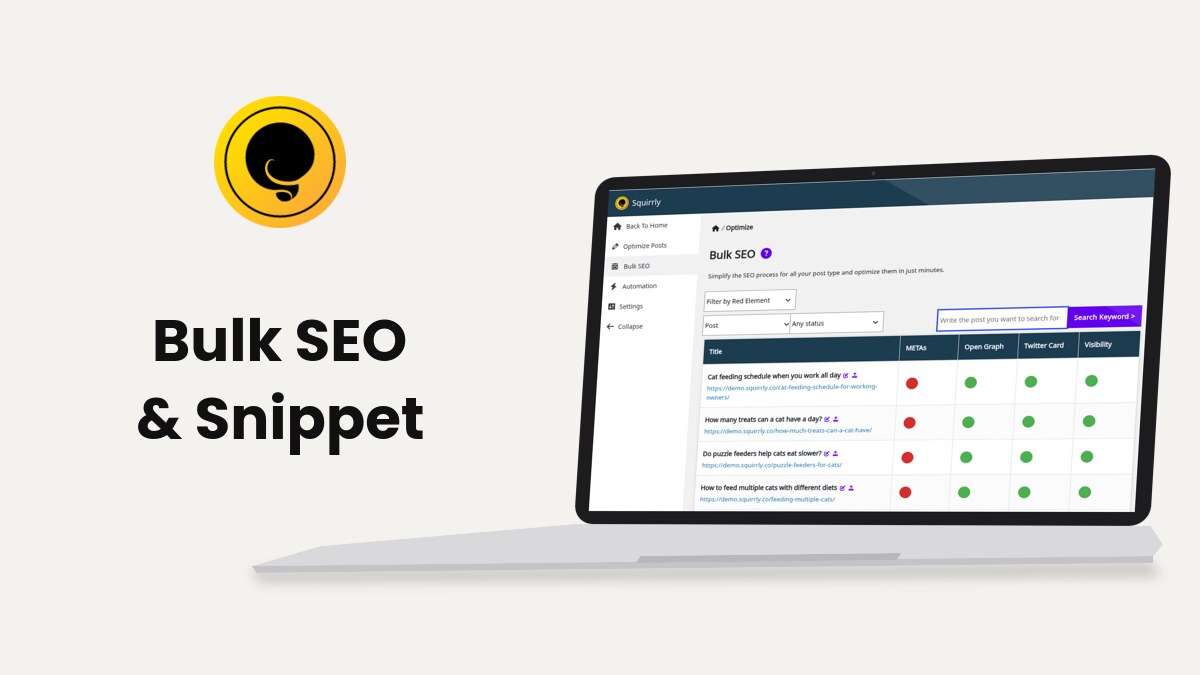
Bulk SEO lists every post, page, product or term of one type at Squirrly > Optimize > Bulk SEO and opens the SEO Snippet of each one, so you can fix its title, description, social cards, schema and visibility without opening the editor. A red dot in the list shows a task that is still open.
The screenshots come from demo.squirrly.co, a test store for cat food, with Squirrly SEO 14.2.10 and the Advanced Pack 2.5.12. The demo has 50 posts, 50 WooCommerce products, 9 pages and 12 posts of a custom type called Cat Recipe.
What Bulk SEO does
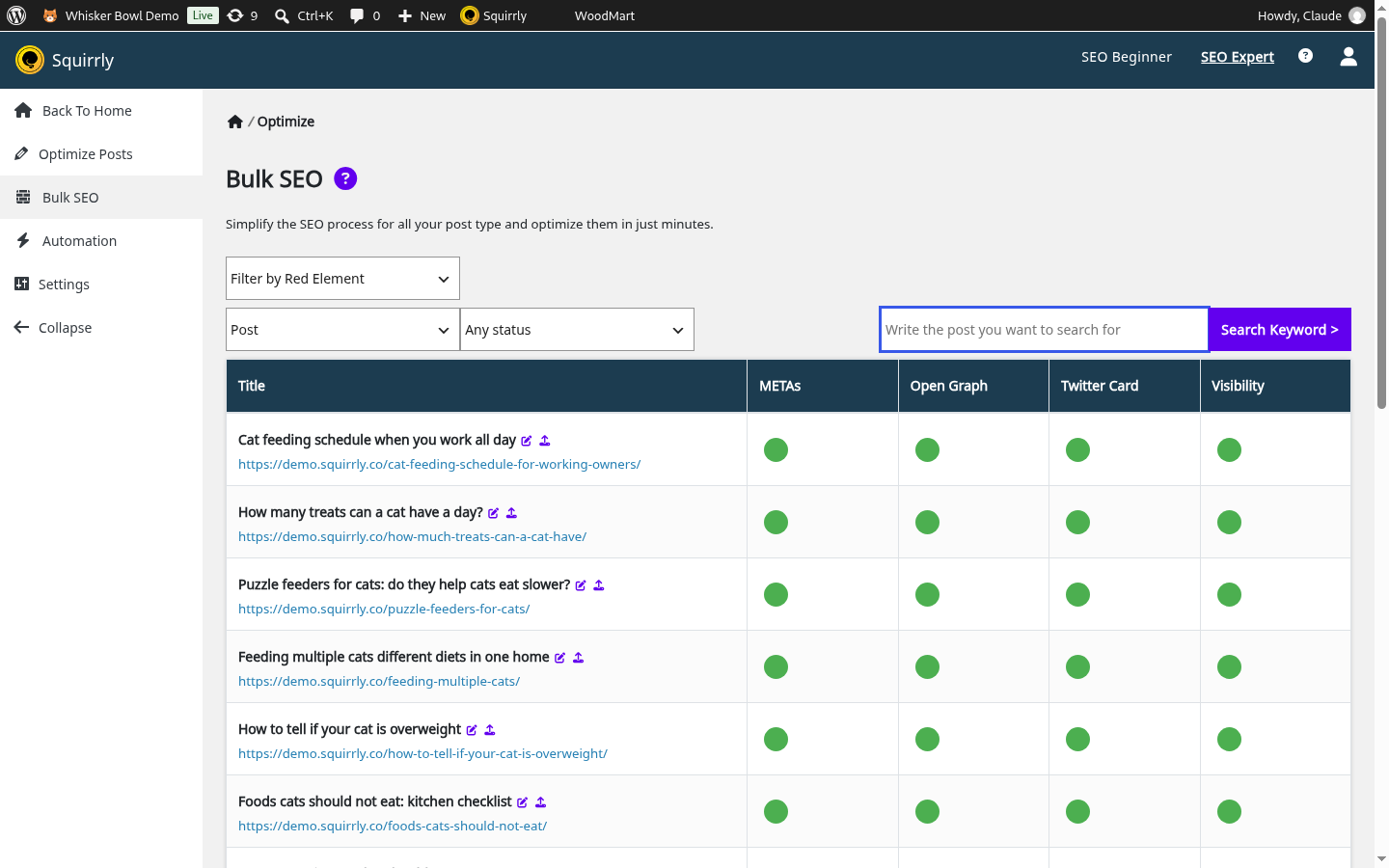
Each row is one URL, with its title, its address and four colored dots: METAs, Open Graph, Twitter Card and Visibility. Click a dot and the SEO Snippet of that URL opens on the matching tab.
| Dot | What it means |
|---|---|
| Red | At least one task in that section is not done |
| Green | All tasks are done, either with your custom text or with the text the SEO Automation patterns generate |
| Gray | The section is switched off, for this URL, for its post type or in the plugin settings |
The pencil icon next to a title opens the WordPress editor for that item in a new tab, and the address under the title opens the page itself.
The tasks behind each dot
A side panel, Bulk SEO Mastery Tasks, slides in with the tasks of the section you clicked. Click a task to read what it checks and how to fix it. Close the panel with the x, the Esc key or a click outside it. These are the tasks in 14.2.10:
| Section | Tasks |
|---|---|
| METAs | Title not empty, Title up to 75 chars, Keyword in title, Description not empty, Description up to 320 chars, Keyword in description, Meta Keywords (2-4 Words), Canonical Link |
| Open Graph | OG title not empty, OG title up to 75 chars, OG description not empty, OG description up to 200 chars, OG Image |
| Twitter Card | TC title not empty, TC title up to 75 chars, TC Description not empty, TC description up to 280 chars, TC Image |
| Visibility | Visible on Google, Send Authority to this page, Add page in sitemap, 301 Redirect |
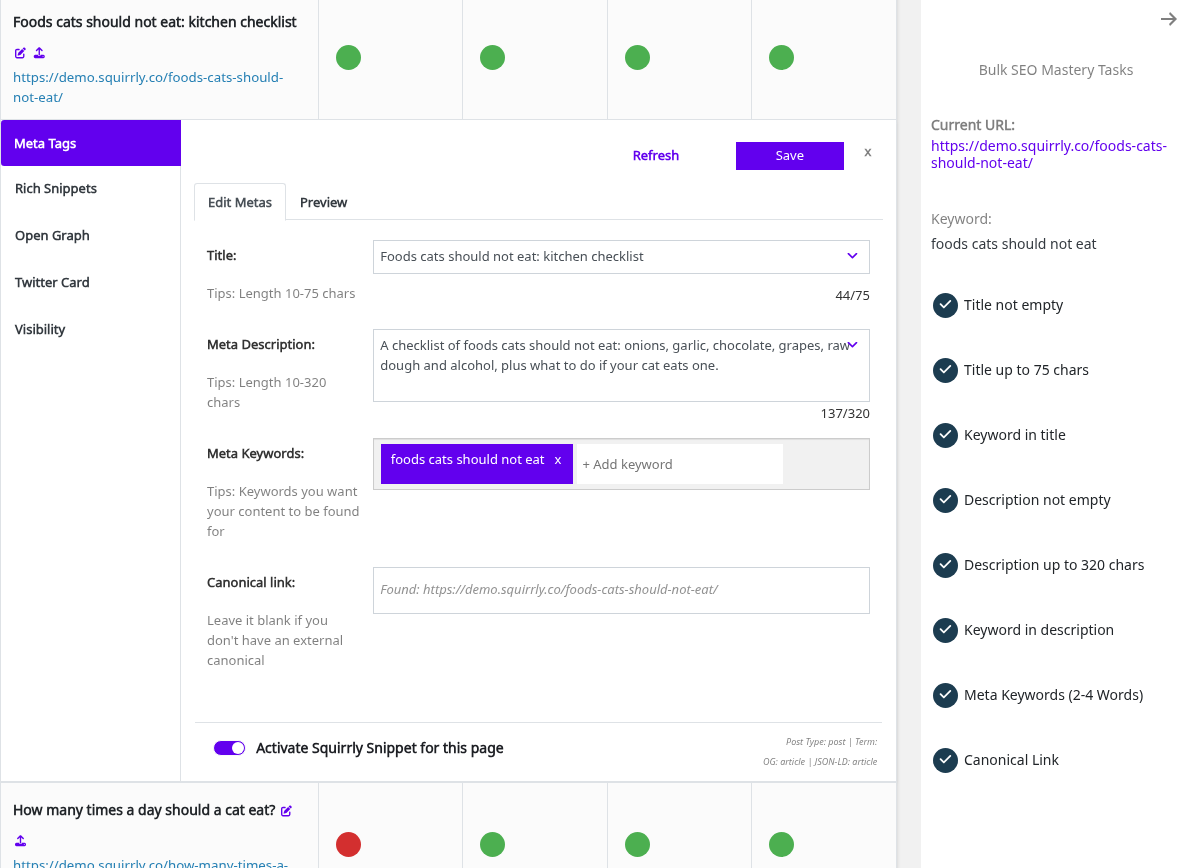
The character limits are the META Lengths, which you can change in SEO Expert mode (the title and description ones in Squirrly > Technical SEO > SEO Metas > Advanced Settings), and the task names follow them. The two keyword tasks look for the exact phrase you typed in Meta Keywords. On the demo, “How many times a day should a cat eat?” has that phrase as its meta keyword and in its title, but not in its description, so its METAs dot is red.
Where to find it
Go to Squirrly > Optimize > Bulk SEO. The same SEO Snippet also sits under the content in the post editor (the SEO Snippet box) and in the WordPress admin bar, under Custom SEO, on any page of your site.
Bulk SEO needs the Squirrly SEO Editor role or higher. Without it the screen says “You do not have permission to access this page. You need Squirrly SEO Editor role.”
Filter and search the list
- Go to Squirrly > Optimize > Bulk SEO.
- Pick a type in the first drop-down. It lists your post types and taxonomies, for example Home, Post, Page, Product, Category, Tag and Shop. Custom types and taxonomies show here too: on the demo, Cat Recipe lists the 12 recipe posts and Meal Type lists their terms.
- Pick a status in Any status: Draft, Publish, Pending, Future or Private.
- To find one item, type its title in Write the post you want to search for and click Search Keyword >.
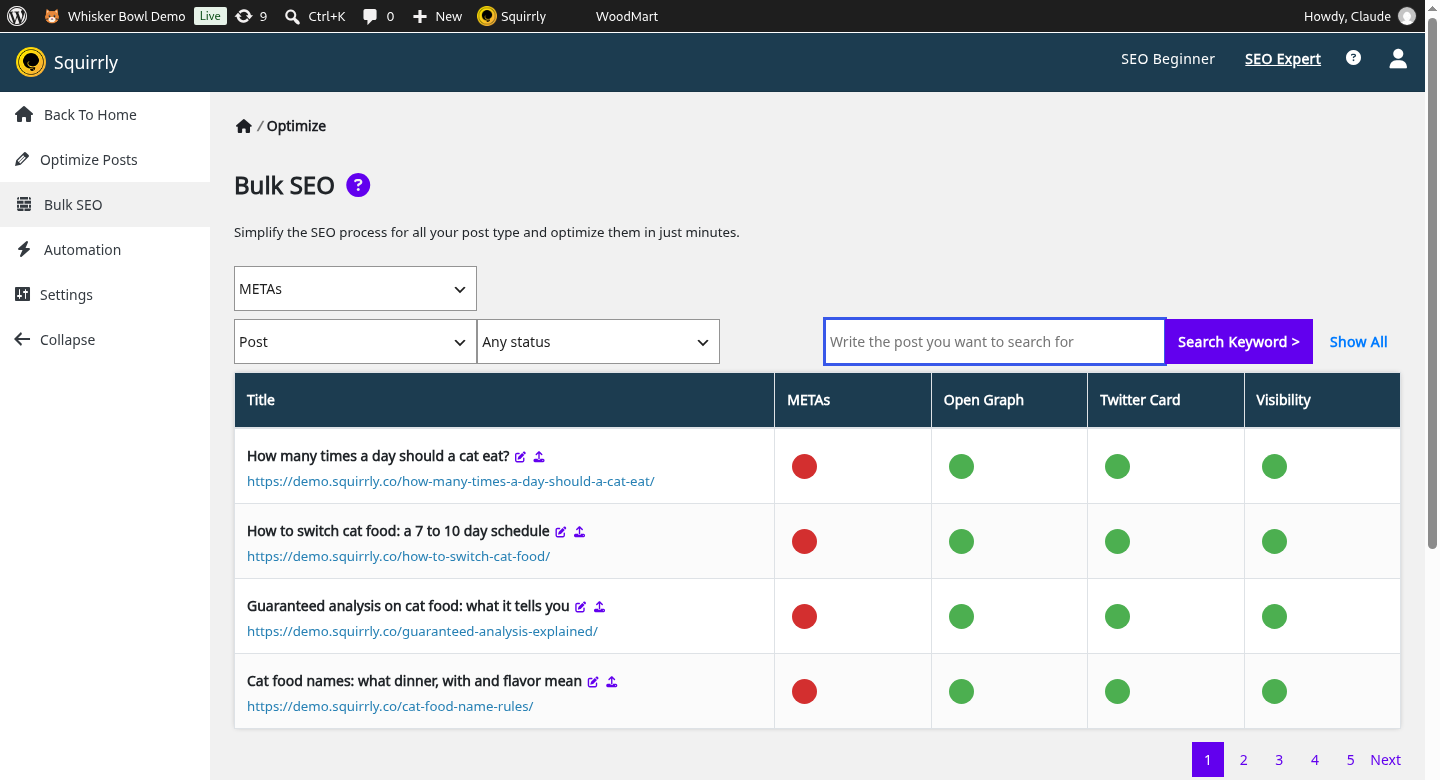
- To see only the rows with a problem, pick a section in Filter by Red Element: METAs, Open Graph, Twitter Card or Visibility.
The list shows 10 rows per page, with page numbers under the table. Draft rows show the status next to the title, for example “(draft)”. Pick Draft before you publish a batch of posts to see which snippets still need work.
When a filter returns nothing, the table says “No data for this filter. Show All records for this post type.”
Send a URL to IndexNow
Published rows have an upload icon next to the pencil, Submit to IndexNow. It sends that URL to the search engines that use IndexNow, and it only shows when Auto-Indexing is on in Squirrly > All Features.
Open the SEO Snippet
Click any dot in a row. The SEO Snippet opens under the row, on the tab of the dot you clicked, and the tasks of that section open in the side panel. Close the panel to work in the snippet. It has five tabs: Meta Tags, Rich Snippets, Open Graph, Twitter Card and Visibility.
Each tab opens in preview mode. Click Edit Metas (or Edit Open Graph, Edit Twitter Card, Edit Visibility) to change the fields, Save to keep the change and Refresh to reload the values. The dot changes color after the save, and a click on it shows the updated tasks.
The Activate Squirrly Snippet for this page switch turns Squirrly SEO off for that one URL. Its metas, social cards and schema stop loading, and the tasks say “Squirrly Snippet is deactivated from this post.”
Edit the meta tags
- Click the METAs dot of a row.
- Click Edit Metas.
- Write the Title and the Meta Description. Leave a field empty to keep the text from the SEO Automation pattern. The tip above each field shows the length to aim for.
- Add the keywords the page should rank for in Meta Keywords with + Add keyword. The keyword tasks check these words against the title and the description.
- Click Save.
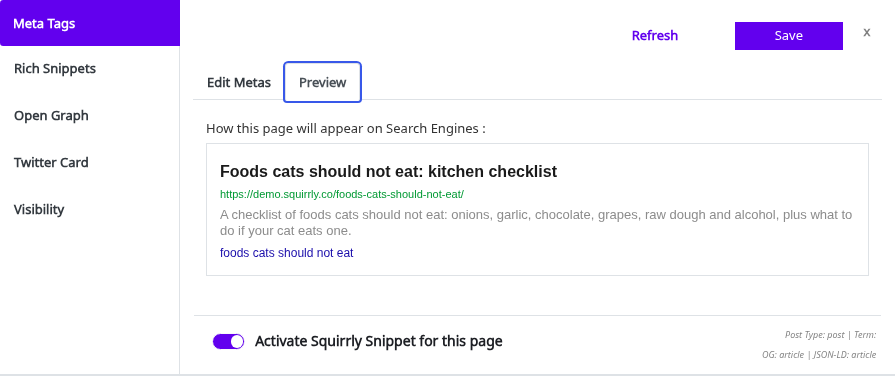
The preview, “How this page will appear on Search Engines”, shows the result. The fields only load when Squirrly > Technical SEO > SEO Metas has the matching switch on (see SEO Metas).
In SEO Expert mode the tab also has Canonical link. Fill it in only when the original of the page lives at another address. The hint under the field says “Leave it blank if you don’t have an external canonical”. Add a custom canonical link has an example.
Example: turn a red METAs dot green
On the demo store, “How many times a day should a cat eat?” had a red METAs dot. Its meta keyword is “how many times a day should a cat eat”, and the title has it, but the description didn’t. The side panel showed it: every task had a check mark except Keyword in description.
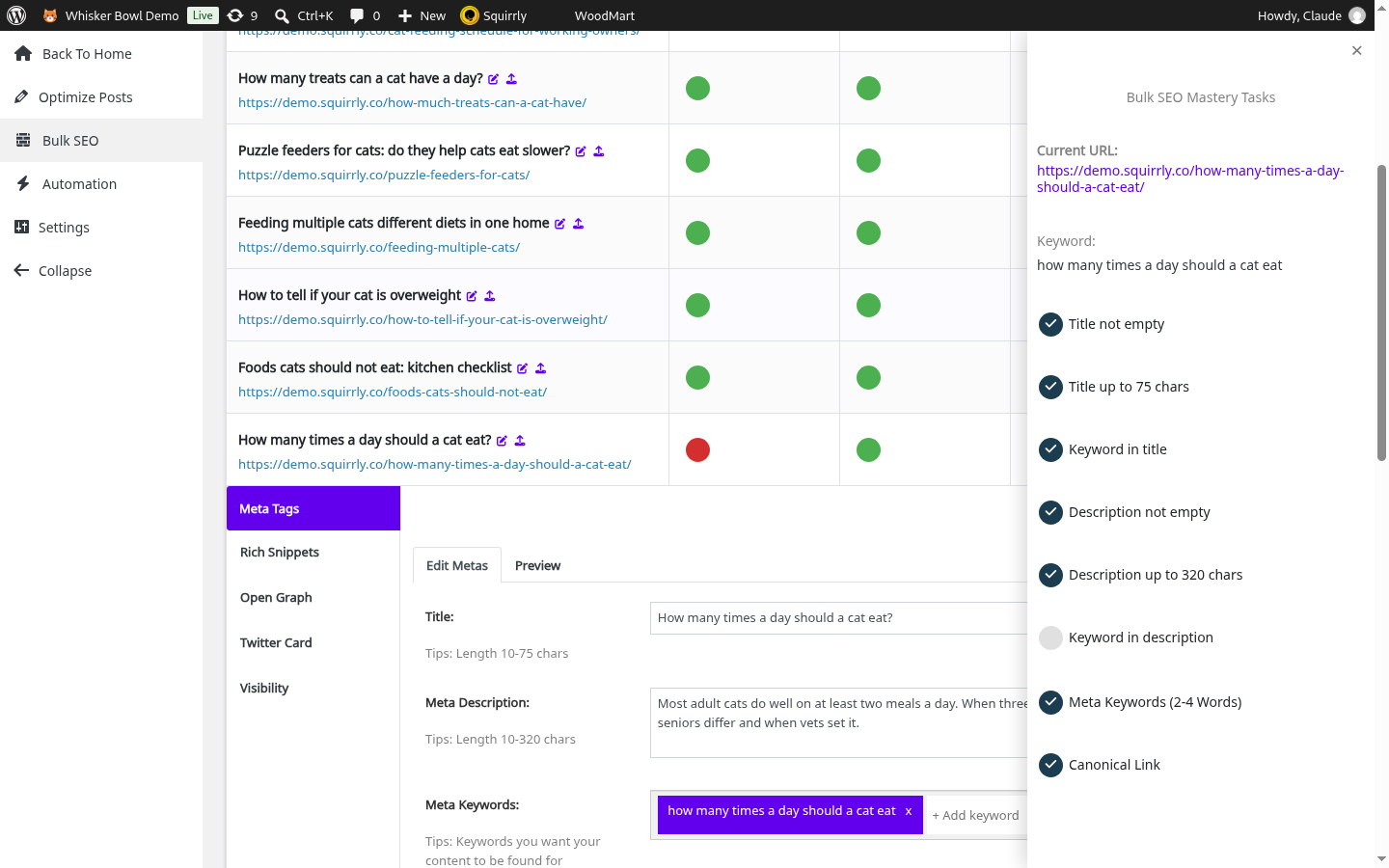
- Click the red dot. The snippet opens on Meta Tags, with the tasks in the side panel.
- Close the panel and click Edit Metas.
- Rewrite Meta Description so it starts with the keyword: “How many times a day should a cat eat? Most adult cats do well on at least two meals. When three or four small meals help, how kittens and seniors differ and when vets set it.”
- Click Save, then click the dot again to check the tasks.
Open Preview to see the result the way a search engine will show it:
Edit the Open Graph
Open Graph is the title, description and image Facebook and LinkedIn show when someone shares the link.
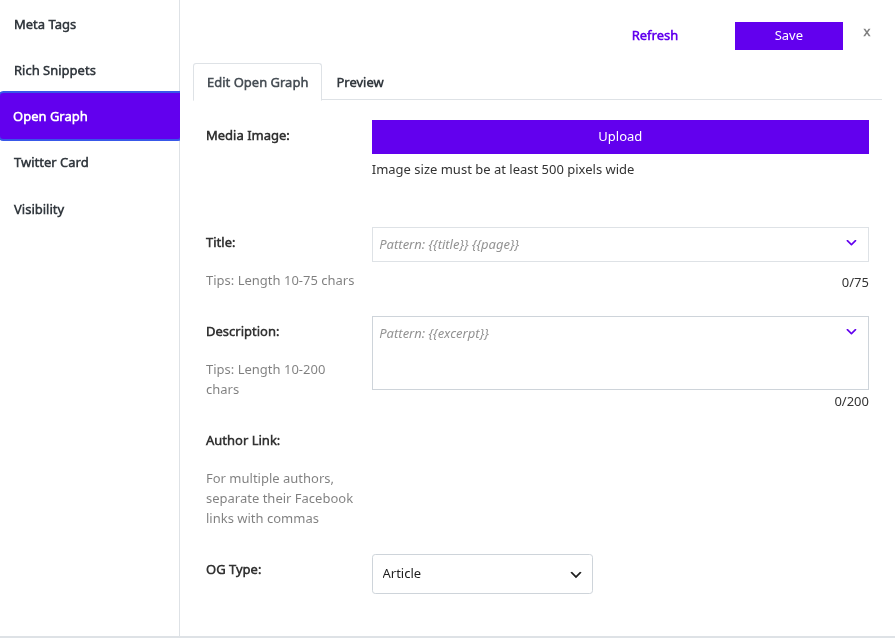
- Click the Open Graph dot of a row, then Edit Open Graph.
- Click Upload under Media Image to pick a share image. It must be at least 500 pixels wide.
- Write the Title and Description, or leave them empty to use the pattern.
- Click Save.
Without a custom image, the snippet shows the featured image with the note “This is the Featured Image. You can change it if you edit the snippet and upload another image.” Customize the Squirrly SEO Snippet image covers the image rules.
SEO Expert mode adds Author Link (“For multiple authors, separate their Facebook links with commas”) and OG Type, where (Auto) keeps the type set for the post type in Automation. Validate Snippet opens the Facebook Sharing Debugger. The site-wide defaults live in Social Media settings.
Edit the Twitter Card
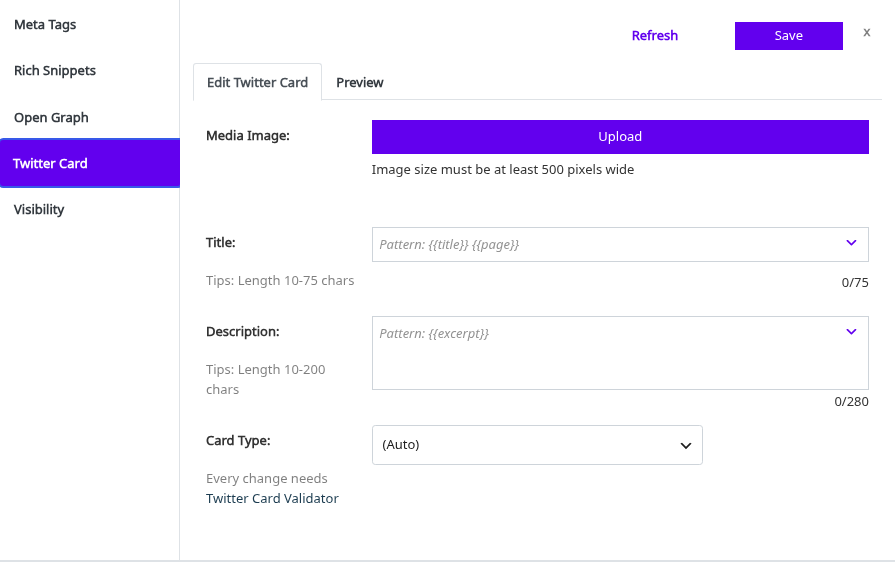
- Click the Twitter Card dot, then Edit Twitter Card.
- Upload a Media Image of at least 500 pixels wide, or keep the featured image.
- Write the Title and Description.
- Pick the Card Type: (Auto), summary or summary_large_image.
- Click Save.
The preview is labeled “How this page appears on X.com”. Validate Card opens the X card validator.
Fix the Twitter Card tasks
After the save, click the Twitter Card dot again. Each task without a check mark is still open. Click it to read the details, for example why TC Image asks for a picture that looks good in the X feed. A task that shows “Title is generated automatically.” counts as done, because the pattern fills it.
Edit the JSON-LD schema
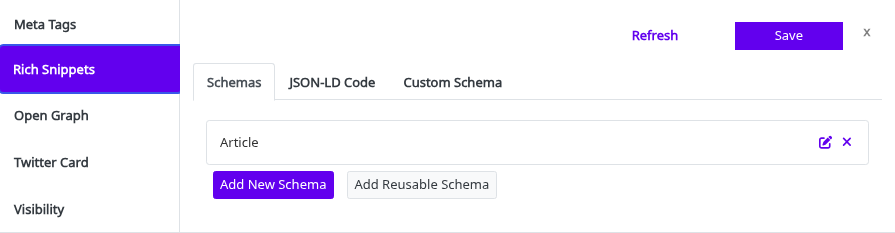
The Rich Snippets tab holds the JSON-LD for the URL. It has no dot in the list, so open the snippet from any dot and click Rich Snippets. Set the default types for each post type first, in SEO Automation.
- Open the Schemas tab inside Rich Snippets.
- In Schema Types, keep the first option, SEO Automation, to use the types of the post type, or pick other types. Hold Control (Command on a Mac) to pick more than one.
- When the Breadcrumbs Schema is active, pick the category the breadcrumbs should use in Primary Category.
- Click Save.
Breadcrumbs Schema shows Active or Not Active. You change it in Rich Snippets Settings, not in the snippet.
Validate the JSON-LD
Click Validate JSON-LD. It sends the code of the snippet to the Google Rich Results Test at search.google.com/test/rich-results, where you can also test the live URL with the schema from other plugins.
Add custom JSON-LD code
- Open the Custom Schema tab inside Rich Snippets.
- Change (Auto) to Custom Code.
- Paste your code in Custom JSON-LD Code.
- Click Save.
The custom code replaces the automatic schema for that URL only. The Schemas tab then says “This page uses a Custom Schema. The Schema Types below are ignored while custom JSON-LD is active.” Switch back to (Auto) to undo it. Add custom JSON-LD structured data has more on the code itself.
Use Advanced Custom Fields values
The Custom Schema tab says you can also use the Advanced Custom Fields (ACF) plugin to add custom JSON-LD. Use ACF fields in Squirrly SEO schemas shows how to map ACF fields to schema values.
Several schemas on one page
Filling in every schema field per page needs the Squirrly SEO Advanced Pack. Without it, the Schemas tab shows “Want to add multiple schemas per page and customize every field?” and an Install/Activate the Advanced Pack – it’s free button.
With the Pack, the Schemas tab has Add New Schema and Add Reusable Schema. Pick a type, for example Recipe for a Cat Recipe post, fill in its fields and click Save. Reusable Schemas explains how to share one schema across many pages.
Set the visibility of a page
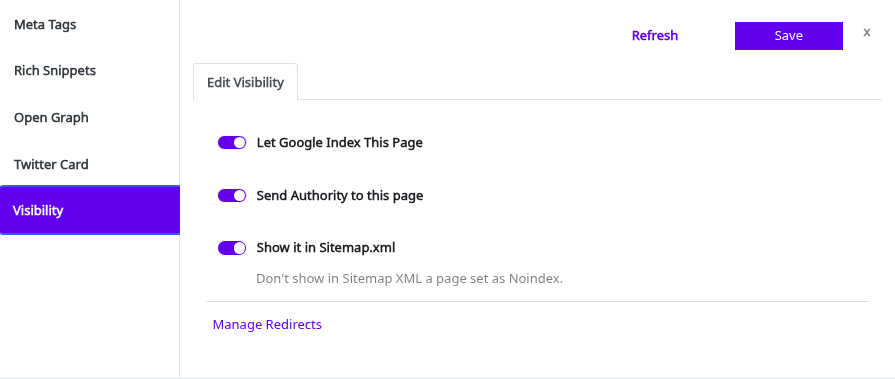
- Click the Visibility dot of a row, then Edit Visibility.
- Switch Let Google Index This Page off for a page that shouldn’t show in search.
- Switch Send Authority to this page off to add nofollow to it.
- Switch Show it in Sitemap.xml off to keep the page out of the Squirrly sitemap.
- Click Save.
All three are on by default. Squirrly writes them in the robots meta of the page, for example <meta name="robots" content="noindex,follow">, plus matching googlebot and bingbot metas. The switches need Add Robots Meta on in SEO Metas, and the hint under the sitemap switch says “Don’t show in Sitemap XML a page set as Noindex.” The per-post-type defaults are in SEO Automation, and Add a custom noindex meta shows the code way.
When Discourage search engines from indexing this site is ticked in Settings > Reading, the Visibility tasks say “You selected ‘Discourage search engines from indexing this site’ in Settings > Reading. It’s important to uncheck that option.” That WordPress setting hides the whole site, whatever the snippet says.
Redirect a page with a 301
In SEO Expert mode, the Visibility tab has Manage Redirects with a 301 Redirect field.
- Type the full new address in 301 Redirect.
- Click Save.
Visitors and search engines that open the old URL go to the new one. The 301 Redirect task turns red on purpose, so you see in the list that this URL redirects. Leave the field empty to remove the redirect. The SEOPress, Yoast SEO and The SEO Framework importers in Import & Data bring their per-page redirects into this field. For rules across many URLs, use the Redirects module.
Troubleshooting
“No data found for this post type. Try other post types.”
The type you picked has no items with that status. Pick another type, or set the status back to Any status.
The METAs dot stays red after I wrote a title
Open the tasks. Keyword in title and Keyword in description stay open until one phrase from Meta Keywords appears, word for word, in the title and in the description. Canonical Link stays open while the canonical points to another URL.
“SEO Metas for this post type are deactivated from Automation > Configuration.”
Turn on Load SEO Metas for that post type in Squirrly > Optimize > Automation, then reload Bulk SEO.
“Please save the post first to be able to edit the Squirrly SEO Snippet”
The item is an auto-draft. Save it once in the editor, then open the snippet again.
A dot is gray
The section is off. Click the dot and read the task: it names the switch, for example “Open Graph is deactivated from Technical SEO > Social Media.”
Frequently asked questions
Do the snippet fields replace the SEO Automation patterns?
Yes, a field you fill in wins over the pattern for that URL, and an empty field keeps the pattern.
Can I see custom post types and WooCommerce products in Bulk SEO?
Yes, every public post type and taxonomy shows in the type drop-down, products included when WooCommerce is active.
Why don’t I see the canonical and 301 redirect fields?
They show in SEO Expert mode, which you pick at the top right of any Squirrly screen.
Is there a JSON-LD dot in the list?
No, the list has METAs, Open Graph, Twitter Card and Visibility, and the schema is on the Rich Snippets tab of the snippet.
Related tutorials
- SEO Automation: set the patterns and defaults that fill every snippet.
- SEO Metas: choose which meta tags Squirrly adds to your pages.
- Social Media Settings: default Open Graph and Twitter Card images and types.
- JSON-LD Structured Data: the site-wide schema for your company or personal brand.
- Squirrly SEO Live Assistant: optimize the content of a post for its keyword.
- From Where Can I Customize Snippets for My Pages?: every place the SEO Snippet opens.