Website Icon Settings

Squirrly SEO adds your website icon (favicon) to browser tabs and Apple devices from Squirrly > Technical SEO > Tweaks & Sitemaps > Website Icon. You upload one image, and Squirrly makes the favicon.ico and the touch icons from it.
The screenshot comes from demo.squirrly.co, a test store for cat food, with Squirrly SEO 14.2.8 and the Advanced Pack 2.5.11.
Turn on the Website Icon feature
- Go to Squirrly > All Features.
- On the Favicon Site Icon card, click the switch next to click to activate.
- Go to Squirrly > Technical SEO > Tweaks & Sitemaps and click Website Icon in the left column of the panel.
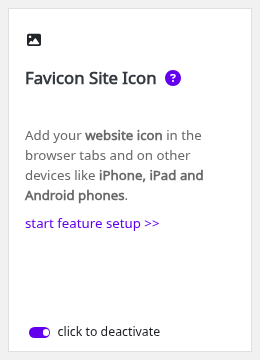
The Website Icon tab appears only while the card is on.
Upload the icon
- On the Website Icon tab, click the file field next to Upload file.
- Pick a JPG, JPEG, GIF, PNG or ICO file from your computer.
- Click Upload.
- Look for the message “The favicon has been updated.” and the 32 x 32 preview next to the field.
Squirrly converts a JPG, JPEG, GIF or PNG to a 32 x 32 ICO file. It also makes the touch icons in 76, 120, 152, 180 and 192 pixels from the same image, so use a square image of at least 192 x 192 pixels. An ICO file is copied as it is.
On a single WordPress site, Squirrly also writes the icon as favicon.ico in the WordPress root folder and deletes the favicon.ico that was there. On Multisite it writes no file in the root.
The page then gets these tags in its head, with your own domain:
<link href="/favicon.ico" rel="shortcut icon" type="image/x-icon" />
<link href="/touch-icon180.png" rel="apple-touch-icon" type="image/png" sizes="180x180" />
<link href="/touch-icon192.png" rel="icon" type="image/png" sizes="192x192" />
The example shows one apple-touch-icon line. Squirrly adds one for each of the five sizes.
Add Apple Touch Icons
Add Apple Touch Icons (“Also load the favicon for Apple devices.”) is on by default. It adds the apple-touch-icon tags and the 192-pixel icon. It shows only in SEO Expert mode: click SEO Expert in the top bar of any Squirrly screen, switch it off or on and click Save Settings.
Troubleshooting
The old icon still shows in the browser
The screen says “If you don’t see the new icon in your browser, empty the browser cache and refresh the page.” Browsers keep favicons longer than the pages.
“File type error: Only ICO, JPEG, JPG, GIF or PNG files are allowed.”
The file has another extension, for example .svg or .webp. Save the image as PNG and upload it again.
“ICO Error: Could not create the ICO from file. Try with another file type.”
Squirrly couldn’t convert the image. Upload a PNG, or an ICO made with another tool.
“Upload error: Could not upload the favicon.” or “Permission error: Could not change the favicon permissions.”
The server didn’t let WordPress write the file. Squirrly keeps the icon in wp-content/uploads/squirrly/. Ask your host to make that folder writable for WordPress.
Frequently asked questions
Which file is best for the icon?
A square PNG of at least 192 x 192 pixels, so every touch icon size stays sharp.
Does it work on Multisite?
Yes, and on Multisite Squirrly writes no favicon.ico in the shared root folder.
Why is the Website Icon tab missing?
The Favicon Site Icon card is off on All Features.
Related tutorials
- Advanced Settings: the other options on the Tweaks & Sitemaps screen.
- Social Media Settings: the image shown when your pages are shared.
- Robots.txt File Settings: another file Squirrly serves from the same screen.
- Squirrly Favicon.ico: the short answer.