How do I connect Google Analytics: Both Tracking Code And the API Connection?
Connecting Google Analytics to Squirrly SEO is important because it enables Squirrly to show you Traffic insights for your pages – right inside your Squirrly Account.
Once this connection is enabled, Squirrly will start showing you Traffic Data for every Page you add as a Focus Page (in the Traffic Health section) – alongside bounce rate data, time-on-page data and the average visitors per day.
You will also get Traffic insights inside the GEO Audit (Squirrly > GEO Audit, the Traffic section), and you will be able to see the pages with the most visitors for the last week (from the list of pages you’ve added to the Audit). AI Visibility (Squirrly > AI Visibility) reads the same Google Analytics connection.
All this data is retrieved from Google Analytics. So, unless you enable this connection between your website and Google Analytics, we are unable to show Traffic insights for your pages inside Squirrly SEO.
1. How to Connect your Google Analytics Account to Squirrly
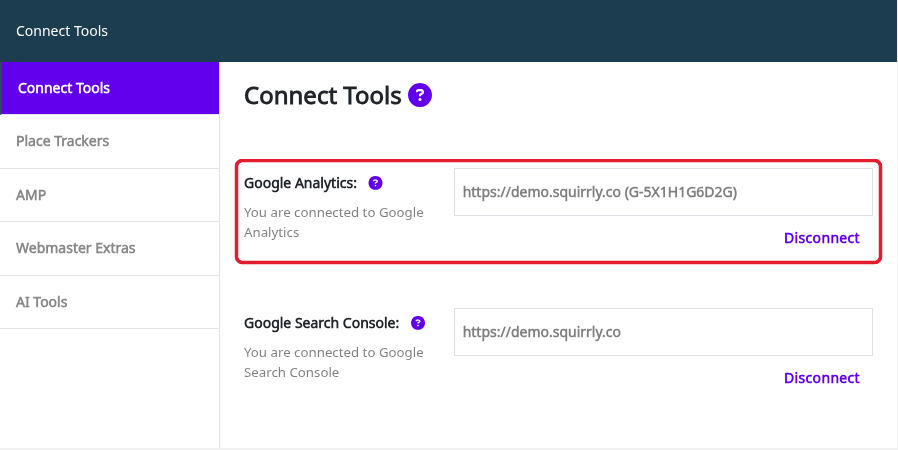
- Go to Squirrly > Technical SEO > Connect Tools. The Connect Tools tab opens first.
- Next to Google Analytics, click Sign in and connect your main Google account (the one that owns the Google Analytics property).
- A new panel will show up asking for permissions. Click Allow.
- You will then see a panel letting you know that you should go back and check the connection in the Squirrly SEO Plugin.
- Back in WordPress, click Check connection to complete the setup. The line under the label changes to “You are connected to Google Analytics”. 🚨Make sure to select the relevant Google Analytics entry (property). If the account has more than one property, pick the one of this site in the list and confirm “Do you select this property?”.
2. How to Add the Google Tracking script for your Analytics ID
With this option, you enable Squirrly SEO to add the Google Tracking script for your Analytics ID.
The Place Trackers tab shows when Google Analytics Tracking is on in Squirrly > All Features. The tracking code can be added as long as you already have a Google Analytics account and followed STEP 1 from this article to connect your account to Squirrly.
If your account is already linked to Squirrly, all you have to do is click on Get GA Code and Squirrly will bring and display your Code directly into this setting from Squirrly SEO – without you having to do anything else.

- Go to Squirrly > Technical SEO > Connect Tools > Place Trackers
- Click on Get GA Code next to the Google Analytics ID field
- Click Save Settings
Squirrly will then add the Google Tracking script for your Analytics ID.
If you have multiple Google Analytics accounts created for the site for which you want to enable the connection, Squirrly will bring the most recent code.
Make sure that you know which ID your account has on Google Analytics in case you have multiple GA accounts created for the site on which you use Squirrly SEO.
In case you’ve previously connected your Google Analytics account to Squirrly SEO – but your code isn’t automatically shown after clicking on Get GA Code, then it’s possible that you’ve created your property AFTER you connected your GA account to Squirrly.
In this case, Squirrly doesn’t have the latest information related to your GA account. This happens very rarely, but in case you encounter this situation, you can:
- either reconnect your Google Analytics account to Squirrly (from Squirrly > Technical SEO > Connect Tools, the Connect Tools tab)
- OR go to Google Analytics, get the Analytics ID and copy/paste it into this section of Squirrly.
Leave this section blank if you don’t want Squirrly to add the Google Tracking script for your Analytics ID.
Key things you should know:
- Google Analytics 4 measurement IDs start with G-. This is the ID to use today.
- IDs that start with UA- belong to the older Universal Analytics, which Google stopped in 2023. The field still accepts them for old setups.
- Anything that isn’t a UA- or G- ID is rejected with “The code for Google Analytics is incorrect.” If you paste the whole tracking snippet, Squirrly keeps only the ID.
If your code starts with G, Squirrly automatically sets the Google Tracking Mode to gtag.js (an ID that starts with UA- switches it to analytics.js). This defines what code will be placed in your site’s header when Google Analytics Tracking is enabled. The Google Tracking Mode field only shows in Expert Mode: click SEO Expert in the top bar of the Squirrly screen to see it.
Google Tracking Mode: analytics.js or gtag.js
- Choose gtag.js if you use Google Tag Manager or Google Analytics 4.
- Otherwise, select analytics.js to track the website traffic.
Connect Tools has the full guide for this tab, including the Facebook Pixel and the switches for logged-in users and IP tracking.
An Important Note!
Squirrly will ONLY add the Tracking script IF you add the ID in Squirrly > Technical SEO > Connect Tools > Place Trackers.
For the GEO Audit and Focus Pages, it will only use the GA connection (from the Connect Tools tab of Squirrly > Technical SEO > Connect Tools) to get the traffic report.
If you connect your Google Analytics account on the Connect Tools tab but DON’T enable Squirrly SEO to add the Google Tracking script for your Analytics ID on the Place Trackers tab, this means that the plugin only looks at your Google Analytics to gather data for the Audit but doesn’t actually fire up the script.