
All Features in Squirrly SEO
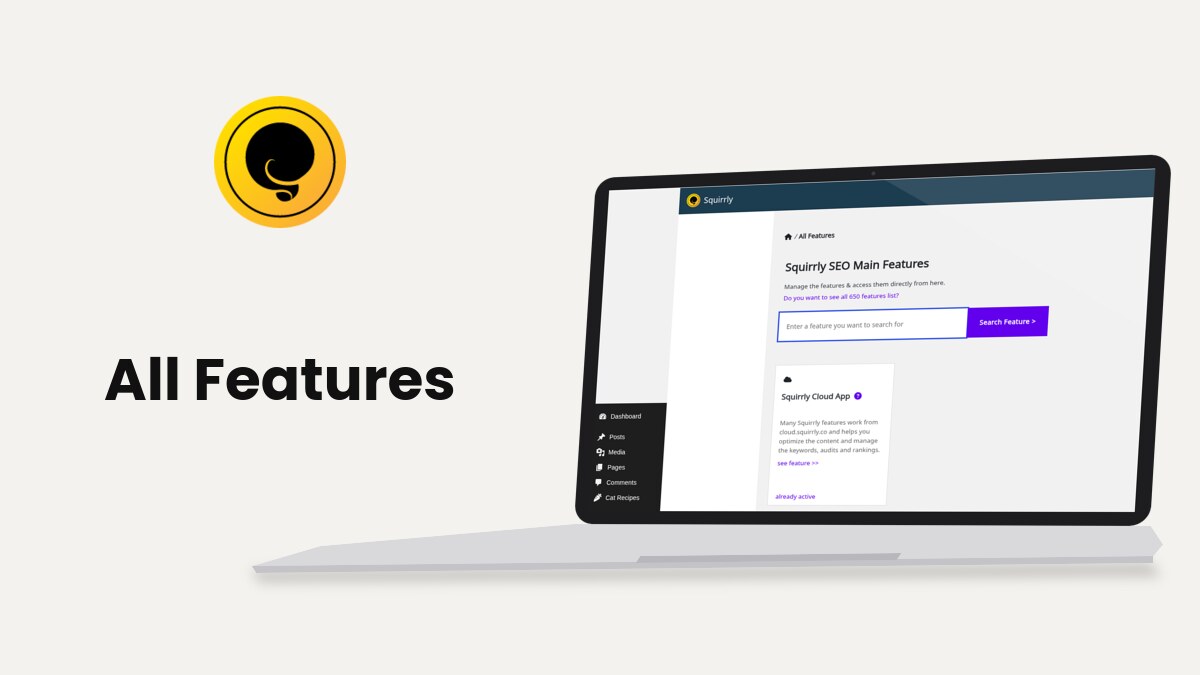
Squirrly > All Features lists the main features of Squirrly SEO as cards, grouped by category, each with a link to its own screen, a help link and, for the features you can turn off, an on/off switch. You can switch a whole feature on or off here without opening its settings.
The screenshots come from demo.squirrly.co, a test store for cat food, with Squirrly SEO 14.2.9 and the Advanced Pack 2.5.11.
What the All Features page shows
The page is titled Squirrly SEO Main Features, with the line “Manage the features & access them directly from here.” Under it, the link Do you want to see all 650 features list? opens the full feature list on squirrly.co, and a search box finds a card by name.
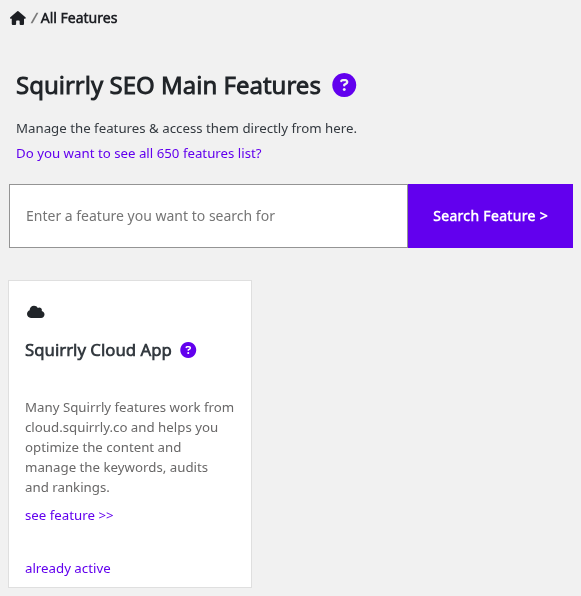
The first card is always Squirrly Cloud App, which has no category. The other cards follow in 9 categories:
| Category | Cards on the demo site |
|---|---|
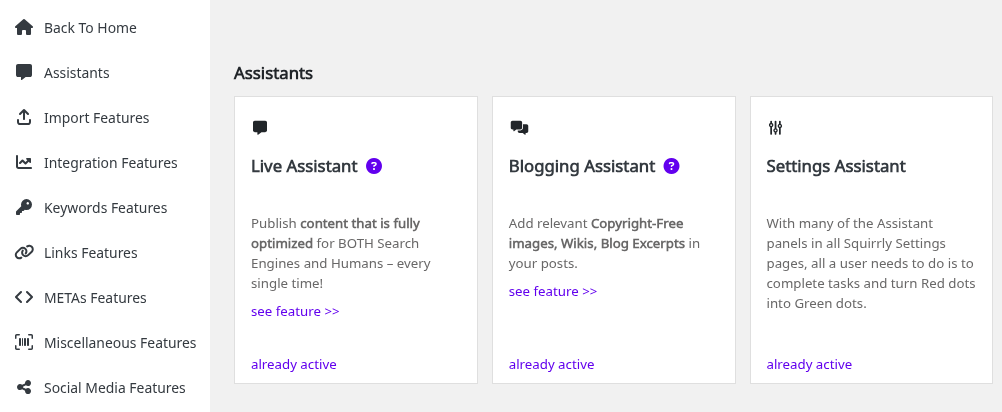
| Assistants | Live Assistant, Blogging Assistant, Settings Assistant, plus one card per page builder you have installed |
| Import Features | Import SEO & Settings |
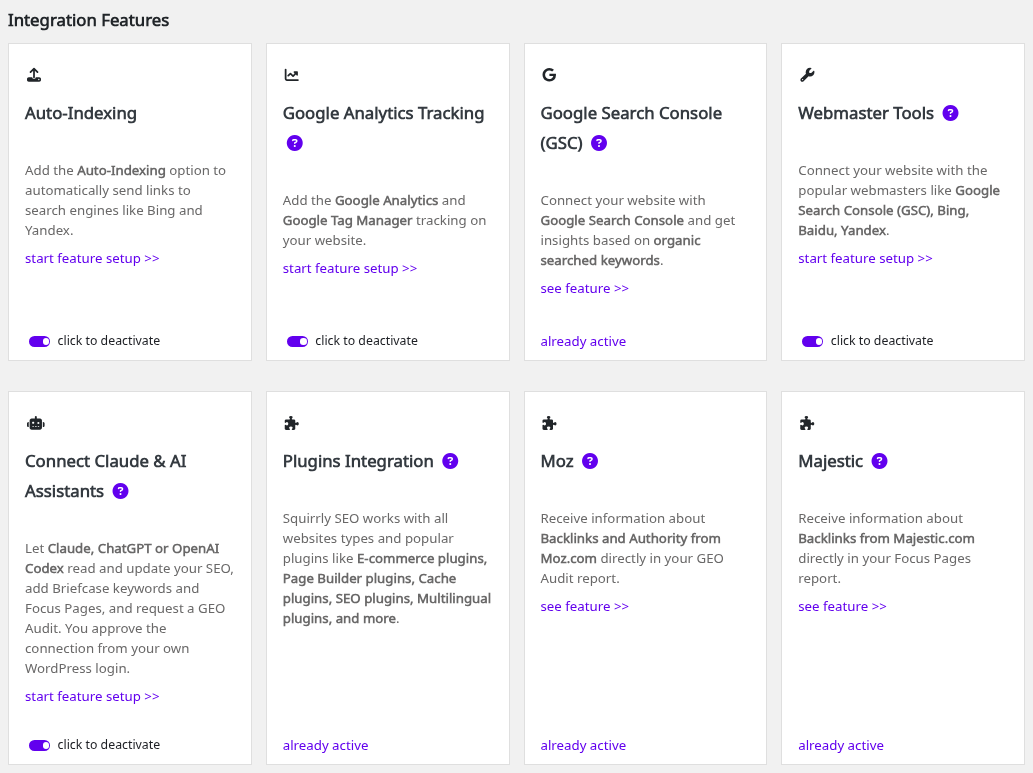
| Integration Features | Auto-Indexing, Google Analytics Tracking, Google Search Console (GSC), Webmaster Tools, Connect Claude & AI Assistants, Plugins Integration, Moz, Majestic, Semrush, WooCommerce SEO, Google News, AMP Support, Google PageSpeed Insights, Google SERP Checker |
| Keywords Features | Keyword Research, Briefcase, Chances of Ranking, Google Search & Competition, Google Rankings with GSC, Keywords Optimization |
| Links Features | SEO Links, Inner Links, 404 URLs Redirects |
| METAs Features | On-Page SEO METAs, Bulk SEO & Snippets, Frontend SEO Snippet, Fetch SEO Snippet, Remove META Duplicate |
| Miscellaneous Features | Redirects, No Category Base, GEO Audit, Sitemap XML, JSON-LD Structured Data, Personal Brand Rich Snippets, Robots.txt File, Llms.txt File, Favicon Site Icon, Local SEO, SEO Automation, and the Advanced Pack cards |
| Social Media Features | Open Graph Optimization, Twitter Card Optimization, Facebook Pixel Tracking |
| Unique SEO Features | 14 Days Journey Course to GEO, Next SEO Goals, Progress & Achievements, Focus Pages, Copyright Free Images, SEO Images |
Some cards appear only on sites that need them. Polylang shows with Polylang installed, WooCommerce SEO on a store, ACF Integration with Advanced Custom Fields active, and Elementor, Oxygen, Divi, Thrive Architect, Bricks, WPBakery or Zion when that builder is there.
Where to find it
Click Squirrly > All Features in the WordPress menu. The page needs the Squirrly SEO Admin role, which WordPress administrators have.
Other screens send you here too. When Next SEO Goals finds SEO Automation turned off, its fix reads “Go to Squirrly > All Features and make sure that SEO Automation is activated” and the link opens this page.
Jump to a category
The left column of the page lists Back To Home, then the categories that have at least one card, then Collapse. Click a category to scroll to it.
What’s on a feature card
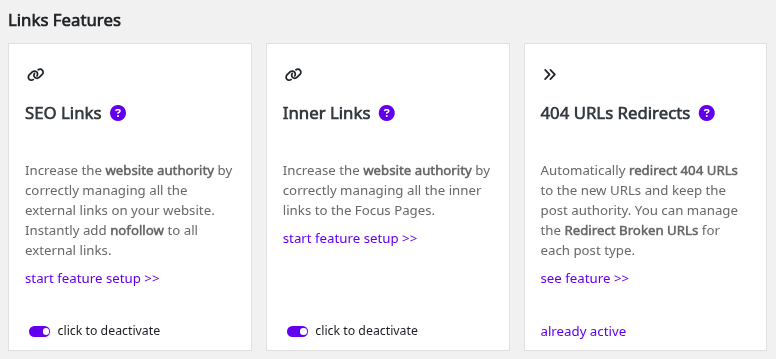
| Part of the card | What it does |
|---|---|
| Title | Opens the feature’s screen |
| Question mark | Opens the help article in a new tab |
| start feature setup >> | On a card with a switch, opens the settings; it shows only while the feature is on |
| see feature >> | On a card without a switch, opens the feature |
| click to activate / click to deactivate | The switch; the card turns white when the feature is on and gray when it is off |
| already active | The feature has no switch and is working |
| activate feature | The feature has no switch here and is off; the link opens the screen where you turn it on |
| connect to cloud | The feature needs Squirrly Cloud and the site isn’t connected; the link opens Squirrly > First Step |
How to turn a feature on or off
- Go to Squirrly > All Features.
- Find the card, with the category menu or the search.
- Click the switch at the bottom of the card. The label changes from click to activate to click to deactivate.
- Wait for the Saved message. There is no Save button; each click saves on its own.
- Click start feature setup >> to set the feature up.
Turning a switch off stops what that feature adds to your pages. The settings inside it stay saved, so turning it back on brings back the same setup.
How to search for a feature
- Type a word in Enter a feature you want to search for, for example “sitemap”.
- Click Search Feature >.
- Click X in the search box to see all the cards again.
The search looks in the card titles, the descriptions and a few extra keywords; “pattern” finds SEO Automation, for example. Each word is matched on its own, and the cards with the most matches come first, without category headings.
The master switches
These cards have a switch. “Off” is the value on a new install; the recommended or expert mode in Squirrly > Onboarding turns most of them on.
| Card | Opens | Default |
|---|---|---|
| SEO Automation | Optimize > Automation | Off, on in recommended mode |
| On-Page SEO METAs | Technical SEO > SEO Metas | Off, on in recommended mode |
| Sitemap XML | Technical SEO > Tweaks & Sitemaps | Off, on in recommended mode |
| Robots.txt File | Tweaks & Sitemaps, Robots File tab | Off, on in recommended mode |
| Llms.txt File | Tweaks & Sitemaps, LLMs File tab | On |
| JSON-LD Structured Data | Technical SEO > Rich Snippets | Off, on in recommended mode |
| Local SEO | Rich Snippets, Local SEO tab | Off |
| Personal Brand Rich Snippets | Rich Snippets, Personal Brand / Author tab | Off |
| Open Graph Optimization and Twitter Card Optimization | Technical SEO > Social Media | Off, on in recommended mode |
| Facebook Pixel Tracking and Google Analytics Tracking | Connect Tools, Place Trackers tab | Off, on in recommended mode |
| Webmaster Tools | Technical SEO > Connect Tools | Off, on in recommended mode |
| Auto-Indexing | LLM Indexing > Submit URLs | On |
| Connect Claude & AI Assistants | Connect Tools, AI Tools tab | Off |
| AMP Support | Connect Tools, AMP tab | Off, on in recommended mode |
| SEO Links | Tweaks & Sitemaps, SEO Links and Redirects tab | Off |
| Inner Links | Inner Links | Off, on in recommended mode |
| Frontend SEO Snippet | Technical SEO > SEO Metas | Off, on in recommended mode |
| Fetch SEO Snippet | Optimize > Settings | Off, on in recommended mode |
| Favicon Site Icon | Tweaks & Sitemaps, Website Icon tab | Off |
| SEO Images | Optimize > Settings | Off |
| Page builder cards (Elementor and the others) | Optimize > Settings | Off |
All the page builder cards share one setting, Activate Live Assistant in Frontend, so turning one on turns them all on.
Cards without a switch
Cards such as Keyword Research, Briefcase, Focus Pages, GEO Audit, Google SERP Checker and Live Assistant run on Squirrly Cloud. They show already active on a connected site and connect to cloud on a site that isn’t.
Others are part of the plugin and always on, for example Remove META Duplicate, Settings Assistant and Plugins Integration. Bulk SEO & Snippets and Import SEO & Settings only open their screens.
Cards that need the Advanced Pack
These cards need the Squirrly SEO Advanced Pack. Squirrly > Home shows the Pack as Active, or as Inactive with the button Install now with one click. It’s free.
| Card | What the switch turns on | Default |
|---|---|---|
| Redirects | The 301, 302 and 307 redirect rules in Squirrly > Redirects | Off, on in recommended mode |
| 404 Monitor | The log of URLs that returned 404, in Redirects > Logs | Off |
| No Category Base | Category URLs without /category/, in Technical SEO > No Categories | Off |
| Custom Rich Snippets | Your own schema per page, in the post editor | On |
| Reusable Schemas | Schema templates applied by post type and custom fields | Off |
| Copyright Free Images | The image search in the Media Library | Off |
Troubleshooting
“You do not have permission to access this page. You need Squirrly SEO Admin role”
Your user has a lower role. Ask an administrator, or give the user the Squirrly SEO Admin role in Users.
“Could not save the changes”
The switch didn’t save. Reload the page and click it again, or turn the feature on from its own screen with the title link on the card.
A card I expect is missing
The card for a page builder, Polylang, WooCommerce or ACF shows only when that plugin is active. On a site set up with the Web Dev Kit, the agency can hide menus, and the matching cards disappear with them.
A card says “connect to cloud”
The site isn’t connected to Squirrly Cloud. Click the link and connect from Squirrly > First Step.
Frequently asked questions
Do I have to click a Save button after a switch?
No, each switch saves as soon as you click it and shows Saved.
Does turning a feature off delete its settings?
No, the settings stay and come back when you turn the feature on again.
Where is the full list of 650 features?
Click Do you want to see all 650 features list? at the top or the bottom of the page.
Can a developer hide features in code?
Yes, the cards pass through the sq_features filter, and Deactivating Specific Features Using Hooks shows how to turn features off.
Related tutorials
- Automation: set up the SEO Automation patterns after you switch the card on.
- Squirrly Cloud App: the account behind the cards that say connect to cloud.
- Connect Squirrly to AI Assistants: what the Connect Claude & AI Assistants switch starts.
- Next SEO Goals: the goals that point you to a card on this page.
- Where can I find all 650 Features of Squirrly SEO?: the full feature list.






0 Comments