Keyword Research and SEO Strategy

Squirrly SEO finds keywords for your site from Squirrly > AI Research > Find Keywords, inside the WordPress dashboard, and keeps the ones you pick in the Briefcase. This guide covers the five screens under AI Research: Find Keywords, Briefcase, Labels, Suggested and History.
The screenshots come from demo.squirrly.co, a test store for cat food, with Squirrly SEO 14.2.9 and the Advanced Pack 2.5.11.
What keyword research does in Squirrly SEO
You type one keyword, Squirrly suggests similar phrases, and you get a list with three numbers for each phrase: Competition, Search and Discussion. You save the good ones to the Briefcase and use them in the Live Assistant, Focus Pages and Google Rankings.
Keyword research needs the plugin connected to Squirrly Cloud. Each research uses credits from your plan, and the Find Keywords screen shows how many researches you have left and the date the count resets.
Where to find it
All five screens sit in the left menu of Squirrly > AI Research.
| Screen | What you do there |
|---|---|
| Find Keywords | Run a new keyword research in 3 steps |
| Briefcase | Keep, label, track and back up the keywords you chose |
| Labels | Create the colored labels you group keywords with |
| Suggested | See keywords Squirrly found for you, plus related questions for Focus Pages |
| History | Reopen the researches made in the last 30 days |
How to find new keywords
Step 1: enter a keyword, a country and a language
- Go to Squirrly > AI Research > Find Keywords.
- Type a topic of 2 or more words (a long-tail keyword) in Enter a keyword that matches your business. On the demo site we used “wet cat food”.
- Pick the country and the language you want to rank in.
- Click Next >>.
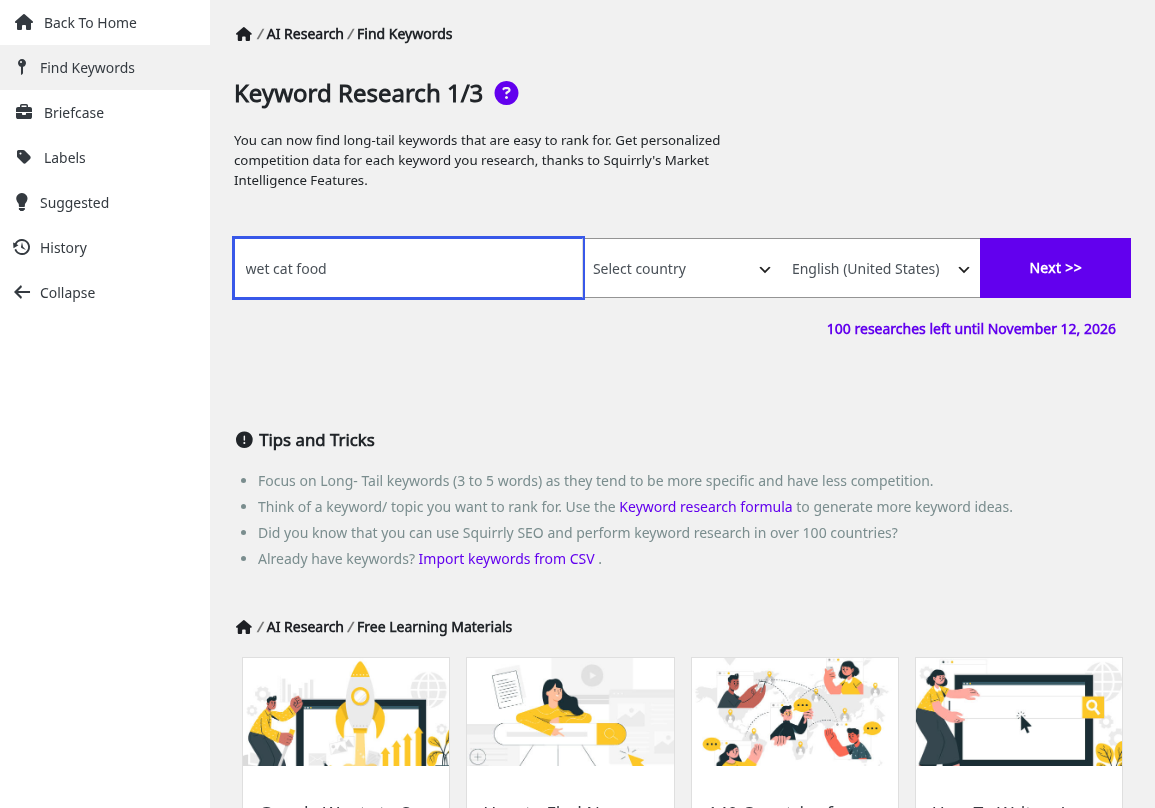
The tip on the same screen says keyword research works in over 100 countries.
Step 2: pick up to 3 similar keywords
Squirrly lists similar keywords under Keyword Research – Suggestions 2/3. For “wet cat food” the demo got 16, from “wet cat food for picky cats” to “wet cat food for kidney disease”.
- Tick up to 3 keywords. A fourth tick shows the message “Select up to 3 similar keywords and start the research”.
- Click Do research >>.
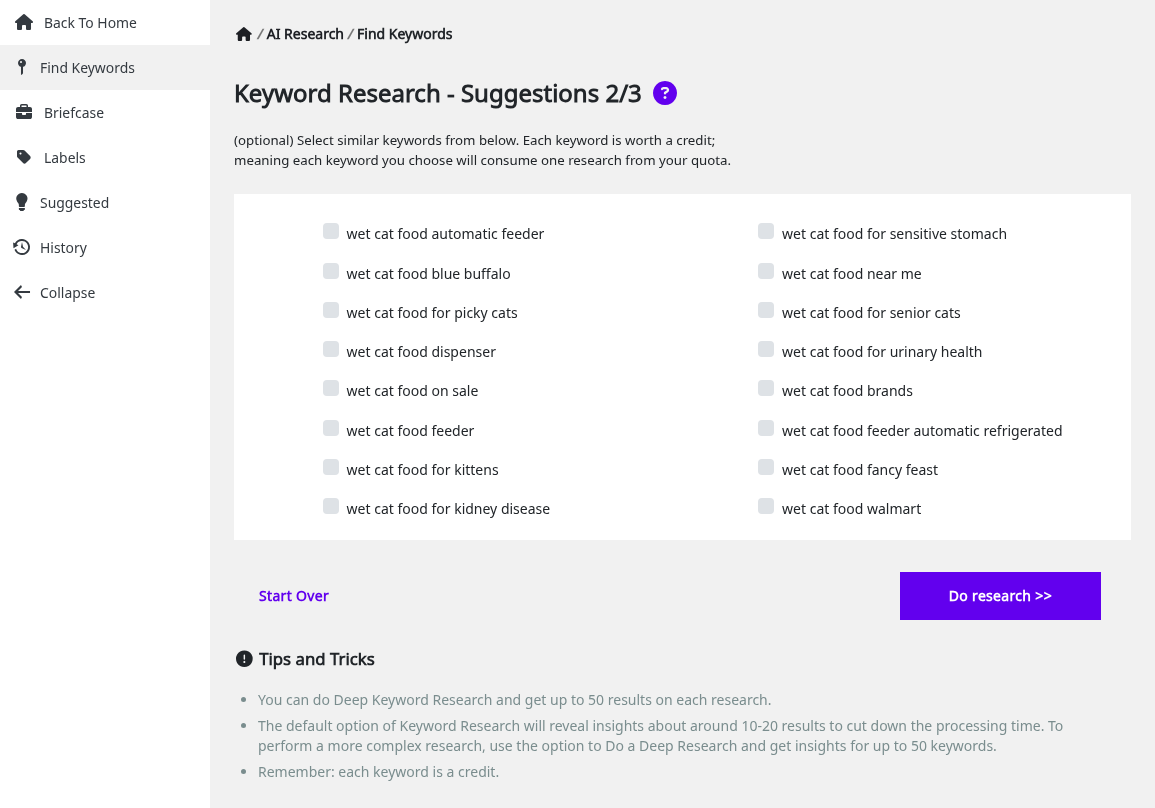
This step is optional. The screen says each keyword you tick uses one research from your quota.
Step 3: read the results
The results page, Keyword Research – Results 3/3, lists your keyword and the ones you ticked. The demo research returned 22,200 monthly searches for “wet cat food” and 2,900 for “wet cat food for sensitive stomach”.
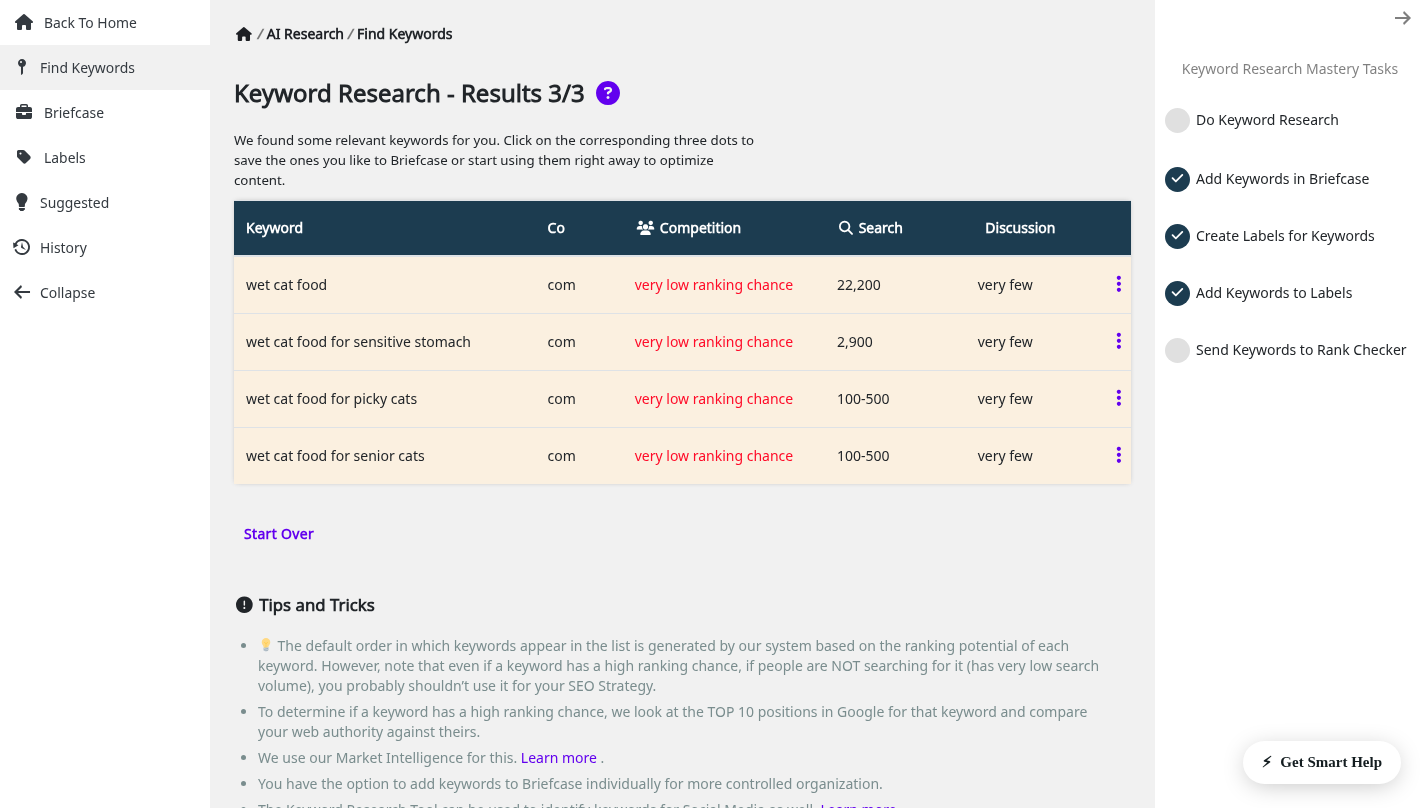
| Column | What it shows |
|---|---|
| Co | The country of the research, for example com |
| Competition | Your ranking chance, from the top 10 Google results for that keyword compared with your site, for example “very low ranking chance” |
| Search | Monthly searches, as a number (22,200) or a range (100-500) |
| Discussion | How much the topic is discussed, for example “very few” |
The list is sorted by ranking potential. The tip under the results says a keyword with a high ranking chance but almost no searches is a poor pick.
The default research returns about 10 to 20 results. When the Do research button has an arrow, it offers Do research (up to 20 results) and Do a deep research (up to 50 results). The deep research needs a Squirrly SEO Business plan.
Briefcase
The Briefcase at Squirrly > AI Research > Briefcase holds the keywords you decided to work on. The Live Assistant reads its keywords from here.
Add keywords to the Briefcase
- On the results page, move the mouse over the three dots at the end of a keyword row.
- Click Add to briefcase.
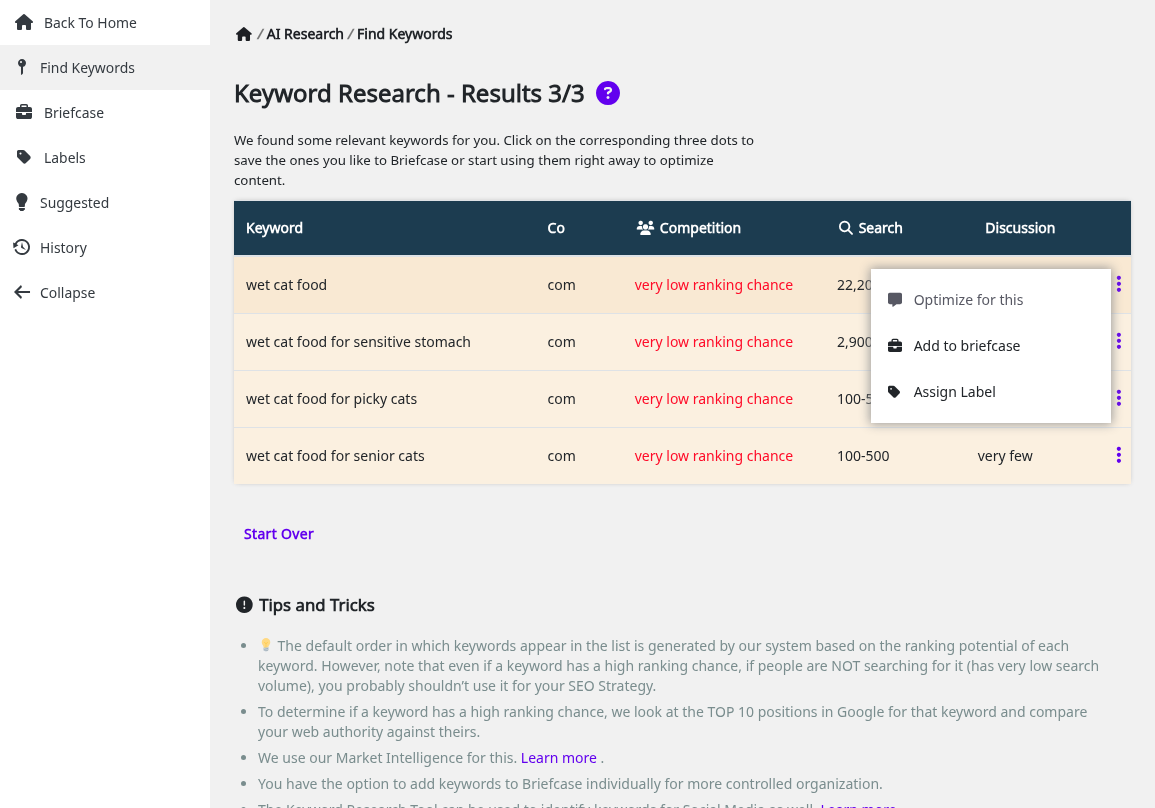
The same menu has Optimize for this, which opens a new post with the keyword, and Assign Label. You can also add keywords from Suggested and History, or upload a list (see Back up and restore keywords).
What each Briefcase column shows
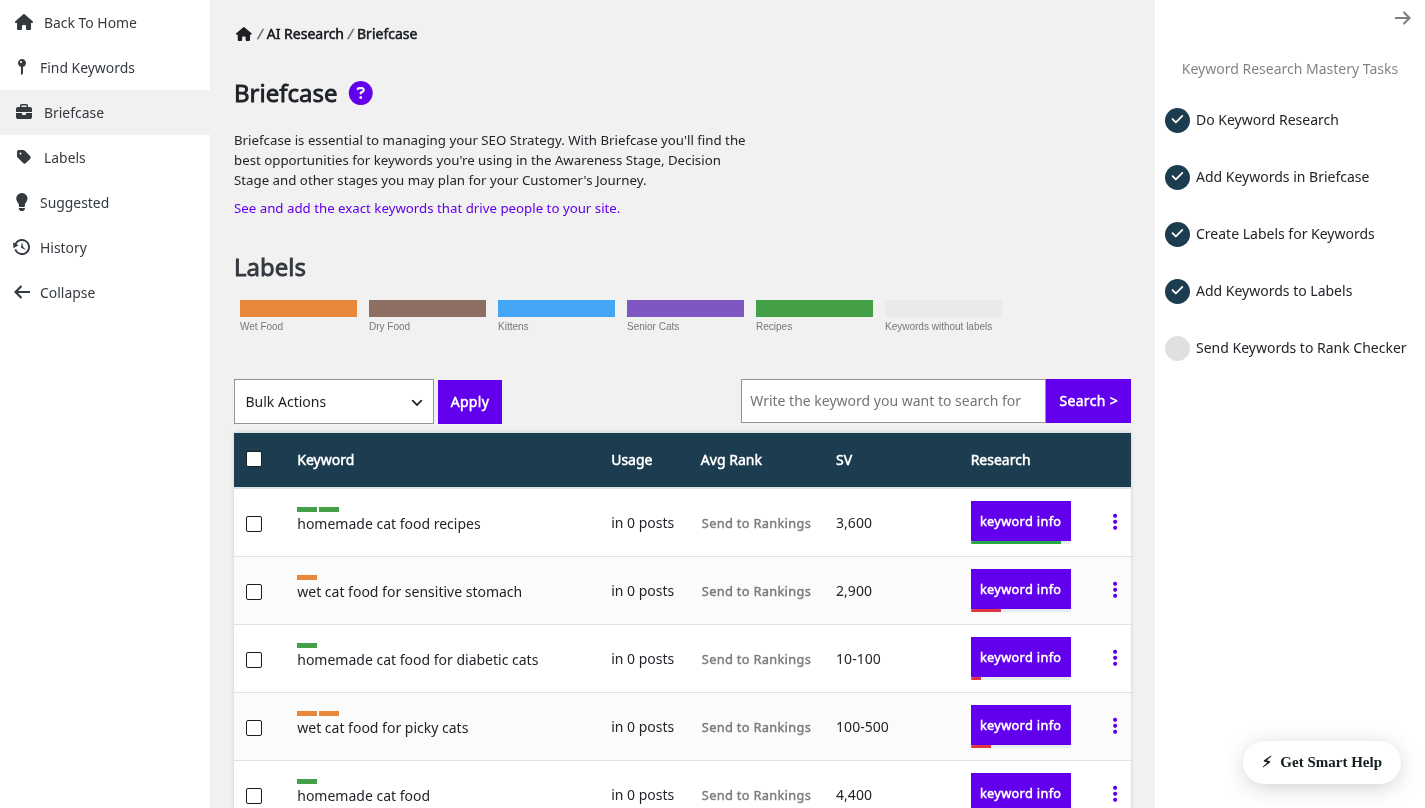
| Column | What it shows |
|---|---|
| Keyword | The keyword, with a colored bar for each label it has |
| Usage | How many posts are optimized for it with the Live Assistant, for example “in 0 posts” |
| Avg Rank | The Google position, or Send to Rankings if the keyword isn’t tracked yet |
| SV | Search volume from the last research |
| Research | The keyword info button with Competition, Search and Discussion |
Assign labels to keywords
Labels group keywords, for example by product type or by the stage of the customer’s decision. Create them first in Labels.
- Open the three-dot menu of a keyword and click Assign Label.
- Click one or more labels in the Select Labels for window.
- Click Save Labels.
For many keywords at once, tick them, pick Assign Label in Bulk Actions and click Apply. Click a label bar above the table to show only the keywords with that label.
Optimize a post with the Live Assistant
The Usage column counts only posts optimized with the Squirrly SEO Live Assistant.
- Open a post in the editor, or click Optimize for this in the Briefcase menu to start a new one.
- In the Live Assistant box, click Add a keyword from Briefcase.
- Move the mouse over a keyword and click Use Keyword.
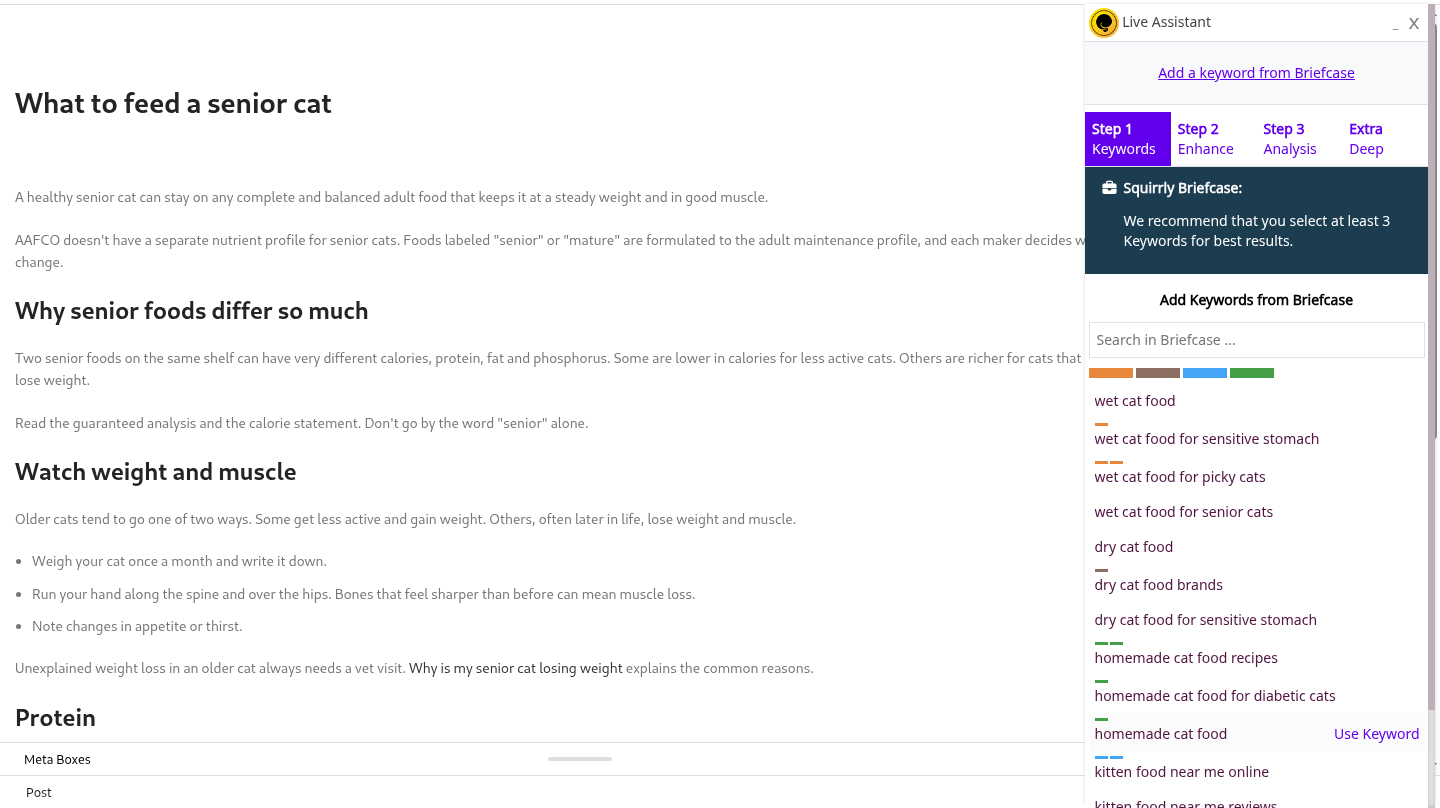
The box recommends at least 3 keywords per post. On the demo, the post “What to feed a senior cat” went to 71% for “wet cat food for senior cats” after the keyword was added to the title, one heading, the text and one image alt text.
Send keywords to Google Rankings
- Click Send to Rankings in the Avg Rank column, or Send to Rank Checker in the three-dot menu.
- The link changes to Check Rankings. Click it to open the keyword in Squirrly > Google Rankings.
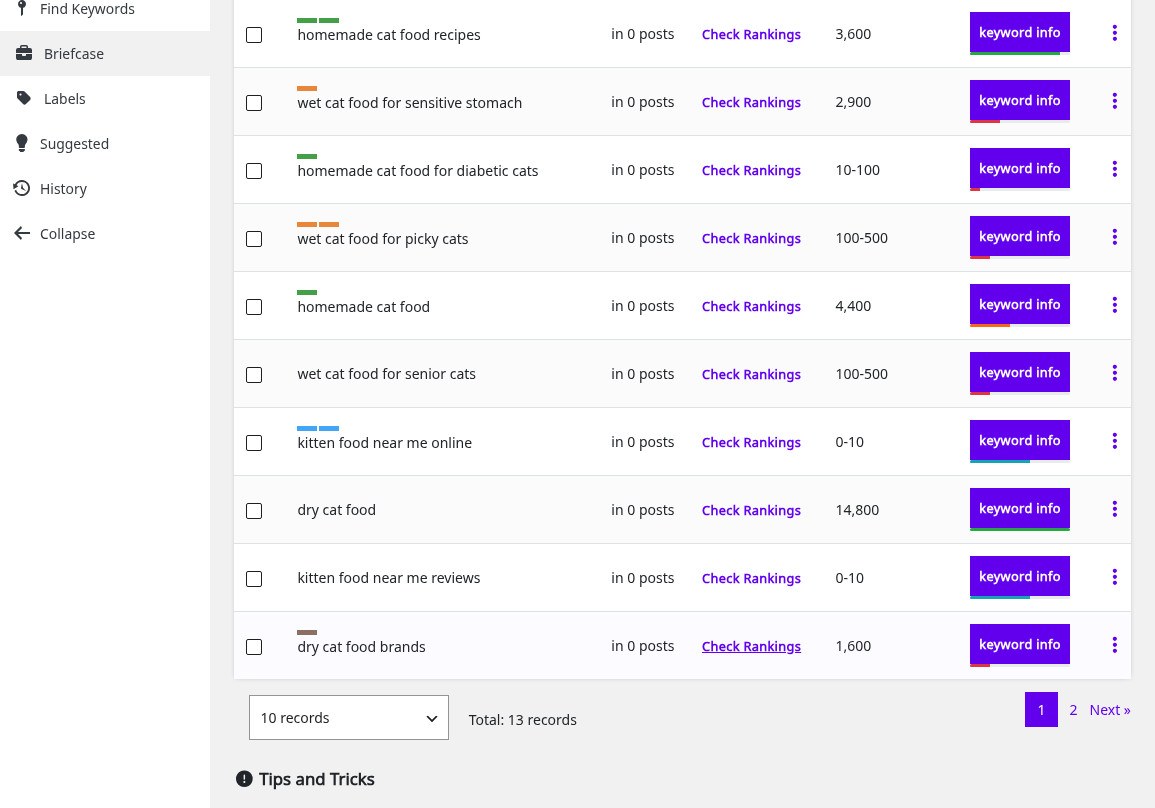
For many keywords, tick them and use Bulk Actions > Send to Rankings. Ranking & SERP Checker explains that screen.
Refresh the research
Search volume changes with the season. Click Refresh Research in the three-dot menu to open Find Keywords with that keyword already filled in. A refresh uses a research credit like any other research.
Delete a keyword
Click Delete Keyword in the three-dot menu, or tick several keywords and use Bulk Actions > Delete. Download a backup first if other people on your team use the same Briefcase.
Back up and restore keywords
- Go to Squirrly > Technical SEO > Import & Data.
- Open Backup Settings & SEO and click Download Backup under Backup Briefcase. The file has all the Briefcase keywords.
- To bring them back, or to copy them to another site, open Restore Settings & SEO, choose the file under Restore Keywords and click Restore Keywords.
You can upload your own list the same way: a plain text file with one keyword per line. Import and Data covers the other backups on that screen.
Labels
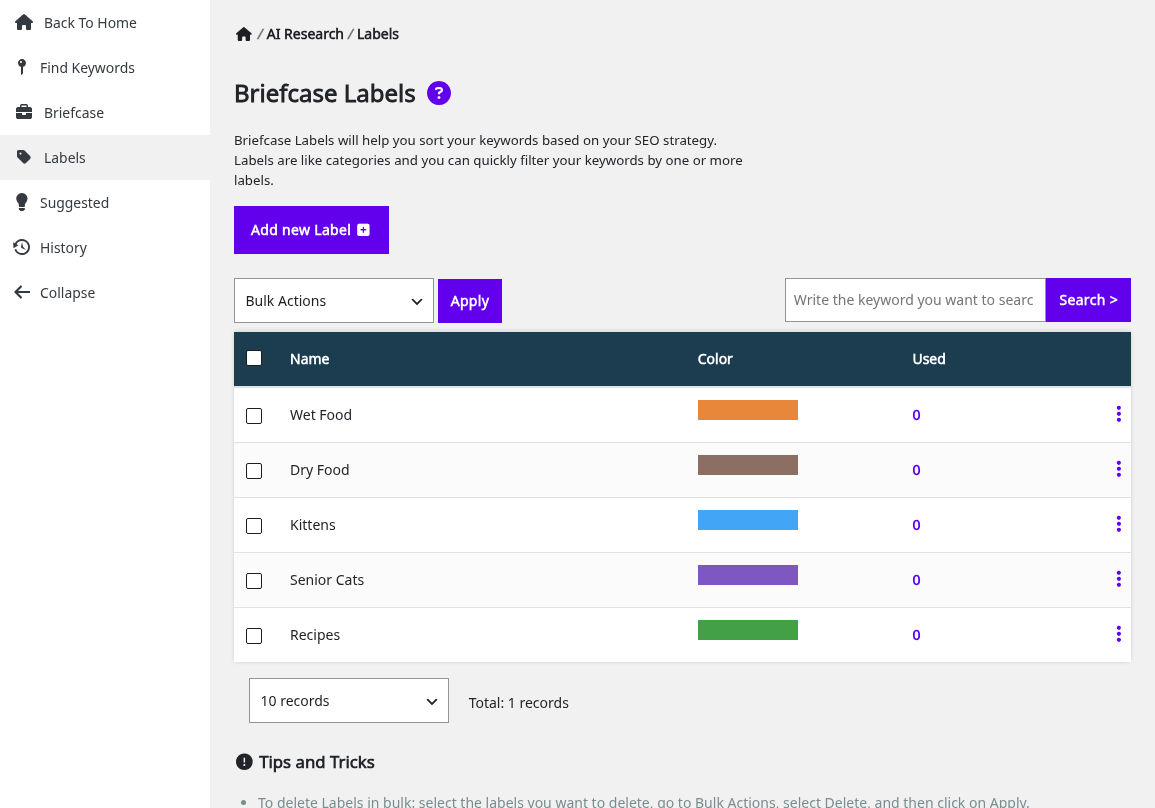
Labels live at Squirrly > AI Research > Labels, on the screen called Briefcase Labels. Each label has a name and a color, and the Used column counts its keywords.
Add a label
- Click Add new Label.
- Type the Label Name and pick a Label Color.
- Click Add Label.
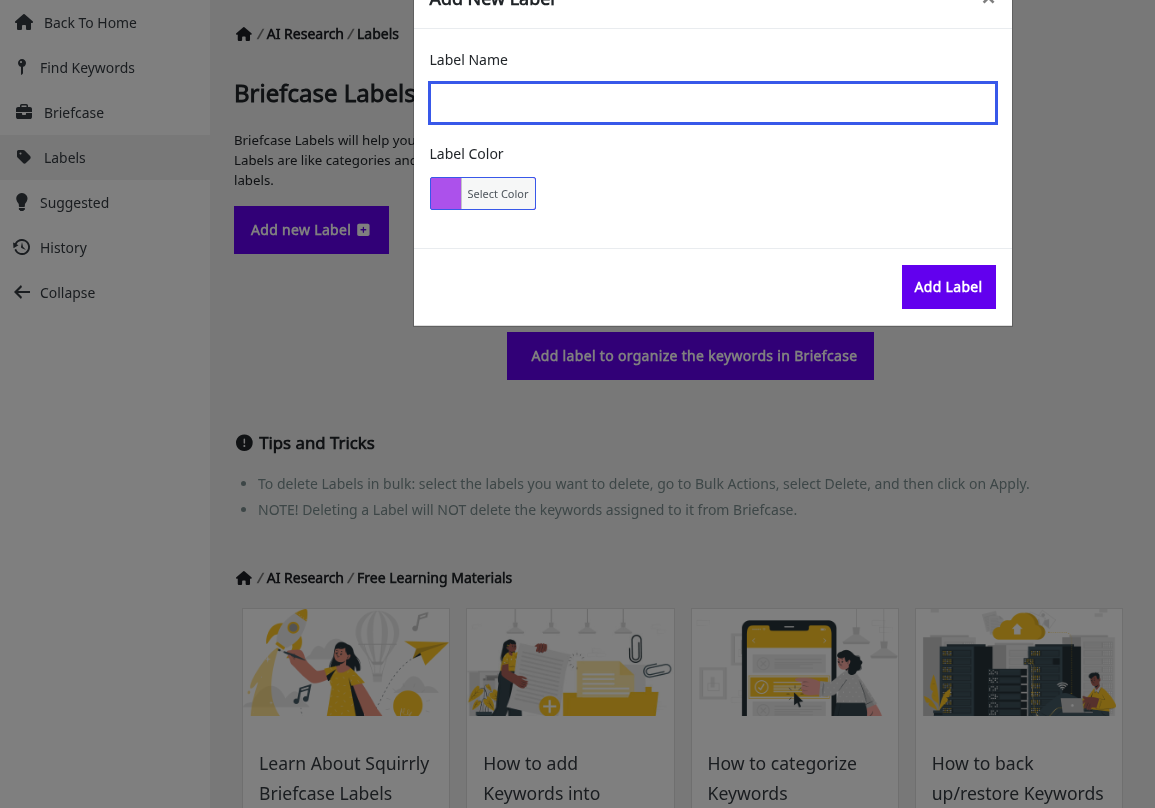
Edit a label
Open the three-dot menu of the label, click Edit Label, change the name or the color, and click Save Label.
Delete a label
Click Delete Label in the label’s menu, or tick several labels and use Bulk Actions > Delete. Deleting a label doesn’t delete the keywords that had it. They stay in the Briefcase without that label.
Suggested keywords
Squirrly > AI Research > Suggested lists keywords that Squirrly found for you. Once a week, Squirrly checks the keywords in your Briefcase and lists better ones here when it finds them. These researches don’t use your keyword research credits.
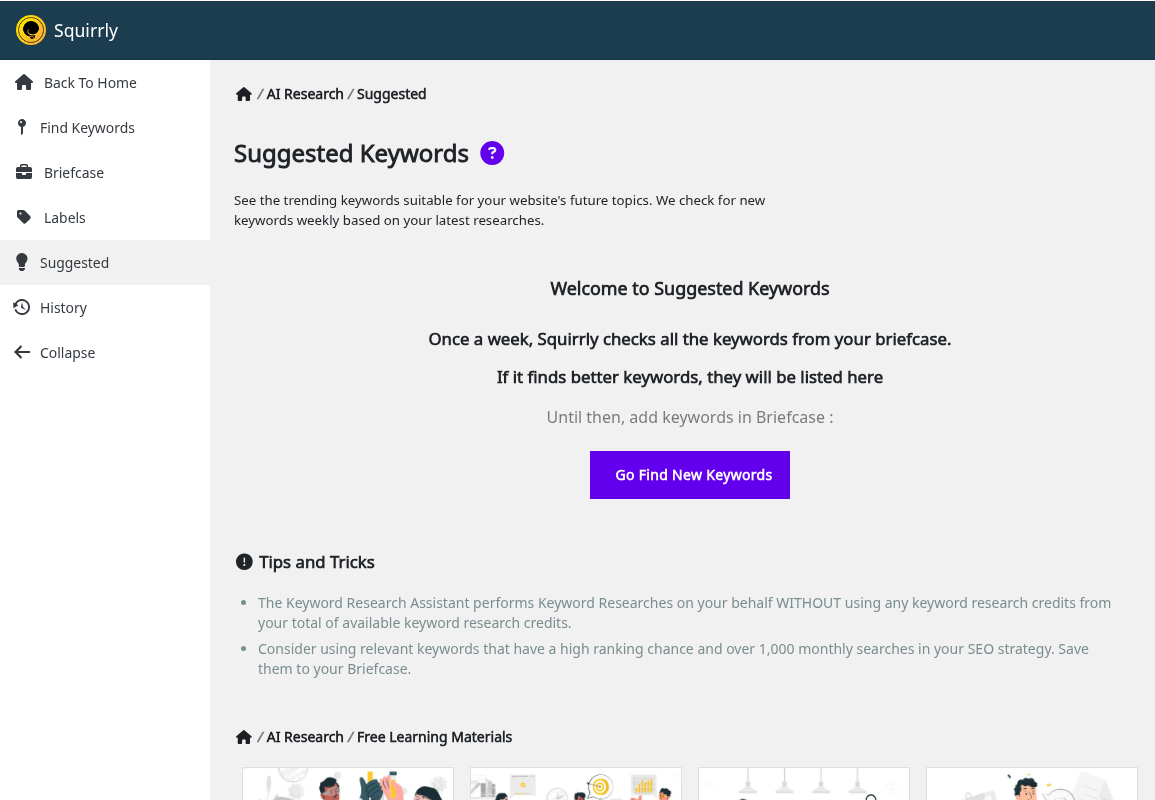
An empty list means the weekly check hasn’t found a better keyword yet. Keep adding keywords to the Briefcase, because they are what the check starts from.
Save or delete a suggested keyword
Click Add to briefcase on a suggested keyword to keep it. A keyword you already have shows Already in briefcase. Click Delete Keyword to remove one you don’t want.
Related questions for your Focus Pages
The same screen shows Related Questions Found for the main keywords of your Focus Pages. Each question is a topic for a new article that can link to the Focus Page. See Focus Page Details opens the Focus Page the question belongs to.
For each question you have three actions:
- Optimize for this starts a new post with the question as the keyword.
- Add to briefcase saves it for later.
- Add to Inner Links adds an inner link from a page that already uses the question to the Focus Page. It shows Already in innerlinks when the link exists. Inner Links explains how those links are placed.
Research history
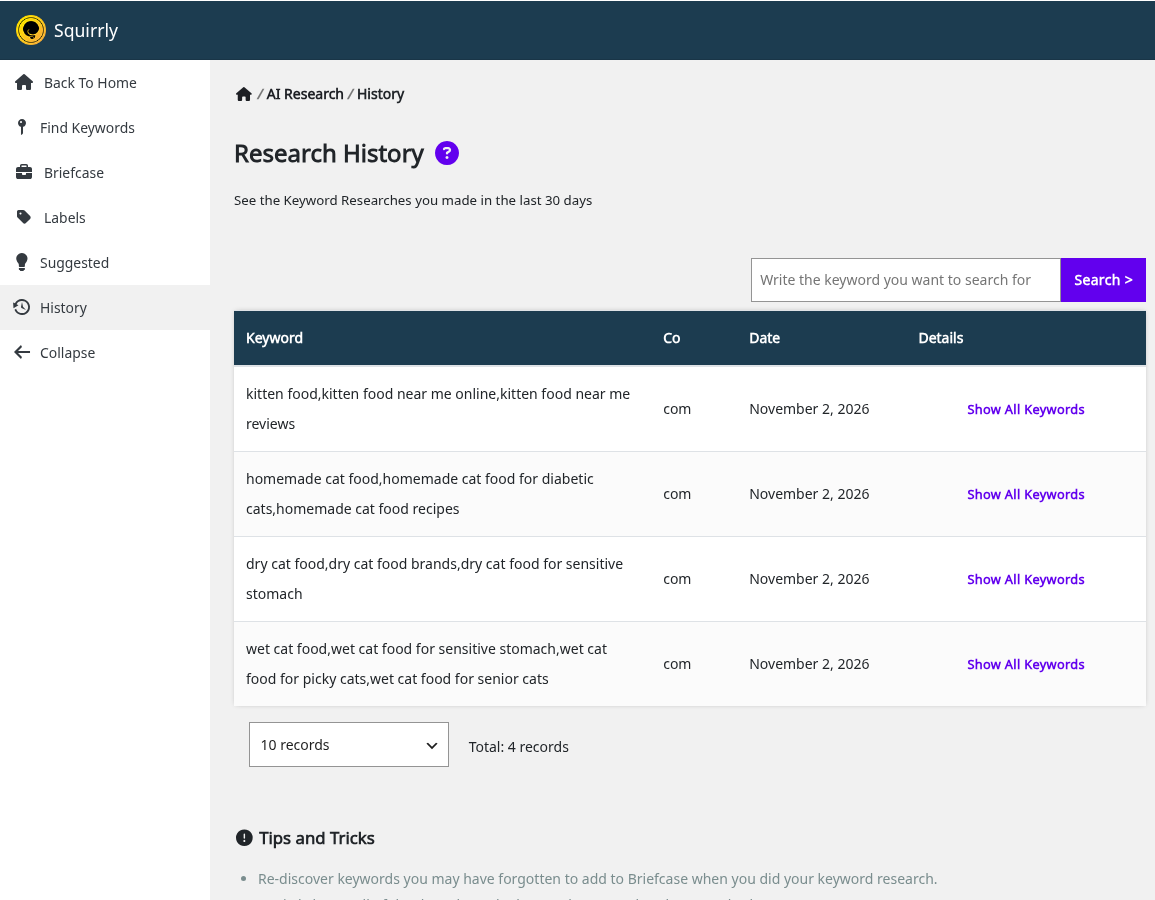
Squirrly > AI Research > History lists the keyword researches made in the last 30 days, with the country and the date. Click Show All Keywords on a row to see every keyword that research returned.
Add a keyword from History to the Briefcase
Open Show All Keywords, then click Add to briefcase next to the keyword. Keywords already saved show Already in briefcase.
Optimize a post from History
In the same window, click Optimize for this to open a new post with that keyword loaded in the Live Assistant.
Troubleshooting
“Select up to 3 similar keywords and start the research”
The message appears when you tick a fourth similar keyword in step 2. Untick one, then click Do research >>.
“You’ve reached your Keyword Research Limit”
The researches included in your Squirrly Cloud plan for the period are used up. Find Keywords shows the reset date under the Next >> button, and Suggested keywords keep coming in the meantime.
Usage says “in 0 posts” for a keyword I already use
Usage counts only the posts where the keyword was selected in the Live Assistant. Open the post, add the keyword from the Briefcase in the Live Assistant box and update the post.
The Live Assistant box is missing in the editor
Squirrly Live Assistant is Not Showing in Edit Post lists the settings to check.
Frequently asked questions
How many keywords can I research at once?
One main keyword plus up to 3 similar keywords, and each similar keyword uses one research credit.
Do suggested keywords use my research credits?
No, the weekly check behind Suggested runs without using your keyword research credits.
How long does Squirrly keep my research history?
The History screen shows the researches from the last 30 days.
Can I import my own keyword list into the Briefcase?
Yes, upload a text file with one keyword per line from Technical SEO > Import & Data > Restore Settings & SEO > Restore Keywords.
What happens to the keywords when I delete a label?
They stay in the Briefcase and only lose that label.
Related tutorials
- AI in the Keyword Research tool: how the AI picks the similar keywords in step 2.
- Squirrly SEO Live Assistant: optimize a post for the keywords you keep in the Briefcase.
- Ranking & SERP Checker: track the Google position of the keywords you sent to Rankings.
- Focus Pages & Page Audits: pick the pages that should rank for your main keywords.
- How Does Squirrly Determine if a Keyword is Easy to Rank for?: how the Competition column is worked out.
- How do you calculate the search volume reported in keyword research?: where the Search numbers come from.