What Causes the Exclamation Mark in the Connected Websites dashboard of the Squirrly Cloud App?
In case you have multiple websites on which you use Squirrly SEO, you can easily add them to the list of Connected Websites in the Squirrly Cloud App (shown below) following the steps from this article.
In some instances, a domain that has been connected to the Squirrly Cloud can get an exclamation mark in the Connected Websites dashboard of the Squirrly Cloud App.
Keep reading to learn more about what causes this and what to do in case this happens to you.
What Causes an Added Domain to Get Exclamation Mark inside the Cloud App?
This issue is linked to the fact that the connection of a site to the Squirrly Cloud App is done via token and NOT via URL. Therefore, when a user clones a WordPress site to another domain name, here is what happens:
- User connects domain1.com to the Cloud App (cloud.squirrly.co)
- domain1.com – Squirrly URL Token 1
- User clones the existing WordPress site and moves it to a new domain name.
- domain2.com – Squirrly URL Token1
When domain1.com gets changed to domain2.com in the Settings > General option in WordPress, the Cloud App will receive a different domain based on the same token, which leads to a matching error.
Squirrly URL Token1 – domain1.com or domain2.com ?
In this situation, Squirrly Cloud will alert you that the domain name is changed but the URL Token is not.
Solution:
If a site is cloned to another domain name, the new domain name will have the same URL Token as the site it was cloned from (domain1.com), and the URL Token needs to be changed in WordPress.
Squirrly SEO now finds most cloned, staged or moved sites by itself. In the WordPress dashboard of the cloned website, it shows a notice and the screen This site needs to reconnect to Squirrly Cloud, which says the site “was cloned, staged or moved to a new address”.
- Click Reconnect this site on that screen, or the reconnect link in the notice.
- Reload the screen you were on and check that the notice is gone.
Squirrly drops the old site keys and connects again, keeping your Squirrly login. Details: After you move a site or change its address.
If you don’t see that screen, disconnect Squirrly SEO from the Cloud directly from inside the plugin and connect it again:
- In the WordPress admin of the cloned website, open any Squirrly screen.
- Click the account icon in the Squirrly header.
- Click Disconnect at the bottom of the account menu.
- Once disconnected, connect the website to the Cloud again from Squirrly > First Step, using the same account.
This will generate a new URL Token for the cloned domain and resolve the exclamation mark in the Connected Websites dashboard.
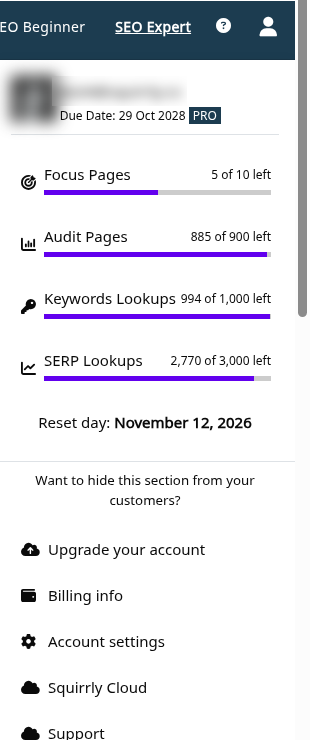
Read more about this solution here: How Can I Change My Squirrly Account?
Solution 2:
If you changed your domain name from WordPress Settings > General and you want to update the data on Squirrly Cloud to match the domain, click on the Edit icon and then click on the Set WordPress Domain button.
This process will update the domain name on Squirrly Cloud for all Focus Pages, Optimization, Rankings, etc.