How to Fix 403 Forbidden Error with IndexNow?
Did you get a 403 Forbidden error when you tried to open the IndexNow key location?
It can be fixed.
Below you’ll find:
- what might cause the 403 Forbidden error;
- what you can do about it so you can index your website with IndexNow.
In Squirrly SEO, IndexNow is part of LLM Indexing (Squirrly > LLM Indexing).
403 Forbidden error when trying to access IndexNow: possible reasons
The 403 Forbidden error has several possible causes, but the most common is that the API key file wasn’t generated automatically. This can come from a plugin conflict.
The site can also block the key file: HTTP authentication, a coming-soon or maintenance mode, a security or firewall plugin, or a CDN bot rule. Squirrly checks the key file for you in Squirrly > LLM Indexing > Settings. When it can read the file, it shows “Your IndexNow key file is publicly accessible, so search engines can verify your submissions.” When it can’t, it shows “Your IndexNow key file is being blocked.”
Here’s how to fix the 403 Forbidden error with IndexNow.
Fix the 403 Forbidden error by changing the API key in Squirrly SEO
To submit URLs to the IndexNow API, you must “prove” that you own the site the URLs belong to. This requires an API key. Squirrly generates an API key for your website automatically and serves it from your website, at yoursite.com/[your_api_key].txt.
Once generated, the API key shows in the IndexNow Key field.
To change the API key in Squirrly SEO:
- Go to Squirrly > LLM Indexing > Settings > IndexNow Key. Then click the “Reset Key” button shown below. Squirrly generates a new API key for your site right away.
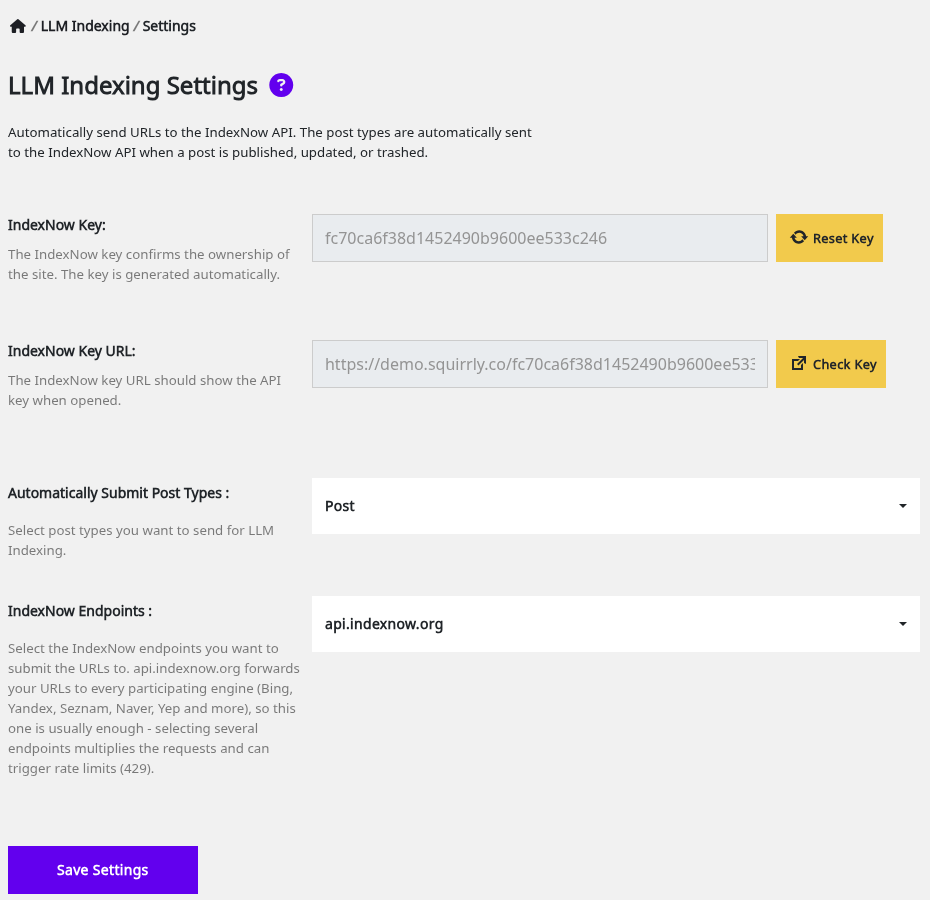
When this step is done, clear the cache and make sure your API key is accessible to search engines. For this:
- Go to Squirrly > LLM Indexing > Settings > IndexNow Key URL.
- Click the “Check Key” button shown in the screenshot below.
The Check Key button opens the key URL in a new tab.
If the new tab shows your API key and nothing else, you’re all set!
Search engines can then read the API key to verify ownership (as long as access to this URL isn’t blocked in robots.txt).

What if changing the API key in Squirrly SEO doesn’t work?
If changing the API key in Squirrly doesn’t work for you, there’s another quick way to fix the 403 Forbidden error.
The solution is to manually add the text file with the API key to the root of your website. Here’s how:
1. Create a text file. Name it [your_api_key].txt. The file name must contain your API key.
2. Next, add the API key to the text file. DO NOT include anything else in the file, such as extra characters, symbols or spaces.
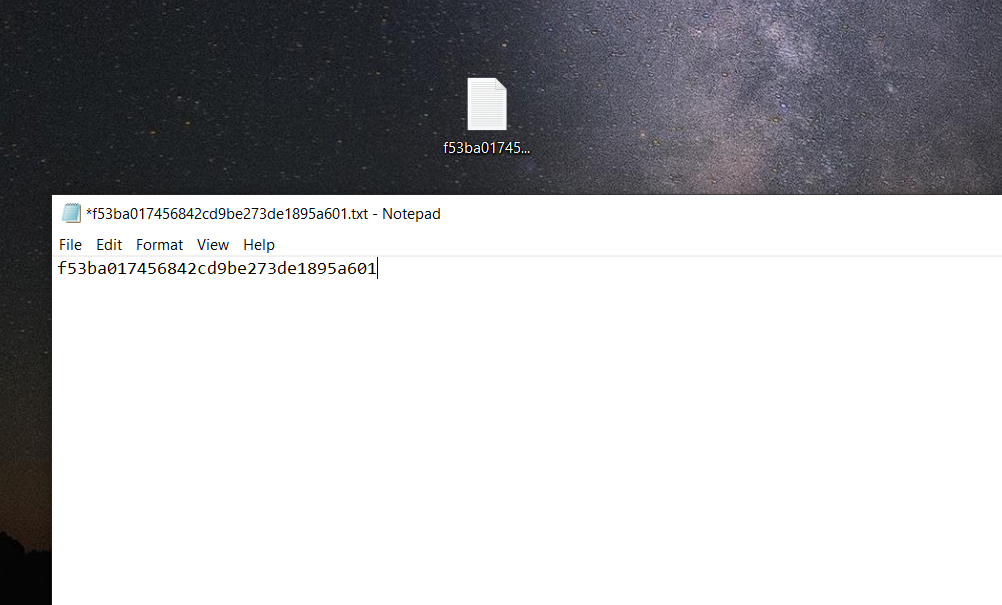
3. Finally, upload the text file to the root of your website. You can use an FTP client or cPanel’s File Manager.
To log in to a server with FTP, you first need:
- the FTP credentials (username and password),
- the address of the FTP server,
- and the document root directory.
With this information, you can connect to your server with an FTP client such as WinSCP (download WinSCP for free here).
Check that all the information is entered correctly. Then press the “Login” button to connect to your server.
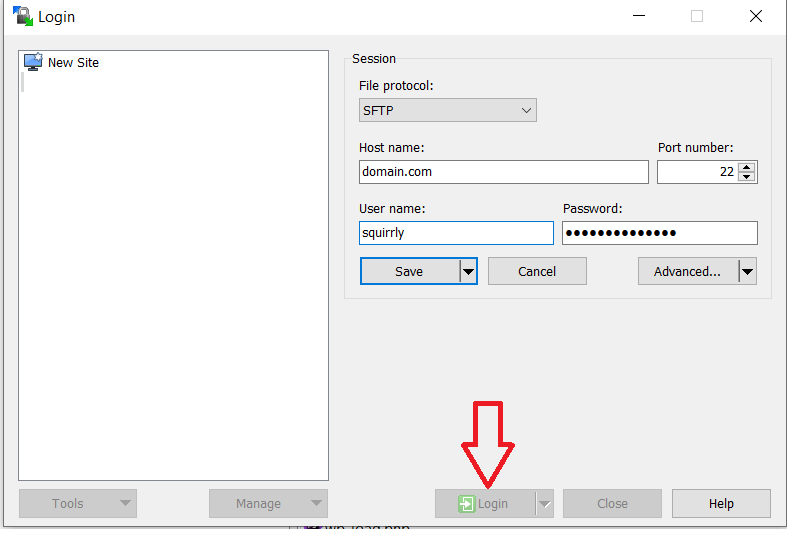
Then upload the text file that contains your API key. To do this:
- open the local folder on your computer where you saved the text file with the API key;
- open the remote site folder (the folder on your server where your site is). Usually it’s the “public_html” folder.
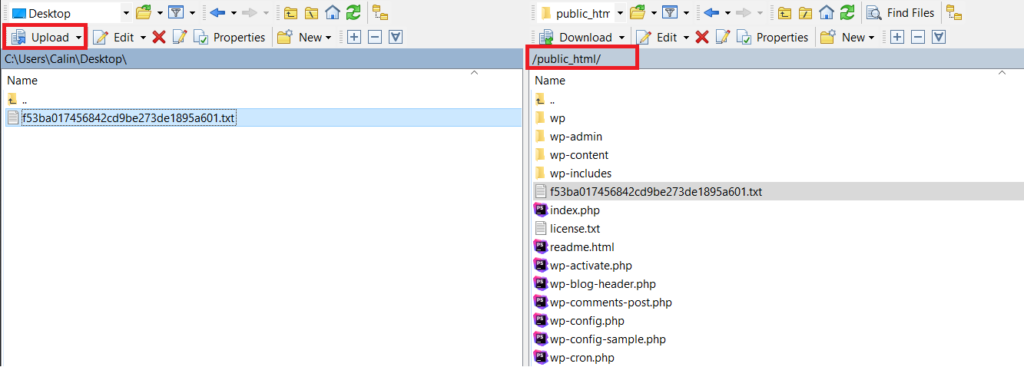
With both the local and the remote folders open, select the text file and click the Upload button.
The file starts uploading right away. Once you see it in the remote site folder, you’re done.
After these steps, the IndexNow API key opens from its location and search engines can read the key file to verify site ownership.
Check that your URLs are sent to the IndexNow API in LLM Indexing History
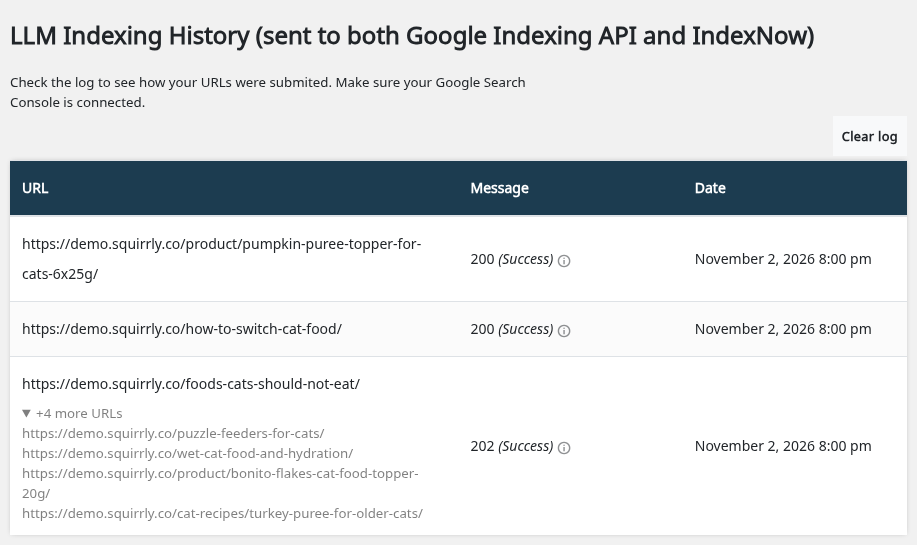
To open the history, go to Squirrly > LLM Indexing > Submit URLs. The list is called LLM Indexing History (sent to both Google Indexing API and IndexNow).
There you can check that your URLs are sent to the IndexNow API so they can be indexed quickly.
The history shows a list of the most recent URLs submitted to the IndexNow API, with the response code and the message for each submission. In Submit URLs you can send up to 10,000 URLs at once, one per line.
Here is the full list of response codes and what each one means:
| HTTP CODE | MESSAGE IN SQUIRRLY | DESCRIPTION |
| 200, 202, 204 | Success | The IndexNow API accepted your URLs. With 202, it still needs to validate the API key to confirm the URLs belong to your site. |
| 400 | Invalid request. | The URL was not properly formatted. Check that every line is a full URL of this site. |
| 401 | Unauthorized. Search engines could not read your IndexNow key file | Your site blocks the key file. Open the key file URL in a private window and remove what blocks it. |
| 403 | Forbidden. The IndexNow key could not be verified. | The IndexNow API did not find your API key and cannot confirm the URLs belong to your site. Follow the steps on this page. |
| 404 | The IndexNow key file was not found. | Click Check Key in Settings, then Reset Key if it fails. |
| 422 | Invalid URL or the key location does not match this host. | The URLs belong to another site, or the key file isn’t on this domain. Send only URLs of the domain the plugin runs on. |
| 429 | Too many requests. | The IndexNow API received too many requests. Squirrly retries on its own. |
| 500, 503 | Internal server error. / Service temporarily unavailable. | A problem on the IndexNow side. Squirrly retries on its own. |
After a timeout, a 429 or a 5xx code, Squirrly schedules up to 3 retries, 5, 15 and 45 minutes apart. The message then ends with “retry 1 of 3 scheduled in 5 minutes”.
RELATED READING: LLM Indexing: configure automatic URL submission with IndexNow >>