Inner Links
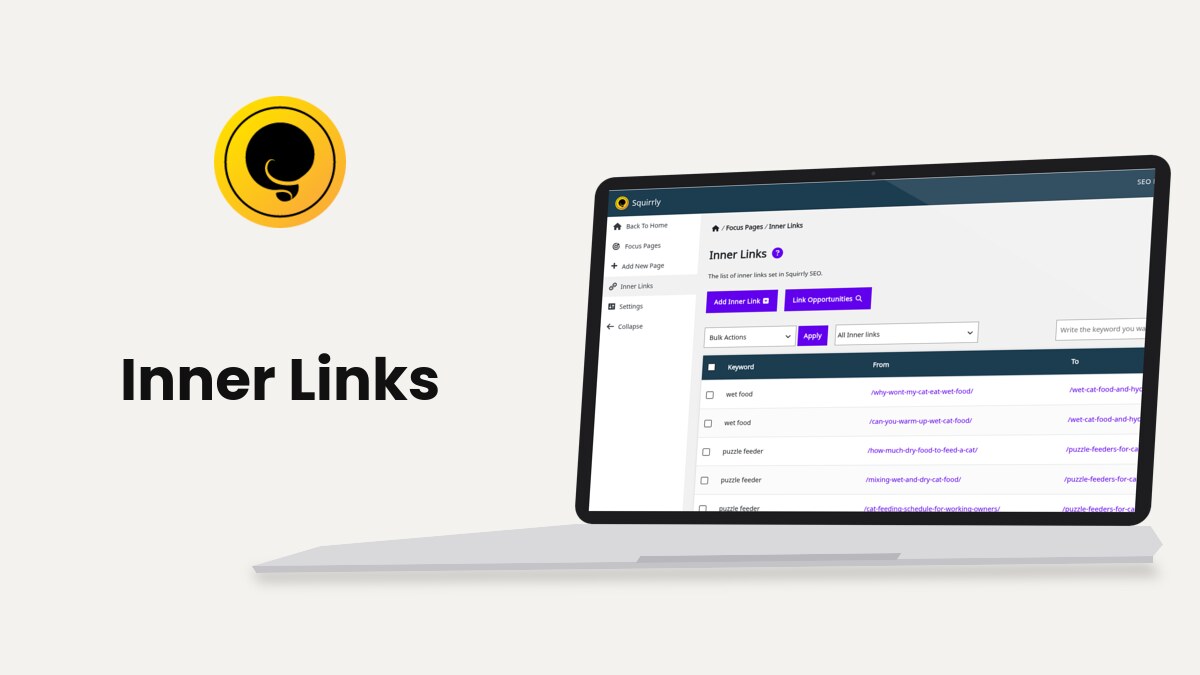
Inner Links, at Squirrly > Focus Pages > Inner Links, adds a link on a keyword in one of your posts that points to another page of your site, usually a Focus Page. You choose the keyword, the page the link sits on and the page it points to, and Squirrly adds the link when the page loads.
The screenshots come from demo.squirrly.co, a test store for cat food, with Squirrly SEO 14.2.10 and the Advanced Pack 2.5.12. The demo has five sample inner links, for the keywords “wet food” and “puzzle feeder”.
What Inner Links does
Each inner link is a rule with three parts: a keyword, a From Page and a To Page. When a visitor opens the From Page, Squirrly finds the keyword in the page and turns it into a link to the To Page.
The link is added to the page sent to the browser. The post content in the WordPress editor doesn’t change, so you won’t see the link in the editor. Squirrly skips text that is already inside a link and text inside scripts.
The Inner Links task of Focus Pages asks for 5 inner links to each Focus Page and recommends 20. This screen is the quickest way to add them. Inner Links works inside WordPress and doesn’t need a Squirrly Cloud plan.
Turn on the Inner Links Assistant
Inner Links is off on a new install, unless you picked SEO Recommended Mode or SEO Expert Mode in the setup wizard.
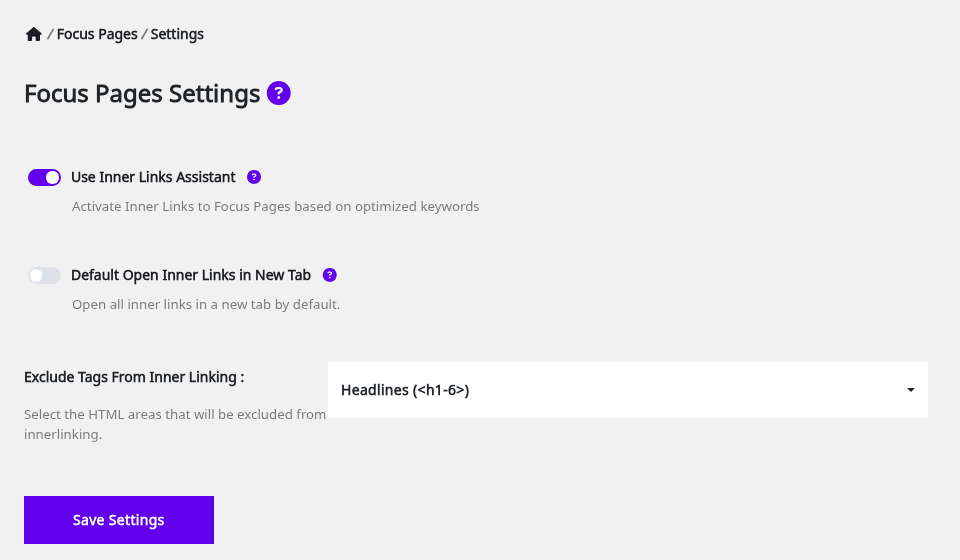
- Go to Squirrly > Focus Pages > Settings.
- Turn on Use Inner Links Assistant (“Activate Inner Links to Focus Pages based on optimized keywords”).
- Click Save Settings. The message is “Saved”.
You can also turn it on from Squirrly > All Features, on the Inner Links card in the Links Features group. When the switch is off, Squirrly stops adding the links to your pages, and the rules you saved stay in the list.
Where to find it
Once the assistant is on, Inner Links appears in two places: in the left menu of Squirrly > Focus Pages, and as Squirrly > Inner Links in the WordPress menu. Both open the same screen.
Two other screens send you there. The Inner Links panel of a Focus Page has an Inner Links Assistant button, and so does Squirrly > AI Research > Suggested.
The Inner Links list
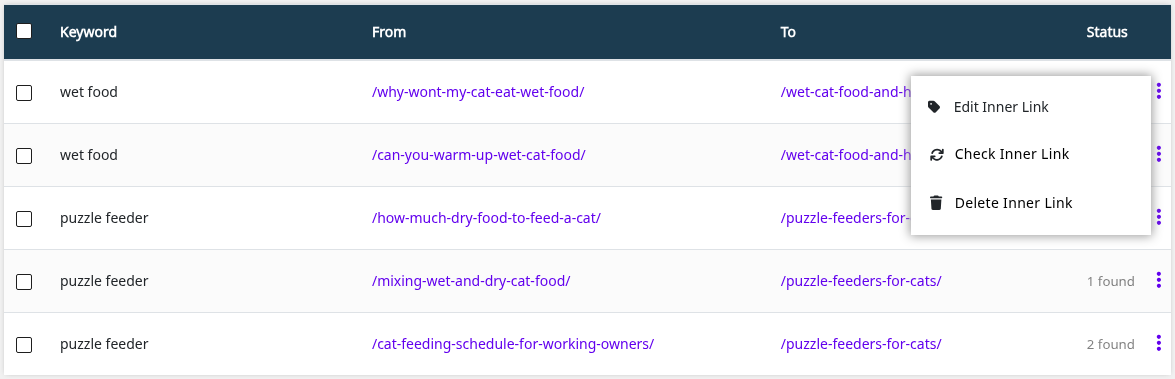
The screen says “The list of inner links set in Squirrly SEO.” It has two buttons, Add Inner Link and Link Opportunities, and a table with one row per rule.
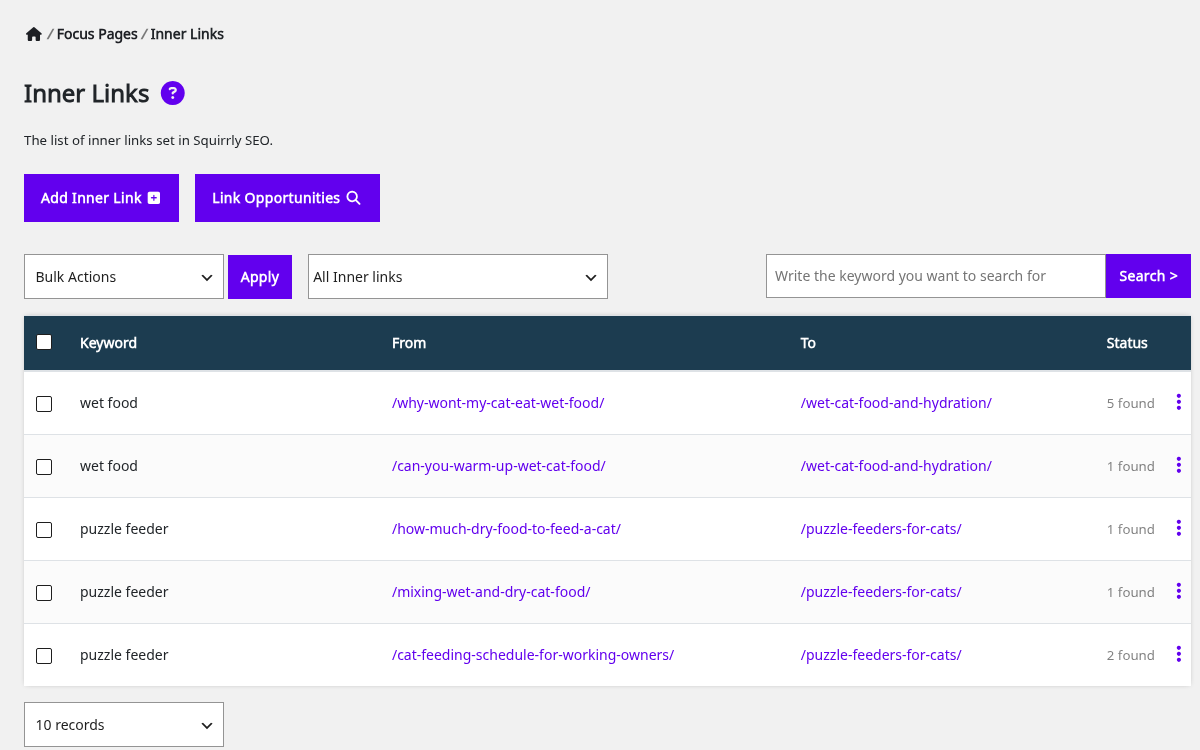
| Column | What it shows |
|---|---|
| Keyword | The anchor text, with Nofollow or Open New Tab under it when the link has those options |
| From | The page the link is placed on |
| To | The page the link points to |
| Status | How many times the keyword was found on the From page, for example “2 found”, or a warning icon with “No keyword found on page” |
The Status number counts the places where a link could go. How many links Squirrly adds depends on the Maximum Inner Links Per Keyword setting.
The three-dot menu of a row has Edit Inner Link, Check Inner Link and Delete Inner Link. Check reads the From page again and shows “Keyword found & Inner Link valid.” or “Keyword not found in content”. Delete asks “Do you want to delete the Inner Link?” and shows “Inner Link Removed”. The checkboxes and the three-dot menu show only for administrators and the Squirrly SEO Admin role.
Bulk actions
- Tick the rows, or the box in the header to select all.
- Pick Check or Delete in Bulk Actions.
- Click Apply.
Check ends with “Check Finished!”. Delete asks “Are you sure you want to delete the inner link?” first and ends with “Deleted!”.
Filter and search the list
The list next to Bulk Actions switches between All Inner links and Nofollow. To find a keyword, type it in Write the keyword you want to search for and click Search >; Show All clears the search. On long lists, the menu under the table shows 10, 20, 50, 100 or 500 records per page.
Add an inner link
- Go to Squirrly > Focus Pages > Inner Links and click Add Inner Link.
- Type the anchor text in Keyword. It must appear in the content of the From page.
- Pick one or more pages in From Page. Type part of a title to search.
- Pick the target in To Page.
- In SEO Beginner mode, click More Options > to see NoFollow Link and Open in New Tab. They start from your defaults in Settings.
- Click Add Inner Link. The message is “Inner link is saved.”
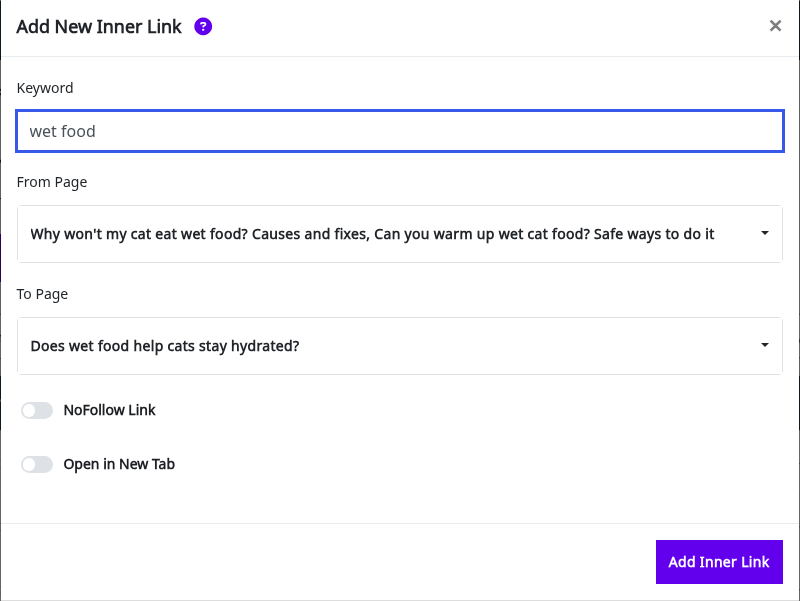
A rule with several From pages becomes one row for each page. The From and To pages must be different.
Squirrly adds the link when the page loads, and your post text stays as it is. This is the “wet food” link on a demo post:

Squirrly saves the rule even when the keyword isn’t in the From page. The row then shows the warning icon in Status, and no link appears until the keyword is in the text. Edit the post, add the keyword, and click Check Inner Link.
To change a rule later, open Edit Inner Link. You can change the keyword and the two options; the From and To pages are fixed, so delete the rule and add a new one to move it.
Find pages that can link to a Focus Page
Link Opportunities searches your published posts for a keyword and lists the ones that can link to a target page. It replaces the Suggested Inner Links list from older versions of this guide.
- Click Link Opportunities on the Inner Links screen.
- Type the keyword in Keyword, for example “puzzle feeder”. Pick one from your keyword research that your posts already use.
- Pick the page in Target URL (To Page).
- Click Search.
- Click Add next to each page that should get the link. The button changes to Added.
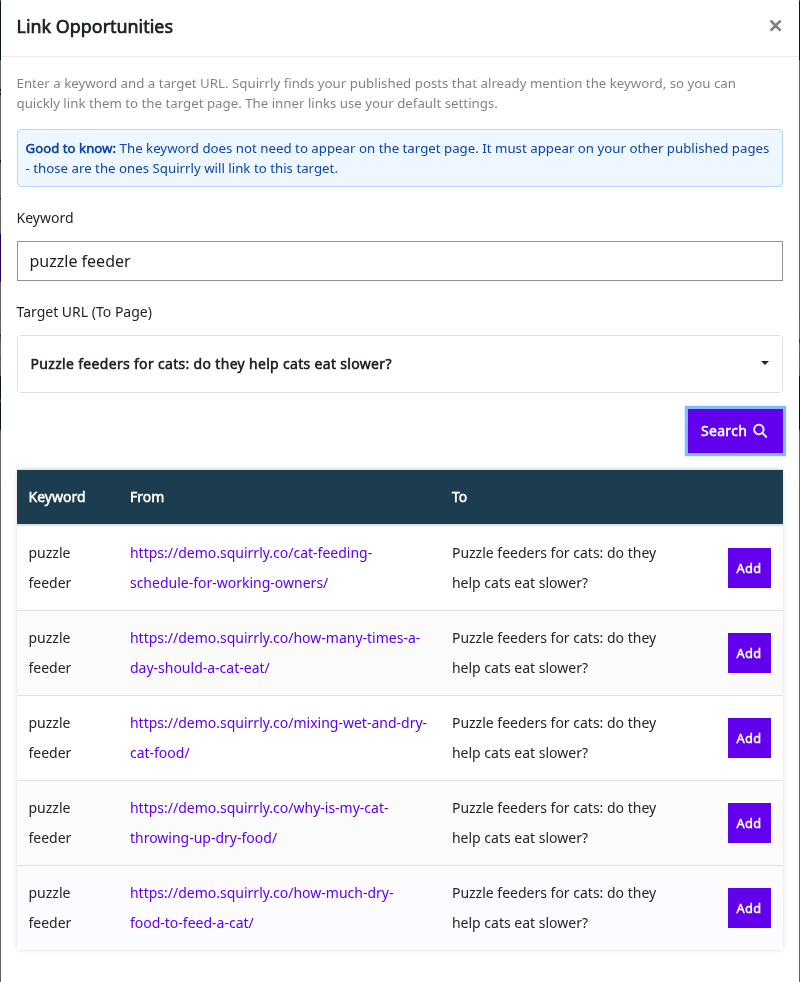
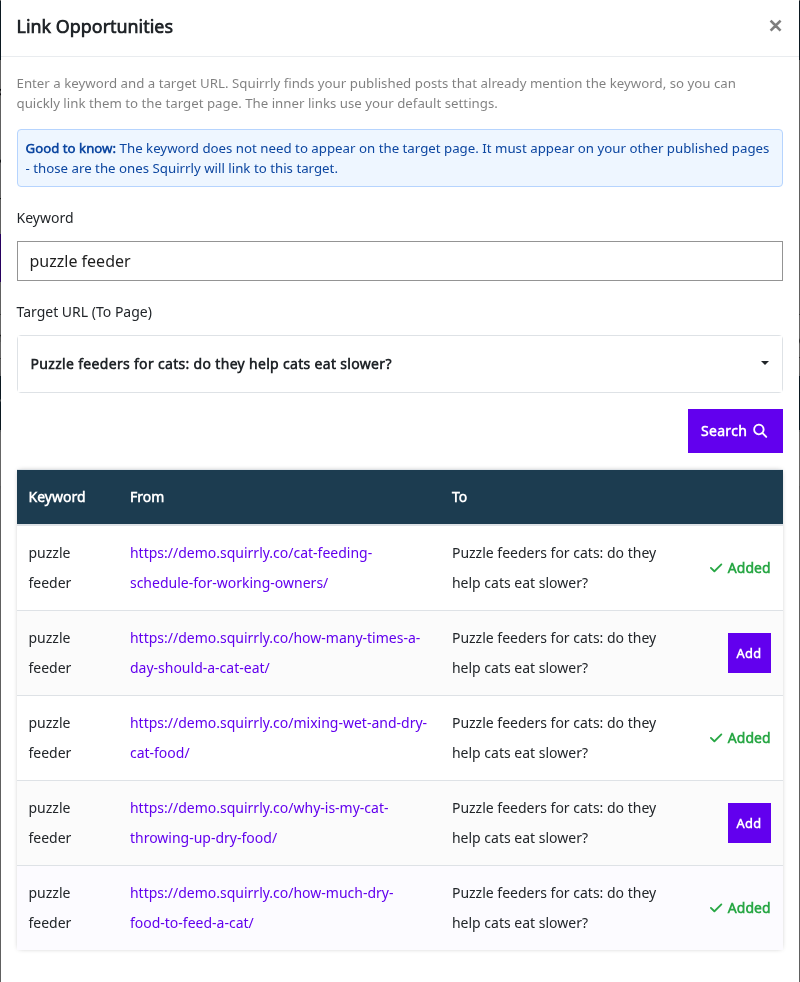
The window’s note says “The keyword does not need to appear on the target page.” It must appear on your other published pages, and the target page is left out of the search. The links use your default settings, and the search reads up to 50 posts.
Empty results show “No opportunities found for this keyword.” Try a shorter form of the keyword, or one you already use in your posts.
You can also add links from Suggested keywords and related questions. Click Add to Inner Links on a row; when the link exists, the row shows Already in innerlinks.
Inner Links settings
The settings live at Squirrly > Focus Pages > Settings, on the screen called Focus Pages Settings. Only administrators and the Squirrly SEO Admin role can open it. Which options you see depends on the mode chosen at the top of every Squirrly screen: SEO Beginner or SEO Expert (what Beginner mode sets for you).
Settings in SEO Beginner mode
Beginner mode shows three options: Use Inner Links Assistant, Default Open Inner Links in New Tab and Exclude Tags From Inner Linking. The screenshot above is this mode.
Settings in SEO Expert mode
Click SEO Expert at the top of the screen to see four more options: the two limits, Default NoFollow Inner Links and Linking Template.
| Label | What it does | Default |
|---|---|---|
| Use Inner Links Assistant | Turns Inner Links on or off | Off |
| Maximum Inner Links Per Keyword (Expert) | “The maximum number of keywords that will have links to a Focus Page once it is found.” | 1 |
| Maximum Inner Links Per Target (Expert) | “The maximum number of links that will point to a Focus Page once a keyword is found.” | 0 (no limit) |
| Default NoFollow Inner Links (Expert) | Adds rel=”nofollow” to new inner links | Off |
| Default Open Inner Links in New Tab | Opens new inner links in a new tab | Off |
| Linking Template (Expert) | The HTML of each link, with {{url}} and {{keyword}} | <a href=”{{url}}”>{{keyword}}</a> |
| Exclude Tags From Inner Linking | HTML areas where Squirrly never places a link | Headlines (<h1-6>) |
Maximum Inner Links Per Keyword
With the default of 1, a keyword that appears 6 times on a From page gets one link, the first time it appears on the page. Set 2 to link two of the 6, and 0 to link all of them.
Maximum Inner Links Per Target
This caps the links from one page to the same target. For example, three rules on one post point to the same Focus Page, for “wet cat food”, “kitten food” and “senior cats”. With 0 the post gets three links to the Focus Page, and with 1 it gets one.
Default NoFollow Inner Links
“Add re=nofollow by default to all inner links.” It applies to rules that don’t have their own NoFollow Link choice. Leave it off if you want the links to pass authority to your Focus Pages, the reason the Outbound Links task exists.
Default Open Inner Links in New Tab
“Open all inner links in a new tab by default.” The Open in New Tab switch of a single rule wins over this default.
Linking Template
The template sets the HTML of every generated link. {{url}} is the target URL and {{keyword}} is the anchor text. The field accepts an <a> tag with href, class, style and title, so <a href=”{{url}}” class=”inner-link”>{{keyword}}</a> adds a CSS class to every inner link.
Exclude Tags From Inner Linking
Pick one or more areas. Squirrly won’t place links in the text inside them.
| Option | HTML tag |
|---|---|
| Headlines (selected by default) | <h1> to <h6> |
| Strong text | <strong> |
| Tables | <table> |
| Image captions | <figcaption> |
| Ordered lists | <ol> |
| Unordered lists | <ul> |
| Blockquotes | <blockquote> |
| Italic text | <em> |
| Inline quotes | <cite> |
| Sourcecode | <code> |
Click Save Settings when you’re done.
Troubleshooting
Inner Links is missing from the menu
The Inner Links Assistant is off. Turn on Use Inner Links Assistant in Squirrly > Focus Pages > Settings.
“No keyword found on page”
The keyword isn’t in the From page’s content, or it’s only in an excluded area such as a heading. Add it to a paragraph and click Check Inner Link.
The link doesn’t show on the page
Open the page while logged out, or clear the page cache, and check that the keyword isn’t already inside another link. The editor never shows these links.
“Add a keyword and select a target URL first.”
Link Opportunities needs both fields. Type the keyword, pick the target page and click Search again.
Frequently asked questions
Does the To page have to be a Focus Page?
No, any published page of your site can be the target, though Focus Pages are what the Inner Links task counts.
Do inner links change my post content?
No, Squirrly adds them when the page loads and the post in the editor stays the same.
What happens to the links when I turn the assistant off?
They stop showing on your pages, and the rules wait in the list until you turn it on again.
Can one keyword link to two pages?
Yes, add two rules with the same keyword and different To pages.
Related tutorials
- Focus Pages & Page Audits: the pages your inner links should point to.
- Keyword Research and SEO Strategy: find the keywords to use as anchor text.
- SEO Links and Redirects: nofollow and new-tab settings for external links.
- Internal linking features: a short answer on what Squirrly does for internal links.
- Inspect URL: check a page after you add links to it.