Squirrly Live Assistant is Not Showing in Edit Post
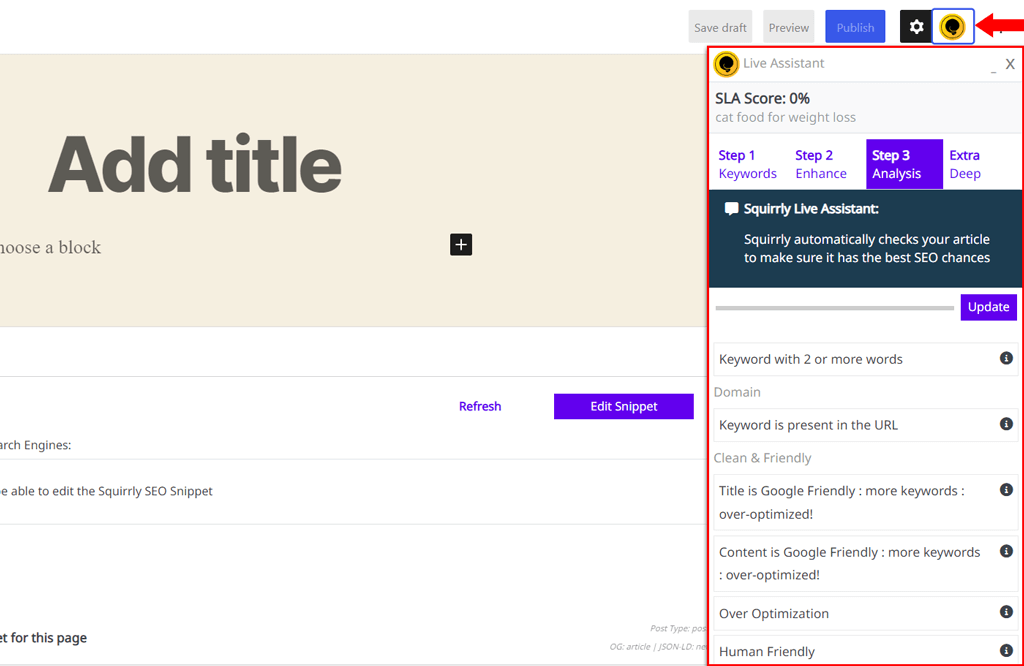
Squirrly Live Assistant is built to show on every public post type while you’re in the Post Editor in the backend.
How it shows depends on the Live Assistant Type setting in Squirrly > Optimize > Settings (visible in SEO Expert mode): Auto, Integrated Box or Floating Box. The default is Auto.
With Floating Box, the Live Assistant loads on the right side of the screen as a floating box and you can move it from right to the left as you like. (simply click on the Assistant, Hold, and Drag it anywhere you want)
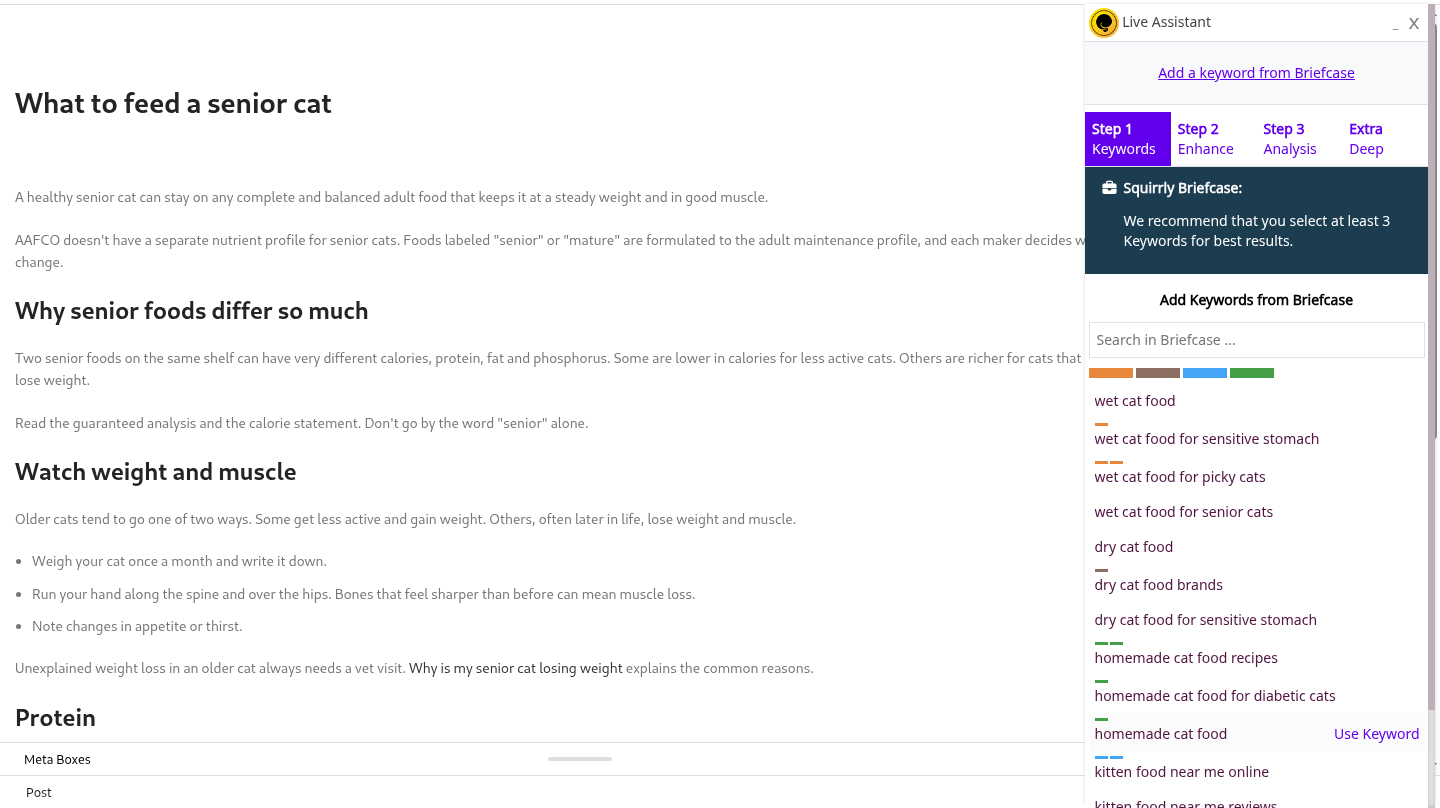
You can also minimize or close and re-open the Live Assistant anytime you want.
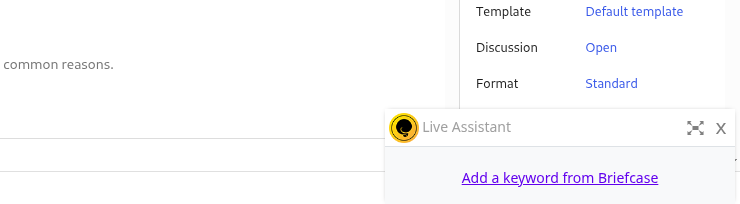
With Integrated Box, the Live Assistant stays inside the Squirrly Live Assistant panel in the editor sidebar.
If you are in the Post Editor and Squirrly Live Assistant is not loading as it should please make sure that:
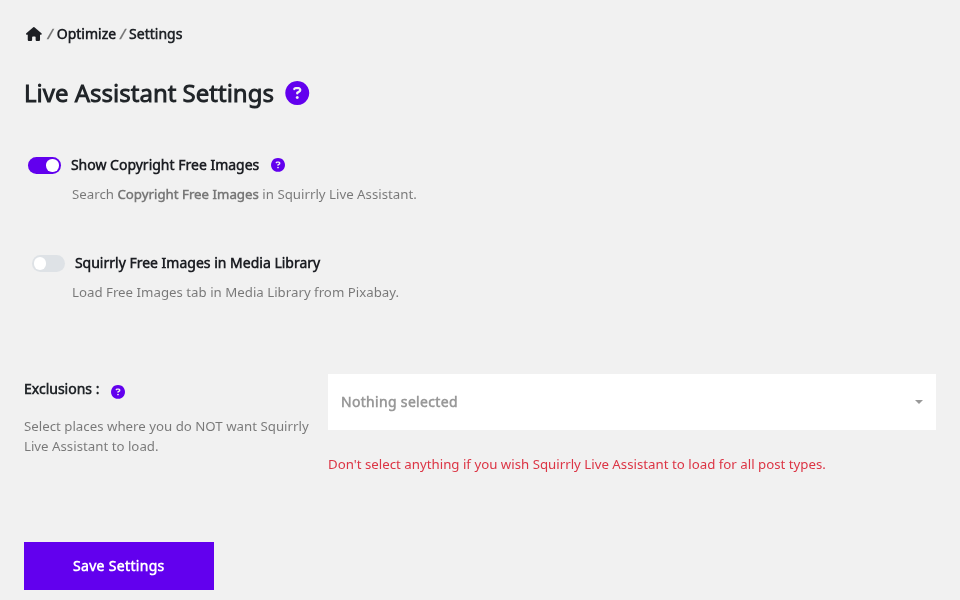
1. The post type is not selected in Exclusions in Squirrly > Optimize > Settings. Don’t select anything there if you want the Live Assistant to load for all post types. If any post type is selected, the Live Assistant doesn’t load for that post type.
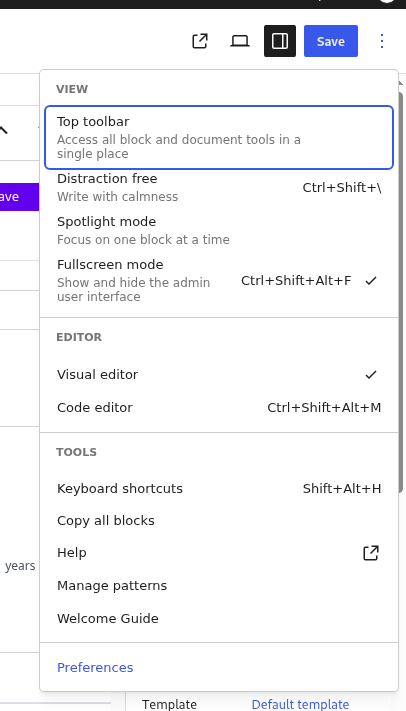
2. The Squirrly Live Assistant panel is turned on if you use the Block Editor. Open the editor’s Options menu (the three dots at the top right), go to Preferences > Panels and switch on Squirrly Live Assistant.
3. Your user role can optimize posts with Squirrly. The Live Assistant loads only for users with the Squirrly sq_manage_snippet capability. Administrators, Squirrly SEO Admins, Editors, Squirrly SEO Editors and any role that can edit posts (Author, Contributor) get it. See Squirrly User Roles.
4. No code turns it off. A theme or plugin that returns false on the sq_load_sla filter removes the Live Assistant from the editor. The list of hooks is in Deactivating Specific Features in Squirrly SEO Plugin Using Hooks.
5. The plugin is connected to Squirrly Cloud. If it isn’t, the box shows “To load the Live Assistant and optimize this page, click to connect to Squirrly Cloud.” Follow Connect to Squirrly Cloud, then reload the post.
If all of these are correct, the Live Assistant will show in the Post Editor. Other messages the box can show, and what they mean, are listed in the Live Assistant troubleshooting section.