Migrating Data: How to Switch from Rank Math to Squirrly SEO
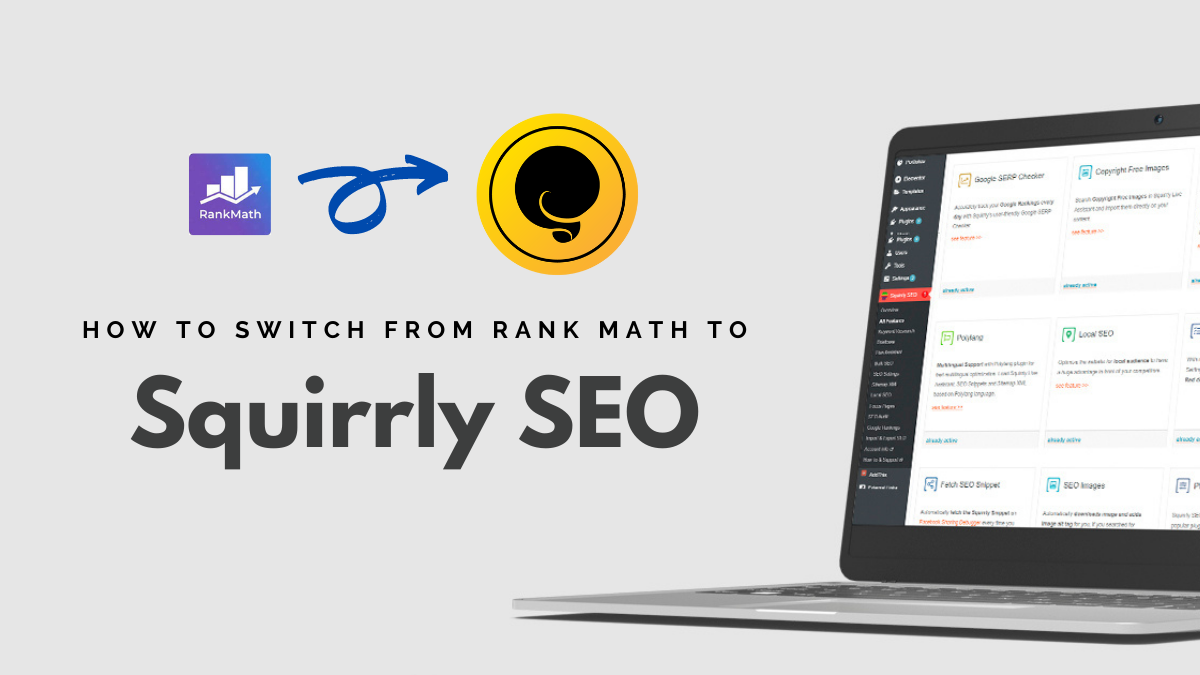
Decided to upgrade from Rank Math to Squirrly? Welcome, we’re grateful to have you.
Just thinking about switching? We welcome that thought, too. 🙂
We know that migrating data from other SEO plugins can seem like a complicated task. You may be worried that you’ll lose important data or the work you’ve previously done – and that you’ll have to start from scratch.
Rest assured, switching from Rank Math to Squirrly SEO is fast, easy, and secure thanks to Squirrly’s import capabilities.
We make sure that your data is migrated carefully. This way, you don’t lose any important optimizations you’ve previously made.
In this article, we’ll show you:
- how easy it is to import your data from Rank Math
- and let you know exactly WHAT gets imported during the process.
First things first, make sure the Advanced Pack by Squirrly SEO is active.
To access all import options (redirects and schemas), you’ll need to install the Advanced Pack by Squirrly SEO. This plugin is free, uses the same account, and is installed and activated in WordPress when you click the button.
Follow these steps:
- In your WordPress dashboard, go to Squirrly > Home.
- Find the Advanced Pack by Squirrly SEO card. If it says Inactive, click “Install now with one click. It’s free.” (as shown in the screenshot below). If it already says Active, skip this step.
🚨 Note: These steps must be completed within the Squirrly SEO WordPress plugin. The option to install and activate the Advanced Pack by Squirrly SEO plugin is NOT AVAILABLE in the Cloud App.
What data gets imported from Rank Math?
Here is everything that we import from Rank Math to help you make sure that your previous work remains intact.
SEO Snippet optimizations:
- Title
- Description
- Keywords
- Open Graph title
- Open Graph Description
- Open Graph Media
- Twitter Card title
- Twitter Card description
- Twitter Card media
- Patterns
- Noindex
- Canonical
Squirrly also imports the following Settings from Rank Math:
- Social Media
- JSON-LD – Company Name
- Add Breadcrumbs in the JSON-LD option
- Webmasters
- Attachment Redirects to Image option
- Nofollow to external links option
- Open external links in a new window option
SEO Automation
- HomePage – Patterns & Noindex & Nofollow
- Posts – Patterns & Noindex & Nofollow
- Pages – Patterns & Noindex & Nofollow
- Attachment – Patterns & Noindex & Nofollow
- Product – Patterns & Noindex & Nofollow
- Categories – Patterns & Noindex & Nofollow
- Tags – Patterns & Noindex & Nofollow
- Product Categories – Patterns & Noindex & Nofollow
- Product Tags – Patterns & Noindex & Nofollow
You won’t have to start over and re-write your meta descriptions or titles once you’ve made the switch to Squirrly. All this data is copied to Squirrly SEO.
Once the import is complete, you can go to Bulk SEO and check that your data has been correctly transferred.
NOTE! With the Advanced Pack, Squirrly SEO can also import the redirects you’ve set up in Rank Math, as well as the schemas for rich snippets. When importing schemas, Squirrly SEO does not fetch the Schema Templates that you’ve configured in Rank Math.
Now let’s go over the steps of importing your data from Rank Math to Squirrly SEO.
Import using Squirrly’s Import feature
The import reads Rank Math’s data from your WordPress database, so that data must still be there. Rank Math doesn’t need to be active.
Step 1. Go to the Import & Data section of Squirrly
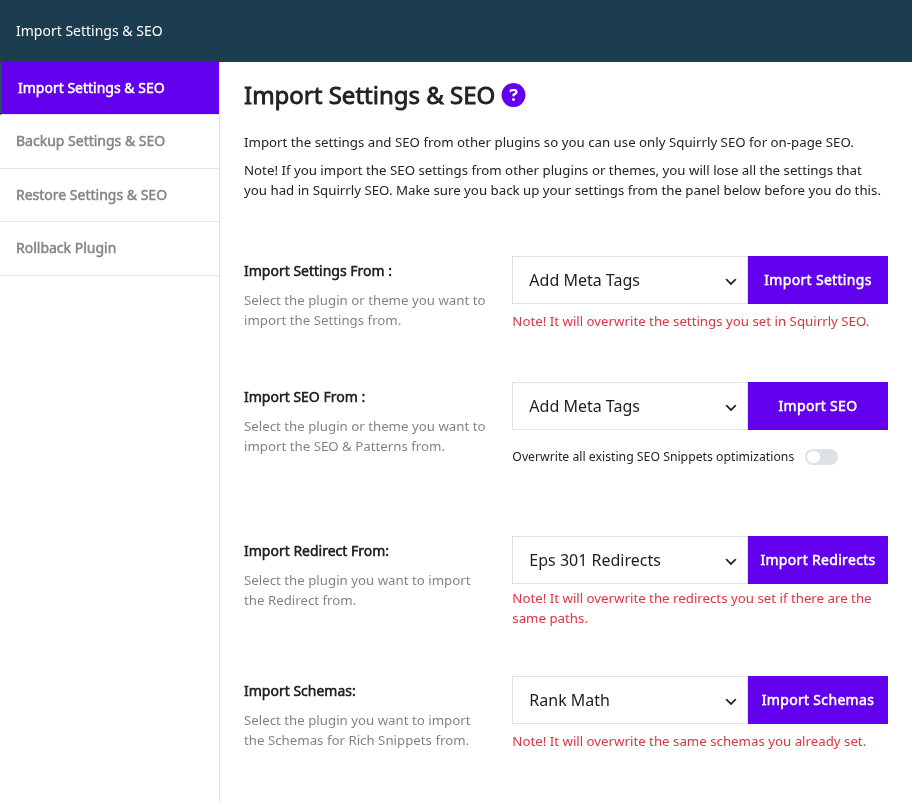
The import settings are in the Technical SEO section of Squirrly SEO. Go to Squirrly > Technical SEO > Import & Data. The Import Settings & SEO tab opens first.
Step 2. Import Settings
Looking at how Import Settings & SEO is set up, you may ask yourself why there are two different sections for this. The reason is that there is a clear distinction between Settings and SEO:
- Settings are things you set up, such as: using Meta, using Open Graph, and so on.
- SEO is what you work on and how you define custom texts.
To import settings from Rank Math, select Rank Math in Import Settings From and click Import Settings (as shown in the image below). A good import shows “All the Plugin settings were imported successfully!”.

⚠️ If you import the settings from Rank Math, you will lose all the settings that you had in Squirrly SEO (the settings you import overwrite the settings you made in Squirrly SEO). The note under the button says “Note! It will overwrite the settings you set in Squirrly SEO.” Make sure you back up your settings from Squirrly > Technical SEO > Import & Data > Backup Settings & SEO before you do this.
Step 3. Import SEO
To import the SEO of your pages from Rank Math, select Rank Math in Import SEO From and click Import SEO (as shown in the image below).

⚠️ Next to the button there is a switch called Overwrite all existing SEO Snippets optimizations. Leave it off, and Squirrly only imports the SEO for the pages that don’t have both a title and a description in Squirrly SEO yet.
That way you don’t lose the SEO for pages that you already optimized with Squirrly. So, unlike Import Settings, the SEO you import does NOT overwrite the SEO for pages optimized with Squirrly while the switch is off. Turn the switch on only if you want the Rank Math values to replace everything.
Also want to add your Rank Math focus keywords to Squirrly’s Briefcase? Here’s how to do that:
1. export the keywords to a .csv file using Rank Math’s export focus keywords to a CSV file functionality (note that this feature is NOT available with Rank Math’s free plan)
2. copy the keyword column from the .csv file
3. paste it in a .txt file, one keyword per line
4. import the keywords into Squirrly’s Briefcase by uploading the .txt file in Squirrly > Technical SEO > Import & Data > Restore Settings & SEO > Import Everything, with Briefcase keywords and labels switched on
Step 4. Import Redirects
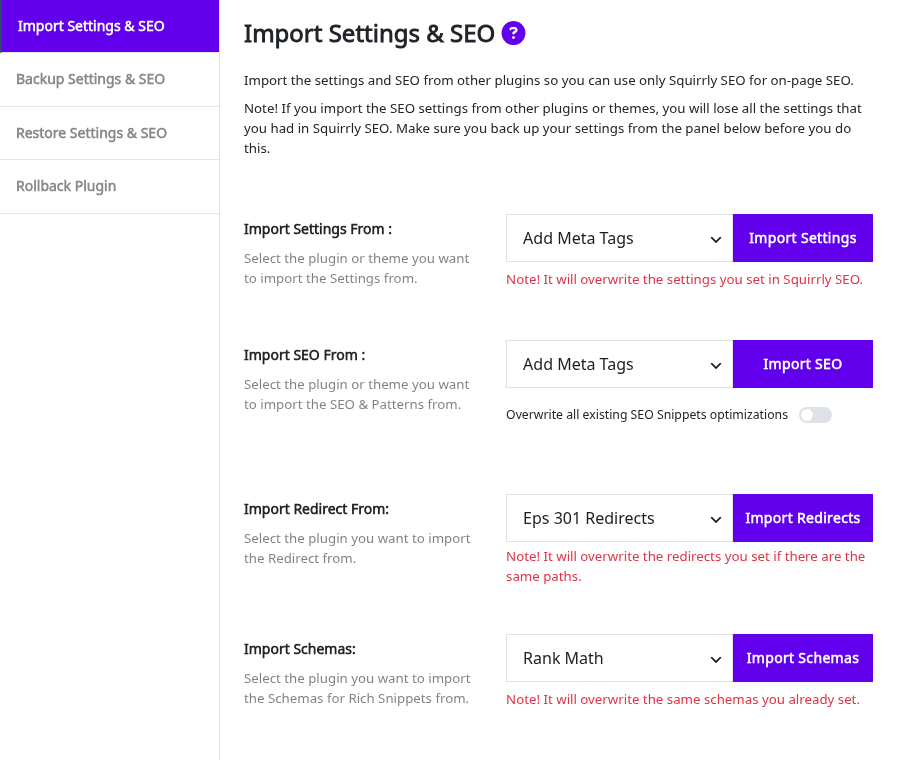
This row needs the Advanced Pack and shows while Redirects is on. To import redirects from Rank Math, scroll down to the Import Redirect From option, select Rank Math from the list, and click Import Redirects (as shown in the image below).
⚠️ Attention: We recommend importing redirects from other plugins immediately after activating the Redirects feature in Squirrly SEO and before setting up any new redirects.
That’s because the imported redirects overwrite existing redirects if there are the same paths. The note under the button says “Note! It will overwrite the redirects you set if there are the same paths.”
To create a backup of your current redirects, follow these steps:
- Go to Squirrly > Technical SEO > Import & Data > Backup Settings & SEO.
- Leave Advanced Pack redirects on and click Export Everything.
This downloads a copy of your existing redirects.
Step 5. Import Schemas
The Import Schemas row needs the Advanced Pack and shows while Custom Rich Snippets is on. Rank Math is the plugin it offers. To import schemas for rich snippets from Rank Math, scroll down to the Import Schemas option, select Rank Math from the list, and click Import Schemas (as shown in the image below).

That’s it! Your data is now in Squirrly.
All your data is now imported into Squirrly! If you want, you can now go to Bulk SEO and check that your data has been correctly transferred.
Import Done. What’s next?
Here are the settings you need to do in Squirrly after the import.
After the set-up for Squirrly SEO is complete, you can go ahead and deactivate the Rank Math plugin from your site.