Squirrly Cloud App
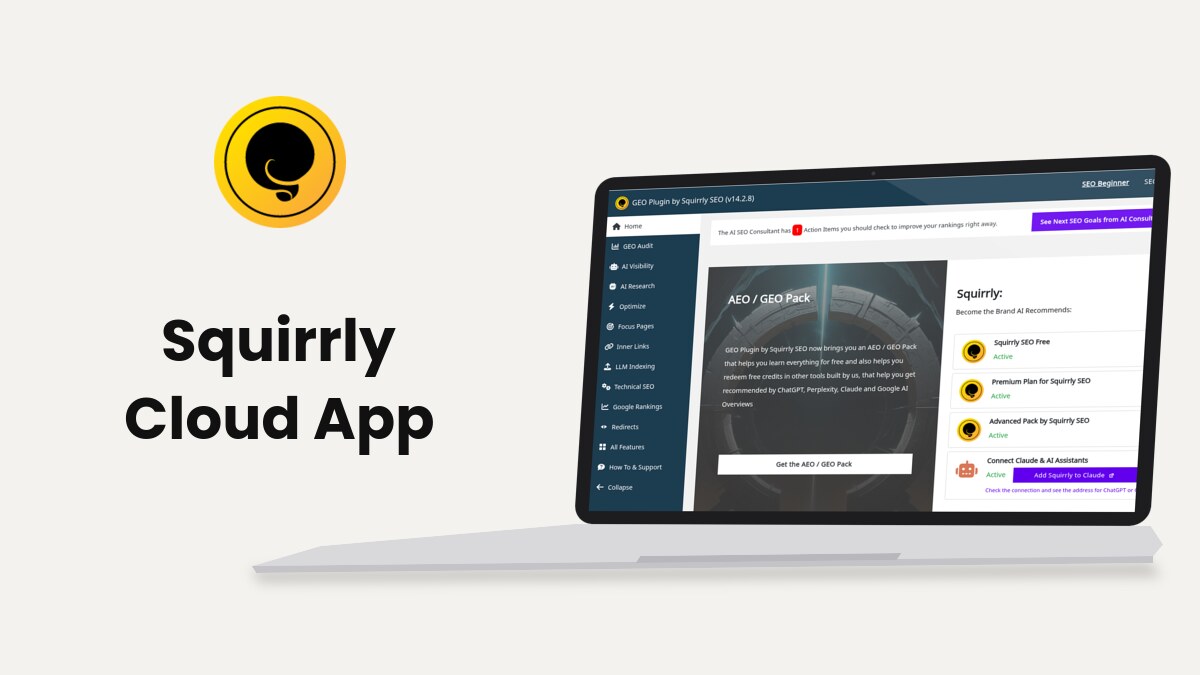
Squirrly Cloud is the web app at cloud.squirrly.co that holds your Squirrly account, your plan and the data behind keyword research, Focus Pages, audits and rankings. In WordPress you open it from the account icon in the Squirrly header, or from the Squirrly Cloud App card in Squirrly > All Features.
The Cloud also works with no plugin. Add any website by URL and you get Keyword Research, the Live Assistant, the GEO Audit and Google Rankings in the browser, which is how a site that isn’t on WordPress uses Squirrly.
The Cloud screenshots on this page come from a test account. The WordPress screenshots come from demo.squirrly.co, a test store for cat food, with Squirrly SEO 14.2.10 and the Advanced Pack 2.5.12.
What Squirrly Cloud does for the plugin
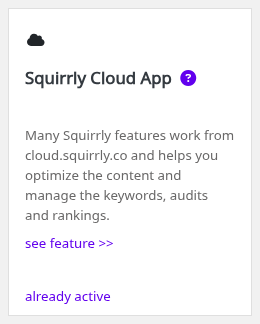
The All Features card describes it in one line: “Many Squirrly features work from cloud.squirrly.co and helps you optimize the content and manage the keywords, audits and rankings.” The plugin sends your site address with each request it makes to the Cloud.
These WordPress features need the connection to the Cloud:
| Feature | Where it is in WordPress |
|---|---|
| Keyword Research and the Briefcase | Squirrly > AI Research |
| Live Assistant | The post editor, settings in Squirrly > Optimize > Settings |
| Focus Pages | Squirrly > Focus Pages |
| GEO Audit | Squirrly > GEO Audit |
| Google Rankings | Squirrly > Google Rankings |
| Next SEO Goals | Squirrly > Home, button See Next SEO Goals from AI Consultant |
Until the site is connected, the cards of these features on All Features show connect to cloud instead of already active.
What’s in the Cloud menu
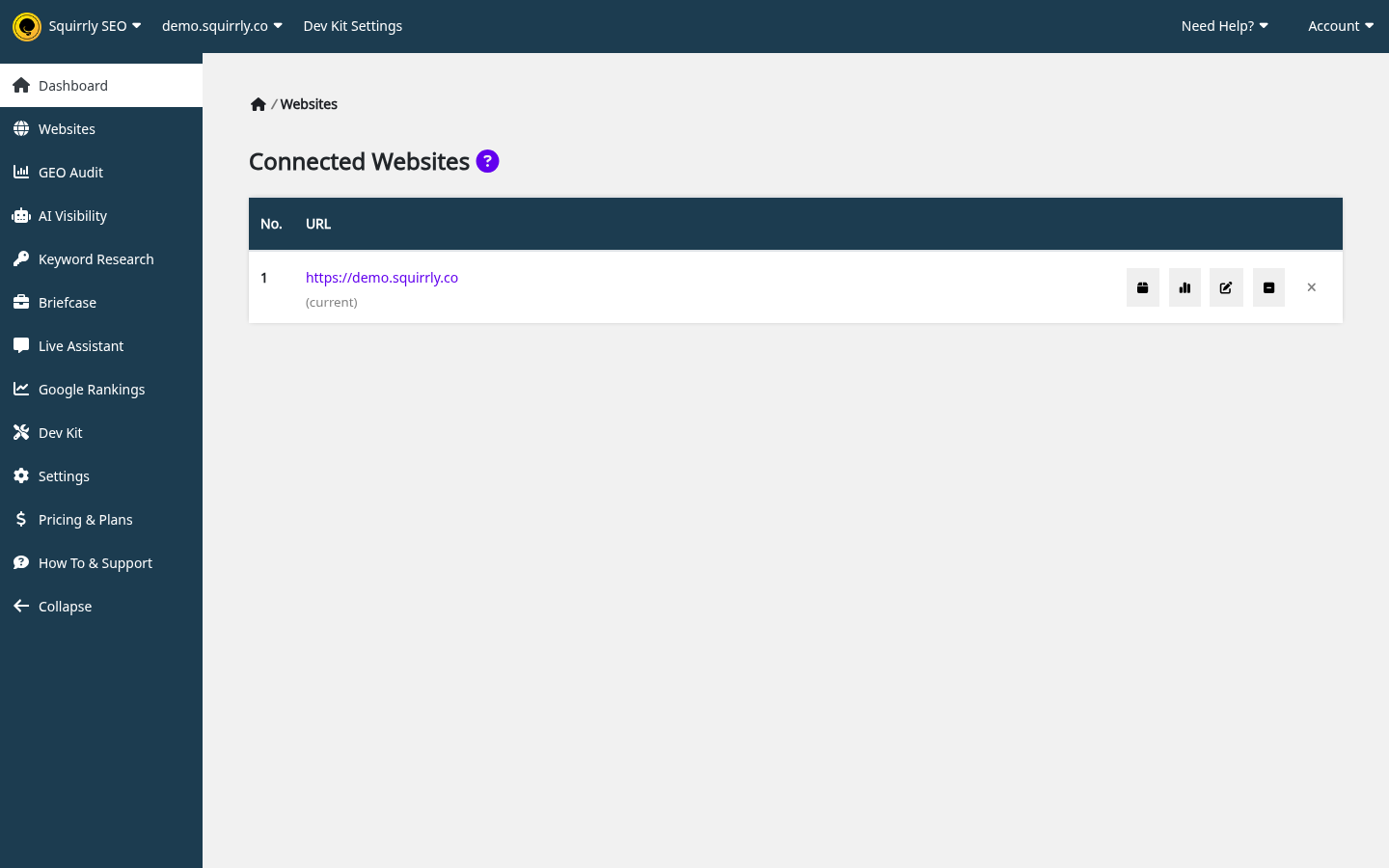
The main menu sits on the left of the Dashboard. On every other screen the left column shows a Home icon and the tabs of that screen. No item depends on your plan except Dev Kit. Plans change the limits and the Google Rankings columns.
| Menu item | What the screen is for | Details |
|---|---|---|
| Dashboard | The keyword research prompt and your Connected Websites | Connected Websites |
| Websites | Add, edit, disconnect and delete websites | Websites in Squirrly Cloud |
| GEO Audit | Audit pages of the selected website, add pages, set the audit email | GEO Audit on the Cloud |
| AI Visibility | Traffic from AI engines, read from Google Analytics | AI Visibility on the Cloud |
| Keyword Research | Find keywords, with tabs for Labels, Suggested and History | Keyword Research on the Cloud |
| Briefcase | The keywords you saved | Briefcase on the Cloud |
| Live Assistant | Articles and products you write and optimize in the Cloud | Add an article |
| Google Rankings | Keyword positions for the selected website | Google Rankings on the Cloud |
| Dev Kit | Customize the plugin for client sites. Shows only on accounts with a Dev Kit plan | Web Dev Kit in Squirrly Cloud |
| Settings | Connect Tools (Google Analytics and Search Console) and Backup & Restore | Connect Tools, Backup & Restore |
| Pricing & Plans | Plans and add-ons you can buy | Pricing & Plans |
| How To & Support | Opens howto.squirrly.co |
The top bar stays on every screen:

| In the top bar | What it does |
|---|---|
| Squirrly SEO | Dropdown with the main screens, each with its tabs as a fly-out |
| Website selector | Shows the current website. Its first row is Manage Websites, then come your websites |
| Dev Kit Settings | Opens the Dev Kit screen, on accounts with a Dev Kit plan |
| Need Help? | Support hours and links: “10 AM to 4 PM (GMT): Mon-Fri by contact form.” |
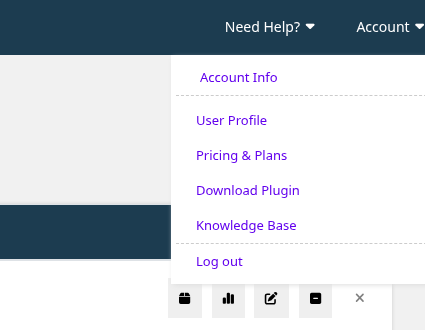
| Account | Account Info, User Profile, Pricing & Plans, Billing, Download Plugin, Knowledge Base, Log out |
Some screens have a different name in WordPress, so a tutorial for the plugin may use the other word:
| In Squirrly Cloud | In the WordPress plugin |
|---|---|
| Keyword Research | AI Research |
| Live Assistant | Optimize |
| Settings | Technical SEO |
The Cloud has no Focus Pages screen. Focus Pages work in WordPress, with the plugin. Account Info and the stats pop-up still show Focus Pages counts, because the limit and the plugin data belong to the same account. What works where has the full list.
Where to find it
Go to cloud.squirrly.co and log in, or open it from WordPress. Click the person icon at the right end of the dark Squirrly header, next to SEO Beginner and SEO Expert. The account menu opens with your email address, your plan and these links:

| Link in the account menu | What it opens |
|---|---|
| Upgrade your account | The plans page in Squirrly Cloud |
| Billing info | The account page in Squirrly Cloud |
| Account settings | The profile page in Squirrly Cloud |
| Squirrly Cloud | The Cloud dashboard |
| Support | The Squirrly support page |
| Disconnect | Removes the Cloud connection from this WordPress site |
The icon shows only to users who can manage the WordPress options, which means administrators.
Connect your site and sign in
A new install connects from Squirrly > First Step, the screen titled Connect Your Site to Squirrly Cloud. After the connection the same menu item is called Home.
- Go to Squirrly > First Step.
- To create an account, type your email, tick I Agree with the Squirrly Terms of Use and Privacy Policy and click Sign Up.
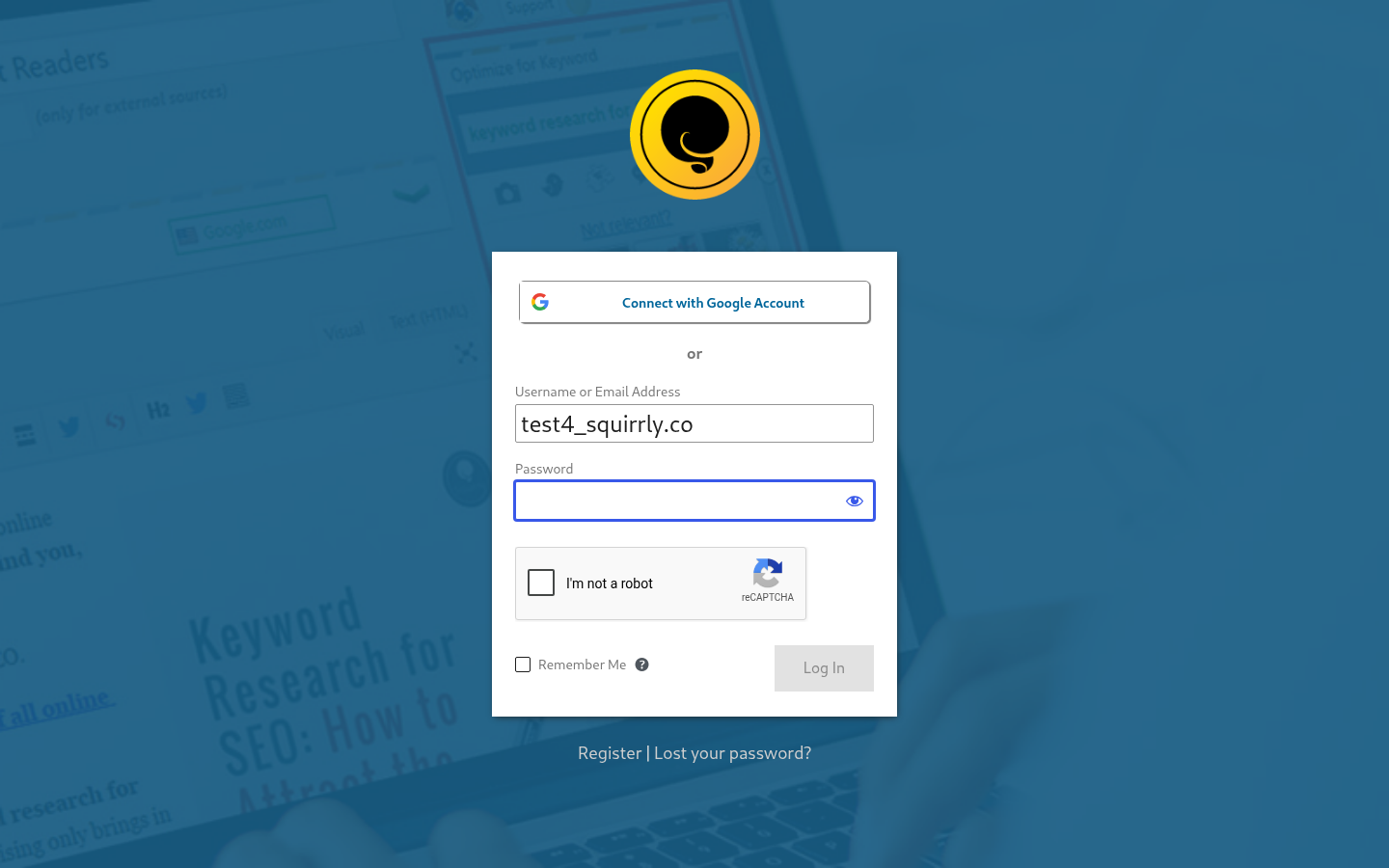
- To use an account you already have, click I already have an account, type the Email and Password, and click Login.
Install Squirrly SEO Plugin has the full first-connection steps. Lost password? under the login form opens the password reset page on cloud.squirrly.co.
Without WordPress, create the account at cloud.squirrly.co/register and log in at cloud.squirrly.co/login. The first website you add opens the Dashboard.
Open the Cloud without typing a password
When an administrator clicks Squirrly Cloud or any other Cloud link in the account menu, the plugin asks Squirrly Cloud for a one-time sign-in link and opens the right page already signed in.
Accounts with a Dev Kit plan are left out of this automatic sign-in. For them, and whenever the Cloud doesn’t answer, the link opens the Cloud page and asks you to log in there.
Your websites in Squirrly Cloud
The list is called Connected Websites. It’s on the Dashboard and on Websites, and you also reach it from the website selector in the top bar with Manage Websites.
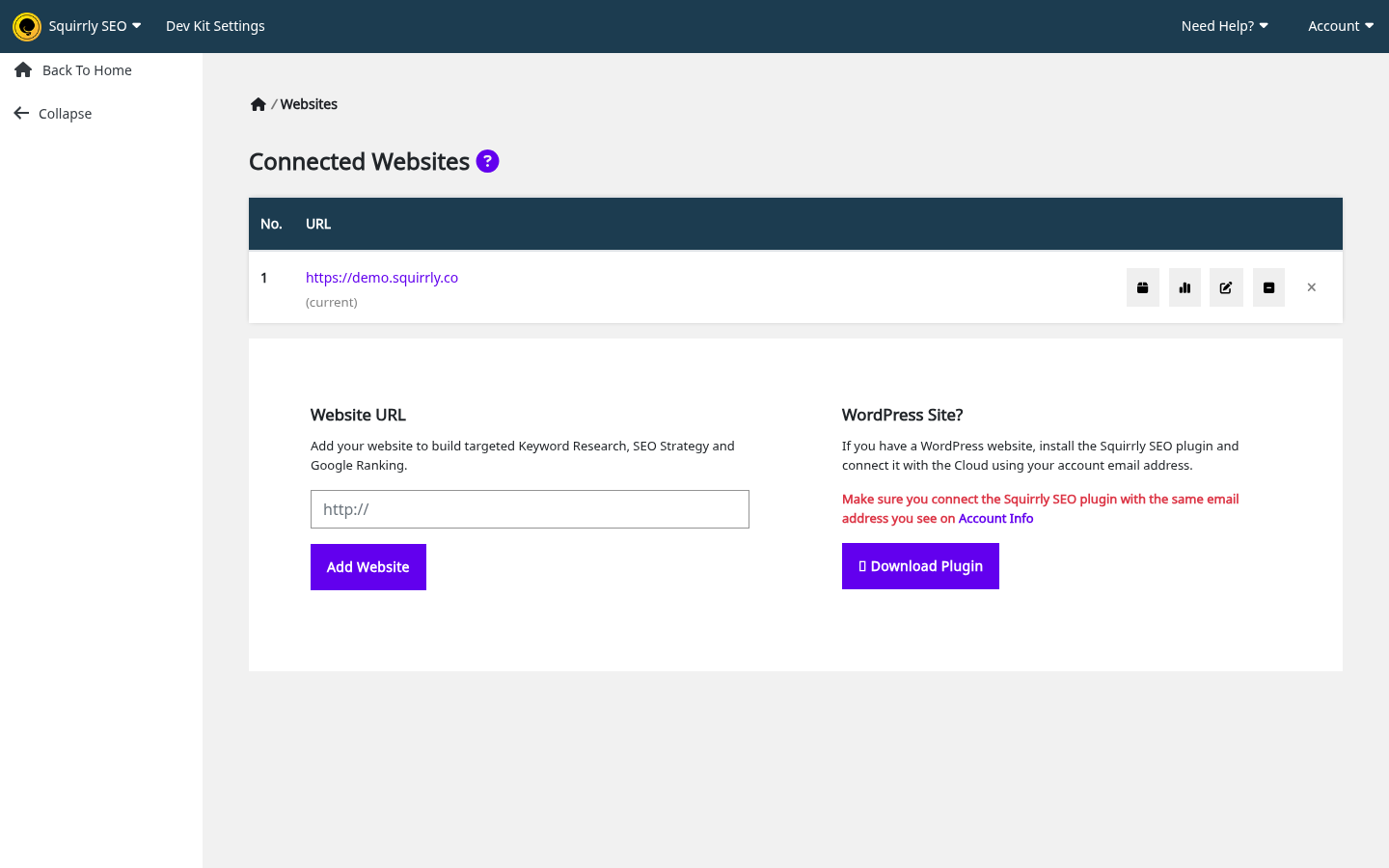
To add a website, type the full address with https:// in Website URL on the Websites screen and click Add Website. Websites in Squirrly Cloud explains every icon and state in the list, the limits per plan and how to fix the exclamation mark.
Each WordPress site connects to your account on its own, from its own First Step screen. Connect every site with the same email address if you want them all under one account, because the email shown at the top of the account menu is the account the site uses.
Focus Pages have two limits, one for the website and one for the whole account, and the error names the one you reached: “for this website” or “per your account”.
After you move a site or change its address
When a site was cloned, staged or moved to a new address, Squirrly Cloud can’t verify it anymore. WordPress then shows a red notice and the screen This site needs to reconnect to Squirrly Cloud.
- Click Reconnect this site on that screen, or the reconnect this site to Squirrly Cloud link in the notice.
- Squirrly drops the old site keys and connects again, keeping your Squirrly login.
- Reload the screen you were on and check that the notice is gone.
On the Cloud the same site can get a warning triangle, because the WordPress address and the Cloud address no longer match. Click it and pick the right address in Fix Website Domain:. To change the address yourself, use the edit icon and Change the Website URL for your account:. Moved or cloned sites has the details.
Disconnect a site
From WordPress:
- Click the account icon in the Squirrly header.
- Click Disconnect at the bottom of the account menu.
Disconnect clears the Cloud token stored in WordPress. Your SEO titles, descriptions and settings stay in WordPress, but Keyword Research, Focus Pages, audits and rankings stop until you connect again from Squirrly > First Step.
From the Cloud, the minus icon in Connected Websites disconnects the website for now and the X deletes it with its optimization history. Disconnected websites still count against the Add Website limit. Disconnect or reconnect a website and Delete a website list what each one keeps.
Features that work through the Cloud
Live Assistant
The Live Assistant checks a post against your keywords while you write it in the WordPress editor. Its keywords come from the Briefcase in your Cloud account, and its All Features card says it helps you “Publish content that is fully optimized for BOTH Search Engines and Humans”.
The Cloud has its own editor at Live Assistant > Articles and Live Assistant > Products. Write or paste the text there, optimize it, then copy it to your site. “Squirrly doesn’t import content from WordPress”, so the Cloud list shows only what you create there. Add an article has the steps.
Post to WordPress from the Cloud
An article saved in the Cloud can go straight to a connected WordPress site. Click Post to WordPress (that’s the spelling on the button) on the list or in the editor, then choose Publish as: Post, Page or Product, the Status: and the Author email:. Post to WordPress covers the pop-up and its messages.
Optimize pages built with a page builder
For pages made with a builder, the Live Assistant opens inside the builder, so you optimize the text on the page where it is published. The All Features card for Elementor says it “works on the front-end of Elementor”, and cards for Oxygen, Divi, Thrive Architect, Bricks, WPBakery and Zion appear when one of those builders is installed.
All of them use the same switch, Activate Live Assistant in Frontend, in Squirrly > Optimize > Settings. Live Assistant in Elementor shows the steps.
Keyword Research
Each research in Squirrly > AI Research > Find Keywords runs in the Cloud and uses one of the Keywords Lookups in your plan. When none are left, the screen shows “You’ve reached your Keyword Research Limit” with a Check Your Account button that opens your Cloud account.
The same tool opens on the Cloud under Keyword Research, with the same Briefcase.
GEO Audit
The audit of your pages runs in the Cloud and the results appear in Squirrly > GEO Audit. The card on All Features says you can “Generate and Compare GEO Audits”. The SEO Audit Suite article explains the report.
On the Cloud the menu item is GEO Audit, with Overview, Add New Page and Settings. AI Visibility sits next to it and needs Google Analytics connected in Settings > Connect Tools.
Google Rankings
Squirrly Cloud checks the Google position of the keywords you send to Squirrly > Google Rankings, and each check uses SERP Lookups from your plan. A failed refresh shows “Could not refresh the rank. Please check your SERP credits here”, where “here” opens your Cloud account.
Google Rankings needs the Business plan or the Web Dev Kit plans. Other plans see Search Console data in the Avg Rank column. What is the SERP Checker Cloud? explains the difference.
Your plan in the account menu
The top of the account menu shows the email address of the Squirrly account and the name of the plan. A paid plan also shows Due Date, and a plan that doesn’t expire shows Expires: never. Click the plan name to open your account in the Cloud.
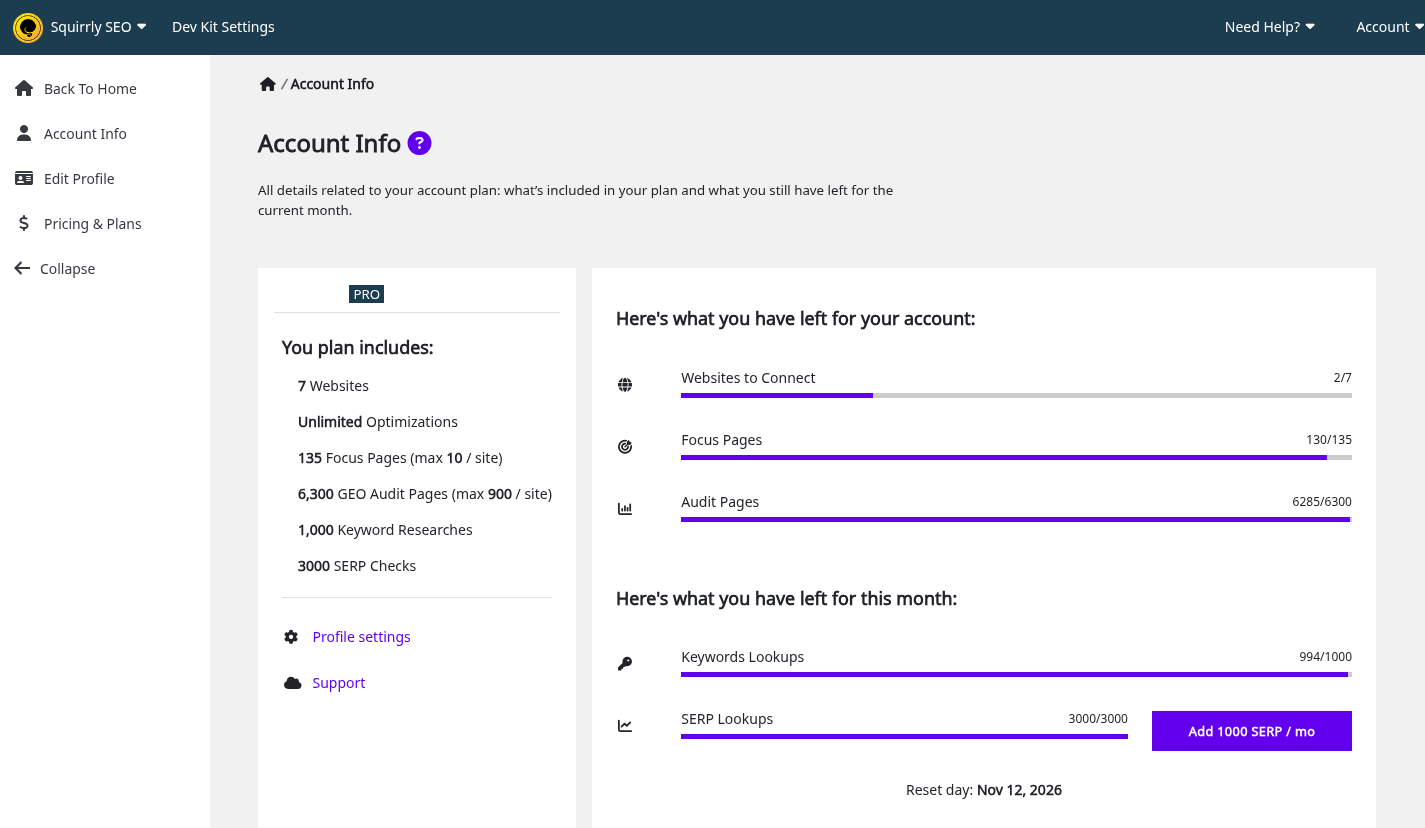
On the Cloud, Account > Account Info shows the same details in full: what your plan includes, what you have left, and the buttons to add credits. Account Info walks through the screen.
What you have left this period
Under the email, a bar for each limit shows how much you have left, written as “X of Y left”:
| Counter | What uses it |
|---|---|
| Focus Pages | Pages added to Focus Pages |
| Audit Pages | Pages added to the GEO Audit |
| Keywords Lookups | Keyword researches |
| SERP Lookups | Ranking checks |
Reset day under the counters is the date the period starts again. A counter is hidden when your plan has no limit set for it.
Stats per website are on the Cloud. Click the bar chart icon on a row in Connected Websites to open the Optimizations & Stats pop-up, with tiles such as Articles optimized, Keywords in Briefcase and Pages ranking in top 100 Google.
Account settings
Click Account settings in the account menu to open your profile in Squirrly Cloud, already signed in.
The screen is User Profile. You can change your name, display name, timezone and password there. The email is locked: “To change the e-mail address on your account, please contact support.” The Delete your account link is on the same screen, and it doesn’t cancel a paid subscription, so cancel in Billing first. User Profile has the details.
Upgrade your plan
Click Upgrade your account to open the plans page. The Home screen notes that an upgrade is made on the SaaS side, with no plugin reinstall needed.
On the Cloud, plans are at Account > Pricing & Plans and your subscriptions are at Account > Billing, under the heading All Subscriptions. That’s where you update the payment details or cancel. See Billing.
Billing info
Click Billing info to open the account page in Squirrly Cloud, already signed in.
For invoices, go to Account > Billing and click a Subscription ID. Payment History opens with a View invoice link for each order. Payment History has more.
Agencies can hide the whole account menu from clients with the Web Dev Kit. The link Want to hide this section from your customers? in the menu opens the Cloud dashboard.
Troubleshooting
Squirrly Cloud notices and errors lists every message with its exact text and fix.
“This site needs to reconnect to Squirrly Cloud”
The site was cloned, staged or moved. Click Reconnect this site (see After you move a site).
“Last Squirrly Cloud error (debug details, secrets are masked)”
The plugin couldn’t reach the Squirrly API. If the response under that line is an HTML page or empty, a firewall, a security plugin or the host blocks outgoing calls, so ask the host to allow calls to api.squirrly.co.
The account icon is missing
Only administrators see it, and a Dev Kit setup can hide it for everyone on the site.
A Cloud link asks me to log in
The one-time sign-in is off for Dev Kit accounts, and it also falls back to the login page when the Cloud doesn’t answer, so log in with the email from the account menu.
“This website is disconnected. Please choose another website.”
The selected website was disconnected. Pick another one in the website selector, or reconnect it from Connected Websites.
Frequently asked questions
Do I need a separate password for Squirrly Cloud?
No, the Cloud links in the plugin sign administrators in automatically, except on Dev Kit accounts.
Does Disconnect delete my SEO settings?
No, your titles, descriptions and settings stay in WordPress and only the Cloud features stop.
Where do I see how many keyword researches I have left?
The Keywords Lookups counter in the account menu, with the Reset day under it.
Can I connect several sites to one account?
Yes, connect each site from its own First Step screen with the same email address.
Do I need WordPress to use Squirrly Cloud?
No, you can add any website by URL, and the features that need the plugin are listed in What works where.
Can I use Focus Pages in Squirrly Cloud?
No, the Cloud has no Focus Pages screen, so Focus Pages need the WordPress plugin.
Does the Cloud import my WordPress posts?
No, the Cloud list shows only the articles and products you create and optimize there.
Can I change the email on my account?
Contact support, because the field is locked on User Profile.
Related tutorials
- Websites in Squirrly Cloud: add, edit, disconnect and delete websites.
- Optimize content in Squirrly Cloud: what works without the plugin, the article editor and Post to WordPress.
- Account, plans and billing in Squirrly Cloud: limits, invoices, canceling and AppSumo accounts.
- Squirrly Cloud notices and errors: every message and its fix.
- Web Dev Kit in Squirrly Cloud: customize the plugin for client sites.
- Install Squirrly SEO Plugin: connect a new site to Squirrly Cloud.
- Keyword Research and SEO Strategy: the research that uses your Keywords Lookups.
- Focus Pages & Page Audits: the pages counted in the Focus Pages limit.
- Web Dev Kit: hide the account menu and the Cloud links from clients.
- How to change your Squirrly account: move a site to another Squirrly account.