
Optimize content in Squirrly Cloud
Squirrly Cloud lets you research keywords, write and optimize articles and products, audit pages and check rankings at cloud.squirrly.co, with no plugin. You write on the Cloud, then copy the text to your site, or send it with Post to WordPress if the site runs the plugin.
Everything on the Cloud works on the website selected in the top bar. The screenshots come from a test account.
What works where
| Feature | Where on the Cloud | Cloud on its own, any website | Needs the plugin |
|---|---|---|---|
| Keyword research | Keyword Research > Find Keywords | Yes | No |
| Briefcase and Labels | Briefcase, Labels | Yes | No |
| Suggested keywords and History | Suggested, History | Yes | No |
| Briefcase backup and restore | Settings > Backup & Restore | Yes | No |
| Live Assistant on an article or product | Live Assistant | Yes. Write there, then copy the text to the site | No |
| GEO Audit | GEO Audit | Yes, it crawls the pages | No |
| AI Visibility | AI Visibility | Yes, with Google Analytics connected | No |
| Google Rankings | Google Rankings | Yes. The Google position columns need a plan with SERP checks, other plans get Search Console data | No |
| Google Analytics and Search Console | Settings > Connect Tools | Yes | No |
| Post to WordPress | The list and the editor | No | Yes |
| Focus Pages | No screen | No | Yes, in WordPress |
| Inner Links | No screen | No | Yes, in WordPress |
| Bulk SEO, Automation, Technical SEO, Redirects, LLM Indexing, All Features, AI Consultant, Onboarding | No screen | No | Yes, in WordPress |
Sites that aren’t on WordPress
A site on Wix, Squarespace or another CMS uses the Cloud on its own. Add it by URL, research keywords, write the text with the Live Assistant, then paste it into your CMS. SEO titles and meta descriptions stay in your CMS, because the Cloud doesn’t set them. The FAQ Can I use Squirrly for a site that’s not built on WordPress? has a video on it.
Add an article
Articles and products use the same editor. Pick the website first, because the article stays under the website that was selected when you optimized it.
- Pick the website in the top bar.
- Click Live Assistant in the Dashboard menu. If the screen shows the buttons Article and Product, click one. The Cloud remembers the choice for 14 days.
- Click Add New above the list, or open cloud.squirrly.co/user/optimization. On an empty list, the Add a new Article link opens the same editor.
- Type or paste the title and the text. To optimize a page you already have, copy its content here, title included.
- Optimize the text with the Live Assistant box in the editor. Squirrly SEO Live Assistant explains the box, which comes from the plugin.
- Click Save Article or Save Product. Save before you leave the screen so you can come back to it later.
- Copy the text to your page, piece by piece where the design needs it, or use Post to WordPress.
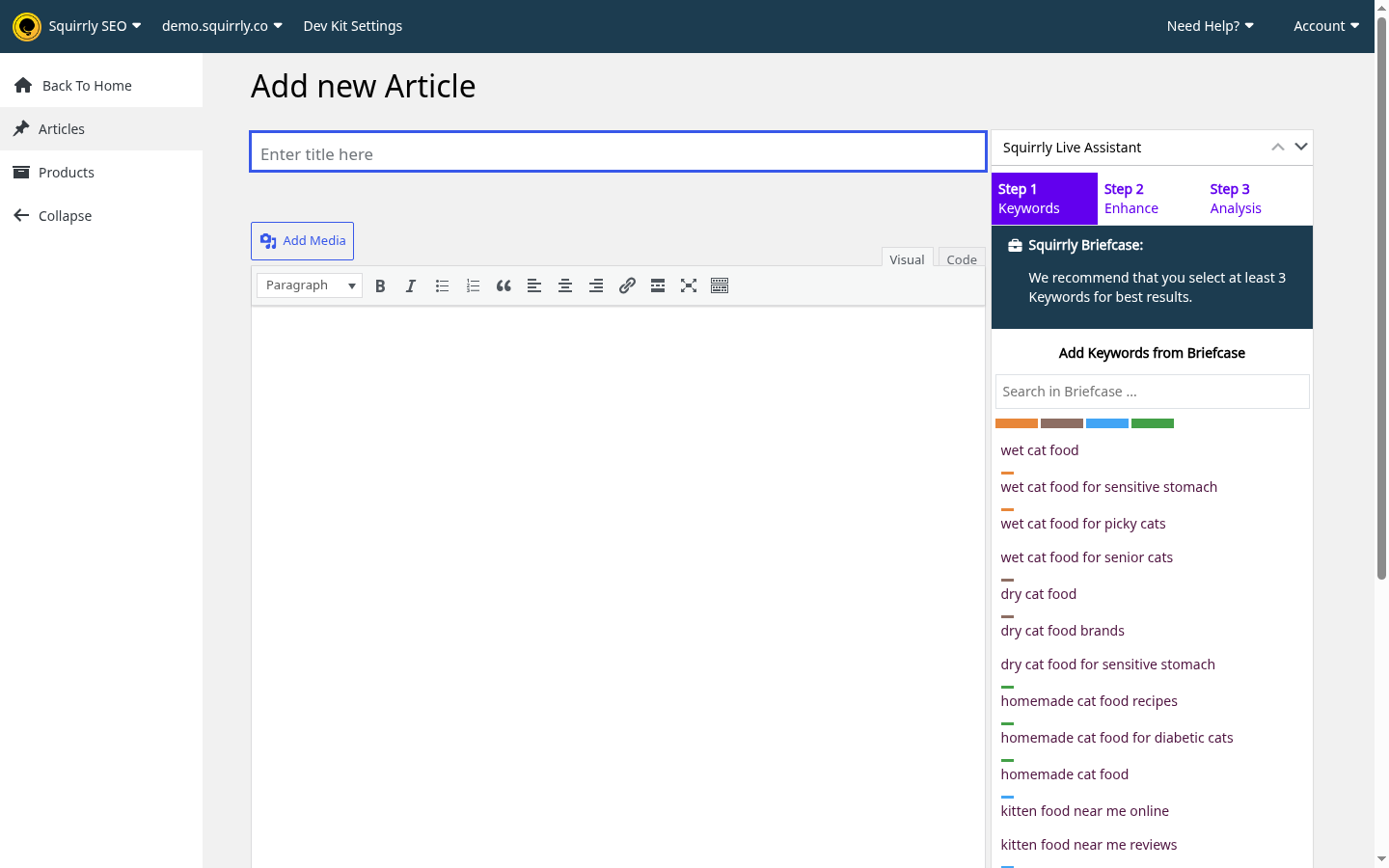
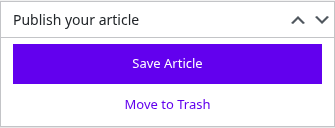
The screen also has a slug box, Revisions and the Publish your article box. Post to WordPress appears under the save button once the article is saved. Move to Trash removes the article.
The list of articles and products
Go to Live Assistant > Articles or Live Assistant > Products. The list shows your own posts, published or draft, up to 1000, for the selected website. Pick another website to see its articles.
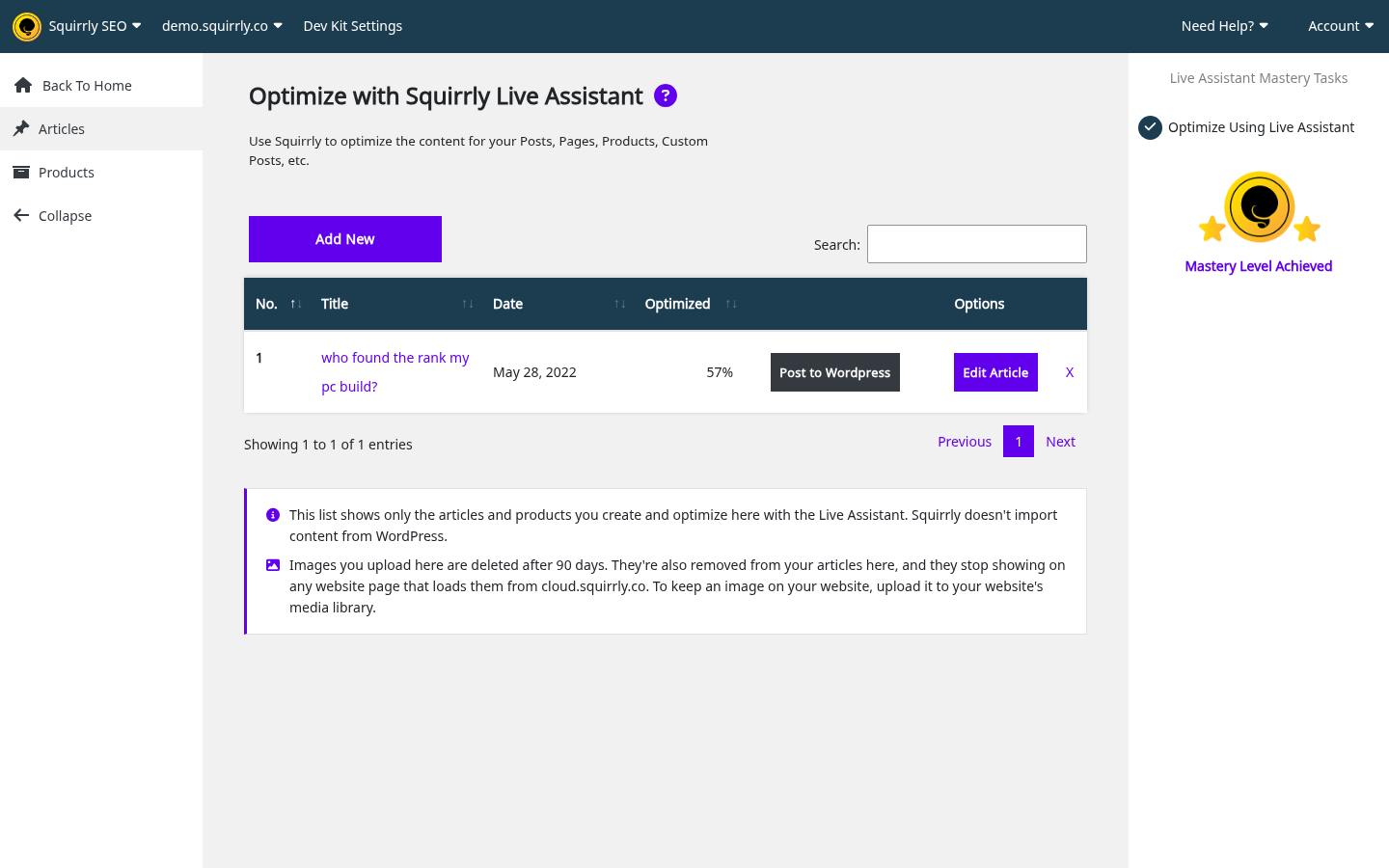
| Column | What it shows |
|---|---|
| No., Title, Date | The article and its date |
| Optimized | The optimization percent |
| Publish button | Post to WordPress |
| Options | Edit Article |
| X | Deletes the article after “Are you sure you want to delete this post?” |
The note under the list says: “This list shows only the articles and products you create and optimize here with the Live Assistant. Squirrly doesn’t import content from WordPress.” Accounts created on the Cloud don’t see this line.
My Articles
My Articles is inside the Live Assistant box. It lists your own articles and products that already went to the selected website with Post to WordPress, newest first, up to 200. An article you never posted to the site isn’t there, and nothing from other customers shows.
Images in the Cloud editor
Uploads go to your own folder on cloud.squirrly.co, and the media list shows only your files.
| Rule | Detail |
|---|---|
| Allowed files | JPG, PNG, GIF and WEBP, and the file has to be a real image |
| Other files | “You can only upload images (JPG, PNG, GIF or WEBP).” |
| Images from other sites in your text | Copied to the Cloud when you save, within about 20 seconds per save, and replaced in the text |
| Turned off | Audio and video playlists, galleries and the insert from URL tab |
The note under the list sets the time limit: “Images you upload here are deleted after 90 days. They’re also removed from your articles here, and they stop showing on any website page that loads them from cloud.squirrly.co. To keep an image on your website, upload it to your website’s media library.”
Post to WordPress
This sends a saved article to the selected website. The button is spelled Post to WordPress, and it needs that website connected with the plugin. Images stay on cloud.squirrly.co, so upload them to the site’s media library and replace them there, or the 90-day rule above removes them.
- Pick the website in the top bar.
- Click Post to WordPress on the row in the list, or under the save button in the editor.
- Fill in the pop-up, using the table below.
- Click Post to WordPress. The Cloud shows “sending …”, then “Great! Your post was sent”.
- Open the post in WordPress and check it.
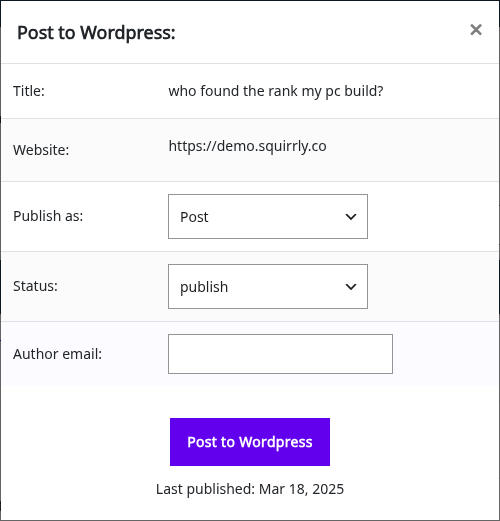
| Field | What goes in it |
|---|---|
| Title: | The article title |
| Website: | The selected website, with “(not connected)” when the plugin isn’t connected |
| Publish as: | Post, Page or Product |
| Status: | draft, publish or pending. The pop-up remembers your last choice |
| Author email: | The last one used, otherwise your account email |
Under the button you see “Last published: <date>” or “Unpublished”. After a send, the article joins My Articles.
| Message | What it means | What to do |
|---|---|---|
| “Connect Squirrly SEO to Squirrly API first” | The Cloud can’t reach the website, or it isn’t connected | Connect the plugin on that site, then try again |
| “Error received: <message>” | The post failed | Read the message after the colon |
| “Could not publish to this website” | The post couldn’t be created on the website | Check the plugin connection on that site |
| “Invalid Request” | Any other failure | Reload the page and try again |
Keyword Research on the Cloud
The Cloud calls it Keyword Research, and the plugin calls the same tool AI Research. The tabs are Find Keywords, Briefcase, Labels, Suggested, History and Backup & Restore. Keyword Research and SEO Strategy describes each step, and it works the same way here.
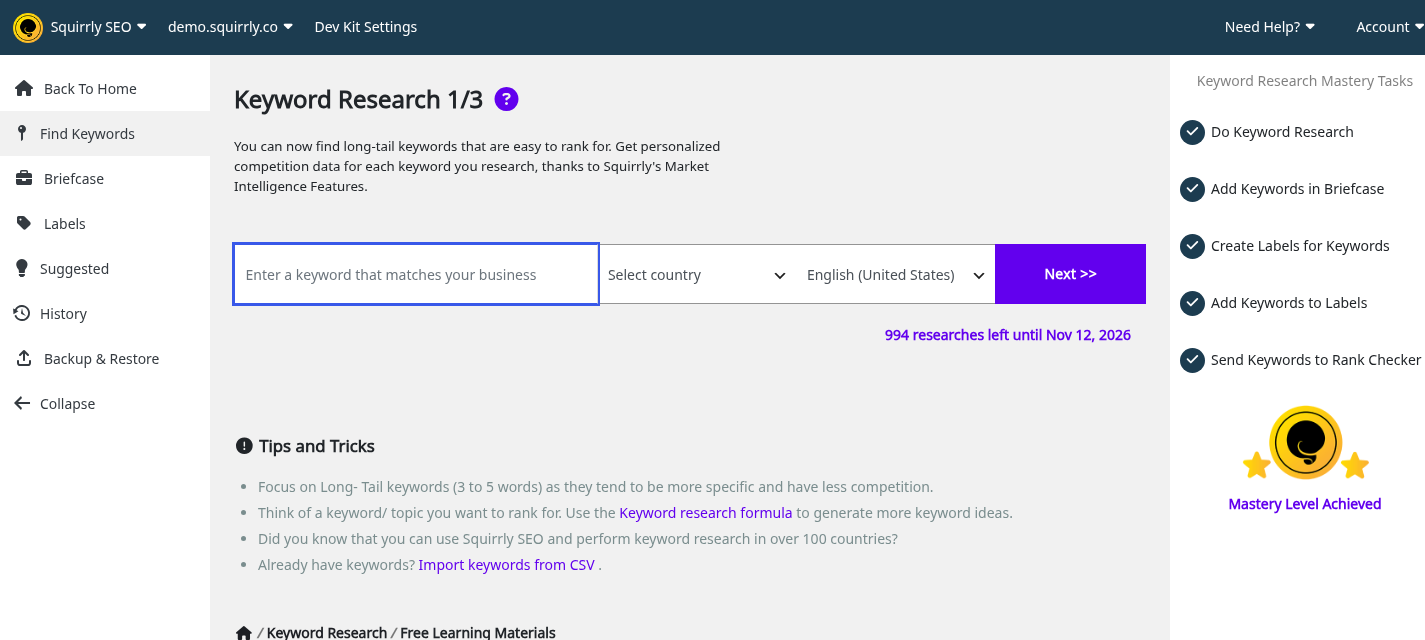
Each research uses one Keywords Lookup. While you haven’t used a research this period, the Dashboard also shows the prompt “Start a Keyword Research and rank your website on Google:” with the button Do Research >>. Plans with deep research use the result count you ask for, and other plans get 20.
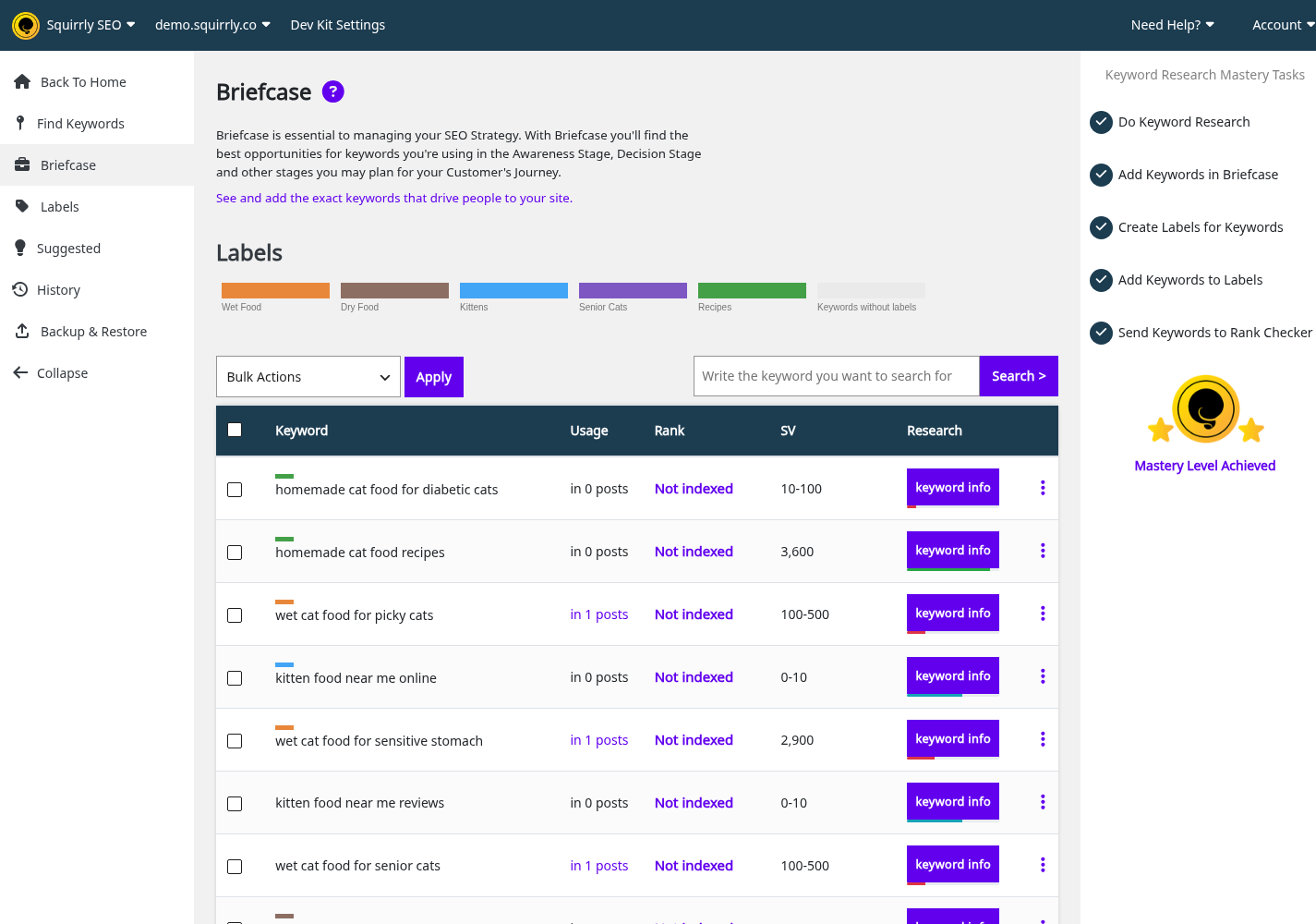
Briefcase on the Cloud
The Briefcase is under Briefcase in the Dashboard menu and as a tab of Keyword Research. Labels, Suggested and History sit next to it. To keep a copy of the keywords, use Settings > Backup & Restore.
GEO Audit on the Cloud
The screens match the SEO Audit Suite article, with three tabs: Overview, Add New Page and Settings.
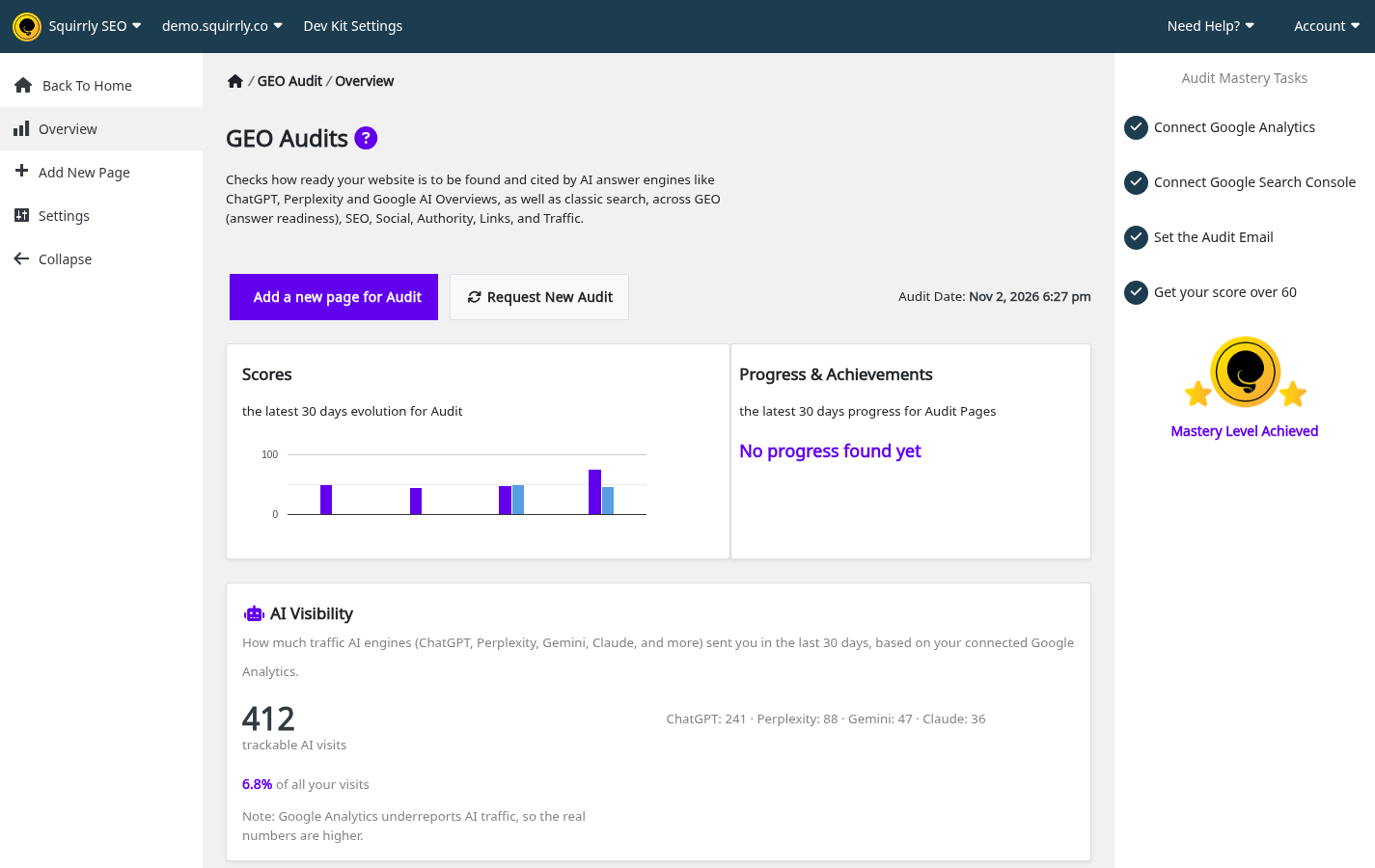
To add a page:
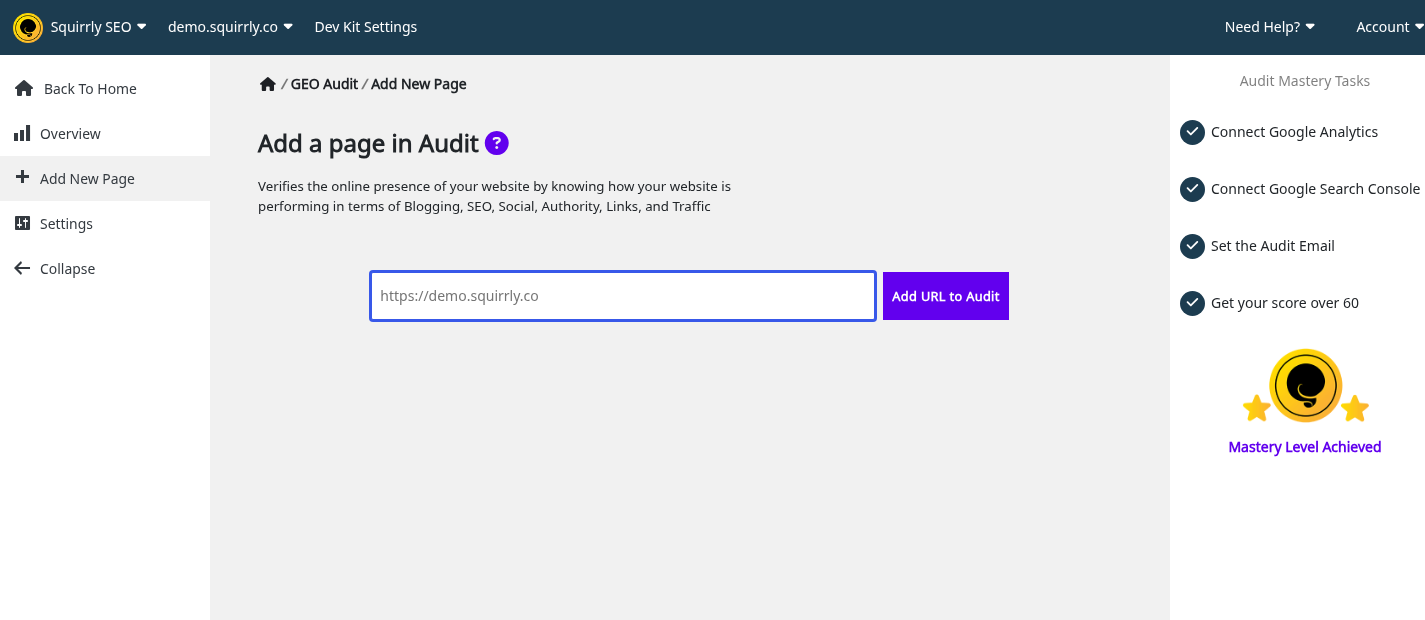
- Go to GEO Audit > Add New Page. The heading is Add a page in Audit.
- Type the full page address, on the same host as the selected website. A page on www doesn’t match a website added without www.
- Click Add URL to Audit. You see “Audit page is added. The audit may take a while so please be patient.”
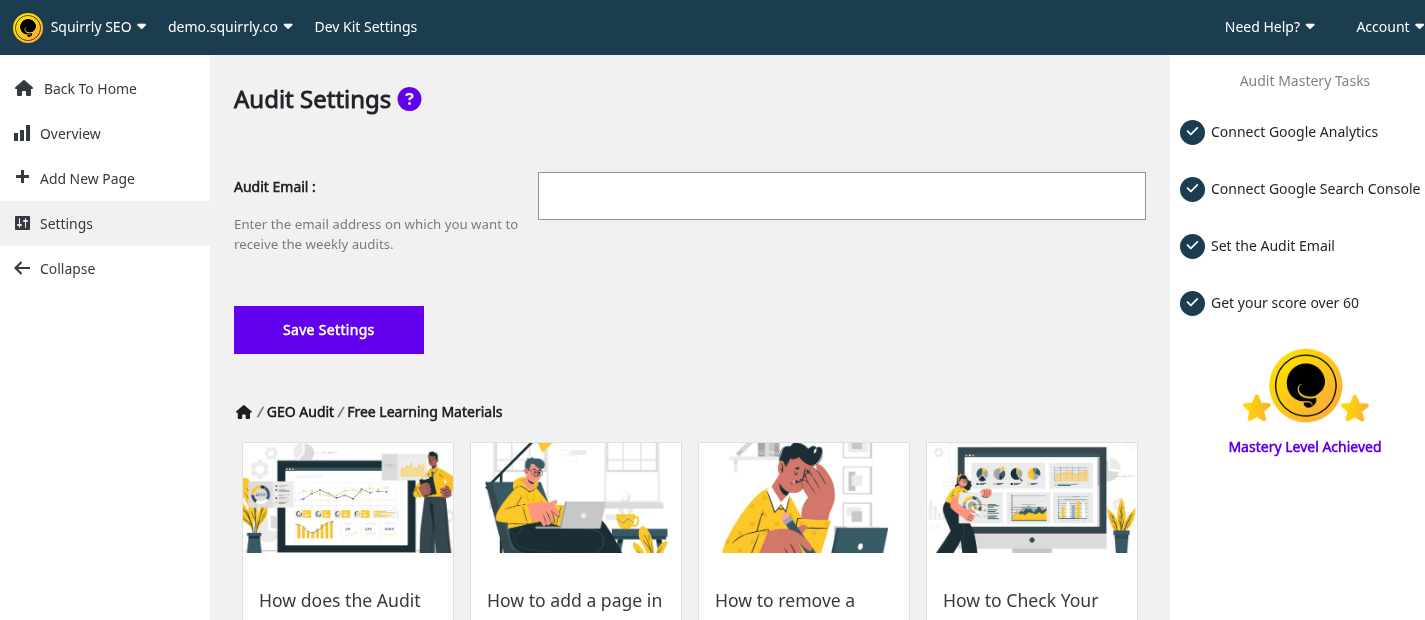
Under GEO Audit > Settings, Audit Email takes the address for the weekly audits: “Enter the email address on which you want to receive the weekly audits.” It’s saved per website, so each client can get their own.
AI Visibility on the Cloud
AI Visibility reads Google Analytics 4, so connect it first in Connect Tools. Until then the screen shows “Connect Google Analytics to unlock AI Visibility” with a Connect Google Analytics button. With Analytics connected and no visits from AI engines, it shows “No AI-engine traffic detected yet”. AI Visibility explains the report.
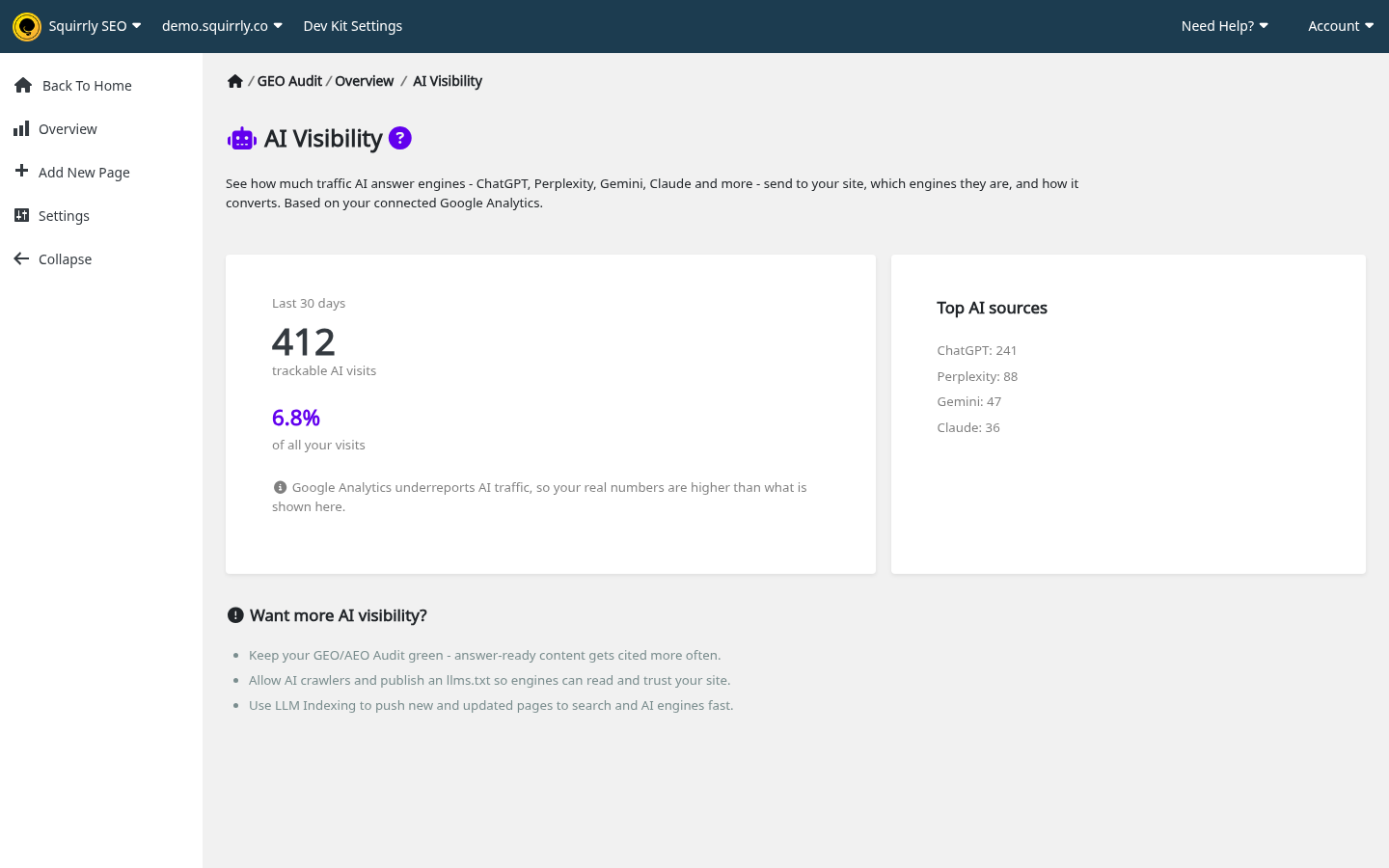
The report names these engines:
- ChatGPT
- Perplexity
- Gemini
- Copilot
- Claude
- You.com
- Grok
- DeepSeek
- Mistral
- Poe
Google Rankings on the Cloud
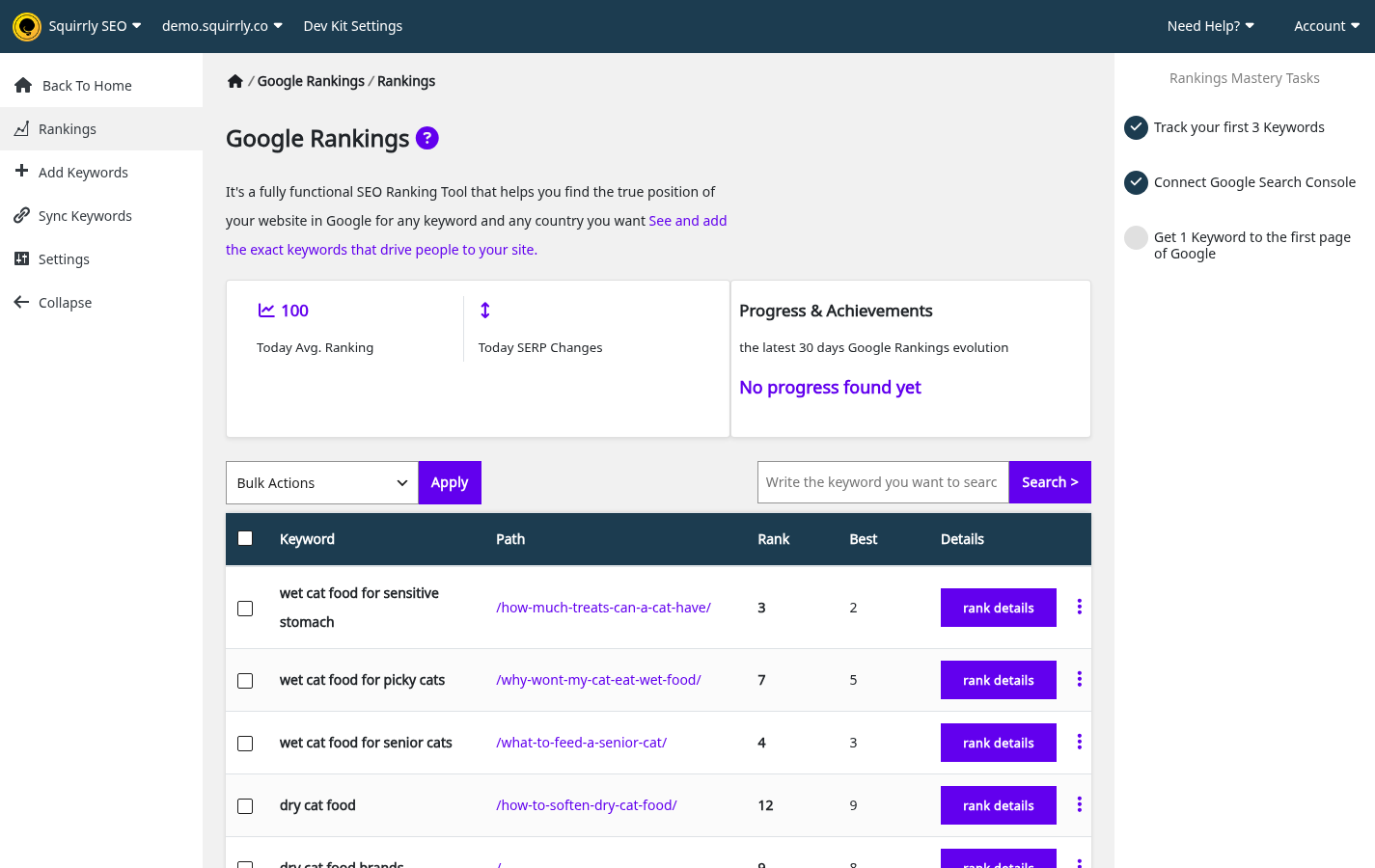
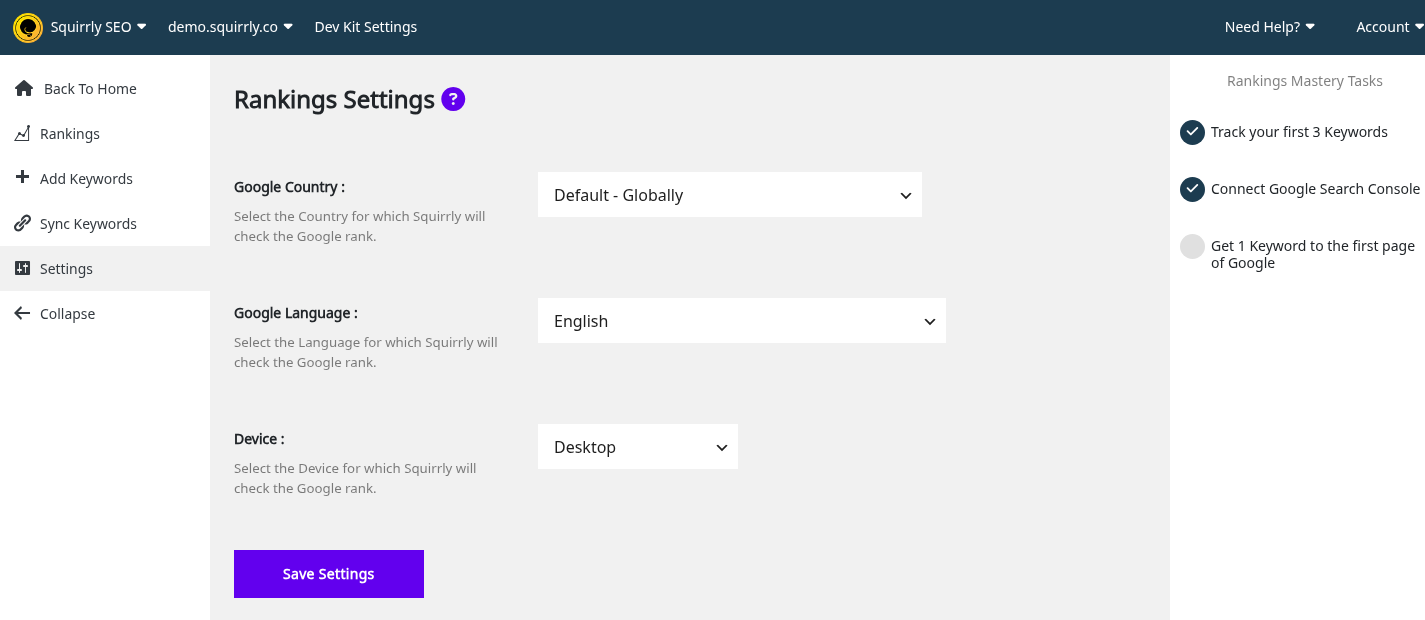
Google Rankings needs the Business plan or the Web Dev Kit plans. Those plans get the columns Rank and Best. Other plans get Avg Rank from Search Console, or GSC when it has no data. The tabs are Rankings, Add Keywords, Sync Keywords and Settings, and Ranking & SERP Checker covers each one.
| Setting in Rankings > Settings | Default |
|---|---|
| Google Country | com |
| Google Language | en |
| Device | desktop |
These settings are saved per website.
Connect Google Analytics and Search Console
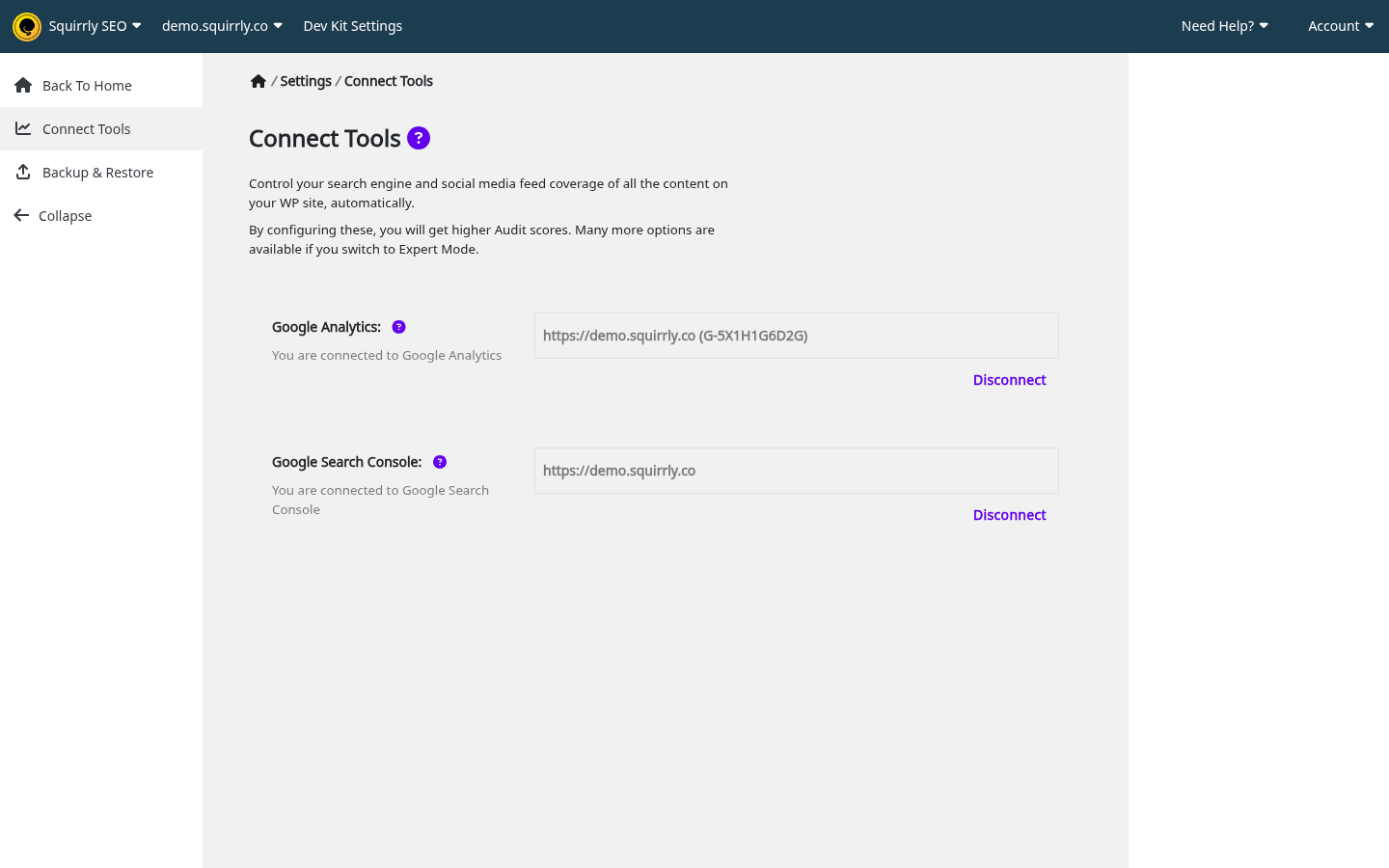
- Pick the website in the top bar. Each website connects with its own Google sign-in.
- Go to Settings > Connect Tools.
- Click Sign in for Google Analytics or Google Search Console, and accept in the Google window.
- Click Check connection.
- For Google Analytics, pick the property.
Disconnect removes the connection. On the Cloud the path is Settings > Connect Tools, even when a message says Technical SEO > Connect Tools. Help with the Google side: Google Analytics and Google Search Console.
Troubleshooting
Squirrly Cloud notices and errors lists every message.
An article is missing from the list
The list follows the selected website. Pick the website that was selected when you optimized the article.
“You don’t have any Articles yet. Add a new Article”
The selected website has no articles from you. WordPress posts don’t appear here, because the Cloud doesn’t import them.
There’s no Post to WordPress button in the editor
Save the article first. The button shows under the save button after that.
“Error! Could not find the audit page in your website.”
The page’s host isn’t exactly the host of the selected website. Check www and pick the right website.
“Sorry, you are not allowed to edit this item.”
Only the post’s author can open it.
Images disappeared from a published page
The page loads them from cloud.squirrly.co and they passed the 90 days. Upload them to your website’s media library and add them to the page again.
Frequently asked questions
Can I optimize a WordPress post on the Cloud?
Yes, paste its text into the Cloud editor, though on WordPress the Live Assistant works right in the post editor.
Does the Cloud set SEO titles and meta descriptions on my site?
No, on a site without the plugin you set them in your CMS.
Can I download an audit as a PDF?
No, the Cloud has no PDF export, and the weekly audit goes out by email.
How do I keep images after 90 days?
Upload them to your website’s media library.
Related tutorials
- Squirrly Cloud App: the menu and what each screen is for.
- Websites in Squirrly Cloud: add and select websites.
- Account, plans and billing in Squirrly Cloud: credits and limits.
- Squirrly SEO Live Assistant: the box in detail.
- SEO Audit Suite: read the audit.
- Ranking & SERP Checker: Rank, Best and Avg Rank.







0 Comments