Install Squirrly SEO Plugin
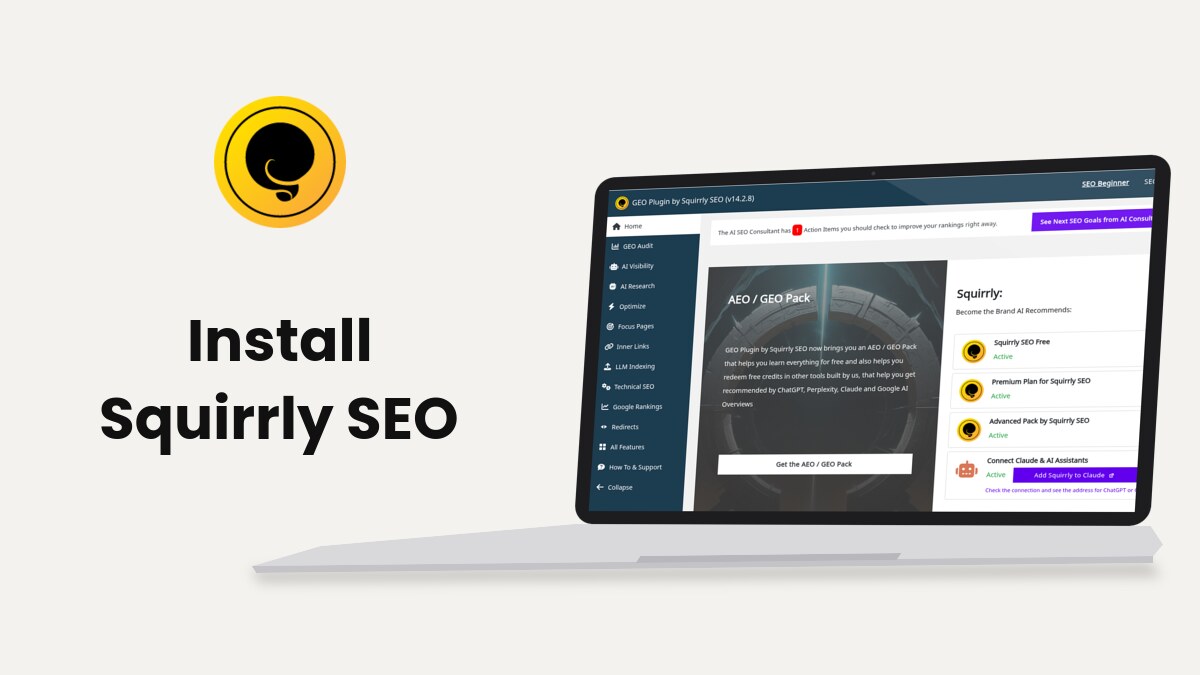
Squirrly SEO installs from Plugins > Add New Plugin in WordPress and then connects to Squirrly Cloud from Squirrly > Home with an email address. The onboarding that follows turns on the SEO settings for you in SEO Recommended Mode or SEO Expert Mode.
The screenshots come from demo.squirrly.co, a test store for cat food, with Squirrly SEO 14.2.9 and the Advanced Pack 2.5.11.
What you need before you start
The plugin is free on WordPress.org, where it’s listed as GEO Plugin by Squirrly SEO. Version 14.2.9 asks for WordPress 5.3 and PHP 7.0 or newer.
| You need | Why |
|---|---|
| A WordPress administrator account | Only an admin can install plugins, and the onboarding needs the Squirrly SEO Admin role |
| An email address | It becomes the login of your free Squirrly Cloud account |
| Outgoing connections from your server | The plugin talks to Squirrly Cloud for keyword research, audits, rankings and the AI Consultant |
| A backup of your old SEO plugin settings (if you had one) | Importing them later overwrites the Squirrly SEO settings |
On a WordPress Multisite each sub-site is a separate website and connects to Squirrly Cloud on its own (see Does Squirrly work on multisite installs).
Download Squirrly SEO
You only need the zip file if your site can’t install plugins straight from WordPress.org, or if you install it on a site without internet access to the plugin directory.
- Open wordpress.org/plugins/squirrly-seo/.
- Click Download. The browser saves a zip file whose name starts with squirrly-seo.
Keep the zip as it is. WordPress unpacks it during the upload.
Install and activate the zip file
- Log in to WordPress as an administrator.
- Go to Plugins > Add New Plugin.
- Click Upload Plugin at the top of the screen.
- Click Choose File and pick the squirrly-seo zip file.
- Click Install Now.
- When the upload ends, click Activate Plugin.
After activation, WordPress opens Squirrly > Home. Until the site is connected to Squirrly Cloud, that menu item is called First Step and it shows the connect screen.
Install from the WordPress dashboard
- Go to Plugins > Add New Plugin.
- Type “Squirrly SEO” in the search box in the top right corner.
- Click Install Now on the GEO Plugin by Squirrly SEO card.
- Click Activate when the button changes.
Both methods install the same plugin. A new Squirrly item appears in the left WordPress menu, and a Squirrly menu appears in the admin bar at the top.
Connect Squirrly SEO to Squirrly Cloud
The screen Connect Your Site to Squirrly Cloud says the free account gives access to the Non-Human SEO Consultant, Focus Pages, GEO Audits and the other cloud features. Keyword research, the Live Assistant, Focus Pages, the GEO Audit and Google Rankings stay locked until you connect.
Create a new Squirrly account
- Go to Squirrly > First Step.
- Check the Email field. It’s filled in with the email of your WordPress user, and you can change it.
- Tick I Agree with the Squirrly Terms of Use and Privacy Policy. The links open both documents on squirrly.co.
- Click Sign Up.
Squirrly creates the account, connects the site and opens Squirrly > Home. The same email and its password log you in to cloud.squirrly.co.
Connect with an account you already have
- On the connect screen, click I already have an account.
- Type the Email and Password of your Squirrly account.
- Click Login.
The Lost password link opens the password reset page on cloud.squirrly.co. Squirrly Cloud App explains the account side.
Check that the site is connected
Once connected, the left menu item changes from First Step to Home. The cards on the right of the Home screen show what’s active on the site.
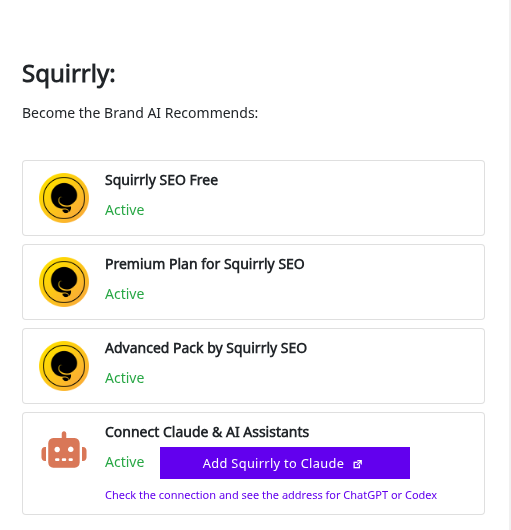
| Card | What it tells you |
|---|---|
| Squirrly SEO Free | The plugin itself, always Active |
| Premium Plan for Squirrly SEO | Active, or Inactive with an Upgrade button. The upgrade happens on the Squirrly Cloud side, with no plugin reinstall |
| Advanced Pack by Squirrly SEO | Active, or Install now with one click. It’s free. |
| Connect Claude & AI Assistants | Whether AI assistants can work with your SEO (see Connect Squirrly to AI Assistants) |
Run the onboarding
On a new install, Home opens a window that says “First, you need to activate the recommended mode or the expert mode!”. Click Let’s do this to open the onboarding. It isn’t in the left menu, and it needs the Squirrly SEO Admin role.
Pick SEO Recommended Mode or SEO Expert Mode
The first onboarding screen has three buttons. The one you click saves the mode and moves on.
| Button | What it does |
|---|---|
| No SEO Configuration | Turns the automatic SEO features off and skips to Your Site’s Topic. Use it when another SEO plugin keeps handling the source code |
| SEO Recommended Mode | Turns on the main SEO features and keeps the toolbar on SEO Beginner, which hides the advanced options |
| SEO Expert Mode | Turns on the same features and switches the toolbar to SEO Expert, which shows the Advanced tabs |
Both modes switch on the same 20 settings in the code:
- JSON-LD, Sitemap XML (with noindex pages left out and pings for new posts), robots.txt and llms.txt
- SEO metas, AMP support and the attachment redirect
- Open Graph with social fetch, and the Twitter Card
- Tracking codes, the Facebook Pixel and the webmaster codes
- SEO Automation patterns, the frontend SEO snippet, LLM Indexing, Inner Links and Redirects
The screen also has the link Learn how you can import the same settings on this site as well, for a site where you already set up Squirrly SEO.
The six onboarding steps
| Step | What you do there |
|---|---|
| SEO Expert Mode | Pick one of the three buttons above |
| SEO Automation | Check the sitemaps, Robots.txt, Llms.txt, SEO METAs, Social Media and Rich Snippets switches, then Save & Continue |
| Add a Page | Search a page and click Set Focus Page to make it your first Focus Page |
| Complete SEO Info | Add the social profiles you have and the JSON-LD data for an Organization or a Person |
| Your Site’s Topic | Answer “What is your website about?”. The phrase goes to your Briefcase as a keyword |
| Ready! | See “Your site is now ready for Search Engines!” and pick a starting point |
On the last screen, SEO Beginner: Start Here opens a new post with your topic loaded in the Live Assistant. SEO Expert: Start Here opens Squirrly > Technical SEO.
Saving the onboarding also resets the AI Consultant report, so the next visit to Home runs a fresh site check and lists your first goals.
Import settings and SEO from another plugin
Moving from Yoast SEO, Rank Math, All in One SEO, SEOPress or The SEO Framework? Squirrly SEO can copy their settings and the title, description and other SEO data of every page.
- Go to Squirrly > Technical SEO > Import & Data.
- Open Backup Settings & SEO and click Download Backup under Backup Settings. The import overwrites the settings you made in Squirrly SEO.
- Open Import Settings & SEO.
- Pick the old plugin in Import Settings From and click Import Settings.
- Pick the same plugin in Import SEO From and click Import SEO. Turn on Overwrite all existing SEO Snippets optimizations only if you want the old values to replace the ones you already set in Squirrly.
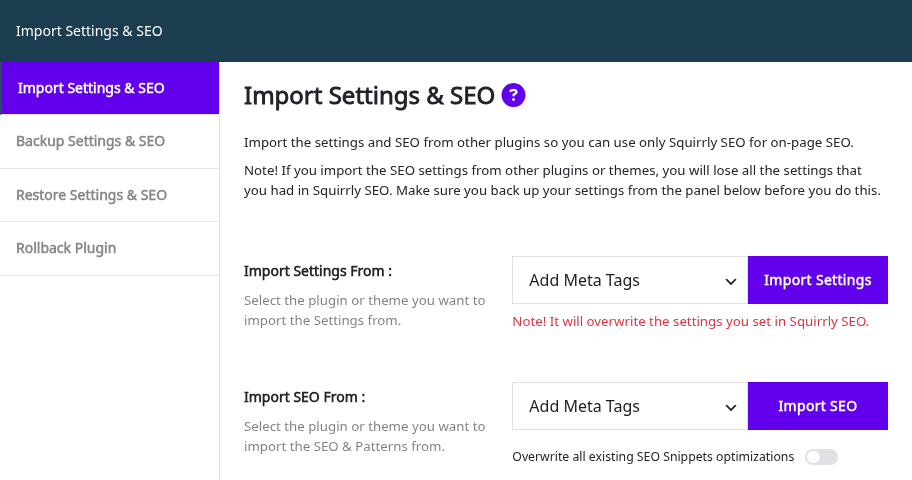
With the Advanced Pack, the same panel also imports redirects and schemas. Import and Data lists every plugin and theme you can import from.
Start the 14 Days Journey Course to GEO
The 14 Days Journey Course to GEO is a block on Squirrly > Home. Click I’m ready and Squirrly counts the days from that date, with one recipe per day.
- Go to Squirrly > Home and scroll to 14 Days Journey.
- Click I’m ready.
- Click Day 1: Open the GEO recipe for today and follow Day 1, where you pick the Focus Page you’ll work on.
Missed a day? Click its number in the row of days to open that recipe. How to start the 14 Days Journey if the plugin is already installed covers sites that were set up earlier.
What to do after setup
With the site connected and the onboarding saved, these screens give you the next tasks.
| Where | What you get |
|---|---|
| AI Consultant (the See Next SEO Goals from AI Consultant button on Home) | The goals the AI SEO Consultant found on your site, with a Show me how guide for each |
| Squirrly > Focus Pages | A page audit with red and green elements for the pages that should rank |
| Squirrly > AI Research > Find Keywords | Keyword research for your topic, saved to the Briefcase |
| The post editor | The Live Assistant, which checks a post against the keywords you pick |
| Squirrly > All Features | Every feature with its on and off switch |
Open the AI Consultant first. It picks 3 goals a day and adds the urgent ones on top of them.
Troubleshooting
“We found your email, so it means you already have a Squirrly.co account”
The email is already registered, so click I already have an account and log in, or reset the password from the link in the message.
“Wrong email or password!”
Check the email and password of your Squirrly account, then use Lost password if the login still fails.
“You can only use this account for the URL you registered first!”
Squirrly Cloud refused this account for the site address. Log in with the account you used when you first connected this site, and check the sites listed in your Squirrly Cloud account.
“Error: Couldn’t connect to host”
Your server can’t reach the Squirrly API. Ask your host to add the API address shown in the message to their IP whitelist, and check for a firewall or security plugin that blocks outgoing calls.
“This site needs to reconnect to Squirrly Cloud”
The site was cloned, staged or moved to a new address. Click Reconnect this site to keep Focus Pages, rankings and the Live Assistant working.
Squirrly SEO error messages lists the other connection errors.
Frequently asked questions
Is Squirrly SEO free?
Yes, the plugin is free on WordPress.org and the Squirrly Cloud account you create at sign-up is free too.
Can I keep my old SEO plugin active?
Yes, pick No SEO Configuration in the onboarding so Squirrly SEO leaves the source code to the other plugin (see Can I use Squirrly together with Rank Math).
Can I change the mode after the onboarding?
Yes, switch between SEO Beginner and SEO Expert in the toolbar at the top of any Squirrly screen, and turn single features on or off in Squirrly > All Features.
Where is the onboarding after I close it?
It isn’t in the left menu, so add admin.php?page=sq_onboarding to your WordPress admin address to open it again.
Related tutorials
- Success stories: customers who reached the top of Google with Squirrly SEO.
- Squirrly Cloud App: log in to cloud.squirrly.co and manage the sites on your account.
- AI Consultant (Next SEO Goals): work through the goals the first site check finds.
- Import and Data: import from other SEO plugins, back up and restore.
- Focus Pages & Page Audits: audit the pages you set during the onboarding.
- Keyword Research and SEO Strategy: find keywords and keep them in the Briefcase.