Migrating Data: How to Switch from SEOPress to Squirrly SEO
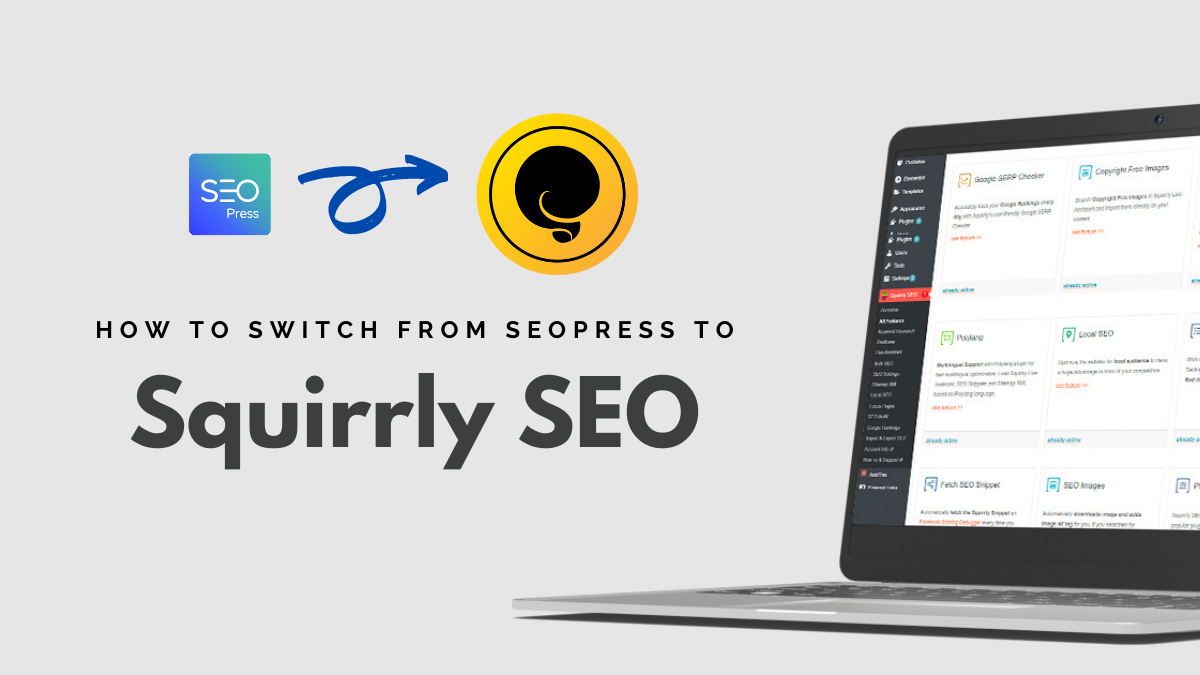
Decided to switch from SEOPress to Squirrly? Welcome.
Just thinking about switching? That’s fine too. 🙂
Moving data from another SEO plugin can look like a big job. You may worry that you’ll lose data or the work you did before, and that you’ll have to start from scratch.
You don’t. Squirrly SEO has an import tool for SEOPress in Squirrly > Technical SEO > Import & Data, and it keeps the optimizations you made before.
In this article you’ll see:
- how to import your data from SEOPress
- exactly what gets imported.
What data gets imported from SEOPress?
Squirrly SEO imports the SEO data and the settings from the free SEOPress plugin.
This is everything Squirrly imports from SEOPress.
SEO Snippet optimizations:
- Title
- Description
- Keywords (the SEOPress target keywords)
- Canonical link
- Open Graph Title
- Open Graph Description
- Open Graph Media
- Twitter Card Title
- Twitter Card Description
- Twitter Card Media
- 301 Redirects (the redirect URL and type set on each post)
- Noindex
- Nofollow
- Patterns
Squirrly also imports these settings from SEOPress:
- Social Media (social profile links, the default Open Graph and Twitter Card images, Facebook admin and app IDs)
- JSON-LD (company name, logo, phone and contact type)
- Webmasters (the Google Analytics tracking ID)
SEO Automation (title and description patterns):
- Home Page – Patterns
- Posts – Patterns
- Pages – Patterns
- Product – Patterns
- Categories – Patterns
- Tags – Patterns
- Product Categories – Patterns
- Product Tags – Patterns
- Archive – Patterns (title)
- Profile – Patterns (title)
- Search – Patterns (title)
- 404 Page – Patterns (title)
You won’t have to rewrite your meta titles and descriptions after the switch. Squirrly SEO moves this data for you.
When the import is done, open Bulk SEO (Squirrly > Optimize > Bulk SEO) and check that your data came across correctly.
Note: with the Squirrly SEO Advanced Pack, you can also import the redirects you set up in SEOPress.
Here are the steps to import your data from SEOPress into Squirrly SEO.
Import using Squirrly’s Import feature
Here’s what you need to do:
Step 1. Go to the Import & Data section of Squirrly
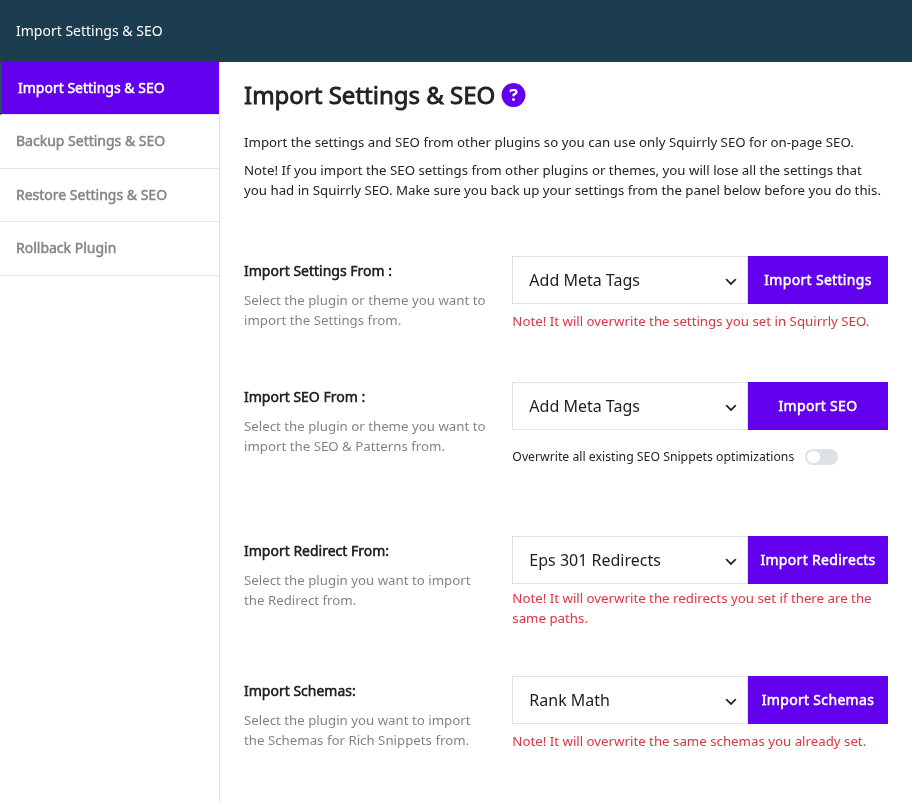
The import options are in the Technical SEO section of Squirrly SEO. Go to Squirrly > Technical SEO > Import & Data to open them.
Step 2. Import settings
The Import Settings & SEO tab has two separate imports, because Squirrly keeps a clear distinction between Settings and SEO:
- Settings are the options you turn on, such as using Meta tags, using Open Graph, and so on.
- SEO is the custom text you write for each page (titles, descriptions and the rest of the SEO Snippet).
To import the settings, select SEOPress in Import Settings From and click Import Settings (as shown in the image below).

Warning: importing the settings from SEOPress overwrites the settings you had in Squirrly SEO. Back up your settings first in Squirrly > Technical SEO > Import & Data > Backup Settings & SEO (Export Everything).
Step 3. Import SEO
Select SEOPress in Import SEO From and click Import SEO.

Under the button there’s a switch: Overwrite all existing SEO Snippets optimizations. It’s off by default.
With the switch off, Squirrly imports the SEO only for the pages that don’t already have a Squirrly title and description. So the SEO you import won’t overwrite the pages you already optimized with Squirrly.
With the switch on, the SEOPress data replaces the Squirrly SEO Snippet on every page it imports. Back up your SEO first (Backup Settings & SEO > Export Everything).
Step 4. Import redirects
Redirect import needs the Squirrly SEO Advanced Pack and the Redirects feature turned on in Squirrly > All Features. Then scroll down to Import Redirect From, select SEO Press from the list, and click Import Redirects.
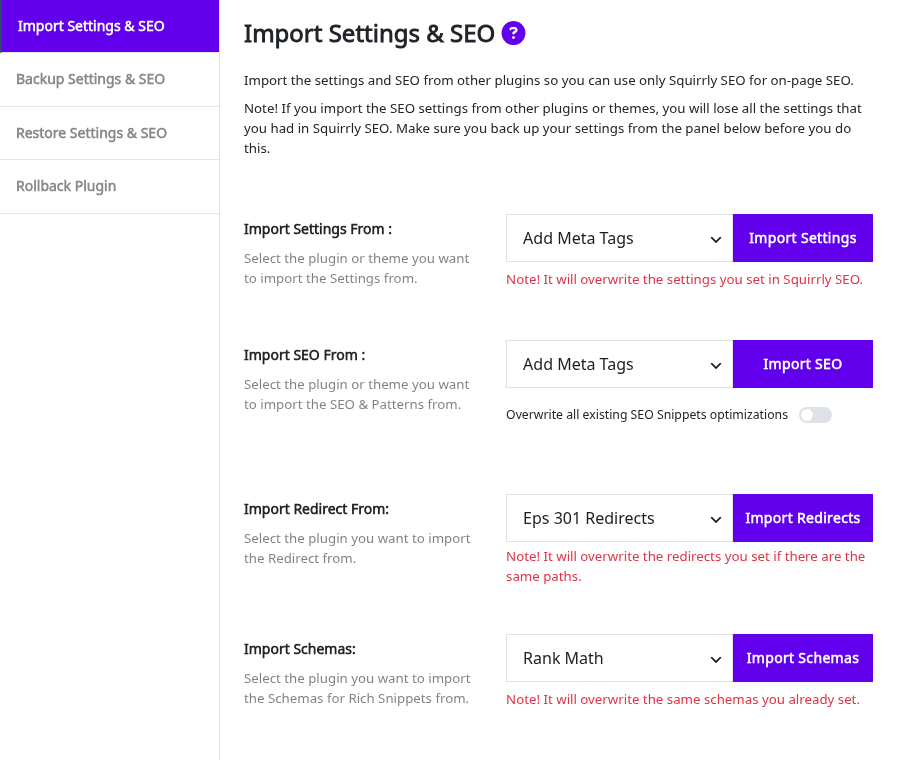
Warning: import the redirects from other plugins right after you turn on the Redirects feature in Squirrly SEO, before you set up any new redirects.
That’s because the imported redirects overwrite existing redirects that have the same paths.
To back up your current redirects:
- Go to Squirrly > Technical SEO > Import & Data > Backup Settings & SEO.
- Leave the Advanced Pack redirects switch on (it shows when the Advanced Pack is active) and click Export Everything.
This downloads a copy of your existing redirects.
That’s it. Your data is now in Squirrly
All your data is now imported into Squirrly. You can open Bulk SEO and check that it came across correctly.
Import done. What’s next?
Here are the settings to make in Squirrly after the import.
When the Squirrly SEO setup is complete, you can deactivate the SEOPress plugin on your site.