Social Media Settings
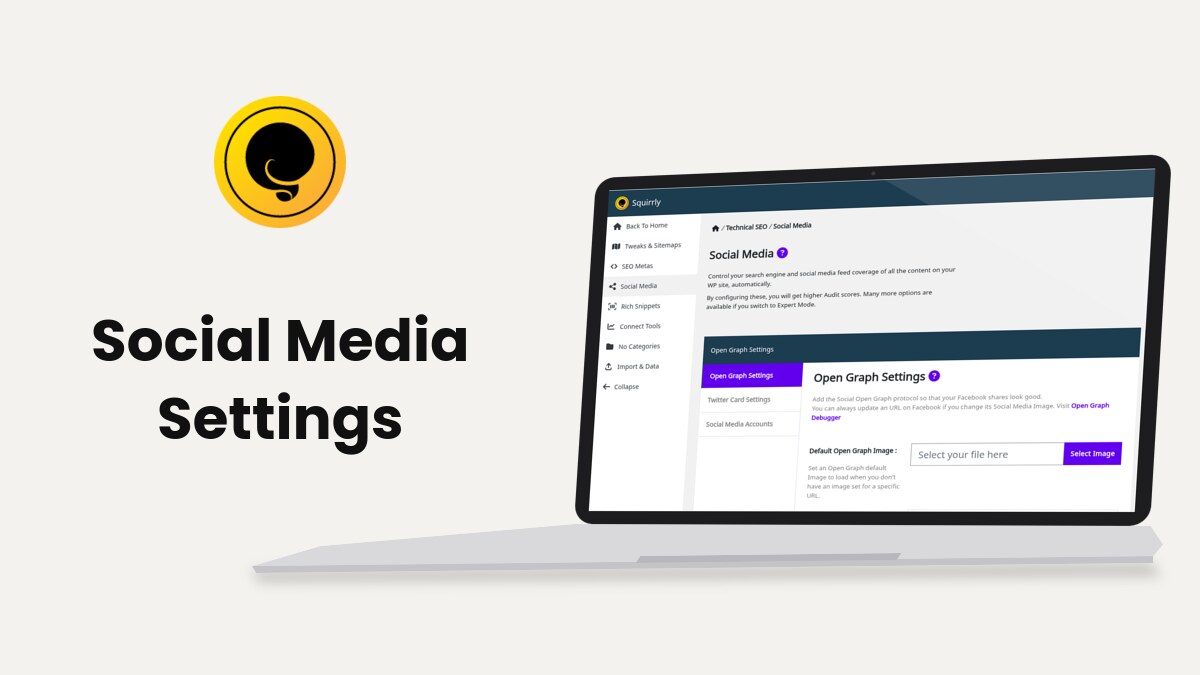
Squirrly SEO adds Open Graph and Twitter Card tags to every page from the settings in Squirrly > Technical SEO > Social Media. Facebook, LinkedIn and X read those tags to build the preview of a shared link.
The screenshots and the code come from demo.squirrly.co, a test store for cat food, with Squirrly SEO 14.2.10 and the Advanced Pack 2.5.12.
What Squirrly adds to the page
These are the 24 social tags Squirrly printed on the demo post “How to feed multiple cats with different diets”, with no field changed by hand:
<meta property="og:url" content="https://demo.squirrly.co/feeding-multiple-cats/" />
<meta property="og:title" content="How to feed multiple cats with different diets" />
<meta property="og:description" content="Practical ways to feed cats on different diets in one home: separate rooms, timed meals, height, microchip feeders and supervised mealtimes." />
<meta property="og:type" content="article" />
<meta property="og:image" content="https://demo.squirrly.co/storage/2026/10/feeding-multiple-cats.jpg" />
<meta property="og:image:width" content="1280" />
<meta property="og:image:height" content="853" />
<meta property="og:image:type" content="image/jpeg" />
<meta property="og:site_name" content="Whisker Bowl Demo" />
<meta property="og:locale" content="en_US" />
<meta property="og:publish_date" content="2026-10-21T14:14:15+00:00" />
<meta property="article:published_time" content="2026-10-21T14:14:15+00:00" />
<meta property="article:modified_time" content="2026-11-02T14:15:07+00:00" />
<meta property="article:section" content="Feeding Guides" />
<meta property="article:author" content="calin" />
<meta property="article:tag" content="feeding multiple cats different diets" />
<meta name="twitter:url" content="https://demo.squirrly.co/feeding-multiple-cats/" />
<meta name="twitter:title" content="How to feed multiple cats with different diets" />
<meta name="twitter:description" content="Practical ways to feed cats on different diets in one home: separate rooms, timed meals, height, microchip feeders and supervised mealtimes." />
<meta name="twitter:image" content="https://demo.squirrly.co/storage/2026/10/feeding-multiple-cats.jpg" />
<meta name="twitter:domain" content="Whisker Bowl Demo" />
<meta name="twitter:card" content="summary_large_image" />
The title, the description and the image come from the post. With an account in Twitter Profile URL, Squirrly adds twitter:creator and twitter:site lines with your handle. The field is empty by default, so the demo has neither. Social Media Accounts shows where to put yours.
Squirrly also removes the og: and twitter: tags that other plugins or the theme print, so each page has one set.
Where to find it
The settings live in Squirrly > Technical SEO > Social Media. The menu item shows when Open Graph Optimization or Twitter Card Optimization is on in Squirrly > All Features.
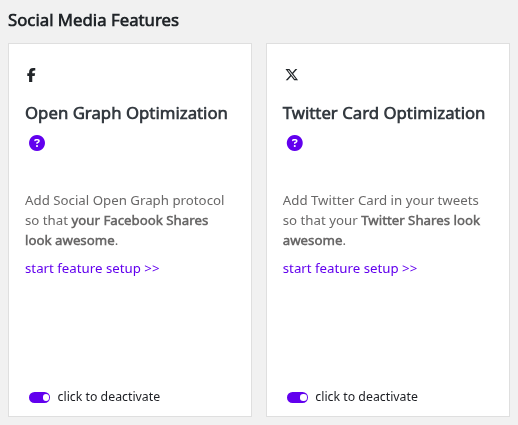
| Tab | Shows when |
|---|---|
| Open Graph Settings | Open Graph Optimization is on |
| Twitter Card Settings | Twitter Card Optimization is on |
| Social Media Accounts | Always |
| Advanced | SEO Expert is selected in the Squirrly top bar |
Some fields inside the tabs also appear only in SEO Expert mode. The table under each section says which.
Open Graph settings
Facebook and LinkedIn build the link preview from the Open Graph tags. The tab says “Add the Social Open Graph protocol so that your Facebook shares look good.”
Turn on Open Graph
- Go to Squirrly > All Features.
- Turn on Open Graph Optimization. The SEO Recommended Mode and SEO Expert Mode of the onboarding turn it on for you.
- Open Squirrly > Technical SEO > Social Media > Open Graph Settings.
- Set the fields below and click Save Settings.
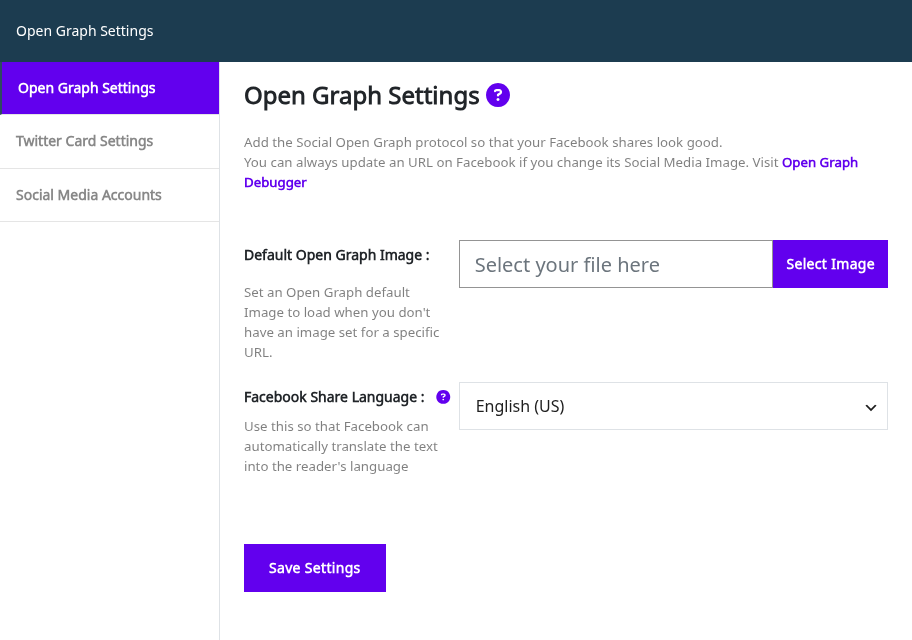
| Field | What it does | Default | Shows in |
|---|---|---|---|
| Default Open Graph Image | Image used when a page has none | Empty | Both modes |
| Facebook Share Language | Fallback for og:locale | English (US) | Both modes |
| Facebook App ID | Adds fb:app_id | Empty | SEO Expert |
| Facebook Admin ID | Adds fb:admins | Empty | SEO Expert |
Default Open Graph Image
Squirrly picks the image of a shared page in this order: the image set in the page’s SEO Snippet, then the images of the post (the featured image first), then Default Open Graph Image.
- Click Select Image next to Default Open Graph Image.
- Pick an image from the Media Library. The SEO Snippet asks for images at least 500 pixels wide.
- Click Save Settings.
The default image also counts for the OG Image task in Bulk SEO on pages without an image of their own. Specific pictures for social media shares covers the image of one page.
Facebook Share Language
The field says “Use this so that Facebook can automatically translate the text into the reader’s language”. Squirrly writes the WordPress site language in og:locale when Facebook knows that locale, and uses Facebook Share Language when it doesn’t. With WPML or Weglot, the language of the page comes first.
Facebook App ID
Switch to SEO Expert to see this field. Paste the ID of the app you created on developers.facebook.com, and Squirrly adds it to every page as fb:app_id. The screen describes it as a connection “between your Facebook Page and your Website”.
Facebook Admin ID
This field is in SEO Expert mode too. Each ID you add goes into a fb:admins tag. Click Add multiple Facebook Admin IDs for a second field, and the × on a field to remove it.
Open Graph Type
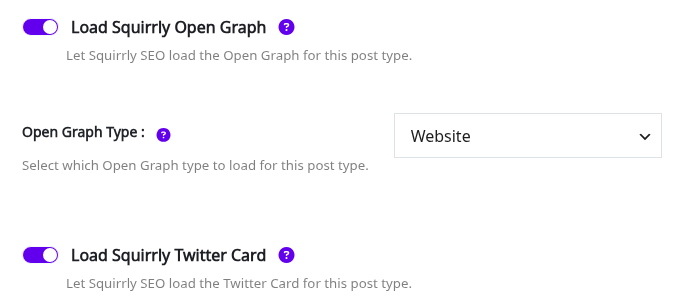
The og:type of a page comes from its post type, set in Automation.
- Go to Squirrly > Optimize > Automation and click the post type in Automation – Configurations.
- Check that Load Squirrly Open Graph is on.
- Pick the type in Open Graph Type. Posts, pages and custom post types can use website, article, profile, book, music or video.
- Click Save Settings.
| Post type | Default Open Graph Type |
|---|---|
| Home | website |
| Post | article |
| Page | website |
| Product | product |
| The other post types | website |
Home, Shop, archives, categories, tags, search and 404 pages can only be website, and Product can only be product.
A page with the article type also gets article:published_time, article:section and article:author, as in the demo code above.
Twitter Card settings
X reads the Twitter Card tags. The tab says “Add the Twitter Card in your tweets so that your Twitter shares look good.” and links to the Twitter Card Validator.
Turn on Twitter Card
- Go to Squirrly > All Features and turn on Twitter Card Optimization.
- Add your X profile in Squirrly > Technical SEO > Social Media > Social Media Accounts, in Twitter Profile URL.
- Open Twitter Card Settings, set the fields below and click Save Settings.
| Field | What it does | Default | Shows in |
|---|---|---|---|
| Default Twitter Card Image | Image used when a page has none | Empty | Both modes |
| Share Large Images | Sets twitter:card to summary_large_image instead of summary | On | SEO Expert |
To turn the Twitter Card off for one post type, switch off Load Squirrly Twitter Card for it in Squirrly > Optimize > Automation.
Default Twitter Card Image
The order is the same as for Open Graph: the image from the page’s SEO Snippet, then the images of the post, then Default Twitter Card Image. Click Select Image, pick the image and click Save Settings.
Share Large Images
With Share Large Images on, the card type is summary_large_image, which the help text describes as showing “the twitter card image as a shared image and not as a summary”. It also says “Activate this option only if you upload images with sizes between 500px and 4096px width in Twitter Card.” Turn it off and the card type becomes summary.
The twitter:creator tag goes out only when the card is summary_large_image. twitter:site goes out in both cases.
Social Media Accounts
Add only the profiles you already have. Every field is optional.
| Field | Where Squirrly uses it | Default |
|---|---|---|
| Twitter Profile URL | twitter:site and twitter:creator, plus sameAs in JSON-LD. The help text says “Required for Twitter Card Validator” | Empty |
| Facebook Profile or Page URL | sameAs in JSON-LD | Empty |
| LinkedIn Profile URL | sameAs in JSON-LD | Empty |
| Pinterest Profile URL | sameAs in JSON-LD | Empty |
| Instagram Profile URL | sameAs in JSON-LD | Empty |
| Youtube Channel URL | sameAs in JSON-LD | Empty |
Fill in Twitter Profile URL first. Until you do, the cards have no twitter:site line. The sameAs list goes into the Organization or Person schema from JSON-LD Structured Data.
Advanced: title and description lengths
Switch to SEO Expert to see the Advanced tab. The values are maximum lengths in characters.
| Field | Default |
|---|---|
| Open Graph Title Length | 75 |
| Open Graph Description Length | 200 |
| Twitter Card Title Length | 75 |
| Twitter Card Description Length | 280 |
Squirrly cuts longer text at the last full word, and the Bulk SEO tasks check against the same numbers, for example “OG title up to 75 chars”. Leave the defaults unless a network changes its own limit.
Change the social preview of one page
The global settings fill every page. To change the title, description or image of one page:
- Open the page in the editor, or find it in Squirrly > Optimize > Bulk SEO and click its dot in the Open Graph or Twitter Card column.
- In the SEO Snippet, open Open Graph and click Edit Open Graph, or open Twitter Card and click Edit Twitter Card.
- Upload a Media Image and change Title and Description. Open Graph also has Author Link and OG Type. Twitter Card has Card Type.
- Click Save.
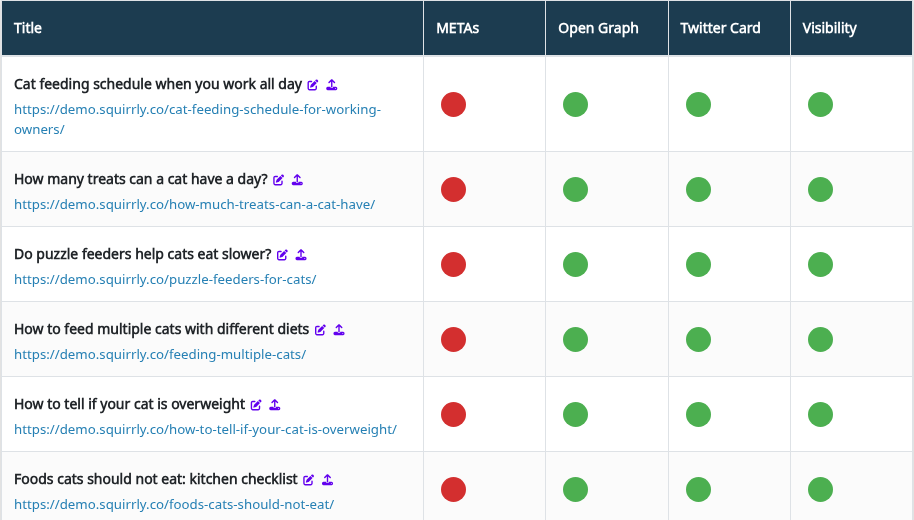
Validate Snippet opens the Facebook Sharing Debugger for the page, and Validate Card opens the Twitter Card Validator. Bulk SEO walks through both tabs.
The Open Graph Settings tab notes that you can update a URL on Facebook from the Open Graph Debugger after you change its image. To have Squirrly ask for that fetch after every update, switch to SEO Expert and turn on Fetch Snippet on Social Media in Squirrly > Optimize > Settings. It needs the plugin connected to Squirrly Cloud, and the Live Assistant guide explains it.
See the result on your page
Open the page source (right-click, View Page Source) and look for the og: and twitter: tags. Facebook, LinkedIn and X read these when someone shares the link. On the demo post they come from the post title, excerpt and featured image:
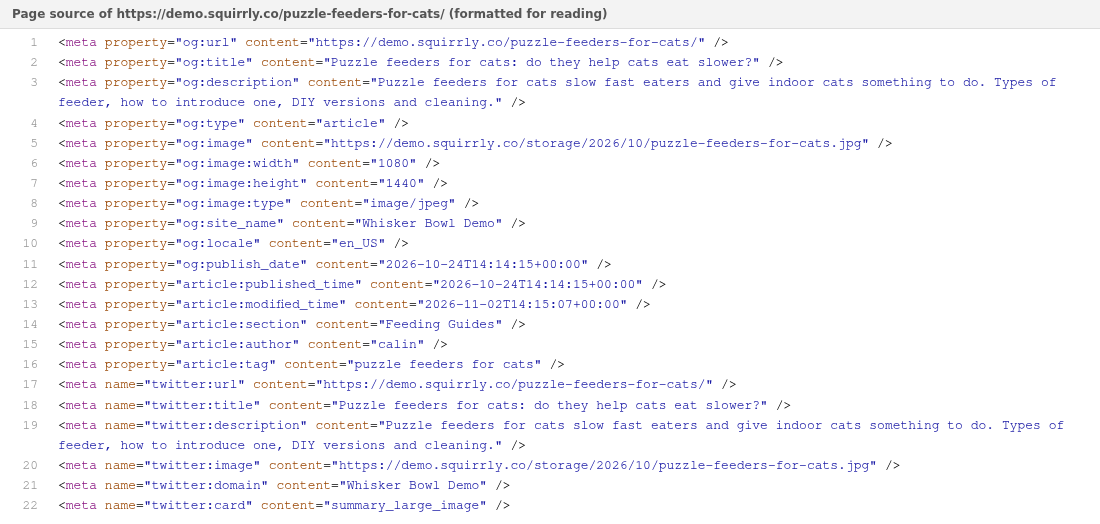
The demo has no X account set, so there is no twitter:site tag. Fill Twitter Profile URL in Social Media Accounts to add it.
Troubleshooting
Facebook still shows the old image
Open the Open Graph Debugger from the link on the Open Graph Settings tab, paste the URL and fetch it again, or turn on Fetch Snippet on Social Media.
“Image size must be at least 500 pixels wide”
The SEO Snippet shows this next to the image upload. Upload an image 500 pixels wide or more.
“Post Type (…) was excluded from Squirrly > Automation”
Squirrly doesn’t load on the front end for that post type. Add it back in Squirrly > Optimize > Automation.
Facebook App ID and Facebook Admin ID are missing
Both fields show only in SEO Expert mode. Click SEO Expert in the Squirrly top bar.
Frequently asked questions
Do I need a Facebook App ID?
No, the Open Graph tags go out without it, and the field only adds the fb:app_id tag.
Does Squirrly remove the Open Graph tags of other plugins?
Yes, while Open Graph Optimization is on, Squirrly removes the other og: and article: tags from the page.
Which image does LinkedIn use?
The Open Graph image, which the Bulk SEO task describes as the image shown in Facebook and LinkedIn feeds.
Can a page use a different image on Facebook and on X?
Yes, the Open Graph and Twitter Card tabs of the SEO Snippet each have their own Media Image.
Related tutorials
- Bulk SEO & Snippet: fix the Open Graph and Twitter Card of many pages from one list.
- Automation: the Open Graph type and the social switches for each post type.
- Add Custom Open Graph Metadata: change the Open Graph tags with the
sq_open_graphfilter. - Add Custom Twitter Card Metadata: change the Twitter Card tags with the
sq_twitter_cardfilter. - Specific pictures for social media shares: one image per page for Facebook and X.