My site isn’t in the Google Analytics list
The Google Analytics list in Squirrly > Technical SEO > Connect Tools shows the GA4 properties of the Google account you signed in with, so your site shows up only when that account can open a GA4 property for it.
Check the property in Google Analytics
- Open Google Analytics with the same Google account you use in Squirrly.
- Check that your site has a GA4 property.
- In the property’s Admin, open Data streams and check that it has a Web stream for your site’s address.
If someone else owns the property, ask them to give your Google account access to it, or connect Squirrly with the owner’s account.
Reconnect after you create the property
A property you created after connecting Google Analytics doesn’t show until you connect again.
- Go to Squirrly > Technical SEO > Connect Tools.
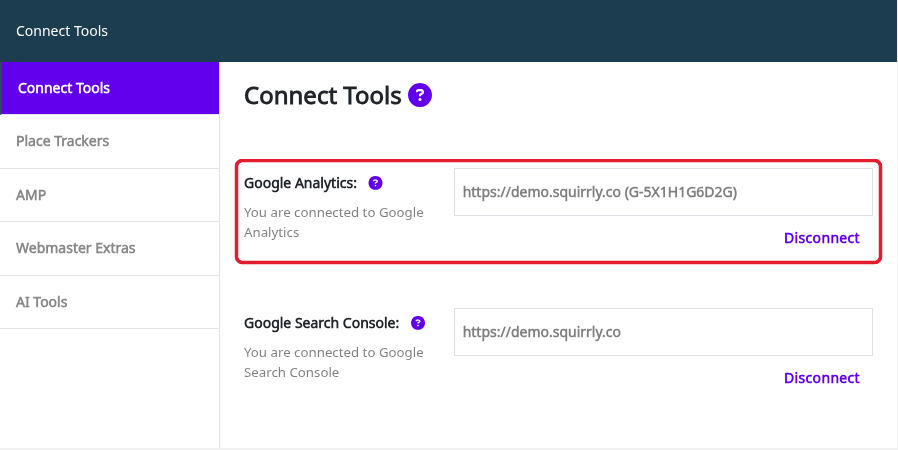
- In the Google Analytics row, click Disconnect and confirm.
- Click Sign in and pick the Google account that has the property.
- Back in Squirrly, pick your site in the property list. Each entry shows the site address and its G- ID.
The list was empty or missed some sites
The list now refreshes on its own. Open Squirrly > Technical SEO > Connect Tools and look at the Google Analytics row again. This also covers accounts with hundreds of GA4 properties.
If your property is still missing after that, disconnect and reconnect Google Analytics once, as in the steps above.
Related tutorials
- Connect Tools: Google Analytics: what the connection gives Squirrly.
- How do I connect Google Analytics?: the tracking code and the API connection.