Automation

Squirrly SEO writes the title, description, robots, sitemap, JSON-LD, Open Graph and Twitter Card settings for every post type from Squirrly > Optimize > Automation. Each post type gets its own tab with patterns like {{title}} and {{sitename}}, so a new post, product or recipe gets its SEO the moment you publish it.
The screenshots come from demo.squirrly.co, a test store for cat food, with Squirrly SEO 14.2.9 and the Advanced Pack 2.5.11. The demo has posts, pages, WooCommerce products and a custom post type for recipes (cat_recipe, made with CPT UI) with its own taxonomy, Meal Type.
What Automation does
Automation works on fields you left empty. When a post has its own title in the SEO Snippet, Squirrly keeps it. When the field is empty, Squirrly builds it from the pattern of that post type and replaces each code with the real value.
On the demo, the recipe “Turkey purée for older cats” has its own title in the SEO Snippet, so its page shows that title unchanged. The Meal Type page “Senior” has no title of its own and gets “Senior | Whisker Bowl Demo” from a pattern.
The defaults are set on install, and the Tips and Tricks box on the screen says SEO beginners don’t need major changes here. What gets configured automatically in SEO Beginner mode lists them.
Where to find it
Go to Squirrly > Optimize > Automation. The screen has two parts.
| Part of the screen | What you do there |
|---|---|
| Automation (Add Post Type) | Add a custom post type, an archive or a taxonomy that isn’t in the list yet |
| Automation – Configurations | One tab per post type, with the patterns and the switches for that type |
If SEO Automation is off in Squirrly > All Features, the Title, Description and Separator fields are grayed out and an Activate Patterns button sits on top of them. Click it to turn patterns back on.
The post types in the list
On the demo, Automation – Configurations has these tabs: Home, Post, Page, Product, Category, Tag, Product Category, Product Tag, Tax Post Format, Tax Category, Tax Post Tag, Tax Product Shipping Class, Shop, Profile, Archive, Search, Attachment, 404 and Custom.
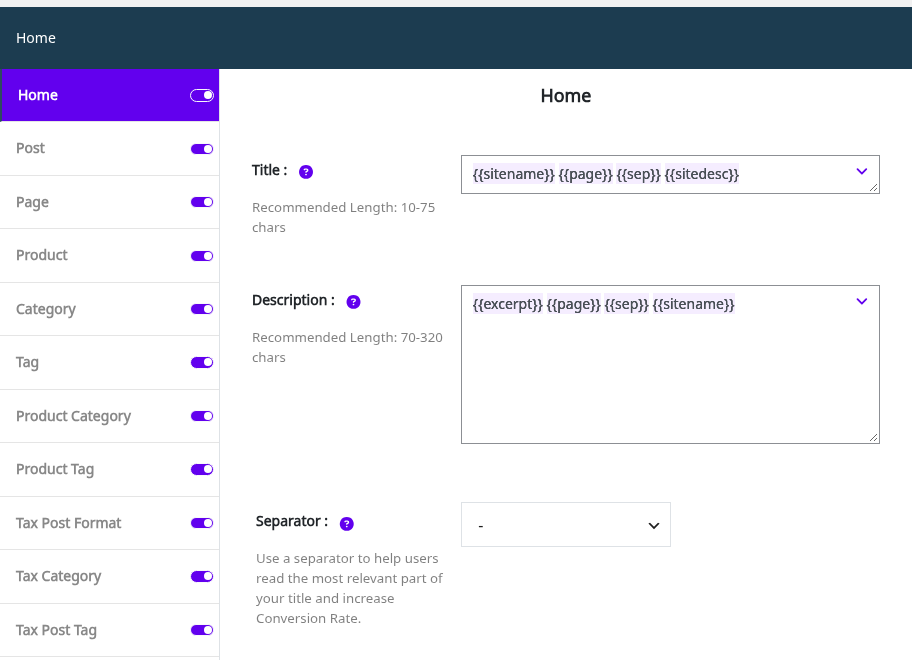
Product, Product Category, Product Tag, Tax Product Shipping Class and Shop show only when WooCommerce is active. The small switch next to each name turns Squirrly SEO on or off for that type. When it is off, the tab says “Squirrly SEO is not active on this post type.” See Does Squirrly work with WooCommerce? for the store features.
Add a custom post type or taxonomy
A post type that isn’t in the list uses the settings of the Custom tab. On the demo, the Custom tab has the title pattern {{title}} {{page}} {{sep}} {{sitename}}, which is where the “Senior | Whisker Bowl Demo” title comes from. To give a type its own patterns, add it.
- Go to Squirrly > Optimize > Automation.
- In Add Post Type, pick the type. On the demo the first entry is Cat Recipe (cat_recipe).
- Click Add Post Type. The screen shows “Saved” and a new Cat Recipe tab appears in Automation – Configurations.
- Open the new tab, change the patterns and switches, and click Save Settings.
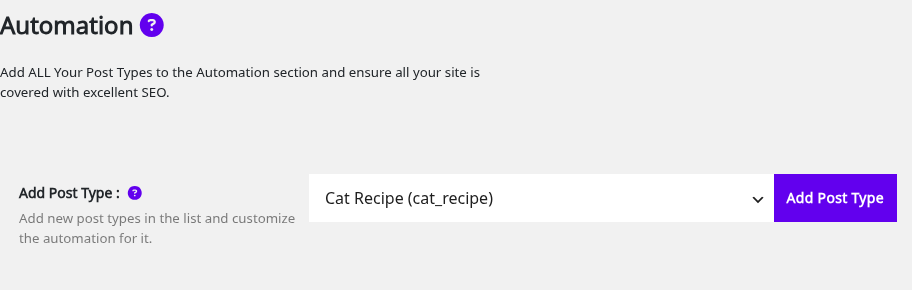
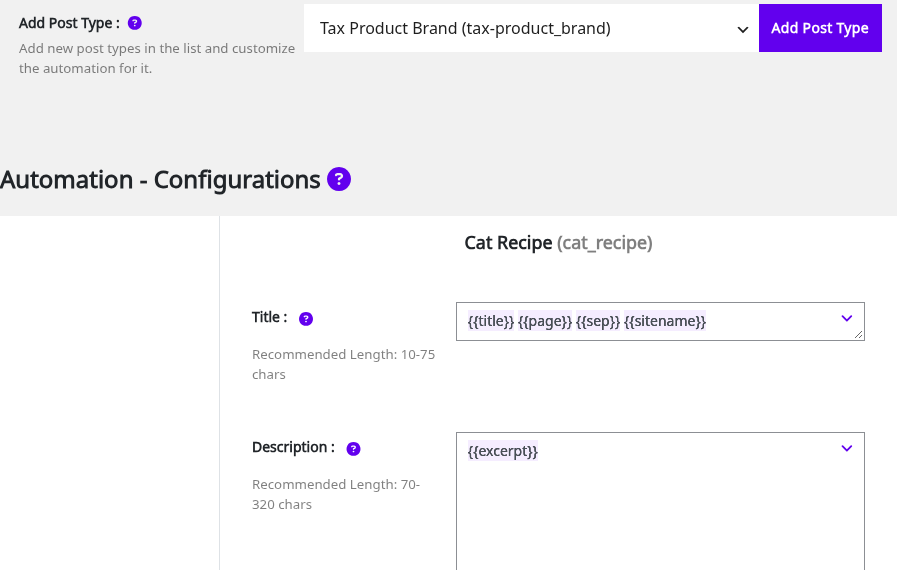
The list holds every public post type and taxonomy that isn’t added yet. A post type with an archive page also gets an archive entry, and taxonomies start with “Tax”. On the demo the list also has Archive Cat Recipe (archive-cat_recipe) and Tax Meal Type (tax-meal_type). Add Tax Meal Type the same way to give the Meal Type pages their own title.
A new tab starts as a copy of the Custom tab. For Cat Recipe, Recipe is one of the choices in JSON-LD Type. An added type has a Remove automation for Cat Recipe link at the bottom of its tab, and after you remove it the recipes use the Custom tab again. When every type is added, the screen says “All the post types are sent for Automation”.
Add patterns to a title or description
A pattern is a code in double braces that Squirrly replaces with a value from the page. The screen puts it this way: “Patterns change the codes like {{title}} with the actual value of the post Title.” You can mix them with your own words, like the search page on the demo does.
- Open the tab of the post type in Automation – Configurations.
- Click the arrow at the right of the Title or Description field. A Patterns list opens, with a Search patterns … box.
- Click a pattern to add it at the end of the field. Click a highlighted pattern again to remove it, or type directly in the field.
- Click Save Settings.

A title or description you write in a post’s own SEO Snippet wins over the pattern. The demo recipes have their own snippet titles, so they keep them after the Cat Recipe tab is added.
Bulk SEO shows the title and description each post gets from these patterns. Values from custom fields can be used too.
| Pattern | What it adds |
|---|---|
| {{title}} | The title of the post, page or term |
| {{excerpt}} | The excerpt, or an excerpt made from the text when the field is empty |
| {{excerpt_only}} | The excerpt field only, nothing when it is empty |
| {{sitename}} / {{sitedesc}} | The Site Title and the Tagline from WordPress |
| {{sep}} | The separator picked in the same tab |
| {{page}} | The page number on paginated pages |
| {{keyword}} | The keyword of the post |
| {{url}} | The URL of the current post, page or term |
| {{category}} / {{primary_category}} | The post categories (comma-separated) or the primary category |
| {{category_description}} / {{tag_description}} | The description of the category or the tag |
| {{tag}} | The post tags, comma-separated |
| {{term_title}} / {{term_description}} | The name and the description of the term |
| {{searchphrase}} | What the visitor searched for |
| {{date}} / {{modified}} | The publish date or the last modified date |
| {{name}} / {{user_description}} | The author’s name and biographical info |
| {{single}} / {{plural}} | The singular and plural label of the post type |
| {{parent_title}} | The title of the parent page |
| {{currentdate}}, {{currentday}}, {{currentmonth}}, {{currentyear}} | Today’s date, day, month and year |
| {{org_name}}, {{org_description}}, {{org_logo}}, {{org_url}}, {{org_phone}} | The Organization data set in Rich Snippets |
| {{product_name}}, {{product_description}}, {{product_price}}, {{product_price_with_tax}}, {{product_sale}}, {{product_currency}}, {{product_brand}} | WooCommerce product data for the current product |
Not every pattern has a value on every type. {{product_price}} has nothing to show on the Home tab, for example.
Title
The Title field builds the title tag. The screen recommends 10-75 characters. On the demo, the Post tab uses {{title}} {{page}} and the Product tab adds {{sep}} {{sitename}} after them.
Description
The Description field builds the meta description, with a recommended length of 70-320 characters. Most tabs on the demo start with {{excerpt}}, and the Category tab uses {{category_description}}.
Separator
The Separator list sets the character that {{sep}} prints, for example – or | or ~.
The switches in each tab
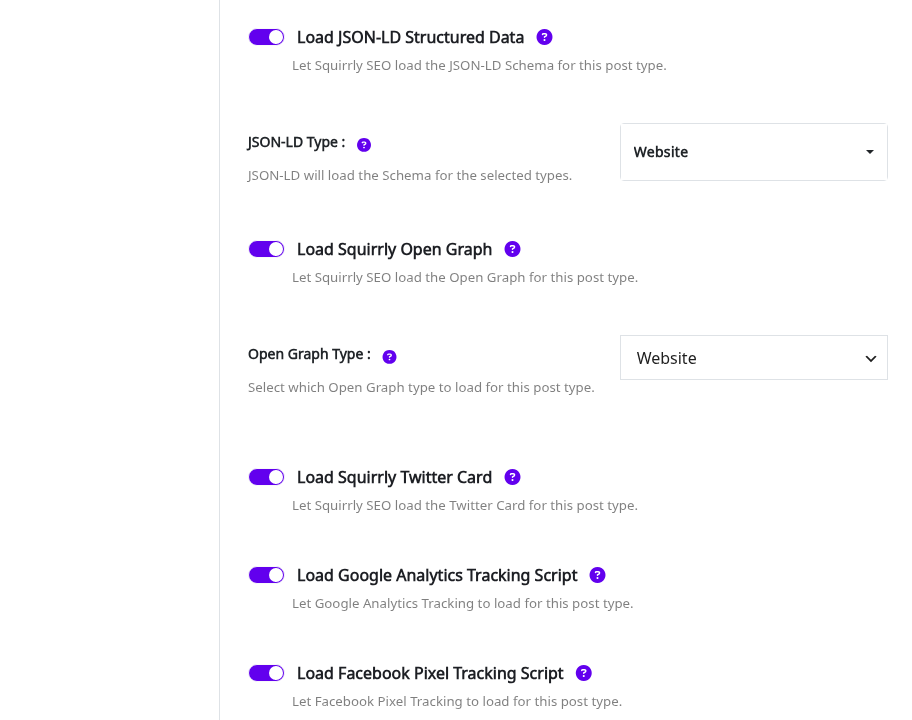
Under the patterns, each tab has switches for what Squirrly loads on that post type. A switch shows only when its feature is on, so a tab can have fewer than the table lists.

| Switch | What it does | Shows when |
|---|---|---|
| Let Google Index it | Off adds a noindex meta for this post type | SEO Metas and Add Robots Meta are on |
| Send Authority to it | Off adds a nofollow meta for this post type | SEO Metas and Add Robots Meta are on |
| Include In Sitemap | Adds this post type to the Squirrly sitemap | Sitemap XML is on (not on Profile and 404) |
| Include In Google News Sitemap | Adds this post type to the Google News sitemap | The News sitemap is on, for Post and custom post types |
| Redirect Broken URLs | Sends an old URL to the new one after a slug change | Post, Page, 404 and custom post types |
| Load SEO Metas | Loads the Title, Description and Keyword metas | SEO Metas is on |
| Load Squirrly Patterns | Replaces the pattern codes with values | SEO Automation is on |
| Load JSON-LD Structured Data | Loads the JSON-LD schema for the selected types | JSON-LD is on |
| Load Squirrly Open Graph | Loads the Open Graph metas | Open Graph is on |
| Load Squirrly Twitter Card | Loads the Twitter Card metas | Twitter Card is on |
| Load Google Analytics Tracking Script | Loads the Google Analytics code | Tracking is on |
| Load Facebook Pixel Tracking Script | Loads the Facebook Pixel code | Pixel is on |
Let Google Index it
The demo has this switch off on Search and 404, and the 404 page source shows noindex,nofollow. It is on for the other tabs. Add Robots Meta in SEO Metas has to be on for the switch to appear.
Send Authority to it
Switch it off to add the nofollow meta to every page of that type. On the demo only the 404 tab has it off.
Include in sitemap
When it is off, Squirrly doesn’t build the sitemap for that type. On a WooCommerce store, the Search tab uses this switch for product searches: a search made by at least 3 visitors that finds at least 3 products is added to the sitemap. Turn on the News sitemap in Sitemap XML Settings to get the Google News switch.
Redirect Broken URLs
When you change the slug of a published post, Squirrly saves the old slug. A visitor who opens the old URL gets a 301 redirect to the new one, with the header X-Redirect-By: Squirrly SEO. On the demo the switch is on for Post, Page and Product.
With the Advanced Pack and Redirects on, the same choices also show in Squirrly > Redirects > Settings as Redirect Changed Paths.
Default Redirect URL for 404 pages
The 404 tab has its own Redirect Broken URLs switch and a Default Redirect URL field. The field starts with your home page URL, https://demo.squirrly.co on the demo.
- Open the 404 tab in Automation – Configurations.
- Turn on Redirect Broken URLs.
- Type the address in Default Redirect URL.
- Click Save Settings.
From then on, every URL that would show the 404 page sends the visitor to that address with a 301. How to Redirect All 404s on Your Site explains when that helps.
Load SEO Metas
Off means Squirrly doesn’t print the Title, Description and Keyword metas for that type, so the patterns of that tab have no effect.
Load Squirrly Patterns
With this switch off, the pattern codes aren’t replaced. A post without its own title gets the post title, and one without a description gets the post excerpt.
Load JSON-LD Structured Data
JSON-LD Type under the switch picks the schema. The demo uses Article for Post, Product for Product and Website for most other tabs. The Category and Tag tabs have the switch off. The global data comes from JSON-LD Structured Data.
Select more than one JSON-LD type
The JSON-LD Type list takes several types at once, with a search box. The choices depend on the tab. With the Advanced Pack and Custom Rich Snippets on, the list holds the Advanced Pack schema types, and Reusable Schemas show in it too.
Load Squirrly Open Graph
Open Graph Type offers Website, Article, Profile, Book, Music and Video. Most archive-style tabs, like Home, Search, Category and 404, get Website only. Profile gets Profile and Product gets Product. The images and the Facebook data come from Social Media Settings.
Load Squirrly Twitter Card
The card type is set in Social Media Settings.
Load Google Analytics Tracking Script
The switch only decides where the code loads. Add the tracking ID first in Connect Tools.
Load Facebook Pixel Tracking Script
Same as Analytics, for the Facebook Pixel ID.
Example: the search page
The demo Search tab mixes text and patterns in the title Are you looking for {{searchphrase}}? {{page}} {{sep}} {{sitename}}. A product search for “salmon” gets the title “Are you looking for salmon? | Whisker Bowl Demo” and the robots meta noindex,follow, because Let Google Index it is off on that tab.
Example: the 404 page
The 404 tab on the demo uses the title Page not found {{sep}} {{sitename}}, with Let Google Index it, Send Authority to it and Load JSON-LD Structured Data off. A missing URL returns HTTP 404 with the title “Page not found | Whisker Bowl Demo”.
Custom META lengths
Squirrly cuts the titles and descriptions it builds to a maximum length, and Bulk SEO checks each snippet against the same numbers. The lengths sit at the bottom of Squirrly > Optimize > Settings under META Lengths, and they show only in SEO Expert mode.
- Click SEO Expert in the Squirrly top bar.
- Go to Squirrly > Optimize > Settings and scroll to META Lengths.
- Type the new number of characters in the field you want to change.
- Click Save Settings.
| Field | Default |
|---|---|
| Title Length | 75 |
| Description Length | 320 |
| Open Graph Title Length | 75 |
| Open Graph Description Length | 200 |
| Twitter Card Title Length | 75 |
| Twitter Card Description Length | 280 |
| JSON-LD Title Length | 75 |
| JSON-LD Description Length | 320 |
In Expert mode the same fields also show in SEO Metas, Social Media and Rich Snippets.
Troubleshooting
“Could not add the post type.”
The type you picked is already in the list, or it isn’t a public post type or taxonomy any more. Reload Squirrly > Optimize > Automation and check the tabs.
“Squirrly SEO is not active on this post type.”
The small switch next to the post type name is off. Turn it on and click Save Settings.
The Title and Description fields are grayed out
SEO Automation is off. Click Activate Patterns on the tab, or turn it on in Squirrly > All Features.
A page still shows the old title
Automation fills only empty fields, so a title typed in the SEO Snippet of that page wins. Clear the field in the snippet, save, and purge the cache plugin if you use one.
Frequently asked questions
Do I need to change Automation after I install Squirrly SEO?
No, every post type gets default patterns and switches on install, and you change only the ones you want different.
What happens to a custom post type I don’t add?
It uses the patterns and switches of the Custom tab.
Does a title written in the SEO Snippet replace the pattern?
Yes, Automation fills only the fields you leave empty in the snippet.
Related tutorials
- Bulk SEO & Snippet: see the title and description each post gets, and change one post at a time.
- SEO Metas: the title, description and robots metas that Automation fills.
- Sitemap XML Settings: pick the sitemaps the Include In Sitemap switch feeds.
- JSON-LD Structured Data: the Organization data and the schema types.
- Advanced Redirects Module: redirect rules and the 404 monitor in the Advanced Pack.
- The Squirrly SEO Patterns List: more pattern examples.