Import and Data
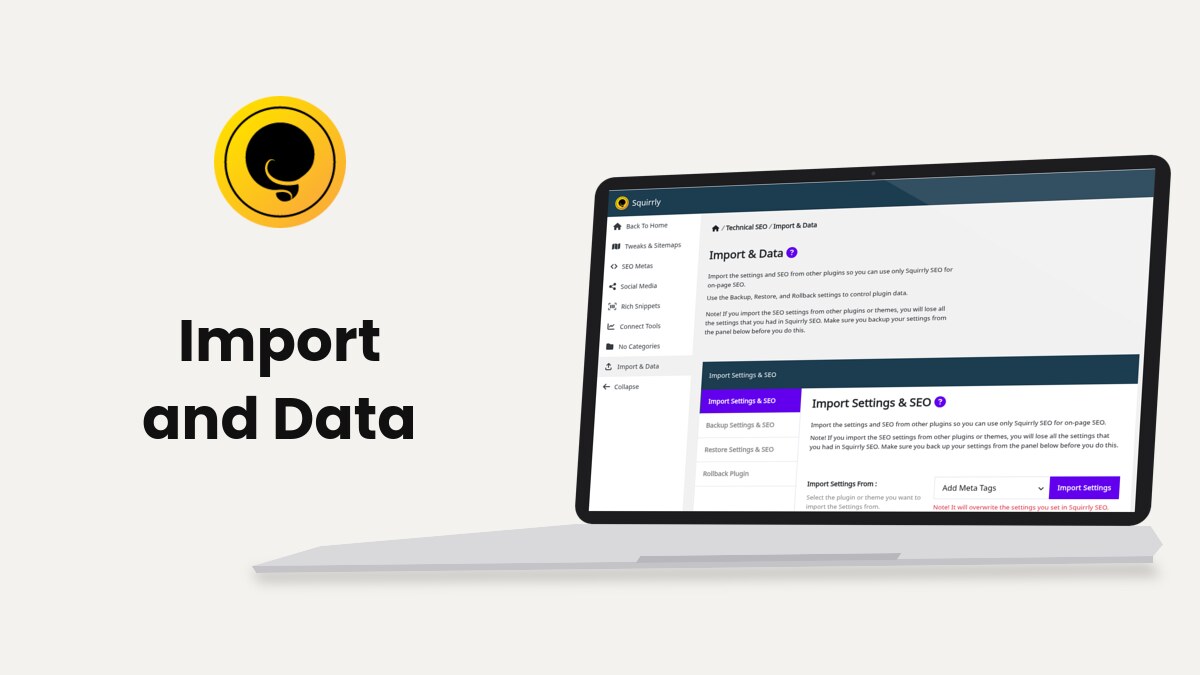
Import & Data is the screen at Squirrly > Technical SEO > Import & Data where you bring settings and page SEO over from another SEO plugin, download backups of your Squirrly data, restore them, and roll the plugin back to the last stable version.
The screenshots come from demo.squirrly.co, a test store for cat food, with Squirrly SEO 14.2.9 and the Advanced Pack 2.5.11.
What Import & Data does
The screen has four tabs. Each one works on its own, and none of them needs Squirrly Cloud.
| Tab | What you do there |
|---|---|
| Import Settings & SEO | Copy settings, titles, descriptions and patterns from another SEO plugin or theme |
| Backup Settings & SEO | Download your Squirrly settings, SEO snippets and Briefcase keywords |
| Restore Settings & SEO | Upload a backup file to bring the data back |
| Rollback Plugin | Install the last stable version or reinstall the current one |
With the Squirrly SEO Advanced Pack, the same tabs also import, back up and restore your redirects and your Rich Snippets schemas.
Where to find it
Go to Squirrly > Technical SEO and click Import & Data in the left menu. When the Advanced Pack is active, the Squirrly > Redirects menu has an Import & Data item that opens the same screen.
The note at the top of the screen says that importing settings from another plugin overwrites the settings you had in Squirrly SEO. Download a backup first (see Backup Settings & SEO).
Import settings and SEO from another plugin
The import reads the other plugin’s data from your WordPress database, so that data must still be there. The other plugin doesn’t need to be active.
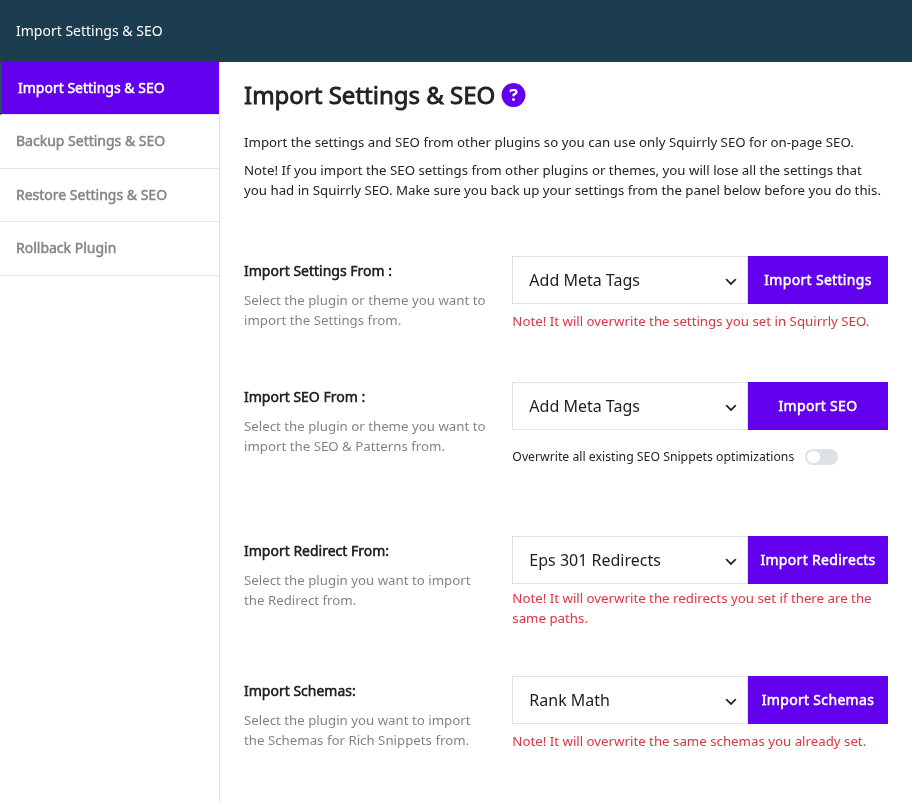
Import the settings
- Go to Squirrly > Technical SEO > Import & Data. The Import Settings & SEO tab opens first.
- In Import Settings From, pick the plugin or theme.
- Click Import Settings.
The red line under the button says “Note! It will overwrite the settings you set in Squirrly SEO.” A good import shows “All the Plugin settings were imported successfully!”. The settings import is written for Yoast SEO, Rank Math, All in One SEO, SEO Framework and SEOPress.
Import the SEO of your pages
- In Import SEO From, pick the plugin or theme. The line under the label says it imports “the SEO & Patterns”.
- Leave Overwrite all existing SEO Snippets optimizations off to keep the pages you already optimized in Squirrly.
- Click Import SEO.
With the switch off, Squirrly fills only the pages that don’t have both a title and a description in Squirrly yet. With it on, the imported values replace everything. The message reads “Success! The import from Yoast SEO was completed successfully and your SEO is safe!”, with the name of the plugin you picked.
| Source | What’s in the list |
|---|---|
| SEO plugins | Yoast SEO, Rank Math, All in One SEO Pack, SEO Framework, SEO Press, Add Meta Tags, Greg’s High Performance SEO, Headspace2, Platinum SEO Pack, SEO Pressor, SEO Title Tag, SEO Ultimate |
| Themes | Builder, Catalyst, Frugal, Genesis, Headway, Hybrid, Thesis, WooFramework |
Each plugin has its own migration guide, for example switching from Yoast SEO, from Rank Math or from All in One SEO.
Import redirects and schemas
These two rows need the Squirrly SEO Advanced Pack. Import Redirect From shows while Redirects is on, and its note says “It will overwrite the redirects you set if there are the same paths.” Import redirects lists the plugins it reads.
Import Schemas shows while Custom Rich Snippets is on and offers Rank Math. Its note says “It will overwrite the same schemas you already set.”
Backup Settings & SEO
The tab says to download your settings before importing from another plugin, so you can always go back.
- Go to Squirrly > Technical SEO > Import & Data and open Backup Settings & SEO.
- Click Download Backup next to each part you want to keep.
- Store the files outside the site, for example on your computer.
| Row | Button | File you get |
|---|---|---|
| Backup Settings | Download Backup | squirrly-settings-2026-11-02.txt (the date of the day) |
| Backup SEO | Download Backup | squirrly-seo-2026-11-02.sql with every SEO Snippet optimization |
| Backup SEO | Export as Json (Expert Mode) | squirrly-seo-2026-11-02.json with the same data |
| Backup Briefcase | Download Backup | squirrly-briefcase-2026-11-02.txt with the Briefcase keywords |
| Backup Redirects (Advanced Pack) | Download Backup | squirrly-redirects-2026-11-02.sql with all the Squirrly SEO redirects |
| Backup Schemas (Advanced Pack) | Download Schemas | squirrly-schemas-2026-11-02.sql with the schemas for Rich Snippets |
The settings file leaves out the Squirrly Cloud token and the site’s sign-in keys. A copy restored on another site doesn’t take over your Cloud connection.
Export as Json
Export as Json sits next to the SEO backup button and only shows after you click SEO Expert in the top bar. Use the .json file to read your SEO data in another tool. Restore SEO takes only the .sql file.
Restore Settings & SEO
- Go to Squirrly > Technical SEO > Import & Data and open Restore Settings & SEO.
- Choose the file in the row that matches it.
- Click the button of that row.
| Row | File to upload | Message when it works |
|---|---|---|
| Restore Settings | The squirrly-settings .txt file | “Great! The backup is restored.” |
| Restore SEO | The squirrly-seo .sql file | “Great! The SEO backup is restored.” |
| Restore Keywords | The squirrly-briefcase .txt file, or a text file with one keyword per line | “Great! The backup is restored.” |
| Restore Redirects (Advanced Pack) | The squirrly-redirects .sql file | “Great! The backup is restored.” |
| Restore Schemas (Advanced Pack) | The squirrly-schemas .sql file | “Great! The backup is restored.” |
A restore overwrites the data of the same kind. Restore Settings keeps the current Squirrly Cloud connection and the Dev Kit customization of the site, whatever the file holds.
Briefcase keywords you restore show up in the Briefcase, and Back up and restore keywords shows that flow from the Briefcase side.
Rollback Plugin
The Rollback Plugin tab replaces the plugin files with a version from WordPress.org. Your settings and SEO stay in the database.
- Download a settings and SEO backup first.
- Go to Squirrly > Technical SEO > Import & Data and open Rollback Plugin.
- Next to Rollback to version, click Install Squirrly SEO.
The row says “Install the last stable version of the plugin.” In Squirrly SEO 14.2.9 the last stable version is 14.2.9.
Reinstall the current version
Next to Reinstall version, click Reinstall Current Version to download the version you run (14.2.9 on the demo) again and replace the files. Use it when a plugin file is damaged or was edited by mistake.
Both buttons need a WordPress user who can install plugins. On a site that blocks file changes with DISALLOW_FILE_MODS, they show “You do not have permission to perform this action”.
Troubleshooting
“We couldn’t find any SEO plugin or theme to import from.”
The import list is empty on this site. Use Bulk SEO to fill the titles and descriptions by hand.
“No settings found for this plugin/theme.”
The plugin you picked has no saved settings in this database. Try Import SEO, which reads the page data instead.
“Error! The backup is not valid.”
The file isn’t a Squirrly backup of that kind, for example a .json export sent to Restore SEO. Upload the .sql file from Backup SEO.
“Error! You have to enter a previously saved backup file.”
The button was clicked with no file chosen. Pick the file first, then click the button.
“No keywords in Briefcase to backup”
The Briefcase is empty. Add keywords from Keyword Research first.
Frequently asked questions
Does importing from Yoast SEO change my posts?
No, it copies the Yoast titles, descriptions and settings into Squirrly and leaves the posts and the Yoast data as they are.
Will Import SEO replace pages I already optimized in Squirrly?
Only when Overwrite all existing SEO Snippets optimizations is on.
Can I move my Squirrly settings to another site?
Yes, download the settings file on one site and upload it with Restore Settings on the other, where the Cloud connection stays the one already there.
Can I restore the Json export?
No, Restore SEO only takes the .sql file from Download Backup.
Related tutorials
- Migrating Data: How to Switch from Yoast SEO to Squirrly SEO: the full move from Yoast.
- Migrating Data: How to Switch from Rank Math to Squirrly SEO: the same for Rank Math.
- Advanced Redirects Module: the redirects you back up and restore here.
- Back up and restore keywords: the Briefcase file in practice.
- Can Squirrly SEO be used together with Yoast/SEOPress/SEO Pressor/All in One SEO?: running two SEO plugins during a move.