
What gets configured automatically in SEO Beginner mode?
SEO Beginner and SEO Expert are the two links at the right end of the dark top bar on every Squirrly screen. SEO Beginner hides the advanced options and SEO Expert shows them; neither link turns a feature on or off. The features are switched on by the mode you pick in the onboarding.
This page lists what each view shows in Squirrly SEO 14.2.9, the 20 settings that SEO Recommended Mode and SEO Expert Mode turn on, and what stays off.
Where the SEO Beginner / SEO Expert switch is
- Open any Squirrly screen, for example Squirrly > Technical SEO.
- Look at the top bar, right of the plugin name. The current view is underlined and in bold.
- Click SEO Expert to see the advanced options, or SEO Beginner to hide them.

The click saves the setting sq_seoexpert right away, for every user of the site. Only a Squirrly SEO Admin or an administrator can change it; other users get “You do not have permission to perform this action”. Squirrly User Roles explains the roles.
What SEO Beginner hides and SEO Expert shows
The Tweaks & Sitemaps screen says it in its own intro: “Many more options are available if you switch to Expert Mode.”
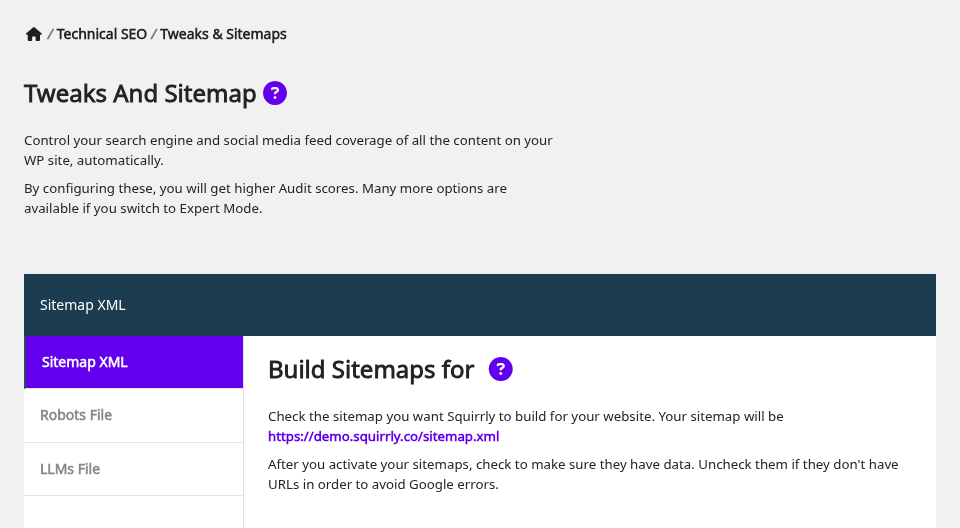
In SEO Beginner view, the options below are hidden but keep the value they have. A sitemap with Include Images in Sitemap on keeps listing the images, even though you can’t see the switch.
| Screen | Extra options in SEO Expert |
|---|---|
| Technical SEO > Tweaks & Sitemaps, Sitemap XML | Blogging Frequency, Google News, Include Images in Sitemap, Include Videos in Sitemap, Automatically Exclude URLs With ‘Noindex’, Sitemap Pagination, and Combine Languages in Sitemap when Polylang is installed |
| Technical SEO > Tweaks & Sitemaps | The Advanced Settings tab, and Add Apple Touch Icons in Website Icon |
| Technical SEO > SEO Metas | Optimize Keywords, Add Canonical Meta Link, Add Dublin Core Meta, Add Robots Meta, Add the Post tags in Keyword META, and the Advanced Settings tab |
| Technical SEO > Social Media | Facebook App ID, Facebook Admin ID, Share Large Images, and the Advanced tab |
| Technical SEO > Rich Snippets | Set this person as a global author, Add Custom Data for WooCommerce Products, Remove other Json-LD from page, and the Advanced tab |
| Technical SEO > Connect Tools | Google Tracking Mode, Load Tracking for Logged Users, Track IP addresses in Google Analytics, Norton Safe Web Code |
| Technical SEO > Import & Data | The Export as Json button next to Download Backup |
| Optimize > Settings | Fetch Snippet on Social Media, Download Remote Images, Show Tooltips, Live Assistant Type, META Lengths |
| Focus Pages > Settings | Maximum Inner Links Per Keyword, Maximum Inner Links Per Target, Default NoFollow Inner Links, Linking Template |
| Inner Links, add a link | NoFollow Link and Open in New Tab, shown at once (SEO Beginner has a More Options link for them) |
| Automation | The Advanced tab |
| SEO Snippet in the editor | The Author Link field on the Open Graph tab |
SEO Metas in SEO Beginner view
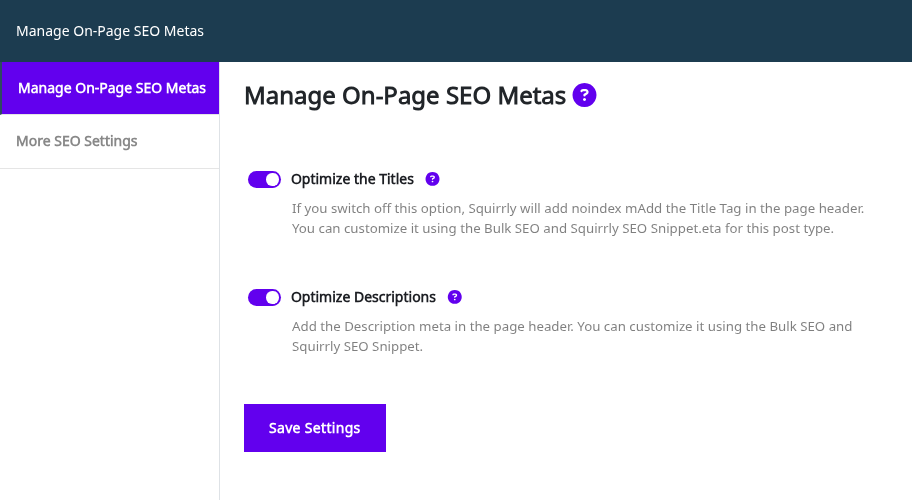
On the demo site, SEO Metas shows two switches and two tabs in SEO Beginner view. Optimize Keywords, Add Canonical Meta Link and Add Robots Meta are on by default, so the canonical and robots tags are printed while their switches are hidden.
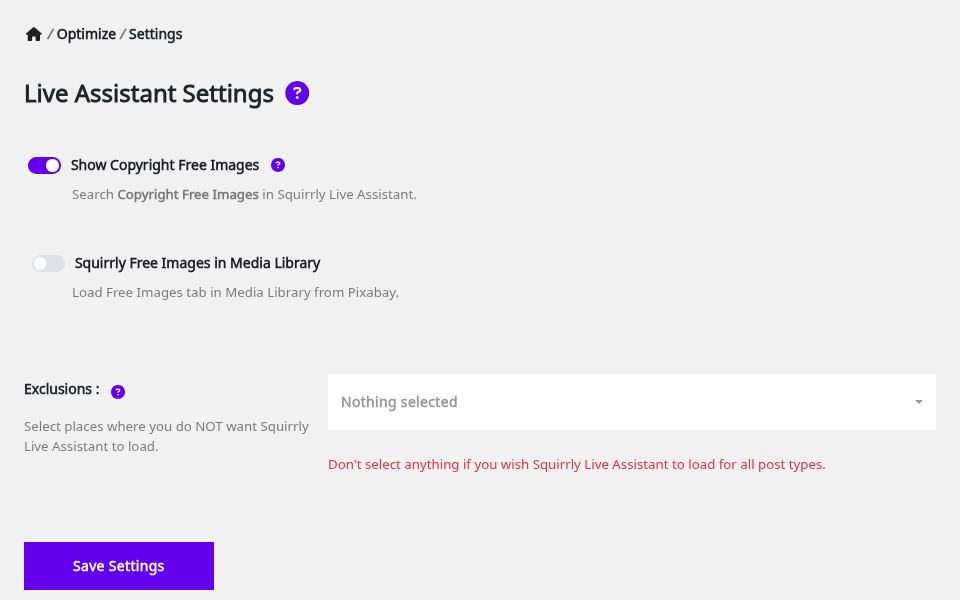
Live Assistant Settings in SEO Beginner view
Squirrly > Optimize > Settings keeps Show Copyright Free Images, Squirrly Free Images in Media Library and Exclusions. The five options in the table appear after you click SEO Expert. Live Assistant settings explains each one.
What the onboarding modes turn on
The first onboarding screen has three buttons: No SEO Configuration, SEO Recommended Mode and SEO Expert Mode. On a new install, Home shows “First, you need to activate the recommended mode or the expert mode!” with a Let’s do this button that opens it.
SEO Recommended Mode and SEO Expert Mode turn on the same 20 settings. The only difference is the view: Recommended keeps SEO Beginner, Expert switches to SEO Expert.
| Setting | Where you find it | New install |
|---|---|---|
| SEO Automation | Optimize > Automation | Off |
| On-Page SEO METAs | Technical SEO > SEO Metas | Off |
| Frontend SEO Snippet | Technical SEO > SEO Metas | Off |
| Sitemap XML | Technical SEO > Tweaks & Sitemaps | Off |
| Ping New Posts to Search Engines (no switch since 14.2.9, Google retired the ping) | None | Off |
| Automatically Exclude URLs With ‘Noindex’ | Sitemap XML (SEO Expert view) | Off |
| Redirect Attachments Page | SEO Links and Redirects | Off |
| Robots.txt File | Tweaks & Sitemaps, Robots File | Off |
| Llms.txt File | Tweaks & Sitemaps, LLMs File | On |
| JSON-LD Structured Data | Technical SEO > Rich Snippets | Off |
| Open Graph Optimization | Technical SEO > Social Media | Off |
| Twitter Card Optimization | Technical SEO > Social Media | Off |
| Fetch Snippet on Social Media | Optimize > Settings (SEO Expert view) | Off |
| Google Analytics Tracking | Connect Tools, Place Trackers | Off |
| Facebook Pixel Tracking | Connect Tools, Place Trackers | Off |
| Webmaster Tools | Connect Tools, Webmaster Extras | Off |
| Load the AMP Support on AMP pages | Connect Tools, AMP | Off |
| Auto-Indexing | LLM Indexing | On |
| Use Inner Links Assistant | Focus Pages > Settings | Off |
| Redirects | Redirects (needs the Squirrly SEO Advanced Pack) | Off |
Turning a switch on doesn’t fill in your data. Webmaster Tools prints a verification tag only for the codes you add in Webmaster Extras, and Google Analytics Tracking needs your tracking ID in Connect Tools.
No SEO Configuration sets the same 20 settings off, plus Favicon Site Icon, and skips to step 5, Mention the topic of your site. Install Squirrly SEO Plugin walks through the other onboarding steps.
What stays off in both modes
These switches aren’t part of the onboarding set, so they keep their default after you pick a mode.
| Setting | Default | Where to turn it on |
|---|---|---|
| SEO Links | Off | All Features, SEO Links card |
| Favicon Site Icon | Off | All Features |
| Local SEO | Off | All Features |
| Personal Brand Rich Snippets | Off | All Features |
| Add Dublin Core Meta | Off | SEO Metas (SEO Expert view) |
| Add the Post tags in Keyword META | Off | SEO Metas (SEO Expert view) |
Change the mode later
The onboarding isn’t in the left menu. Open admin.php?page=sq_onboarding in your WordPress admin and click one of the three buttons.
Clicking SEO Recommended Mode or SEO Expert Mode again sets all 20 switches from the table back on, including any you turned off by hand. Write down your changes first, or make a backup in Import and Data. To change only the view, use the switch in the top bar instead.
Troubleshooting
An option from a tutorial isn’t on my screen
Click SEO Expert in the top bar and reload the screen. Most options marked as advanced in the table above only show in that view.
Tweaks & Sitemaps is missing from the menu
The tab shows when Sitemap XML, SEO Links, Robots.txt File, Llms.txt File or Favicon Site Icon is on, or in SEO Expert view. Turn one of them on in Squirrly > All Features.
The SEO Beginner and SEO Expert links aren’t in the top bar
The top bar shows them only while the menu option show_seo is on. On a plugin rebuilt with the Web Dev Kit, the menu options come from the Dev Kit, so check them there.
“You do not have permission to perform this action” after the click
Your user doesn’t have the Squirrly SEO Admin role. Ask an administrator to change it in Users > All Users.
Frequently asked questions
Does SEO Expert turn on more features?
No, it only shows more options; the onboarding mode and All Features decide what is on.
Is SEO Recommended Mode different from SEO Expert Mode?
Both turn on the same 20 settings, and SEO Expert Mode also switches the view to SEO Expert.
Is the view saved for each user?
No, it is one setting for the whole site.
Do hidden options stop working in SEO Beginner view?
No, a hidden option keeps its saved value and keeps working.
Related tutorials
- Install Squirrly SEO Plugin: the onboarding steps after the mode.
- SEO Metas: every meta switch, including the SEO Expert ones.
- Sitemap XML Settings: the sitemap options hidden in SEO Beginner view.
- Advanced Settings: the tab that appears in SEO Expert view.
- Does Squirrly cater to more of a beginner SEO person?: the short answer for new users.




