
Squirrly SEO Home
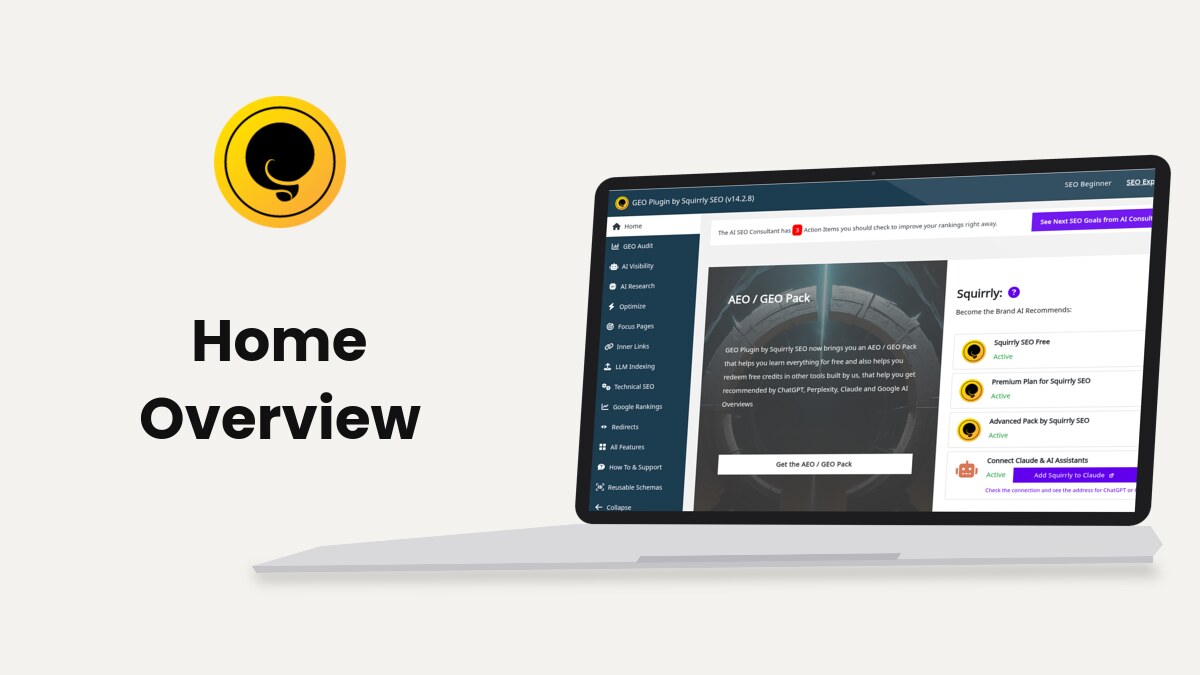
Squirrly > Home is the first screen of Squirrly SEO. It shows the goals the AI SEO Consultant found, the status of your plan and of the Advanced Pack, your latest wins and shortcuts to the main features.
The screenshots come from demo.squirrly.co, a test store for cat food, with Squirrly SEO 14.2.9 and the Advanced Pack 2.5.11.
What the Home screen shows
On the demo site the screen has seven blocks, from top to bottom. Some of them only appear when they have something to show.
| Block | What it shows | When you see it |
|---|---|---|
| AI SEO Consultant notice | How many Action Items are waiting, with a button to the goals | When there are goals you haven’t done or ignored |
| AEO / GEO Pack | A banner with the Get the AEO / GEO Pack button | Always |
| Squirrly: Become the Brand AI Recommends | Cards for the free plugin, your plan, the Advanced Pack and AI assistants | Always |
| Progress & Achievements | Success messages from Focus Pages, audits and rankings | When Squirrly has a success message for you |
| Main Features | Eight shortcuts to the features used most | Unless a Dev Kit package hides it |
| 14 Days Journey | The 14 Days Journey Course to GEO | Until you hide it at the end of the course |
| Free Learning Materials | Four tutorials and a Go to Knowledge Base >> link | Unless a Dev Kit package hides it |
Where to find it
Click Squirrly in the left WordPress menu, or Squirrly > Home in its sub-menu. The Squirrly menu in the WordPress admin bar opens the same screen.
Home needs the site connected to Squirrly Cloud. Until then the menu item is called First Step and shows the screen Connect Your Site to Squirrly Cloud instead of the blocks below.
The toolbar at the top

On Home the toolbar reads GEO Plugin by Squirrly SEO followed by the version, here v14.2.9. The other Squirrly screens show only “Squirrly”.
| Control | What it does |
|---|---|
| SEO Beginner | Hides the options marked as advanced on every Squirrly screen |
| SEO Expert | Shows them, plus the Advanced tabs in Tweaks & Sitemaps, SEO Metas, Social Media, Rich Snippets and Automation |
| Person icon | Your account details: the plan, the Due Date, what’s left of Focus Pages, Audit Pages, Keywords Lookups and SERP Lookups, and the Reset day |
The underlined word is the mode you’re in. The account panel only shows to WordPress administrators and links to Billing info, Account settings, Squirrly Cloud, Support and Disconnect.
AI SEO Consultant notice
The bar at the top says how many Action Items the AI SEO Consultant found, for example “The AI SEO Consultant has 3 Action Items you should check to improve your rankings right away.”

- Click See Next SEO Goals from AI Consultant.
- Work through the goals on the AI Consultant screen. Each one has a Show me how button.
The x at the end of the bar hides the notice. When you open Home and the last site check is older than 12 hours, Squirrly runs a new check in the background, so the count can change after a reload.
Plan and pack cards
The right half of the top block, under Squirrly: and Become the Brand AI Recommends:, lists four cards. Each card shows Active in green or Inactive in red.
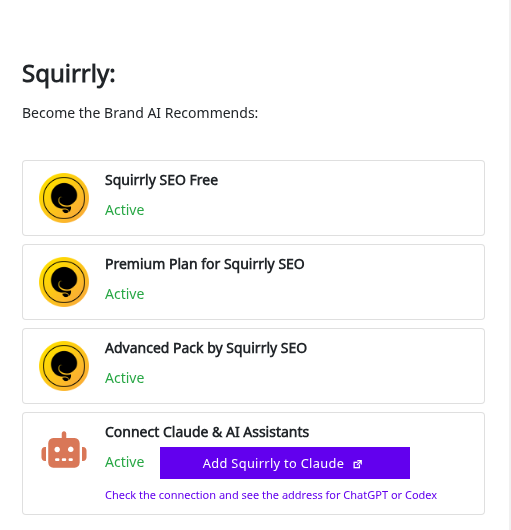
| Card | When it’s inactive |
|---|---|
| Squirrly SEO Free | Never, it’s the plugin you’re using |
| Premium Plan for Squirrly SEO | An Upgrade button opens the pricing page. The note under it says the upgrade is made on the SaaS side, with no plugin re-install |
| Advanced Pack by Squirrly SEO | The button Install now with one click. It’s free. installs the Advanced Pack |
| Connect Claude & AI Assistants | Turn on AI assistants opens Squirrly > Technical SEO > Connect Tools on the AI Tools tab |
When AI assistants are on, the last card has Add Squirrly to Claude and the link Check the connection and see the address for ChatGPT or Codex. Connect Squirrly to AI Assistants covers that setup.
The AEO / GEO Pack banner on the left opens aisq.com. Under the cards, Do you have SEO clients? links to the Web Dev Kit guide for agencies.
Progress & Achievements
This block lists the good news from your site checks. On the demo store it says “You ranked on 7 on Google with the keyword cat feeding schedule” and “Ranks improved with an average of 30.8 in the last 7 days”.
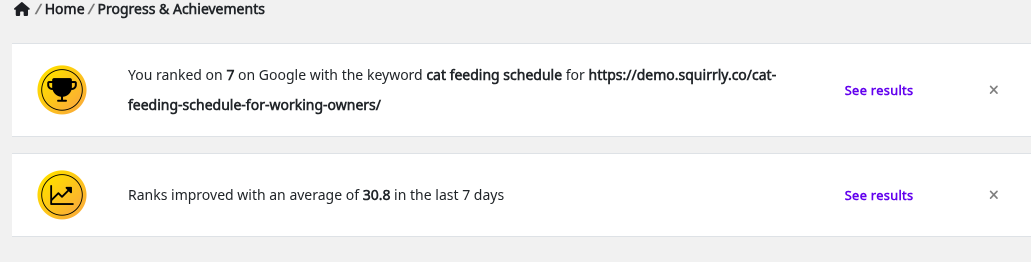
The plugin has success messages for better Traffic, Ranking, Time On Page, Authority, Social Signals and Loading Speed on your Focus Pages, better Ranking for your Keywords and a better Score for your Audit.
- See results opens the screen the message comes from.
- The x hides one message.
- Show hidden success brings the hidden ones back. The red number next to it counts them.
No success messages yet? Then the block isn’t on Home at all. Progress & Achievements in the AI Consultant guide explains where the messages come from.
Main Features
Eight cards link straight to the features most people start with. Each card has a short line in purple above the feature name.
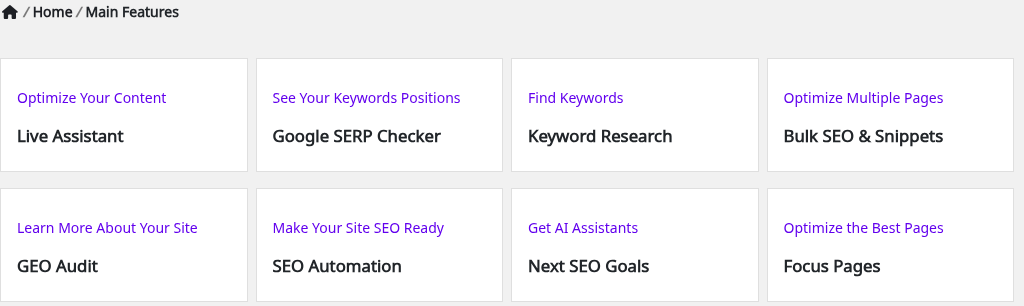
| Card | Opens |
|---|---|
| Optimize Your Content: Live Assistant | Squirrly > Optimize, the Live Assistant |
| See Your Keywords Positions: Google SERP Checker | Squirrly > Google Rankings > Rankings (Ranking & SERP Checker) |
| Find Keywords: Keyword Research | Squirrly > AI Research > Find Keywords (how to find keywords) |
| Optimize Multiple Pages: Bulk SEO & Snippets | Squirrly > Optimize > Bulk SEO (Bulk SEO & Snippet) |
| Learn More About Your Site: GEO Audit | Squirrly > GEO Audit > Overview (SEO Audit Suite) |
| Make Your Site SEO Ready: SEO Automation | Squirrly > Optimize > Automation (Automation) |
| Get AI Assistants: Next SEO Goals | The AI Consultant screen |
| Optimize the Best Pages: Focus Pages | Squirrly > Focus Pages, the list of your Focus Pages |
The full list of features, each with its on and off switch, is in Squirrly > All Features.
14 Days Journey
The block shows the 14 Days Journey Course to GEO. Its text says “All you need to start driving AI visibility for your brand. Be recommended by ChatGPT, Perplexity, Claude, Google AI Overviews and AI Mode.”
- Click I’m ready to start the course on today’s date.
- Click the button for the current day to open its recipe, starting with Day 1.
After day 14, I’m all done. Hide this block. removes the block from Home. How to start the 14 Days Journey has more on the course.
Free Learning Materials
The last block has four cards that open tutorials on this site. On Home they are “How to Import SEO from other SEO plugins”, “How to get on TOP 10 Google?”, “How to use Next SEO Goals?” and “How to optimize a post with Briefcase”. Go to Knowledge Base >> opens the knowledge base.
Mastery Tasks on the other Squirrly screens
Mastery Tasks aren’t on Home. They sit in the right column of the AI Research, Optimize, Technical SEO, GEO Audit and Google Rankings screens, and the All Features page calls this the Settings Assistant. Its card there says users complete tasks and “turn Red dots into Green dots”.
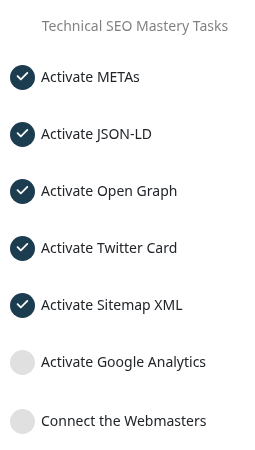
A dark circle with a check mark is a task Squirrly found done. A light gray circle is still open. Squirrly checks each task again when the screen loads, so you don’t tick anything by hand.
| Column title | Tasks |
|---|---|
| Keyword Research Mastery Tasks | Do Keyword Research, Add Keywords in Briefcase, Create Labels for Keywords, Add Keywords to Labels, Send Keywords to Rank Checker |
| Live Assistant Mastery Tasks | Optimize Using Live Assistant |
| Technical SEO Mastery Tasks | Activate METAs, Activate JSON-LD, Activate Open Graph, Activate Twitter Card, Activate Sitemap XML, Activate Google Analytics, Connect the Webmasters |
| Audit Mastery Tasks | Connect Google Analytics, Connect Google Search Console, Set the Audit Email, Get your score over 60 |
| Rankings Mastery Tasks | Track your first 3 Keywords, Connect Google Search Console, Get 1 Keyword to the first page of Google |
Open, skip or finish a Mastery Task
- Click a task in the right column. The Task Details window opens with the steps for that task and, for most tasks, a link to the screen where you do them.
- Do the steps, then reload the screen. A finished task gets the dark circle with a check mark.
- To skip a task, turn off the active task switch in the same window. The task then says “You chose to ignore this task. Click to activate it.”
When every active task in a column is done, the column shows the badge Mastery Level Achieved. The arrow at the top of the column folds it into a narrow strip, and hovering over the strip opens it again.
Troubleshooting
Home shows “Connect Your Site to Squirrly Cloud”
The site isn’t connected yet, so sign up or log in on that screen (see Connect Squirrly SEO to Squirrly Cloud).
“First, you need to activate the recommended mode or the expert mode!”
The onboarding hasn’t run on this site. Click Let’s do this and pick SEO Recommended Mode or SEO Expert Mode (see Run the onboarding).
The AI SEO Consultant notice is gone
Either every goal for today is done or ignored, or you clicked the x on the bar. The goals are still in the AI Consultant, which you reach from the Next SEO Goals card in Main Features.
“Unfortunately Squirrly Cloud is down for a bit of maintenance right now”
Squirrly Cloud is in maintenance. Reload Home after a few minutes. Squirrly SEO error messages lists the other connection errors.
Frequently asked questions
Why is the menu item called First Step and not Home?
The plugin calls it First Step until the site is connected to Squirrly Cloud.
Do the cards on Home change my settings?
No, the cards only show status and links, except Install now with one click. It’s free., which installs the Advanced Pack.
Can I hide blocks from Home for my clients?
Yes, a Web Dev Kit package can hide blocks such as Main Features or Free Learning Materials.
Where do I find the AI Consultant if the notice is hidden?
Use the Next SEO Goals card in Main Features or AI Consultant in the Squirrly menu of the WordPress admin bar.
Related tutorials
- Install Squirrly SEO Plugin: install, connect to Squirrly Cloud and run the onboarding.
- AI Consultant (Next SEO Goals): work through the goals behind the Action Items count.
- Focus Pages & Page Audits: the pages most Progress & Achievements messages are about.
- Squirrly Cloud App: your account, plan and websites on cloud.squirrly.co.
- How do I make sure all my settings are made properly?: the page the Mastery Level Achieved badge links to.






0 Comments