
LLMs.txt File Settings
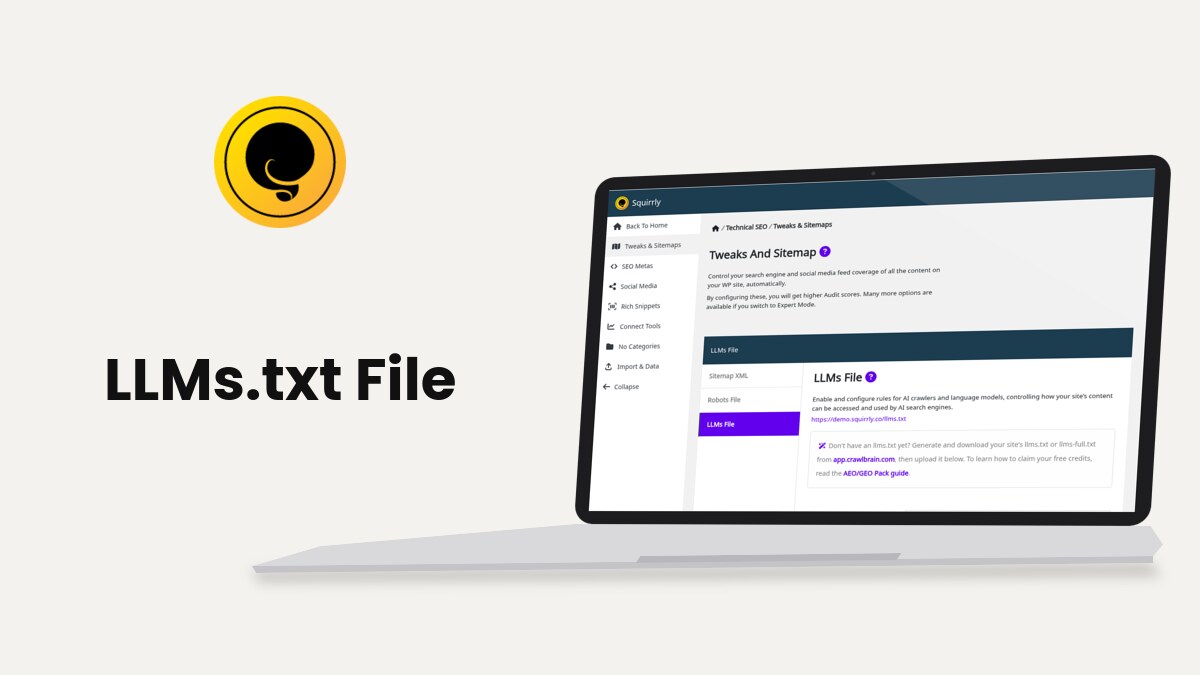
Squirrly SEO serves an llms.txt file at the root of your site, with rules for AI crawlers and language models, from Squirrly > Technical SEO > Tweaks & Sitemaps > LLMs File. The same screen holds the llms-full.txt file, the full-content version some AI engines fetch.
The screenshots and the file below come from demo.squirrly.co, a test store for cat food, with Squirrly SEO 14.2.8 and the Advanced Pack 2.5.11.
What the LLMs File feature does
Squirrly answers two addresses on your domain. No file is written to the server, so the feature also works on WordPress Multisite.
| Address | What it shows | When it works |
|---|---|---|
| /llms.txt | Your rules from Edit the Llms.txt data, or the default rules when the box is empty | Whenever the Llms.txt File feature is on |
| /llms-full.txt | The text in Edit the Llms-full.txt data, exactly as saved | Only when that box has content; otherwise the address returns 404 |
Both are sent as plain text. On the demo site, https://demo.squirrly.co/llms.txt returns the default rules and https://demo.squirrly.co/llms-full.txt returns 404, because nothing was saved for it yet.
The file sits next to robots.txt, which talks to search engine crawlers, and LLM Indexing, which pushes new URLs out.
Turn on the Llms.txt File feature
The feature is on by default in Squirrly SEO 14.2.8.
- Go to Squirrly > All Features.
- Find the Llms.txt File card. It says “Control how AI search engines and language model crawlers can access and use your website’s content.”
- If the card reads click to activate, click the switch.
- Click start feature setup >> to open the LLMs File tab.
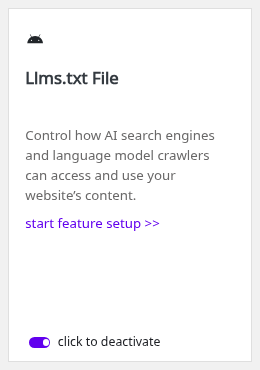
When the switch is off, the LLMs File tab disappears and Squirrly stops answering /llms.txt and /llms-full.txt.
Where to find the LLMs File settings
- Go to Squirrly > Technical SEO > Tweaks & Sitemaps.
- Click LLMs File in the left column of the panel.
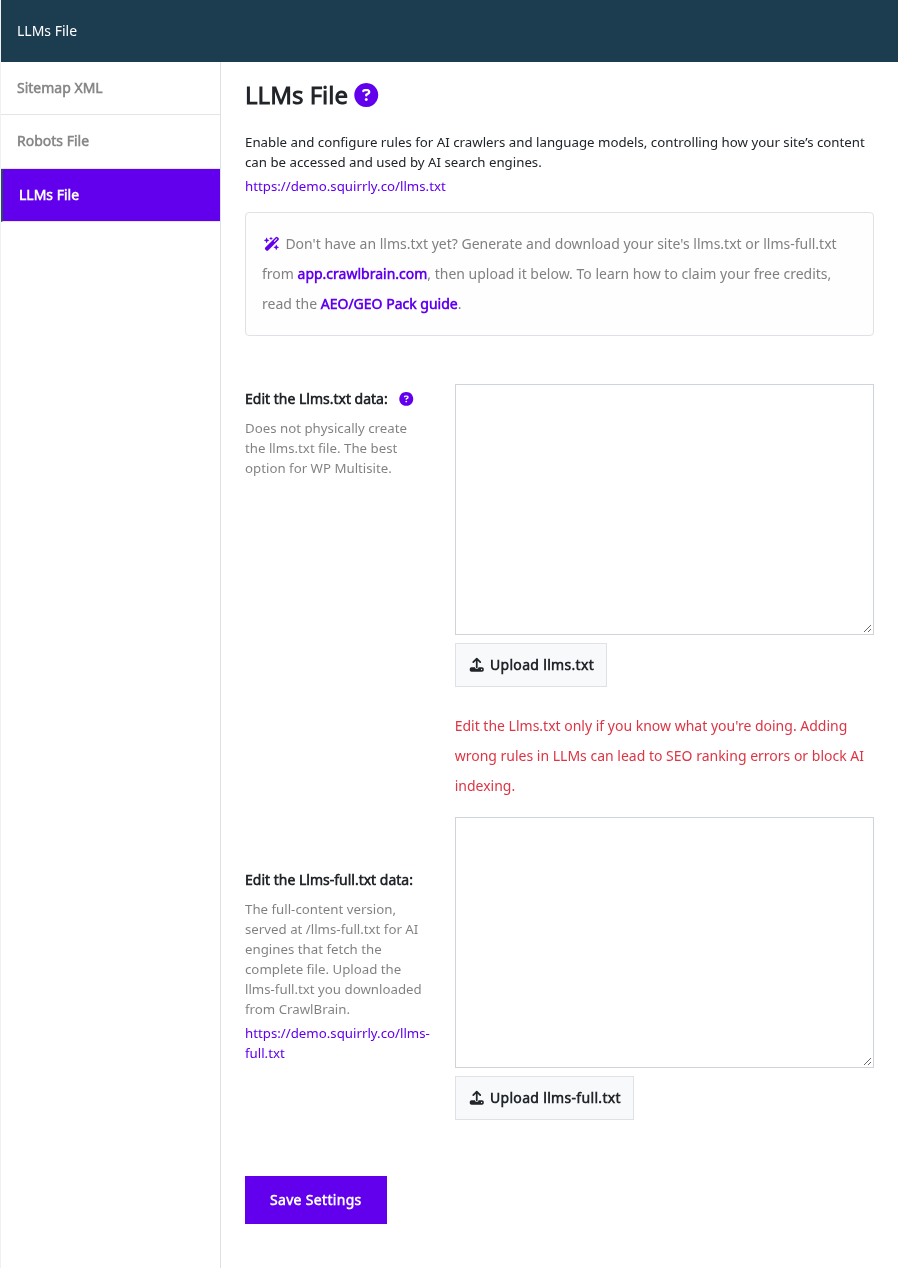
The link under the title opens your live llms.txt in a new tab. The second link, under Edit the Llms-full.txt data, opens /llms-full.txt.
Default llms.txt rules
With the Edit the Llms.txt data box empty, Squirrly serves this file. It is the real output of https://demo.squirrly.co/llms.txt on November 2, 2026:
User-Agent: *
Allow: /

# Sensitive paths
Disallow: /wp-admin/
Disallow: /wp-login.php
Disallow: /xmlrpc.php
Disallow: /wp-json/
Disallow: /?author=

# Usage policy
Training: disallowed
Summarization: allowed
Embedding: allowed

# Attribution
Require-Attribution: true| Line | What it says |
|---|---|
| User-Agent: * | The rules below are for every crawler |
| Allow: / | The whole public site can be read |
| Disallow: /wp-admin/ | Keep out of the WordPress admin |
| Disallow: /wp-login.php | Keep out of the login page |
| Disallow: /xmlrpc.php | Keep out of the XML-RPC file |
| Disallow: /wp-json/ | Keep out of the REST API |
| Disallow: /?author= | Keep out of the ?author= URLs |
| Training: disallowed | Training models on the content is not allowed |
| Summarization: allowed | Summaries of the content are allowed |
| Embedding: allowed | Embeddings of the content are allowed |
| Require-Attribution: true | Content that is used should credit the source |
The file is a request to AI crawlers. Squirrly serves it, and each AI company decides whether its crawler reads and follows it. For one AI bot, such as GPTBot, add a rule for its user agent in robots.txt as well.
Write your own llms.txt
The red note under the box says “Edit the Llms.txt only if you know what you’re doing. Adding wrong rules in LLMs can lead to SEO ranking errors or block AI indexing.”
- Go to Squirrly > Technical SEO > Tweaks & Sitemaps > LLMs File.
- Type your rules in Edit the Llms.txt data, one per line. To start from the defaults, copy them from the block above.
- Click Save Settings.
- Open the llms.txt link under the title and check the result.
Whatever you save replaces the default rules completely. To go back to the defaults, empty the box and click Save Settings.
Squirrly removes HTML tags from the file when it serves it. Keep the content to plain text and Markdown.
Upload an llms.txt you already have
A blue tip on the screen points to app.crawlbrain.com, where you can generate your site’s llms.txt or llms-full.txt and download it.
- Click Upload llms.txt under the first box.
- In the Select or upload your LLMs file window, upload the .txt file or pick it from the Media Library.
- Click Use this file. Squirrly reads the file and puts its text in the box.
- Click Save Settings.
The upload only fills the box. The text is served once you save.
The llms-full.txt file
The help text calls it “The full-content version, served at /llms-full.txt for AI engines that fetch the complete file.” The file can run to several megabytes, so Squirrly keeps it in its own database row instead of the main plugin settings.
- On the same tab, paste the content in Edit the Llms-full.txt data, or click Upload llms-full.txt and pick the file.
- Click Save Settings.
- Open the /llms-full.txt link under the label to check it.
Squirrly has no default llms-full.txt. An empty box means /llms-full.txt returns 404, which is how you take the file down.
If a real llms.txt file is on the server
A file named llms.txt in the WordPress root folder is sent by the web server before WordPress loads, so Squirrly’s version never shows. When you click Save Settings on the LLMs File tab, Squirrly renames that file to llms_ren followed by a timestamp, for example llms_ren1793630000.txt. Your old file stays on the server under the new name.
Troubleshooting
The LLMs File tab is missing
The Llms.txt File card is off on Squirrly > All Features. Switch it on and reload Tweaks & Sitemaps.
/llms.txt shows a 404 page or a theme page
Check that the feature is on, then purge your page cache and any CDN cache for /llms.txt. The rules are sent by WordPress, so a cache that stored a 404 earlier keeps showing it.
/llms-full.txt returns 404
The Edit the Llms-full.txt data box is empty. Paste or upload the content and save.
“Could not read the file content. Please open the file and paste its content into the box manually.”
The browser couldn’t load the file you picked from the Media Library. Open the .txt file on your computer, copy all of it and paste it in the box.
My changes don’t show in /llms.txt
A physical llms.txt in the WordPress root wins until you save the tab once (see above), and a page cache can hold the old version. Save again, then purge the cache.
Frequently asked questions
Is llms.txt the same as robots.txt?
No, robots.txt is read by search engine crawlers and llms.txt is a separate file aimed at AI crawlers and language models.
Does Squirrly create a file on my server?
No, both /llms.txt and /llms-full.txt are generated by WordPress on each request.
What happens if I leave the box empty?
Squirrly serves the default rules shown in this guide.
Can I use the llms.txt from CrawlBrain?
Yes, click Upload llms.txt, pick the downloaded file and save.
Does llms.txt work on Multisite?
Yes, the screen calls it “The best option for WP Multisite” because no physical file is created.
Related tutorials
- Robots.txt File Settings: crawler rules for search engines, including AI bots.
- LLM Indexing: send new and updated URLs to IndexNow and the Google Indexing API.
- AI Visibility: check how AI answer engines mention your site.
- Sitemap XML Settings: the list of URLs search engines crawl.
- Connect Squirrly to AI Assistants: let Claude or ChatGPT work with your Squirrly data.







0 Comments