Web Dev Kit: All Plugin Customization Options Explained
The Web Dev Kit lets an agency set up Squirrly SEO for its clients from Dev Kit Settings in the Squirrly Cloud account, download a customized plugin ZIP and install it on each client site. This guide lists every option the plugin applies and what the client sees after the install.
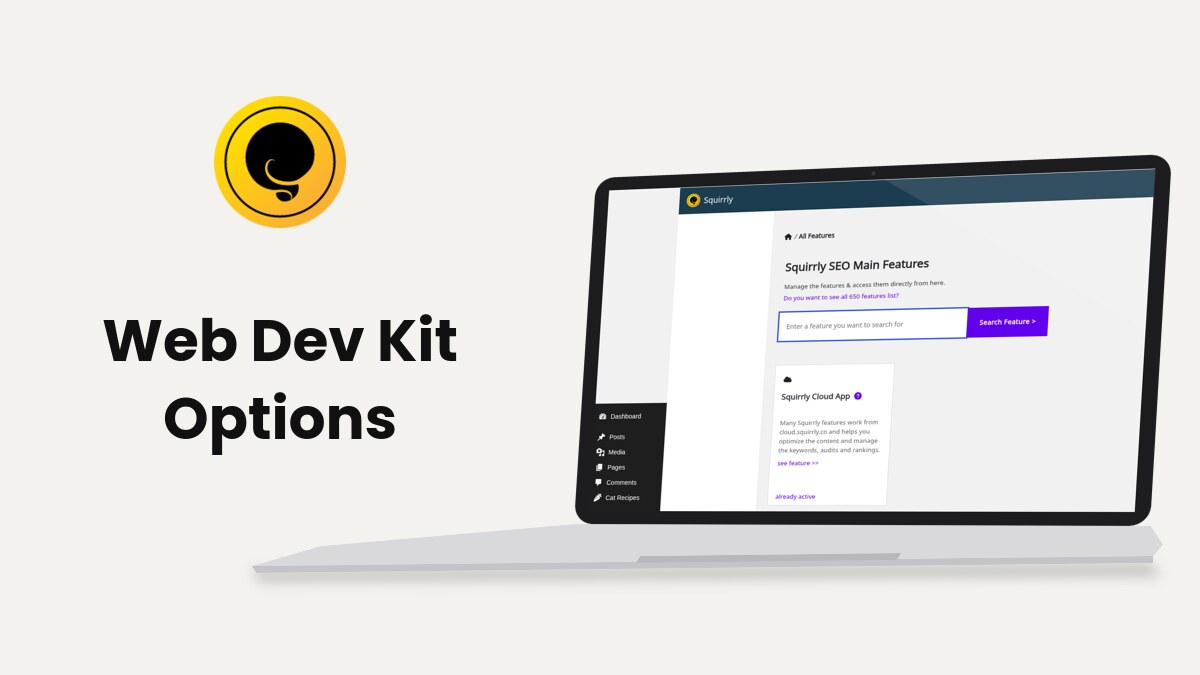
The Dev Kit panel lives in Squirrly Cloud, not in WordPress. The panel names below come from the earlier version of this guide. The plugin screenshots come from demo.squirrly.co, a test store with Squirrly SEO 14.2.9 and the Advanced Pack 2.5.11, which runs without the Dev Kit.
What the Web Dev Kit changes
The Dev Kit values travel inside the ZIP. Once the plugin is active on the client site, they change five things.
| Part | What changes in WordPress |
|---|---|
| Plugin Logo URL | The logo in the WordPress menu, in the Squirrly header and in the Squirrly box of the post editor |
| Plugin Name | The name of the plugin on the Plugins screen |
| Plugin Menu Name | The word Squirrly in the WordPress menu and in the admin bar |
| Menu Option | Which Squirrly menu items and Home blocks the client sees |
| Audit Option | Your own text on the passed and failed tasks of the GEO Audit |
Custom Settings and Limits & Packages change the settings the plugin starts with and the credits each site gets. Both are covered further down.
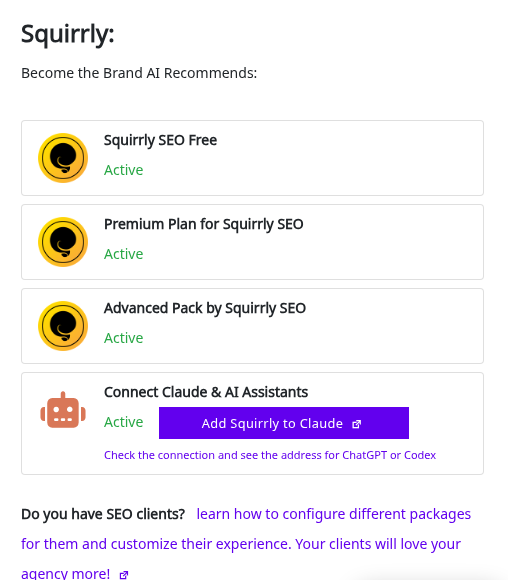
The Dev Kit has to be active on your Squirrly account. When it isn’t, the Home page of the plugin shows Do you have SEO clients? with a link to this guide.
How it works
- In your Squirrly Cloud account, click Dev Kit Settings.
- Go through the sections of the panel and set the options for this client.
- Click Save DevKit Options.
- Open Download and click Download to save the ZIP file.
- On the client site, go to Plugins > Add New Plugin, click Upload Plugin, choose the ZIP and click Install Now.
- Click Activate Plugin.
The ZIP carries a package.json file with the settings you chose. On the first load the plugin copies those settings into its own options and deletes the file. Later updates come through Update Now on the Plugins screen, like any plugin.
The ZIP settings are written over the settings the plugin finds on the site. Using the Web Dev Kit on a Website where Squirrly SEO is Already Installed has the steps for that case.
The customization panel
| Section in Dev Kit Settings | What you set |
|---|---|
| Name & Logo | Plugin Logo URL, Plugin Name, Plugin Menu Name |
| Menu Option | The Show switches for each menu item |
| Custom Settings | The features that start turned on |
| Audit Option | Your text for success and fail tasks |
| Download | The customized plugin ZIP |
| Limits & Packages | Credit limits per connected site |
A switch slid to the right is on, and to the left is off.
Name and logo
Plugin Logo URL
Paste the address of an image. The plugin uses it as the icon of the Squirrly item in the WordPress menu, the logo in the Squirrly header and admin bar, and the icon of the Squirrly box in the post editor. The earlier guide recommended a square image of 200 by 200 pixels.
Plugin Name
The name you type replaces the plugin name on the client’s Plugins screen. The plugin has to be active for the change to show.
Plugin Menu Name
Replaces the word Squirrly in the WordPress left menu and in the admin bar at the top of the screen.
The logo and the menu name apply once the plugin on the client site is connected to your Squirrly Cloud account. The plugin name on the Plugins screen applies right after activation.
Menu options
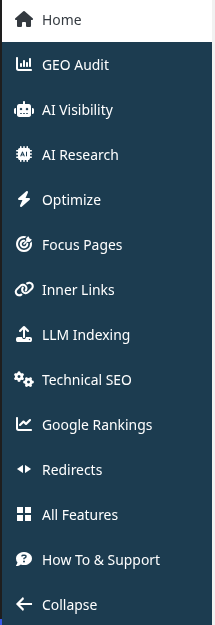
Each switch in Menu Option hides one Squirrly menu item, or one block on Home, on the client site. With every switch on, the client sees the full menu.
Hidden items keep working
A switch only hides the menu item and its link. The feature keeps running, and a hidden screen such as AI Research still opens from a direct link to its address.
Show Onboarding Tutorial
Off hides the Onboarding item and the Free Learning Materials blocks at the bottom of the Squirrly screens.
Show 14 Days Journey
Off hides the 14 Days Journey block on Home and the journey card in All Features.
Show Account Info
Off hides the Account Info item, the account block with the plan and the limits, and the Squirrly Cloud App card in All Features. Cloud links in the plugin then open the Cloud without signing the client in. Your email and plan stay out of the client’s view. The plan details FAQ covers the same switch.
Show Research Link
Off hides AI Research, the menu with Find Keywords, the Briefcase, Labels, Suggested and History.
Show Assistant Link
Off hides Optimize, the menu of the Live Assistant settings, and the Copyright Free Images card that the Advanced Pack adds to All Features.
Show All Snippets Link
Off hides the Bulk SEO item and its card in All Features.
Show Focus Pages Link
Off hides Focus Pages.
Show Audit Link
Off hides GEO Audit and AI Visibility. Both use the same switch.
Show Rankings Link
Off hides Google Rankings.
Show Next SEO Goals
Next SEO Goals is called AI Consultant in Squirrly SEO 14.2.9. Off hides it in the admin bar menu, removes the red count of action items from the Squirrly menu and hides the Progress & Achievements block on Home.
Show Squirrly Ads
The plugin stores this switch, but no screen in Squirrly SEO 14.2.9 reads it. It changes nothing on the client site in this version.
Other items the plugin can hide
The plugin has more menu switches than the earlier guide listed. Their names in the Cloud panel may differ from the menu names below.
| Menu item or block | Hidden when its switch is off |
|---|---|
| Technical SEO | The menu item and its tabs, including Connect Tools and Import & Data |
| All Features | The menu item and the Main Features block on Home |
| Redirects | The Redirects menu item |
| LLM Indexing | The LLM Indexing menu item |
| Inner Links | The Inner Links menu item |
| No Categories | The No Categories tab and its card |
| Reusable Schemas | The Reusable Schemas menu item (Advanced Pack) |
The switches for One Page Setup and Automation are stored too, but 14.2.9 doesn’t read them.
Custom settings
Custom Settings sets the features that are on when the client site starts. The values travel in the ZIP, and the plugin copies them into its settings on the first load. After that the client can change them in the plugin like any setting.
Show Advanced SEO Settings
Shows or hides the link to Advanced Settings, the last tab of Squirrly > Technical SEO > Tweaks & Sitemaps in Expert Mode.
Load Squirrly METAs
Turns on the SEO Metas, checked later at Squirrly > Technical SEO > SEO Metas.
Load SEO Automation Patterns
Turns on the patterns of Automation, under Squirrly > Optimize > Automation.
Activate Live Assistant in Frontend
Turns on Activate Live Assistant in Frontend at Squirrly > Optimize > Settings, which the screen describes as loading the Live Assistant in the front end for pages built with builders.
Load JSON-LD Schema
Turns on the JSON-LD Structured Data in the source code of the pages.
Load Sitemap XML
Turns on the Squirrly sitemap, set at Squirrly > Technical SEO > Tweaks & Sitemaps.
Load Robots.txt
Turns on the Squirrly robots.txt, on the Robots File tab of the same screen.
Load Website Icon
Turns on the Website Icon tab settings.
Load Open Graph and Twitter Card
The panel has one switch for Open Graph and one for the Twitter Card. They turn on the tags set at Squirrly > Technical SEO > Social Media.
Load AMP Support
Turns on Load the AMP Support on AMP pages in Connect Tools, which loads the AMP versions of Google Analytics and the Facebook Pixel.
Load Facebook Pixel
Turns on Facebook Pixel Tracking. The client still needs a Pixel ID in Place Trackers.
Load Google Analytics
Turns on Google Analytics Tracking. The Analytics ID goes in Place Trackers.
Audit option
The two fields of Audit Option put your own text into the tasks of Squirrly > GEO Audit on every client site. Both accept HTML, so a link or a button works.
Audit Details for Success Tasks (HTML tags allowed)
Your text replaces the matching text of every passed task, the ones with the green thumbs up and the Details link.
Audit Details for Fail Tasks (HTML tags allowed)
Your text replaces the matching text of every failed task, the ones with the red thumbs down and How to fix this. A line such as “Need help with this? Write to us” with your contact link sits right next to each problem.
Limits and packages
In Dev Kit Settings > Limits & Packages you create packages with a name and limits for Keyword Research, Focus Pages, Audit Pages and SERP Checker, then assign a package to each connected site. One package can be the default for sites without their own.
The limits you can set depend on your own plan. The client sees the package limits in the account block of the plugin, and only while Show Account Info is on.
What stays the same
- The Squirrly Cloud links in the plugin open the Cloud login page on Dev Kit accounts, without the one-click sign-in.
- Restore Settings in Import & Data keeps the Dev Kit logo, names, audit texts and menu switches, whatever the backup file holds.
- On a WordPress multisite, the menu switches of the main site apply to every site in the network.
Troubleshooting
The custom logo or menu name doesn’t show
Both need the plugin connected to your Squirrly Cloud account. Open Squirrly > Home on the client site and finish the connection.
A change in Dev Kit Settings doesn’t reach the client site
The name, logo and switches come with the ZIP. Save the new options, download a new ZIP and install it on the client site again, as the update FAQ says for name and logo changes.
The package settings didn’t apply on a site that already had Squirrly
Follow the steps in Using the Web Dev Kit on a Website where Squirrly SEO is Already Installed.
Frequently asked questions
Does a hidden menu item turn the feature off?
No, the switches in Menu Option only hide the item, and the feature keeps working.
Do I need to reinstall the ZIP for updates?
No, the client site updates from the Plugins screen like any plugin, and a new ZIP is only needed when you change the name or the logo.
Can the client change the custom settings later?
Yes, they are the starting values and the client can change them in the plugin.
Can the client open Squirrly Cloud?
The Cloud links open the login page, and Can I only give the SEO plugin without cloud access to my clients? covers the rest.
Related tutorials
- Dev Kit Advantages: what the Dev Kit gives an agency, in short.
- Using the Web Dev Kit on a Website where Squirrly SEO is Already Installed: install over an existing plugin.
- How do I update the Squirrly plugin if it is rebuilt with the Web Dev Kit?: updates on client sites.
- Are the settings after activating the WebDevKit set once?: what happens to Custom Settings later.
- As an agency, if a client stops using us, what should we do with installed Squirrly on their website?: when a client leaves.
- Can I only give the SEO plugin without cloud access to my clients?: Cloud access for clients.