
Migrating Data: How to Switch from The SEO Framework to Squirrly SEO

Decided to upgrade from The SEO Framework to Squirrly? Welcome, we’re grateful to have you.
Just thinking about switching? We welcome that thought, too. 🙂
We know that migrating data from other SEO plugins can seem like a complicated task. You may be worried that you’ll lose important data or the work you’ve previously done – and that you’ll have to start from scratch.
Rest assured, switching from The SEO Framework to Squirrly SEO is fast, easy, and secure thanks to Squirrly’s import capabilities.
We make sure that your data is migrated carefully. This way, you don’t lose important optimizations you have previously made.
In this article, we’ll show you:
- how easy it is to import your data from The SEO Framework
- and let you know exactly WHAT gets imported during the process.
Let’s get to it.
First things first, what data gets imported from The SEO Framework?
Here is everything that we import from The SEO Framework to help you make sure that your previous work remains intact.
SEO Snippet optimizations :
- Title
- Description
- Open Graph Title
- Open Graph Description
- Open Graph Media
- Twitter Card Title
- Twitter Card Description
- Twitter Card Media
- Noindex
- Nofollow
- Canonical
- 301 Redirects
Settings
- Attachment page to image redirect
- Social Media
- Facebook App ID
- Facebook Profile URL
- Twitter URL
- JSON-LD – Company Name
- JSON-LD – Company Logo
- Webmasters (Google, Bing and Pinterest verification codes)
You won’t have to start over and re-write your meta descriptions or titles once you’ve made the switch to Squirrly. All this data will be safely transferred to Squirrly SEO.
In fact, once the import process is complete, you can go to BULK SEO settings and check that your data has been correctly transferred.
NOTE! Using Squirrly SEO, you can also import redirects you’ve set up using SEO Framework. This needs the Squirrly SEO Advanced Pack (see Step 4).
Good. Now that we got that out of the way, let’s go over the steps of importing your data from The SEO Framework to Squirrly SEO.
Import using Squirrly’s Import feature
Here’s what you need to do:
Step 1. Go to the Import & Data section of Squirrly
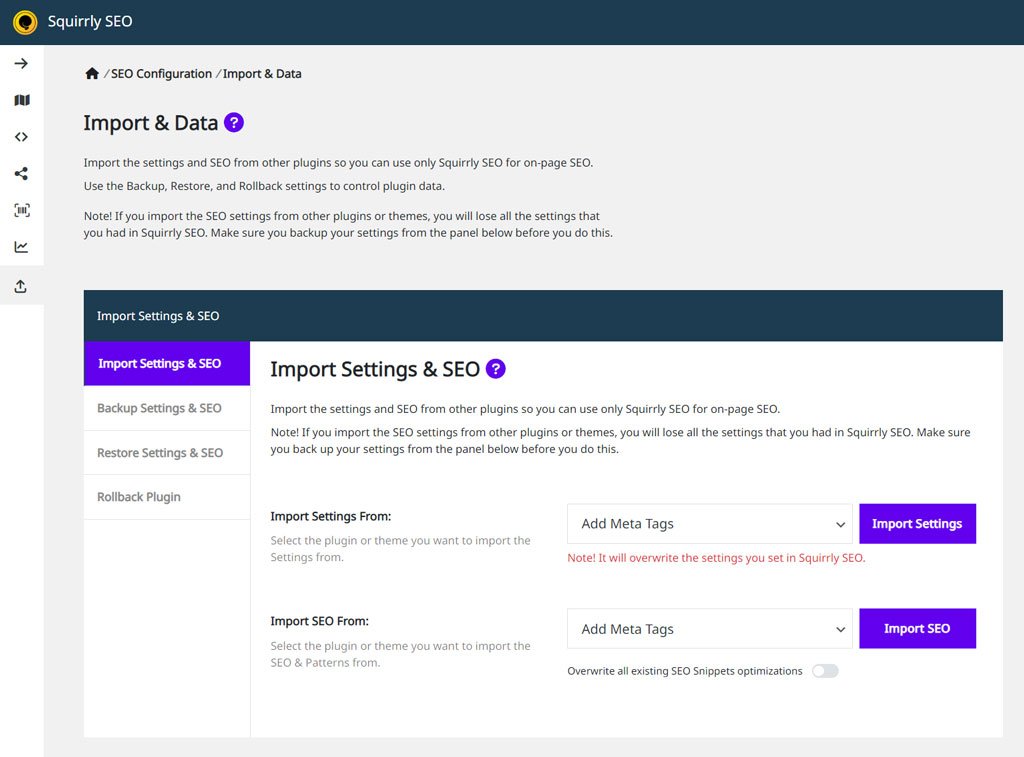
The Import settings are located in the Technical SEO section of Squirrly SEO. Navigate to Squirrly > Technical SEO > Import & Data to reach them. The Import Settings & SEO tab opens first.
Step 2. Import Settings
Looking at how Import SEO & Settings is set up, you may ask yourself why there are two different sections for this. The reason is that there is a clear distinction between Settings and SEO:
- Settings are things you set up, such as: using Meta, using Open Graph, and so on.
- SEO is what you work on and how you define custom texts.
To import settings from The SEO Framework, simply select SEO Framework in Import Settings From and then click on Import Settings. (as shown in the image below)
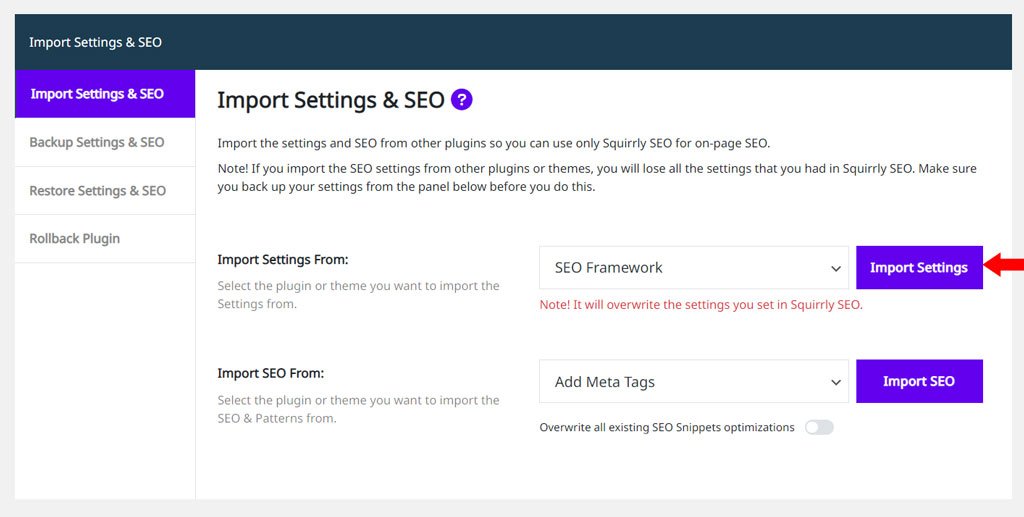
Note: if you import the SEO settings from The SEO Framework, you will lose all the settings that you had in Squirrly SEO (the settings you import will overwrite the settings you make in Squirrly SEO). Make sure you backup your settings from Squirrly > Technical SEO > Import & Data > Backup Settings & SEO before you do this. The red line under the Import Settings button says the same: “Note! It will overwrite the settings you set in Squirrly SEO.”
Step 3. Import SEO
To import SEO from The SEO Framework, simply select SEO Framework in Import SEO From and click on Import SEO. (as shown in the image below)
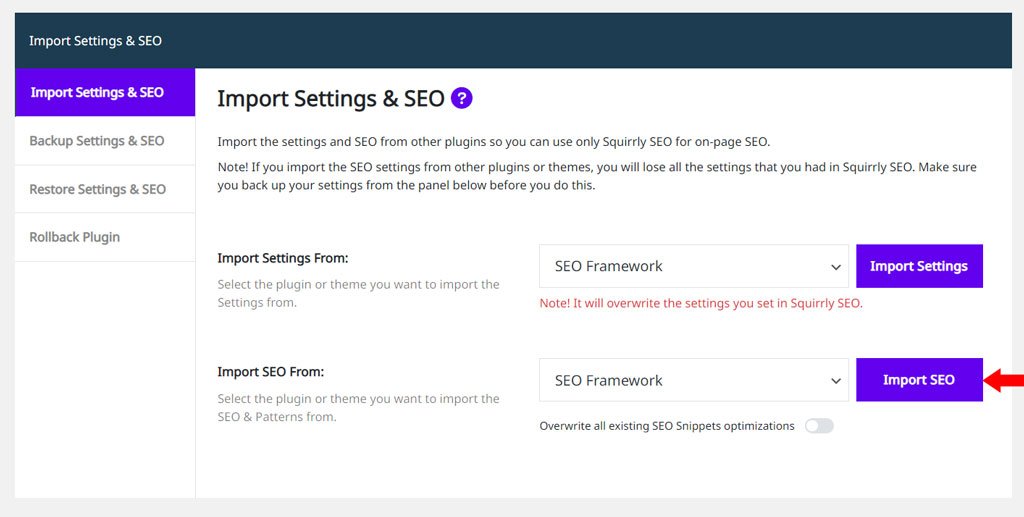
Under the Import SEO button is the switch Overwrite all existing SEO Snippets optimizations. It is off by default.
With the switch off, Squirrly imports the SEO only for the pages that don’t have both a title and a description in Squirrly SEO yet. This will ensure that you don’t lose the SEO for pages that you already optimized with Squirrly. So, unlike what happens for Import settings, the SEO you import will NOT overwrite the SEO for pages optimized with Squirrly.
With the switch on, the values imported from The SEO Framework replace the SEO you set in Squirrly for every page they cover.
Step 4. Import Redirects
This step needs the Squirrly SEO Advanced Pack with the Redirects feature turned on. Then the Import Settings & SEO tab shows one more row, Import Redirect From.
To import redirects from SEO Framework, scroll down to Import Redirect From, select SEO Framework from the list, and click on Import Redirects. Then check the new rules in Squirrly > Redirects > Rules (see Import, back up and restore redirects).
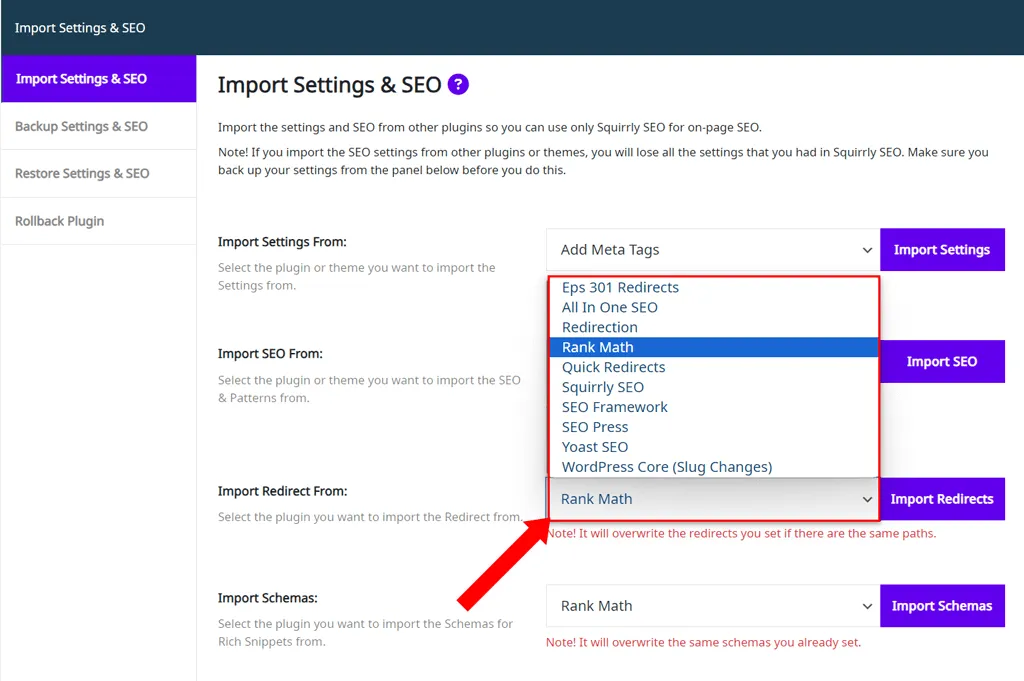
Attention: We recommend importing redirects from other plugins immediately after activating the Redirects feature in Squirrly SEO and before setting up any new redirects.
That’s because the imported redirects will overwrite existing redirects if there are the same paths. The note under the Import Redirects button says: “Note! It will overwrite the redirects you set if there are the same paths.”
To create a backup of your current redirects, follow these steps:
- Navigate to: Squirrly > Technical SEO > Import & Data > Backup Settings & SEO.
- Click Download Backup next to “Backup Redirects”.
This will allow you to download and save a copy of your existing redirects.
That’s it! Your data is now safely transferred to Squirrly.
All your data is now imported into Squirrly! If you want, you can now go to BULK SEO settings and check that your data has been correctly transferred.
Import Done. What’s next?
Here are the settings you need to do in Squirrly after the import.
After the set-up for Squirrly SEO is complete, you can go ahead and deactivate the SEO Framework plugin from your site.




