SEO Metas
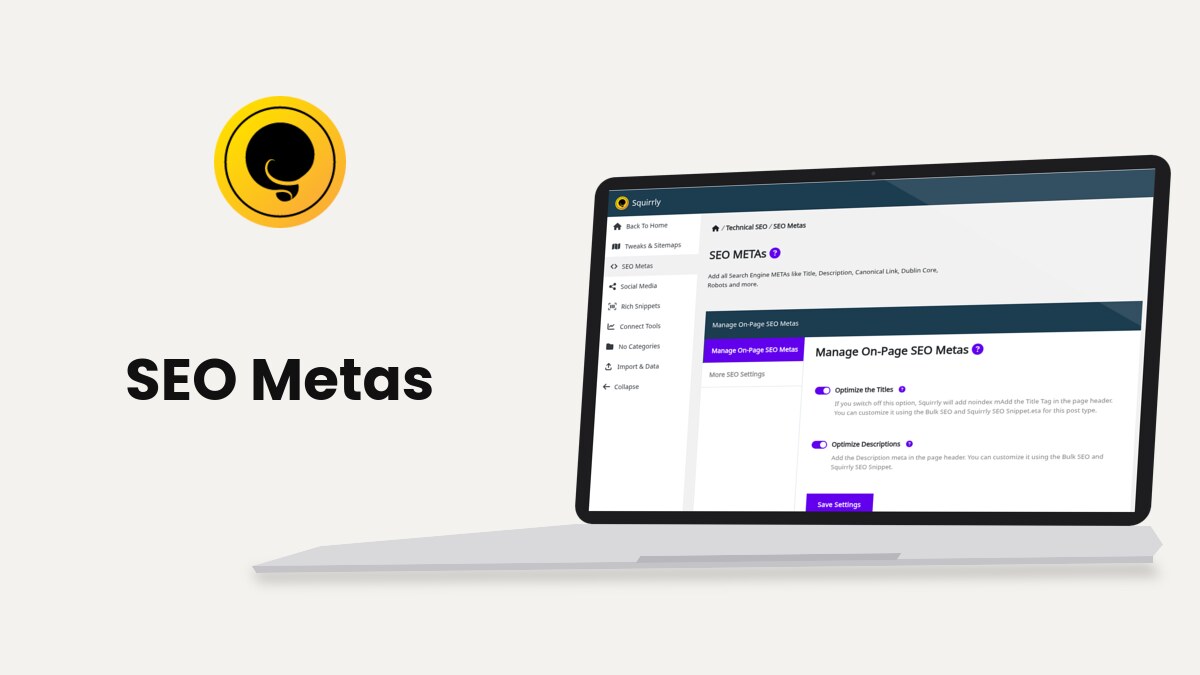
SEO Metas, at Squirrly > Technical SEO > SEO Metas, chooses which meta tags Squirrly SEO writes in the head of every page: the title, description, keywords, canonical link, Dublin Core and robots metas. The text of each tag comes from SEO Automation patterns or from the SEO Snippet of the page.
The screenshots come from demo.squirrly.co, a test store for cat food, with Squirrly SEO 14.2.9 and the Advanced Pack 2.5.11.
What SEO Metas adds to a page
This is the head of the demo post “How many times a day should a cat eat?” with SEO Metas on:
<title>How many times a day should a cat eat?</title>
<meta name="robots" content="index,follow">
<meta name="googlebot" content="index,follow,max-snippet:-1,max-image-preview:large,max-video-preview:-1">
<meta name="bingbot" content="index,follow,max-snippet:-1,max-image-preview:large,max-video-preview:-1">
<meta name="description" content="Most adult cats do well on at least two meals a day. ..." />
<meta name="keywords" content="how many times a day should a cat eat" />
<link rel="canonical" href="https://demo.squirrly.co/how-many-times-a-day-should-a-cat-eat/" />
Open any page of your site, press Ctrl+U (Cmd+Option+U on a Mac) and search for <title to see the same lines on yours. Check METAs with and without Squirrly SEO shows how to compare the head with the plugin switched off for one page.
Where to find it
SEO Metas is one feature with a master switch. Turn it on first, then set its options.
- Go to Squirrly > All Features.
- Find On-Page SEO METAs under METAs Features and click click to activate.
- Go to Squirrly > Technical SEO > SEO Metas.
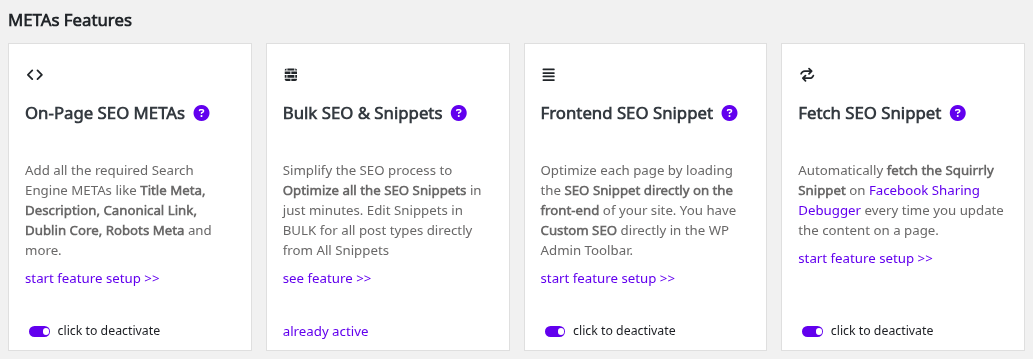
The SEO Metas item only shows in the Technical SEO menu while On-Page SEO METAs is on. The switch is off in a fresh install, and the onboarding’s SEO Recommended Mode and SEO Expert Mode turn it on.
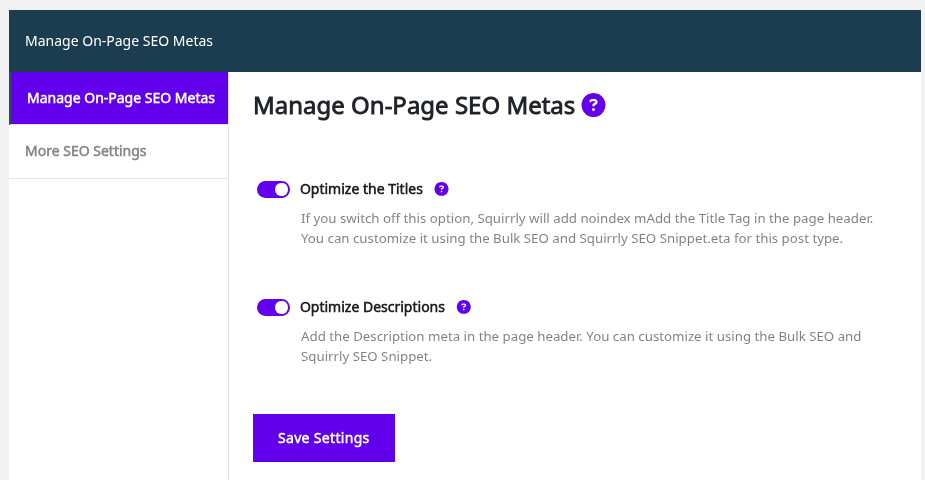
The screen has three tabs: Manage On-Page SEO Metas, More SEO Settings and, in SEO Expert mode, Advanced Settings. In SEO Beginner mode, Manage On-Page SEO Metas shows only the title and description switches. Click SEO Expert at the top of the Squirrly screen to see all of them.
All SEO Metas options
| Label | Tab | What it does | Default |
|---|---|---|---|
| Optimize the Titles | Manage On-Page SEO Metas | Writes the title tag | On |
| Optimize Descriptions | Manage On-Page SEO Metas | Writes the meta description | On |
| Optimize Keywords | Manage On-Page SEO Metas (Expert) | Writes the meta keywords | On |
| Add Canonical Meta Link | Manage On-Page SEO Metas (Expert) | Writes the canonical link, plus prev and next links on paged blog lists | On |
| Add Dublin Core Meta | Manage On-Page SEO Metas (Expert) | Writes the dc. metas | Off |
| Add Robots Meta | Manage On-Page SEO Metas (Expert) | Writes the robots, googlebot and bingbot metas | On |
| Add the Post tags in Keyword META | More SEO Settings (Expert) | Adds the post tags to the meta keywords | Off |
| Activate SEO Snippet in Frontend | More SEO Settings | Opens the SEO Snippet from the admin bar on the live page | Off (on after the onboarding modes) |
| Title Length | Advanced Settings (Expert) | Maximum characters of a title built from a pattern | 75 |
| Description Length | Advanced Settings (Expert) | Maximum characters of a description built from a pattern | 320 |
Each tab has its own Save Settings button. Click it before you switch tabs.
Optimize the Titles
With this switch on, Squirrly writes one <title> tag per page and removes the title the theme printed. The text comes from the title pattern of the post type, {{title}} {{page}} for posts by default, or from the Title field of the page’s SEO Snippet. Change the pattern in SEO Automation, or one title in Bulk SEO.
Switch it off if another plugin or the theme must keep writing the title. Add a custom META title covers the other ways to set it.
Optimize Descriptions
This writes <meta name="description"> and removes any description meta already in the page. The posts pattern is {{excerpt}}, so a post without an excerpt gets the start of its content. Add a custom META description shows the snippet field and the code hook.
Optimize Keywords
This writes <meta name="keywords"> from the Meta Keywords of the SEO Snippet. The hint on the screen says “This meta is not mandatory for Google but other search engines still use it for ranking”. In Bulk SEO, the Keyword in title and Keyword in description tasks read the same field.
Add Canonical Meta Link
This writes <link rel="canonical"> with the page’s own URL and removes other canonical, prev and next links from the page. On paged blog lists it also adds prev and next links. To point a page to an original on another site, fill in the Canonical link of its snippet in SEO Expert mode, as shown in Add a custom canonical link.
Add Dublin Core Meta
Dublin Core is a set of dc. metas. Squirrly writes dc.language, dc.language.iso, dc.publisher, dc.title, dc.description and dc.date.issued, plus dc.date.updated with the date of the last change. On the home page, the date is the date of the last post change. This switch is off by default.
Add Robots Meta
This writes the robots meta, for example index,follow, plus googlebot and bingbot metas that also allow large image previews. It also turns on the Visibility switches of the snippet (Let Google Index This Page, Send Authority to this page), so leave it on if you want to noindex single pages. See Bulk SEO visibility and Add a custom noindex meta.
When Discourage search engines from indexing this site is ticked in Settings > Reading, Squirrly doesn’t write an index or noindex value for your pages.
Add the Post tags in Keyword META
Go to More SEO Settings to find it. It adds every tag of a post to its meta keywords, after the snippet keywords. It needs Optimize Keywords on and only works for post types that have tags. The hint says “Not recommended when you use Keywords in Squirrly SEO Snippet.”
Activate SEO Snippet in Frontend
Also in More SEO Settings. With it on, open any page of your site while logged in and click Custom SEO in the WordPress admin bar to edit that page’s snippet from the live page. The same option is called Load SEO Snippet in Frontend in Tweaks & Sitemaps > Advanced Settings, and Frontend SEO Snippet in All Features.
Title and description length
- Switch to SEO Expert mode.
- Go to Squirrly > Technical SEO > SEO Metas and open Advanced Settings.
- Change Title Length (75 by default) or Description Length (320 by default).
- Click Save Settings.
The limits cut the text that patterns build, for example a long excerpt. A title or description you write in the snippet isn’t cut, even past the limit. The Bulk SEO tasks Title up to 75 chars and Description up to 320 chars follow the numbers you set here.
Duplicate metas
Before Squirrly adds its own tags, it removes the same tags already in the page: the title, the description, keywords, canonical, prev and next links and the robots meta. It only removes a tag when its own switch is on and Squirrly has a value for it. When Load SEO Metas is off for a post type in Squirrly > Optimize > Automation, Squirrly writes no metas on those pages and leaves the theme’s tags where they are.
The JSON-LD side has its own duplicate removal, explained in JSON-LD Structured Data.
The Activate METAs task
The right column, Technical SEO Mastery Tasks, has an Activate METAs task. It gets a check mark when Optimize the Titles, Optimize Descriptions and Add Canonical Meta Link are on and saved. On the demo, all five first tasks have a check mark.
See the result on your page
Open any page of your site, right-click and pick View Page Source. The metas Squirrly writes sit at the top of the head. This is the demo post “Do puzzle feeders help cats eat slower?”:
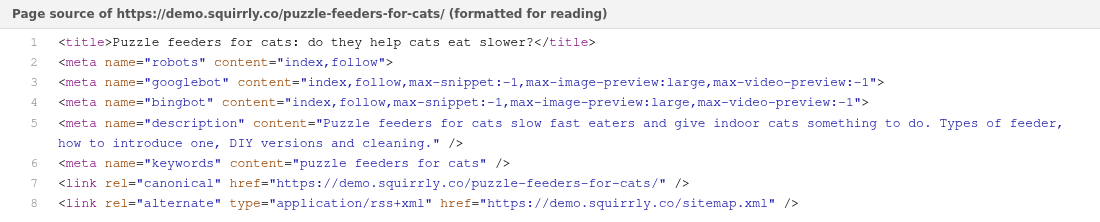
To compare with the page without Squirrly, follow Check the metas with and without Squirrly SEO.
Troubleshooting
SEO Metas is missing from the Technical SEO menu
On-Page SEO METAs is off. Turn it on in Squirrly > All Features.
I only see two switches
The screen is in SEO Beginner mode. Click SEO Expert at the top to show the keywords, canonical, Dublin Core and robots switches.
“SEO Metas is deactivated from Technical SEO > Metas.”
Bulk SEO shows this task message when On-Page SEO METAs is off. Turn it on, then reload Bulk SEO.
The page still shows the theme’s title
Check that Optimize the Titles is on and that Load SEO Metas is on for that post type in Automation, then clear the page cache of your cache plugin.
Frequently asked questions
Can I use another SEO plugin for the metas and Squirrly for the rest?
Yes, switch off On-Page SEO METAs in All Features, but Bulk SEO and the snippet then can’t change the metas.
Does the title length limit cut my custom titles?
No, it only cuts titles built from patterns.
Is Dublin Core on by default?
No, Add Dublin Core Meta is off until you switch it on in SEO Expert mode.
Where do I set a different title for one page?
In the Title field of that page’s SEO Snippet, from Bulk SEO, the post editor or Custom SEO in the admin bar.
Related tutorials
- Bulk SEO: edit the metas of many pages from one list.
- SEO Automation: the title and description patterns for each post type.
- Social Media Settings: the Open Graph and Twitter Card metas.
- Advanced Settings: minify the metas and other Expert switches.
- Check METAs with and without Squirrly SEO: compare a page’s head with the plugin off.