Google Rankings
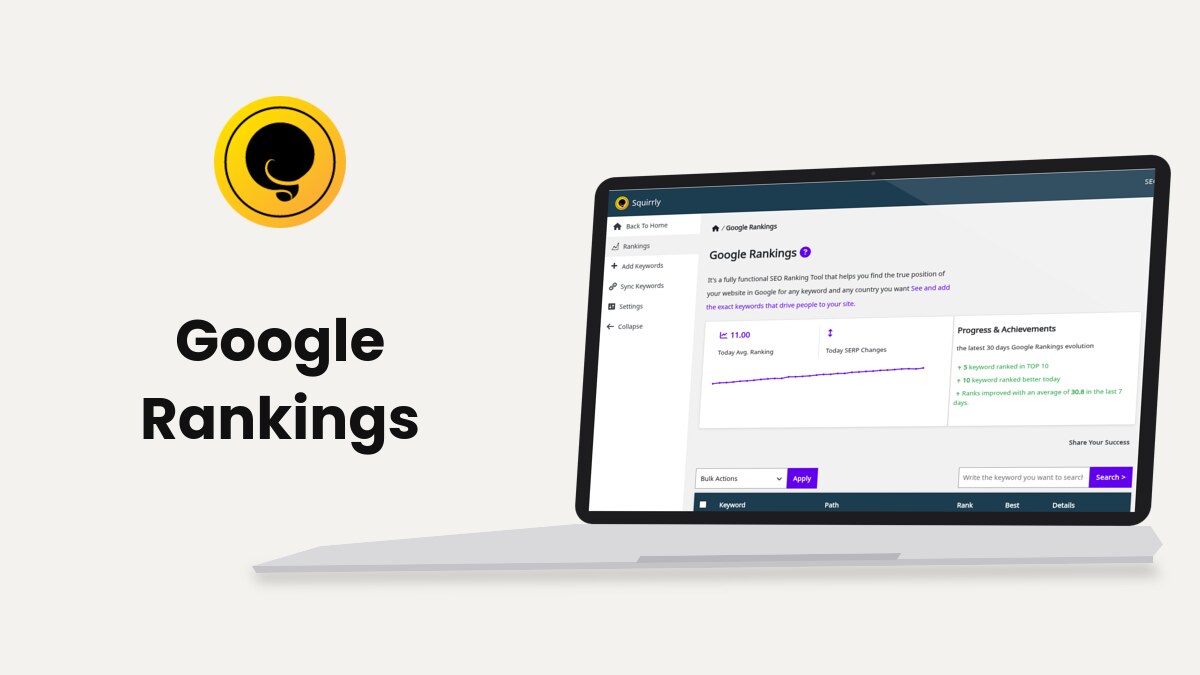
Google Rankings, at Squirrly > Google Rankings, tracks the Google position of the keywords you send to it from the Briefcase or from Google Search Console. It has four screens: Rankings, Add Keywords, Sync Keywords and Settings.
Google Rankings needs the Squirrly SEO Business plan or one of the Web Dev Kit plans. With it you get exact Google positions in many countries, daily change reports, and a manual recheck of any keyword.
The screenshots come from demo.squirrly.co, a test store for cat food, with Squirrly SEO 14.2.9 and the Advanced Pack 2.5.11.
What Google Rankings does
The screen describes itself as “a fully functional SEO Ranking Tool that helps you find the true position of your website in Google for any keyword and any country you want”. Each tracked keyword gets one row with the page of your site found for it, the rank and a rank details window.
Where the rank comes from depends on your Squirrly Cloud plan.
| Your plan | Rank columns | Source of the rank |
|---|---|---|
| With the SERP checker | Rank and Best | The SERP Checker Cloud |
| Without the SERP checker | Avg Rank | Google Search Console, as an average position |
The Rankings Mastery Task text says the Search Console number “does not present the actual position you are on”, and that it can show values such as 4.3. With the SERP checker, the Tips line reads “SERP Checker Business: We update the best ranks for each keyword, daily.”
Google Rankings needs the plugin connected to Squirrly Cloud. The SERP lookups left on your plan show in the Squirrly account block.
Where to find it
All four screens sit in the left menu of Squirrly > Google Rankings.
| Screen | What you do there |
|---|---|
| Rankings | See the tracked keywords, their rank and the rank details |
| Add Keywords | Open keyword research to find new keywords for the Briefcase |
| Sync Keywords | See the keywords Google Search Console has for your site and add them to tracking |
| Settings | Pick the Google country, language and device for the rank checks |
Add keywords to Google Rankings
Keywords reach Google Rankings in two ways: from the Briefcase or from the Search Console list on Sync Keywords. The Mastery Task text says you add and remove keywords here from your Briefcase, to follow one SEO strategy.
From the Briefcase
- Go to Squirrly > AI Research > Briefcase.
- Click Send to Rankings in the Avg Rank column, or Send to Rank Checker in the three-dot menu of the keyword.
- When the link changes to Check Rankings, click it to open the keyword in Google Rankings.
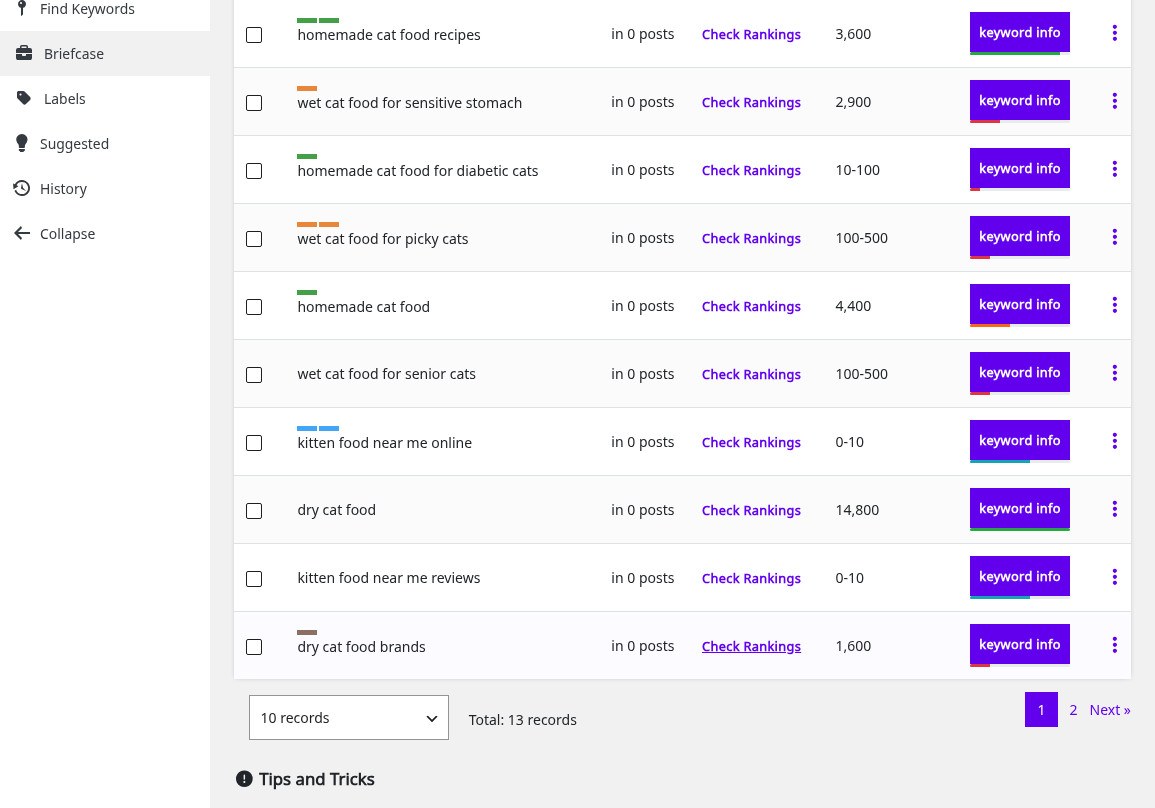
For many keywords at once, tick them in the Briefcase and use Bulk Actions > Send to Rankings. Send keywords to Google Rankings has the Briefcase side of these steps.
Find new keywords first
Squirrly > Google Rankings > Add Keywords opens Keyword Research 1/3 under AI Research. Run the research, save the keywords you pick to the Briefcase, then send them to Rankings as above. How to find new keywords walks through the three steps.
Read the Rankings list
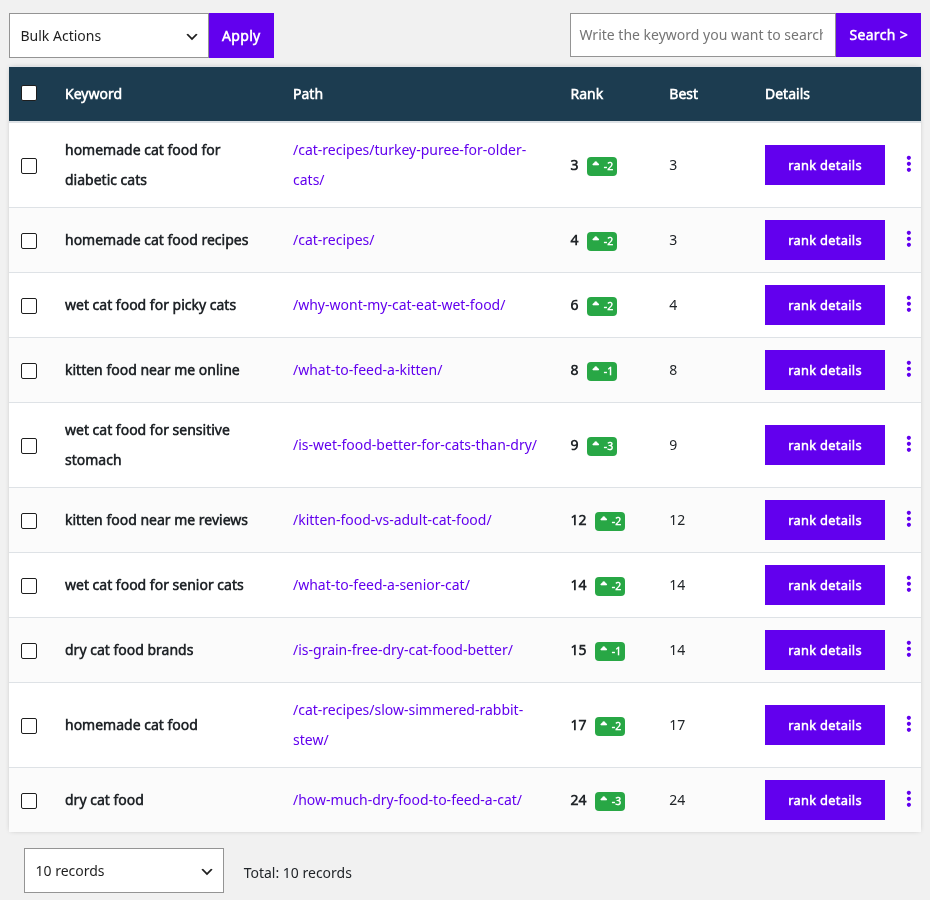
Go to Squirrly > Google Rankings > Rankings. The demo tracks 10 keywords, from “homemade cat food for diabetic cats” at rank 3 to “dry cat food” at rank 24, and the footer reads “Total: 10 records”.
| Column | What it shows |
|---|---|
| Keyword | The tracked keyword |
| Path | The URL of your site found for the keyword, without the domain; / is the home page |
| Avg Rank | The average position from Search Console, or GSC when Search Console has no data for the keyword yet |
| Rank | With the SERP checker: today’s position, Not indexed when the page isn’t in the results, and an up or down badge for the change |
| Best | With the SERP checker: the best position recorded |
| Details | The rank details button |
The demo plan has the SERP checker, so the list shows Rank and Best. Five of its 10 keywords are in the top 10. A green badge such as -2 next to the rank means the keyword moved up two places since the previous check; a red one means it dropped.
Without the SERP checker, a keyword Search Console has no data for shows GSC in Avg Rank. The tooltip on it reads “Google Search Console has no data for this keyword”. A keyword with no URL at all shows the same sentence in the Path column, with a Sync Keywords link.
Use Write the keyword you want to search for and Search > to find one keyword. The list below the table shows 10, 20, 50, 100 or 500 records per page.
Rank details
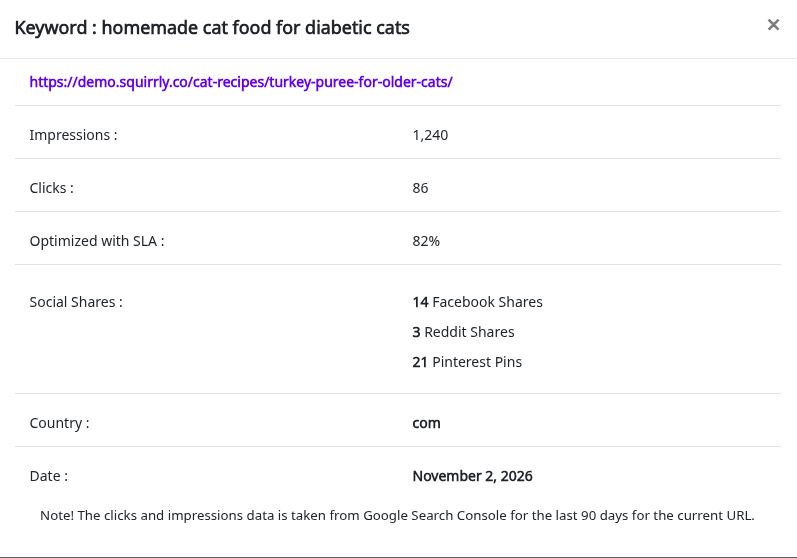
Click rank details on a row. The window shows the URL, then these lines:
| Line | What it shows |
|---|---|
| Impressions | Impressions of the URL, from Search Console |
| Clicks | Clicks on the URL, from Search Console |
| Optimized with SLA | The optimization percentage from the Live Assistant (SLA), or N/A |
| Social Shares | With the SERP checker: Facebook Shares, Reddit Shares and Pinterest Pins |
| Country | The Google country the rank was checked for |
| Date | The date of the check |
The note at the bottom says the clicks and impressions are “taken from Google Search Console for the last 90 days for the current URL”.
Progress & Achievements
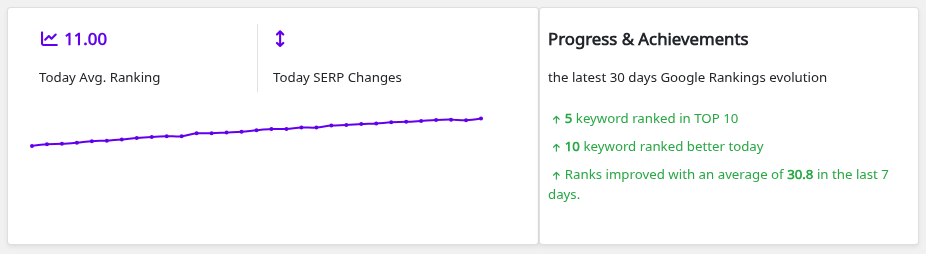
With the SERP checker, two cards sit above the list. The first shows Today Avg. Ranking with a chart, and Today SERP Changes. Click Today Avg. Ranking to show only the ranked keywords, or Today SERP Changes to show only the ones that changed.
The second card, Progress & Achievements, covers the last 30 days. It shows lines such as “keyword ranked better today”, “keyword ranked in TOP 10” and “new keywords in TOP 100”, or “No progress found yet”.
On the demo store, Today Avg. Ranking is 11.00. Progress & Achievements lists “5 keyword ranked in TOP 10” and “10 keyword ranked better today”.
Check a ranking again
- Open the three-dot menu of the keyword.
- Click Check Ranking again.
- Wait for the message “is queued and the rank will be checked soon.” next to the keyword.
With the SERP checker, tick several keywords and use Bulk Actions > Refresh Serp, then Apply. If the check fails, the message is “Could not refresh the rank. Please check your SERP credits here”.
Remove a keyword from Rankings
- Open the three-dot menu of the keyword.
- Click Remove Keyword.
The screen shows “The keyword is deleted.” For several keywords, tick them, pick Delete in Bulk Actions, click Apply and confirm “Are you sure you want to delete the keyword?”.
Connect Google Search Console
Search Console gives the impressions, clicks and average position, and the Sync Keywords list. It’s also one of the three Rankings Mastery Tasks, next to Track your first 3 Keywords and Get 1 Keyword to the first page of Google.
- Add your site in Google Search Console first.
- Go to Squirrly > Technical SEO > Connect Tools.
- Click Sign in next to Google Search Console and log in with the same Google account.
- Check that the field reads “You are connected to Google Search Console”.
Connect Tools covers that screen, and Need help connecting Google Search Console explains the tracking code and the API connection.
Sync keywords from Google Search Console
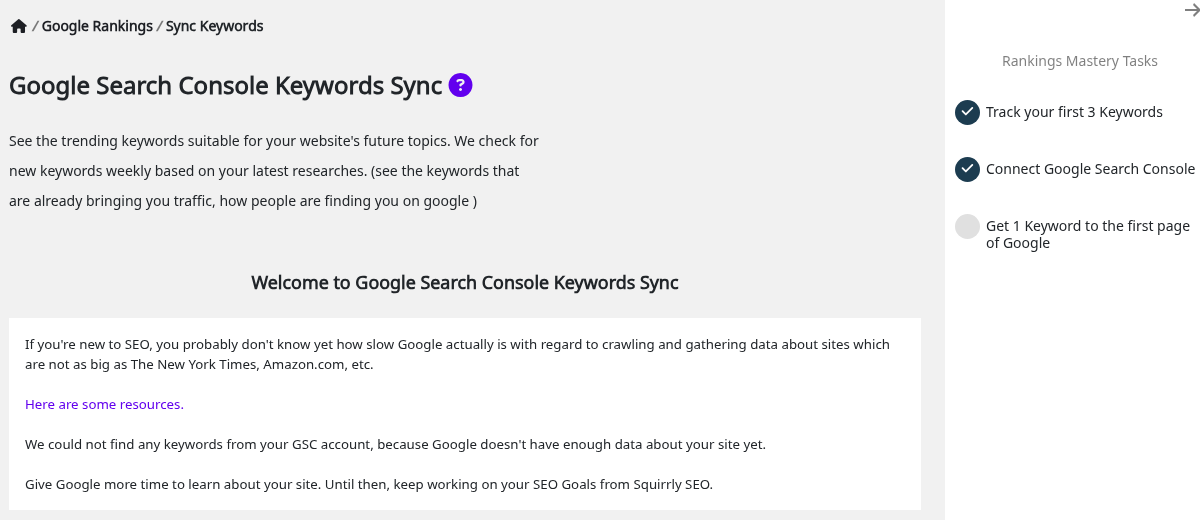
Squirrly > Google Rankings > Sync Keywords opens Google Search Console Keywords Sync, the keywords your site already shows up for in Google. The plugin asks Search Console for up to 100 of them.
- Go to Squirrly > Google Rankings > Sync Keywords.
- Read the Clicks, Impressions, CTR and AVG Position of each keyword.
- Open the three-dot menu of a keyword and click Add to Rank Checker.
A keyword that is already tracked shows Already in Rank Checker in the same menu.
The tip on the screen points to the keywords where you rank 5 and lower. They show up in Google but bring few clicks, “since positions 1-3 get most clicks”.
Rankings Settings
Squirrly > Google Rankings > Settings sets where Squirrly checks the Google rank. The settings are saved in Squirrly Cloud too.
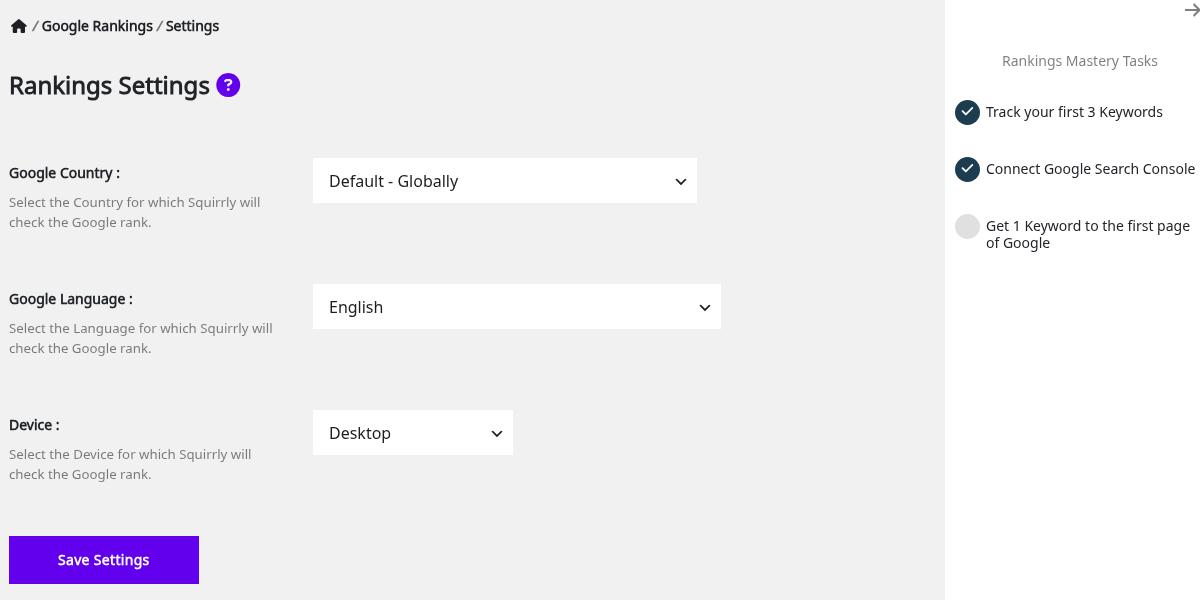
| Label | What it does | Default |
|---|---|---|
| Google Country | Select the Country for which Squirrly will check the Google rank | Default – Globally |
| Google Language | Select the Language for which Squirrly will check the Google rank | English |
| Device | Select the Device for which Squirrly will check the Google rank | Desktop |
Change the ranking country
- Go to Squirrly > Google Rankings > Settings.
- Pick the country in Google Country, for example Germany for a shop that sells in Germany.
- Click Save Settings.
Change the ranking language
- On the same screen, pick the language in Google Language.
- Click Save Settings.
Change the ranking device
- Pick Desktop, Tablet or Mobile in Device.
- Click Save Settings and wait for the message “Saved”.
Troubleshooting
Avg Rank shows “GSC” for every keyword
Search Console has no position data for those keywords yet. Check that Search Console is connected and give Google time to collect data for the page.
“We could not find any keywords from your GSC account, because Google doesn’t have enough data about your site yet.”
Sync Keywords has nothing to list. The screen says to give Google more time to learn about your site and keep working on your SEO Goals in the meantime.
“GSC Token Expired. Reconnect Google Search Console from ‘Technical SEO > Connect Tools’.”
Google ended the Search Console session. Click Disconnect next to Google Search Console on Squirrly > Technical SEO > Connect Tools, then Sign in again.
“Could not refresh the rank. Please check your SERP credits here”
The message points to the SERP credits of your plan. The link in it opens your Squirrly Cloud account, where the SERP Lookups left are listed.
“Welcome to Squirrly Rankings”
No keyword is tracked yet. Click Add keywords in Briefcase and send at least 3 keywords to Rankings to complete the first Mastery Task.
Frequently asked questions
Why is my Avg Rank a decimal like 4.3?
Search Console reports the average position your site had lately, not today’s exact position.
Do I need Google Search Console for Google Rankings?
Without the SERP checker on your plan, yes, because Avg Rank, clicks and impressions all come from Search Console.
How far back do clicks and impressions go?
The rank details use the last 90 days of Search Console data for the URL.
Can an AI assistant read my rankings?
Yes, Connect Squirrly to AI Assistants exposes a Read Google rankings tool.
My page ranked for a few days and then dropped out of the top 100. Why?
This FAQ on ranking changes covers that pattern.
Related tutorials
- Keyword Research and SEO Strategy: find keywords and keep them in the Briefcase.
- Focus Pages & Page Audits: work on the pages that should rank for your keywords.
- Squirrly SEO Live Assistant: the source of the Optimized with SLA score.
- What is the SERP Checker Cloud?: the daily rank checks behind Rank and Best.
- How can I check the Google rank for the articles I optimized with Squirrly?: rankings for optimized posts.