
Free Images in the Media Library
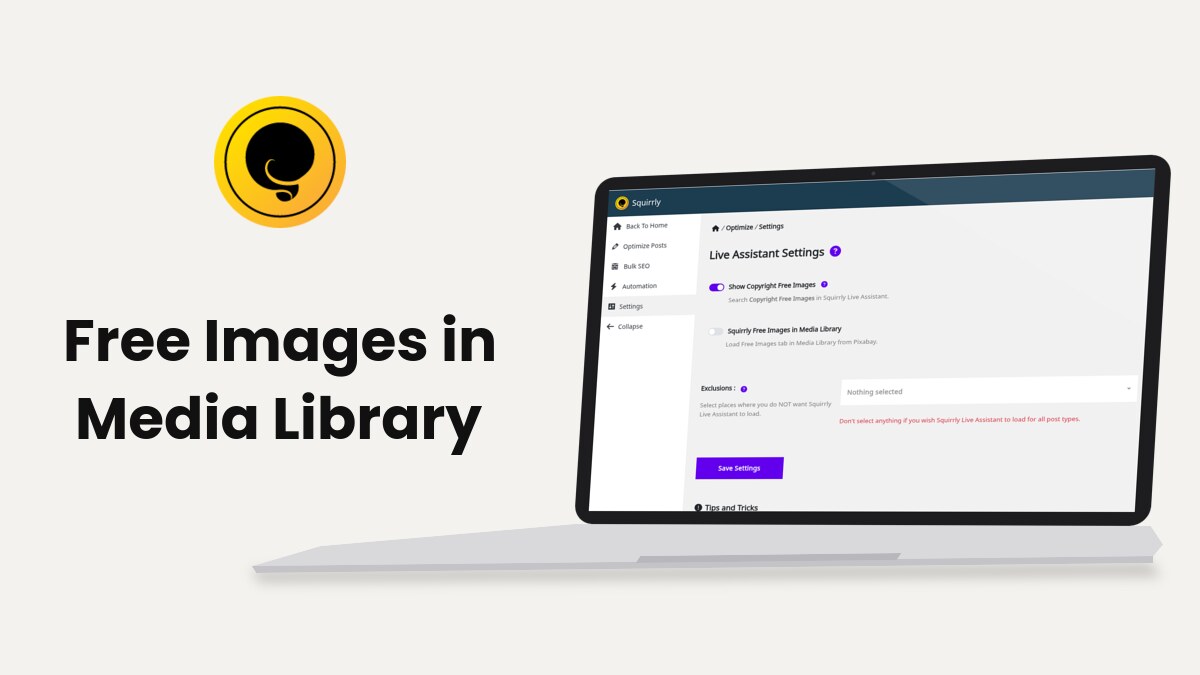
Squirrly Free Images adds a tab to the WordPress Media Library window where you search Pixabay and save a picture to your site with one click. You turn it on at Squirrly > Optimize > Settings with Squirrly Free Images in Media Library, and it needs the Squirrly SEO Advanced Pack.
The screenshots come from demo.squirrly.co, a test store for cat food, with Squirrly SEO 14.2.9 and the Advanced Pack 2.5.11.
What Squirrly Free Images does
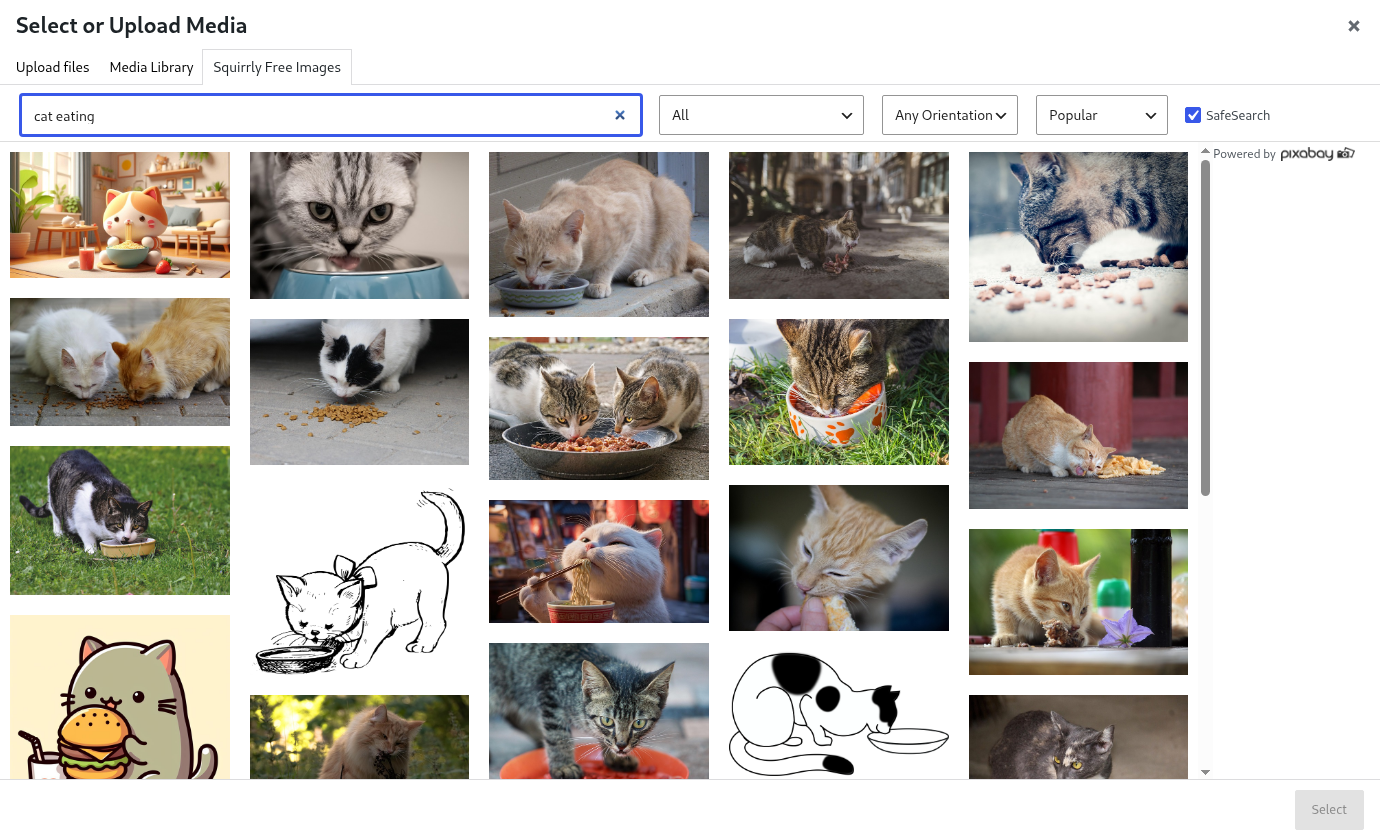
When you open the Media Library window to add an image, a tab called Squirrly Free Images sits next to Upload files and Media Library. It searches the Pixabay image library from inside WordPress. The picture you pick is downloaded into your own Media Library and inserted where you were working.
The feature is separate from Show Copyright Free Images, the first switch on the same settings screen. That one shows free images inside the Live Assistant while you write. The Media Library tab works in any window that opens the Media Library, even with the Live Assistant closed.
| Switch | Where the images show |
|---|---|
| Show Copyright Free Images | The Live Assistant box in the post editor |
| Squirrly Free Images in Media Library | A Squirrly Free Images tab in the WordPress Media Library window |
Where to find it
The switch is on the Live Assistant Settings screen at Squirrly > Optimize > Settings, under Show Copyright Free Images. The line under it reads “Load Free Images tab in Media Library from Pixabay.” It’s off by default.
With the Advanced Pack active, the Copyright Free Images card in Squirrly > All Features also turns this switch on. The card says “Search Copyright Free Images in Media Library and download them directly on your content.”
Turn on the Media Library tab
- Go to Squirrly > Optimize > Settings.
- Turn on Squirrly Free Images in Media Library.
- Click Save Settings.
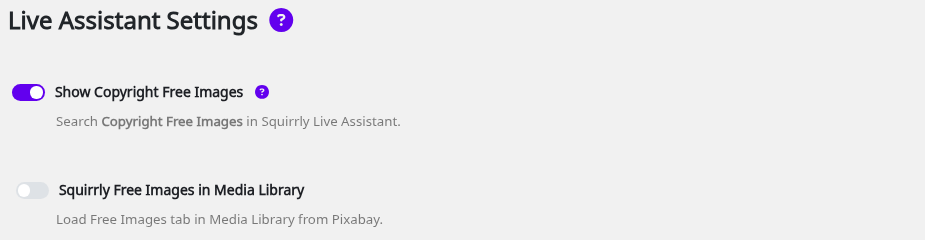
Without the Advanced Pack the switch isn’t on this screen at all. Install the Pack first, then reload Squirrly > Optimize > Settings.
Add a free image to a post
- Open a post or page in the editor and add an Image block, or click the button that opens the Media Library.
- Click the Squirrly Free Images tab.
- Type a word in the search box, which shows “Search – Ex: flowers”. The results appear after a short pause.
- Click a picture to see it large.
- Click Save & Insert. The button reads “Downloading…” while the file is saved.
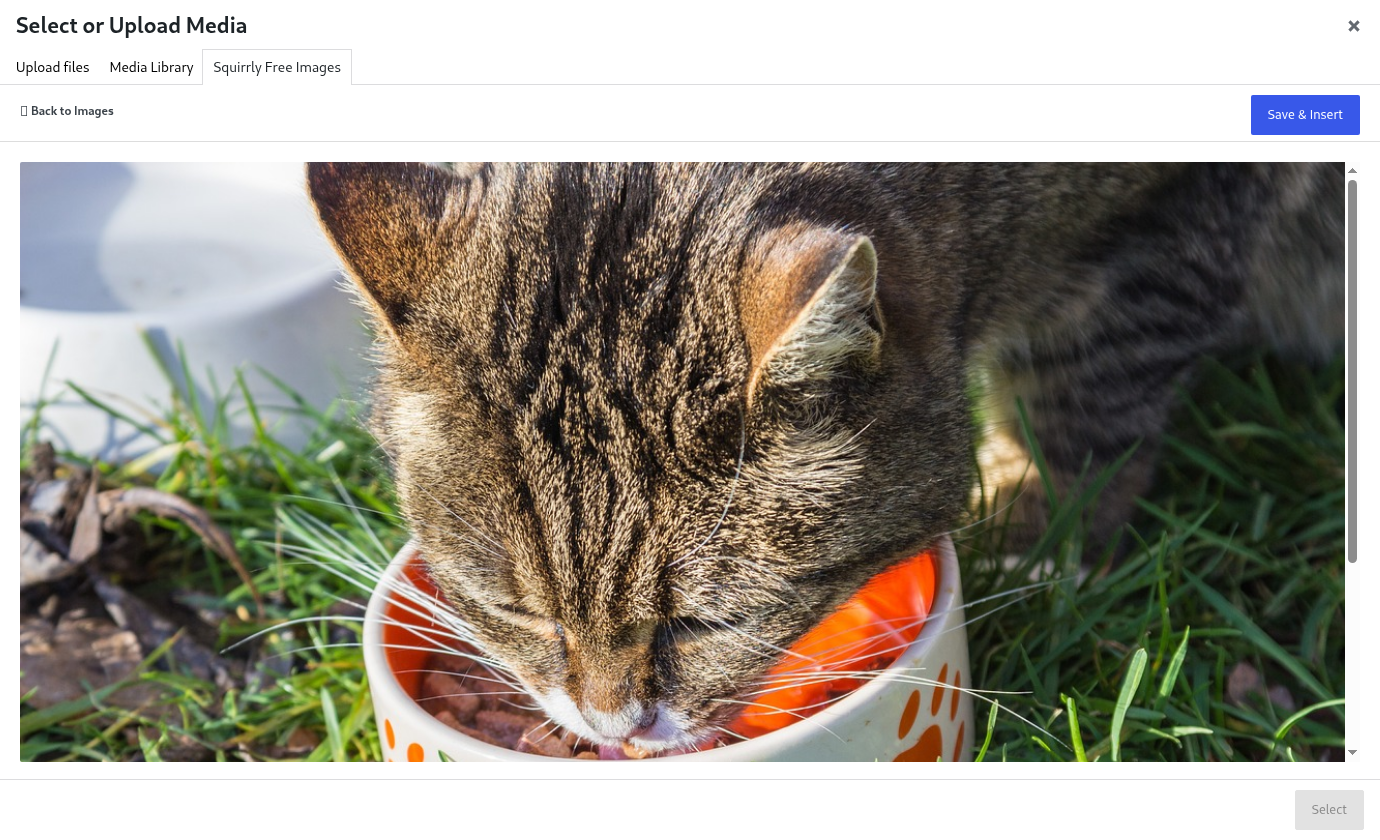
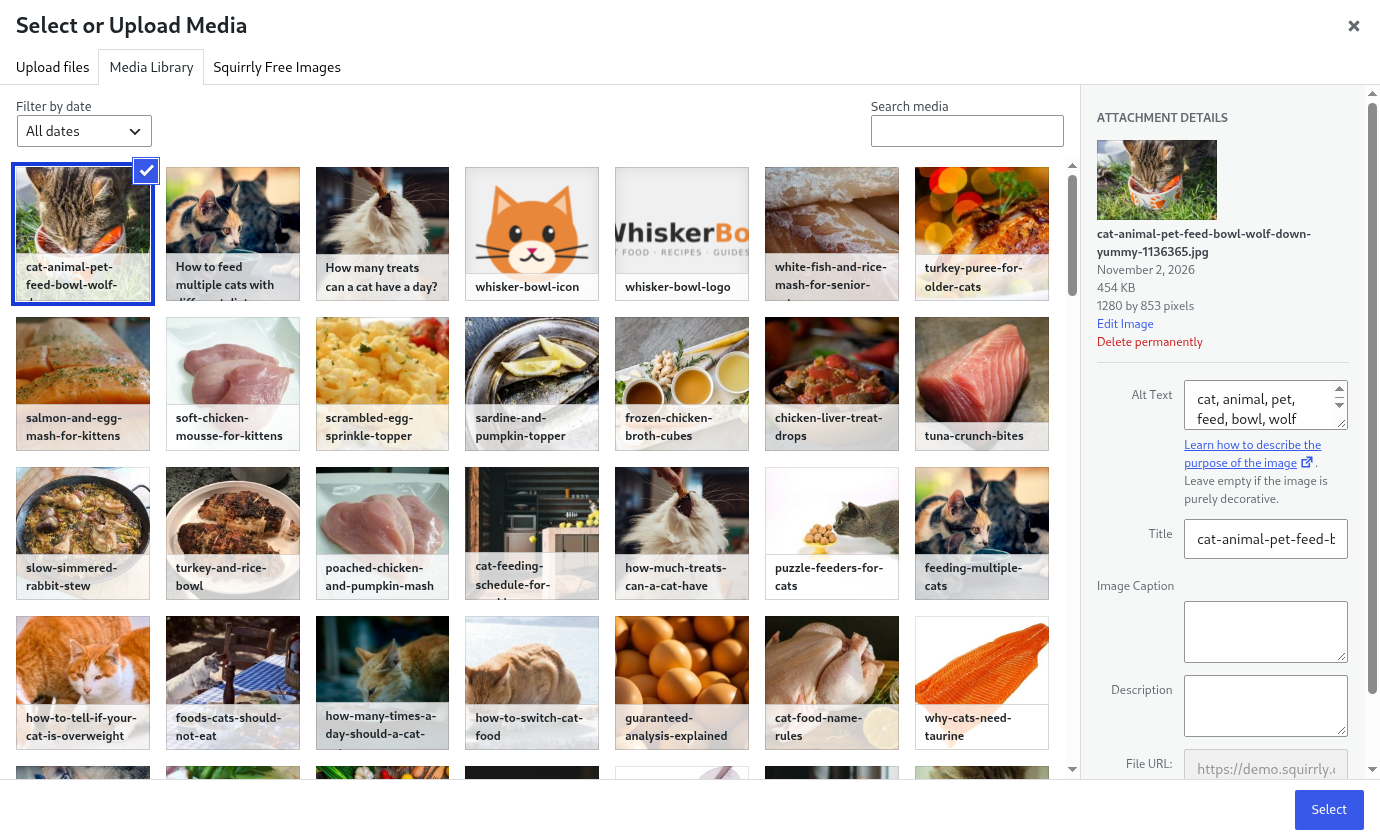
The image lands in your Media Library and goes straight into the block or field that opened the window. Its file name is the Pixabay name followed by the Pixabay image ID, saved as .jpg. To go back to the results without saving, click Back to Images.
A picture you saved before shows Already Saved instead of the button, so you don’t download the same file twice.
Add the alt text
Squirrly fills the alt text with the Pixabay tags of the picture, for example “cat, animal, pet, feed, bowl, wolf down, yummy”. In Advanced Pack 2.5.11 the Pixabay ID and “.jpg” are added at the end too. Open the image in Media > Library and replace the alt text with a short description that uses your keyword where it fits. How Does Squirrly Help with Image SEO? lists what the Live Assistant checks on images.
Use the image in the snippet
A saved picture is a normal Media Library item, so you can also pick it as the image of the post’s SEO snippet, the one social networks show when the post is shared. How To Customize the Squirrly SEO Snippet Image shows where to set it, and Social Media Settings covers the Open Graph defaults.
The Live Assistant counts the image in its checks once it’s in the post, including the alt text you added.
Search filters
Above the results the tab has three lists and one checkbox. The line “Powered by” with the Pixabay logo sits next to them.
| Filter | Choices |
|---|---|
| Category | All, Animals, Architecture/Buildings, Backgrounds/Textures, Beauty/Fashion, Business/Finance, Computer/Communication, Education, Emotions, Food/Drink, Health/Medical, Industry/Craft, Music, Nature/Landscapes, People, Places/Monuments, Religion, Science/Technology, Sports, Transportation/Traffic, Travel/Vacation |
| Orientation | Any Orientation, Vertical, Horizontal |
| Order | Popular, Latest, Upcoming, Editor’s Choice |
| SafeSearch | Ticked by default |
The results load more pictures as you scroll down the tab.
Where the tab shows up
| Place | Tab available |
|---|---|
| Post and page editor (new or existing) | Yes |
| Appearance > Widgets | Yes |
| Elementor editor | Yes |
| Beaver Builder and Brizy editors | Yes, when the builder is open |
| Customizer | Yes |
| Sites with the Starter Templates plugin by Astra (astra-sites) active | No |
In Elementor, the saved image comes back ready to use in an Image widget. The tab doesn’t load on the Media Library screen itself under Media > Library, only in the window that opens from an editor.
Who can use it
The WordPress user needs the right to upload files, which authors, editors and administrators have by default. A user without it gets “You are not allowed to perform this action” when they click Save & Insert. Contributors fall in that group, because WordPress gives their role no upload right.
Turn the tab off
- Go to Squirrly > Optimize > Settings.
- Turn off Squirrly Free Images in Media Library.
- Click Save Settings.
The tab is gone the next time the Media Library window opens. The pictures you already saved stay in Media > Library and in the posts that use them, because they are files on your own site.
Troubleshooting
The Squirrly Free Images tab is missing
Check that Squirrly Free Images in Media Library is on and saved, and that the Advanced Pack is active. On a site with the Starter Templates plugin by Astra, Squirrly doesn’t add the tab.
“Sorry No Results Found.”
Pixabay returned nothing for that word and those filters. Set the category to All and the orientation to Any Orientation, or try a shorter word.
“Could not download the image.”
The server couldn’t fetch the file from Pixabay. Try again, and if it repeats, ask your host whether outgoing requests from WordPress are blocked.
“You are not allowed to perform this action”
Your WordPress role can’t upload files. Ask an administrator to save the image or to change your role.
Frequently asked questions
Does the Media Library tab need the Advanced Pack?
Yes, the switch and the tab both come from the Squirrly SEO Advanced Pack.
Where are the images stored?
In your own WordPress Media Library, like any image you upload.
Can I use the tab and the Live Assistant images together?
Yes, the two switches are independent and both can stay on.
Does it work in the block editor?
Yes, the tab is in the Media Library window that the Image block opens.
Can I save several pictures at once?
No, Save & Insert saves one picture at a time, so repeat the steps for each image.
Why does the same image show Already Saved?
Squirrly remembers the Pixabay IDs you saved, so the button stays disabled for those pictures.
Related tutorials
- Squirrly SEO Live Assistant: copyright free images inside the Live Assistant.
- Blogging Assistant: images, tweets and links while you write.
- How Does Squirrly Help with Image SEO?: alt text and file names.
- SEO Image Fix: Get Main Keyword in Filename: rename images for your keyword.
- Install Squirrly SEO Plugin: set up the plugin and connect it.






0 Comments