
No Category Base
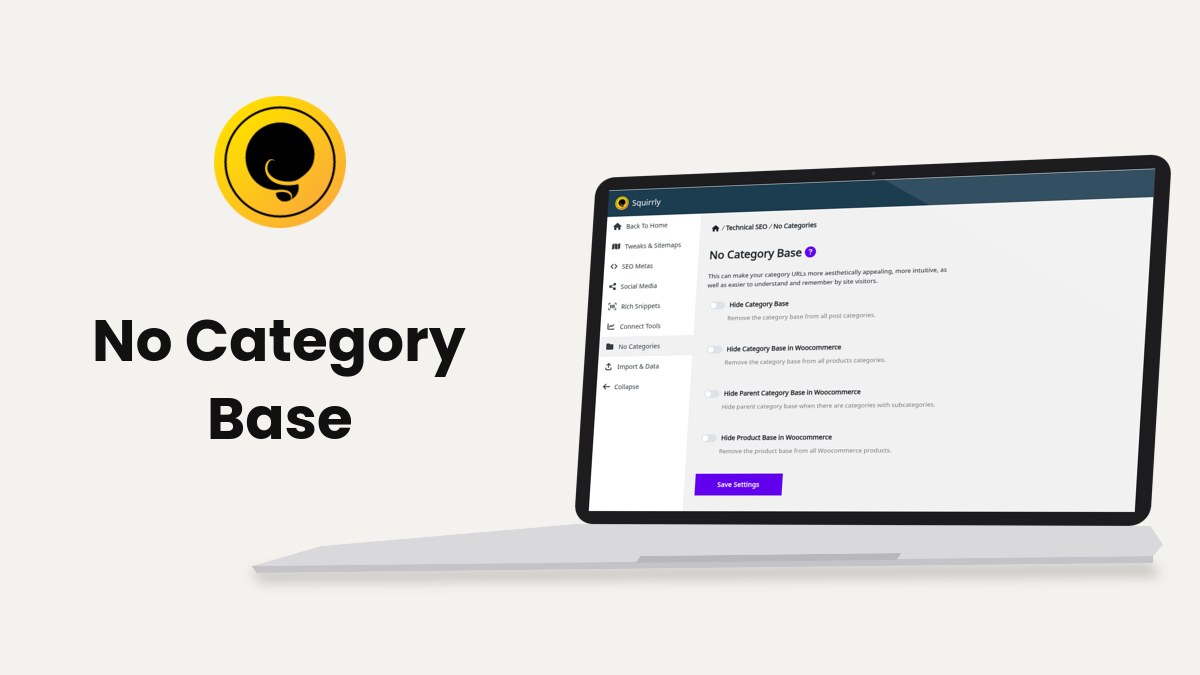
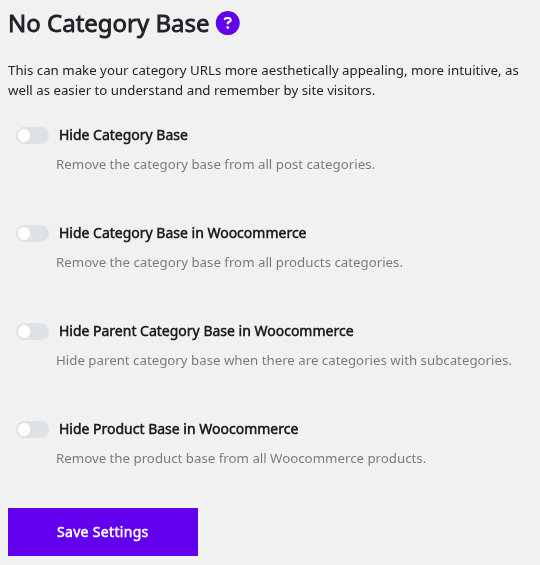
No Category Base is the screen at Squirrly > Technical SEO > No Categories that takes the category base out of your category URLs, and on WooCommerce stores also the product category base, the parent categories and the product base. It needs the Squirrly SEO Advanced Pack.
The screenshots come from demo.squirrly.co, a test store for cat food, with Squirrly SEO 14.2.9, the Advanced Pack 2.5.11 and WooCommerce.
What No Category Base does
WordPress puts a base word in front of every category address, /category/ by default. WooCommerce does the same for product categories and products, with the bases set in Settings > Permalinks. Each switch on this screen removes one of those parts from the links Squirrly prints and adds the rewrite rules so the shorter address opens the right page.
| Switch | Text on the screen | Example of the change |
|---|---|---|
| Hide Category Base | Remove the category base from all post categories. | /category/cat-health/ becomes /cat-health/ |
| Hide Category Base in Woocommerce | Remove the category base from all products categories. | /product-category/wet-food/ becomes /wet-food/ |
| Hide Parent Category Base in Woocommerce | Hide parent category base when there are categories with subcategories. | /product-category/wet-food/pate/ becomes /product-category/pate/ |
| Hide Product Base in Woocommerce | Remove the product base from all Woocommerce products. | /product/salmon-pate/ becomes /salmon-pate/ |
The slugs in the last column are examples, written with the WordPress and WooCommerce default bases. All four switches are off by default.
Where to find it
Go to Squirrly > Technical SEO and click No Categories in the left menu. The screen title is No Category Base.
Without the Advanced Pack, the tab shows the message “This amazing feature isn’t included in the basic plugin.” and the button Install/Activate Squirrly SEO – Advanced Pack. The three WooCommerce switches only show on sites where WooCommerce is installed.
The feature also has a card called No Category Base in Squirrly > All Features. The card turns on Hide Category Base and opens this screen.
How to remove the category base
- Download a settings backup from Import & Data, so you can go back.
- Go to Squirrly > Technical SEO > No Categories.
- Turn on Hide Category Base.
- On a WooCommerce store, turn on the WooCommerce switches you want.
- Click Save Settings. The message “Saved!” confirms it.
Squirrly refreshes the WordPress rewrite rules after the save. It refreshes them again each time you add, edit or delete a category, so new categories get the short address too.
Check the new addresses
- Open a post category on the front end of the site, for example from a category widget or the menu.
- Look at the address bar. The category base should be gone.
- Type the old address with the base. It should send you to the new address with a 301. If it shows a 404 or another page, add a 301 rule for it in Redirects.
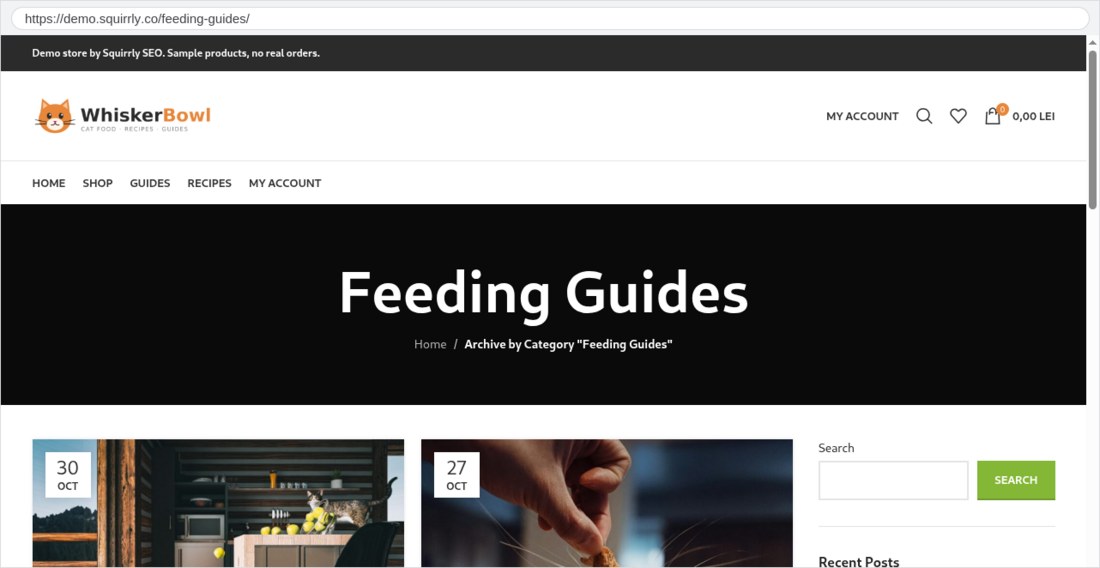
Search engines and other sites may still link to the old addresses for a while. A redirect rule sends those visits to the new page. Your Squirrly sitemap lists the links WordPress prints, so it shows the new addresses after the change.
WooCommerce options
These three switches read the bases from the WooCommerce part of Settings > Permalinks, so they follow whatever words your store uses there instead of the defaults.
Hide Category Base in Woocommerce
Removes the product category base, the one set as Product category base in Settings > Permalinks, from every product category link.
Hide Parent Category Base in Woocommerce
For a subcategory, the link keeps only the subcategory slug and drops the parent categories in front of it. Use it together with the switch above to get a category address with one slug only.
Hide Product Base in Woocommerce
Removes the product base from every product link, so a product sits right after the domain name. If the product base in Permalinks includes %product_cat%, Squirrly removes the fixed part around it. The change is skipped in the Elementor preview, so the editor keeps working.
With the product base gone, a product, a page and a category can ask for the same address. How Can I Avoid URL Conflicts in WordPress When Managing Pages and Categories? covers that case.
Multilingual sites
On a site with WPML, Squirrly reads the categories of every language when it builds the rewrite rules, so translated categories get the short address too. WPML language switcher links to product categories keep their parent categories.
On a site with Polylang, the WooCommerce rules add each product category with its language prefix in front, for example /fr/ before the slug. Sitemap XML Settings covers the Polylang sitemap side.
Turn it off again
- Go to Squirrly > Technical SEO > No Categories.
- Turn off the switches you no longer want.
- Click Save Settings.
- Open a category on the front end and check that the base is back in the address.
The short addresses stop working once the base is back. If they were live for a while, add rules in Redirects from the short address to the long one, the opposite of the rules you added when you turned the switch on.
Before you turn it on
- The switches only work with pretty permalinks. With Plain selected in Settings > Permalinks, the links stay as they are.
- Deactivating the Advanced Pack removes the rewrite rules, and the category base comes back in every link.
- Changing addresses on a live site changes the URLs Google has indexed. Plan the redirects before you save.
Troubleshooting
The category links still show /category/
Check that the permalinks are not set to Plain, then clear your cache plugin. Pages saved in the cache keep the old links until they are built again.
A category or product returns a 404 after the change
Open Settings > Permalinks and click Save Changes without changing anything, which makes WordPress rebuild the rewrite rules. If a page uses the same slug as the category, rename one of them.
The WooCommerce switches are missing
They only show when WooCommerce is installed on the site.
The No Categories tab shows the Install/Activate button
The Squirrly SEO Advanced Pack is not active. Click Install/Activate Squirrly SEO – Advanced Pack, then open the tab again.
Frequently asked questions
Does No Category Base need the Advanced Pack?
Yes, without the Pack the tab only shows the Install/Activate Squirrly SEO – Advanced Pack button.
Can I remove the product base without touching categories?
Yes, each of the four switches works alone.
What happens if I deactivate the Advanced Pack later?
Squirrly removes its rewrite rules and WordPress goes back to the category base.
Do I need to change the permalink structure?
No, keep the structure you have in Settings > Permalinks, as long as it isn’t Plain.
Will my menus show the new addresses?
Yes, category and product items in WordPress menus use the link WordPress builds, so they change with the switches.
Does it change tag URLs?
No, the switches cover post categories, product categories and products only.
Related tutorials
- How to Remove the Category Base from WordPress using Squirrly SEO: the short version the plugin links to.
- Advanced Redirects Module: redirect the old category addresses.
- How Can I Avoid URL Conflicts in WordPress?: pages and categories with the same slug.
- How To Remove Category Feed?: another category cleanup.
- Sitemap XML Settings: the sitemap that lists the new addresses.







0 Comments