Add Custom Twitter Card Metadata

Squirrly SEO lets you change the Twitter Card of one page from the Twitter Card tab of its SEO Snippet, and of many pages at once with the sq_twitter_card filter. X reads these tags to build the preview of a shared link.
The global settings, like the default image and your X account, are in Social Media Settings. The examples come from demo.squirrly.co with Squirrly SEO 14.2.9.
The tags Squirrly writes
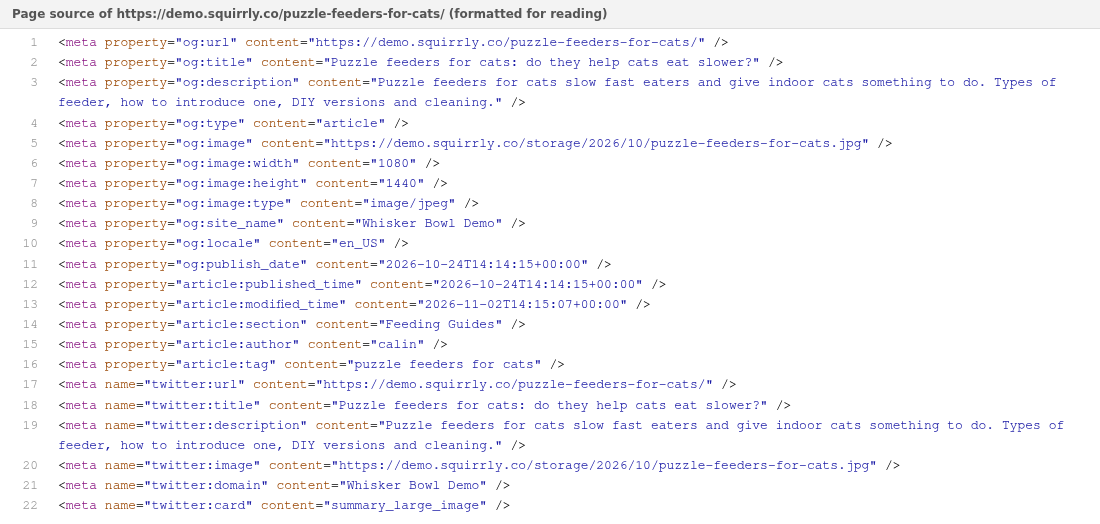
Twitter Card tags use name instead of property. This is the full set Squirrly printed on the demo post “How to feed multiple cats with different diets”:
<meta name="twitter:url" content="https://demo.squirrly.co/feeding-multiple-cats/" />
<meta name="twitter:title" content="How to feed multiple cats with different diets" />
<meta name="twitter:description" content="Practical ways to feed cats on different diets in one home: separate rooms, timed meals, height, microchip feeders and supervised mealtimes." />
<meta name="twitter:image" content="https://demo.squirrly.co/storage/2026/10/feeding-multiple-cats.jpg" />
<meta name="twitter:domain" content="Whisker Bowl Demo" />
<meta name="twitter:card" content="summary_large_image" />
<meta name="twitter:creator" content="@twitter" />
<meta name="twitter:site" content="@twitter" />| Tag | Where Squirrly takes it from |
|---|---|
twitter:url | The URL of the page |
twitter:title | The Twitter Card title, or the SEO title cut at Twitter Card Title Length |
twitter:description | The Twitter Card description, or the meta description cut at Twitter Card Description Length |
twitter:image | The snippet image, the images of the post, then the Default Twitter Card Image |
twitter:domain | The WordPress Site Title |
twitter:card | The Card Type of the page, or Share Large Images |
twitter:site, twitter:creator | The account in Twitter Profile URL |
These lines show @twitter because Twitter Profile URL had its Squirrly SEO 14.2.9 default value, https://twitter.com/twitter, when the example was taken on the demo. Change it in Social Media Accounts before anything else.
Change the Twitter Card of one page
- Open the page in the editor and scroll to the SEO Snippet box, or click the page’s dot in the Twitter Card column of Squirrly > Optimize > Bulk SEO.
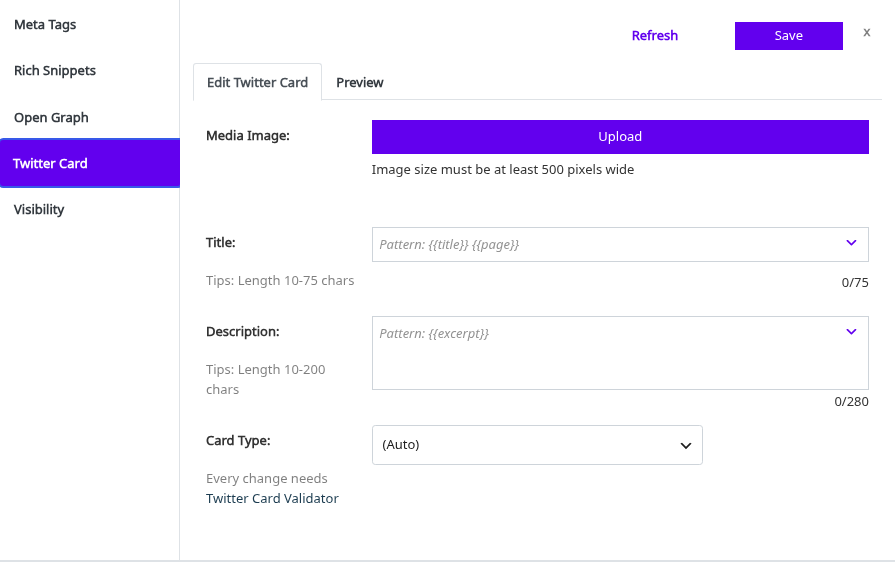
- Open the Twitter Card tab and click Edit Twitter Card.
- Click Upload under Media Image and pick an image at least 500 pixels wide.
- Write the Title and the Description, or leave them on the pattern.
- Pick a Card Type: (Auto), summary or summary_large_image.
- Click Save.
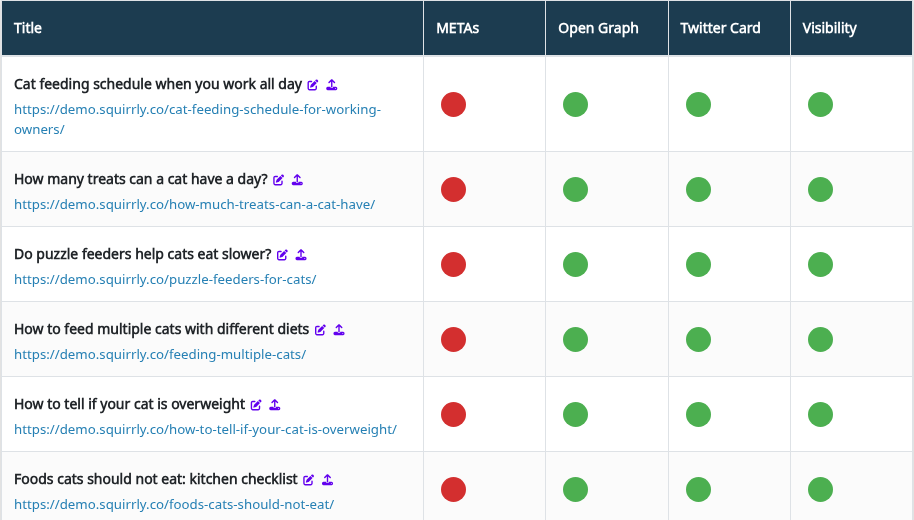
(Auto) follows Share Large Images in the Social Media settings. The preview is titled “How this page appears on X.com”, and Validate Card links to the Twitter Card Validator. Bulk SEO explains the tasks behind the dots, such as TC title not empty and TC Image.
Example on the demo store
The Twitter Card tab works like the Open Graph tab. The page source shows the twitter: tags that come out:
Change the Twitter Card with a filter
sq_twitter_card passes the tags as an array with the tag name as the key. Squirrly fills it at priority 9, adds the account at 10 and prints the tags at 99, so use priority 11.
add_filter( 'sq_twitter_card', function ( $tw ) {
    // Credit the post author's own X account on blog posts
    if ( is_singular( 'post' ) ) {
        $handle = get_the_author_meta( 'x_handle' ); // example user field
        if ( $handle ) {
            $tw['twitter:creator'] = '@' . ltrim( $handle, '@' );
        }
    }
    return $tw;
}, 11 );
The x_handle user field is an example, so use the field your site keeps the handle in. Put the code in the functions.php of a child theme or in a small plugin.
| To | Do this in the filter |
|---|---|
| Change a tag | $tw['twitter:title'] = 'New title'; |
| Add a tag | $tw['twitter:image:alt'] = 'Text'; |
| Remove a tag | unset( $tw['twitter:domain'] ); |
The Open Graph version of this filter is in Add Custom Open Graph Metadata. Each value must be text. Squirrly prints every key as <meta name="key" content="value" />, and the filter runs only while Twitter Card Optimization is on in Squirrly > All Features.
Troubleshooting
The card names @twitter
Change Twitter Profile URL in Squirrly > Technical SEO > Social Media > Social Media Accounts and click Save Settings.
twitter:creator is missing
Squirrly adds twitter:creator only when Share Large Images is on. Turn it on in SEO Expert mode, or add the tag with the filter.
No Twitter Card tags on a post type
Load Squirrly Twitter Card is off for it in Squirrly > Optimize > Automation. Turn it on and click Save Settings.
Frequently asked questions
Is twitter:image the same as og:image?
Only by default, because both follow the snippet image, then the post images, then the default image set for each network.
Can the X image differ from the Facebook image?
Yes, the Twitter Card and Open Graph tabs of the SEO Snippet each have their own Media Image.
Do other plugins’ twitter: tags stay on the page?
No, while Twitter Card Optimization is on Squirrly removes the other twitter: tags.
Related tutorials
- Social Media Settings: the default image, Share Large Images and your X account.
- Add Custom Open Graph Metadata: the same for Facebook and LinkedIn.
- Bulk SEO & Snippet: fix the Twitter Card of many pages from one list.
- Automation: turn the Twitter Card on or off for each post type.