Add Custom Canonical Link
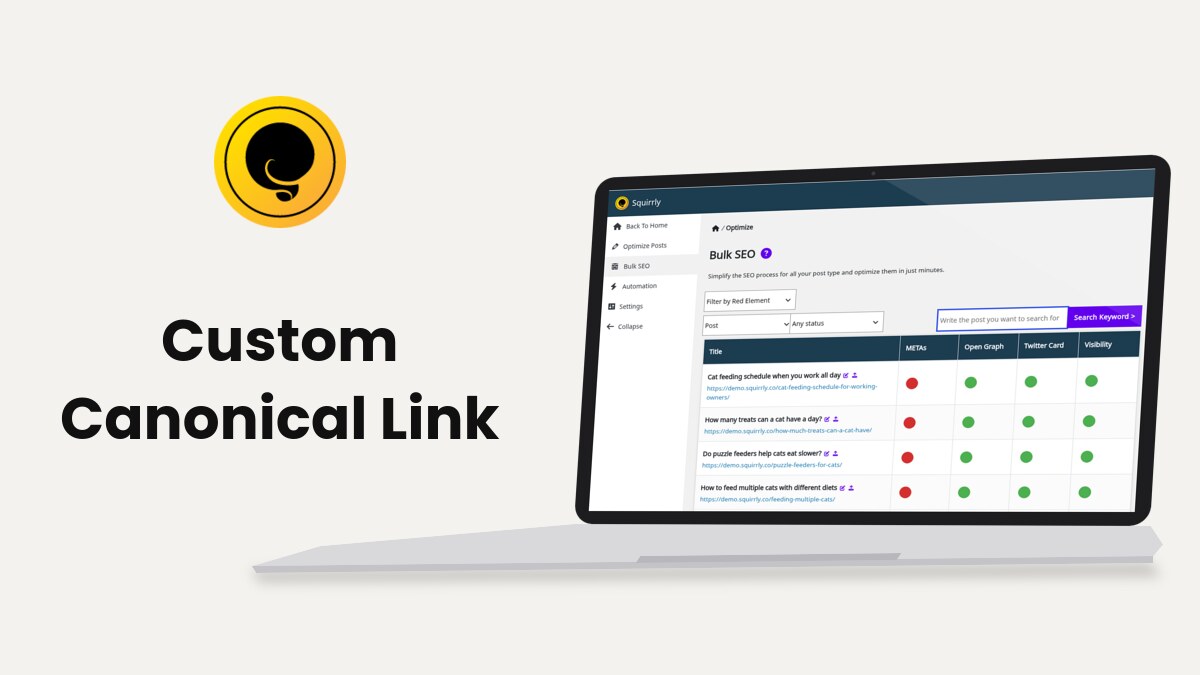
A canonical link tells search engines which address is the original of a page. Squirrly SEO writes <link rel="canonical"> with the page’s own URL, and you can point it to another URL from the SEO Snippet or with the sq_canonical filter.
Use a custom canonical when the same article lives at two addresses. For example, a post first published on LinkedIn and copied to your blog can name the LinkedIn URL as its canonical, so search engines show that one.
Before you start
The canonical needs Add Canonical Meta Link on in Squirrly > Technical SEO > SEO Metas. It is on by default and shows in SEO Expert mode. The Canonical link field of the snippet is also an SEO Expert mode field, so click SEO Expert at the top of any Squirrly screen first. SEO Metas explains the switch.
Set the canonical of one page
- Go to Squirrly > Optimize > Bulk SEO, or open the page in the editor and scroll to the SEO Snippet box.
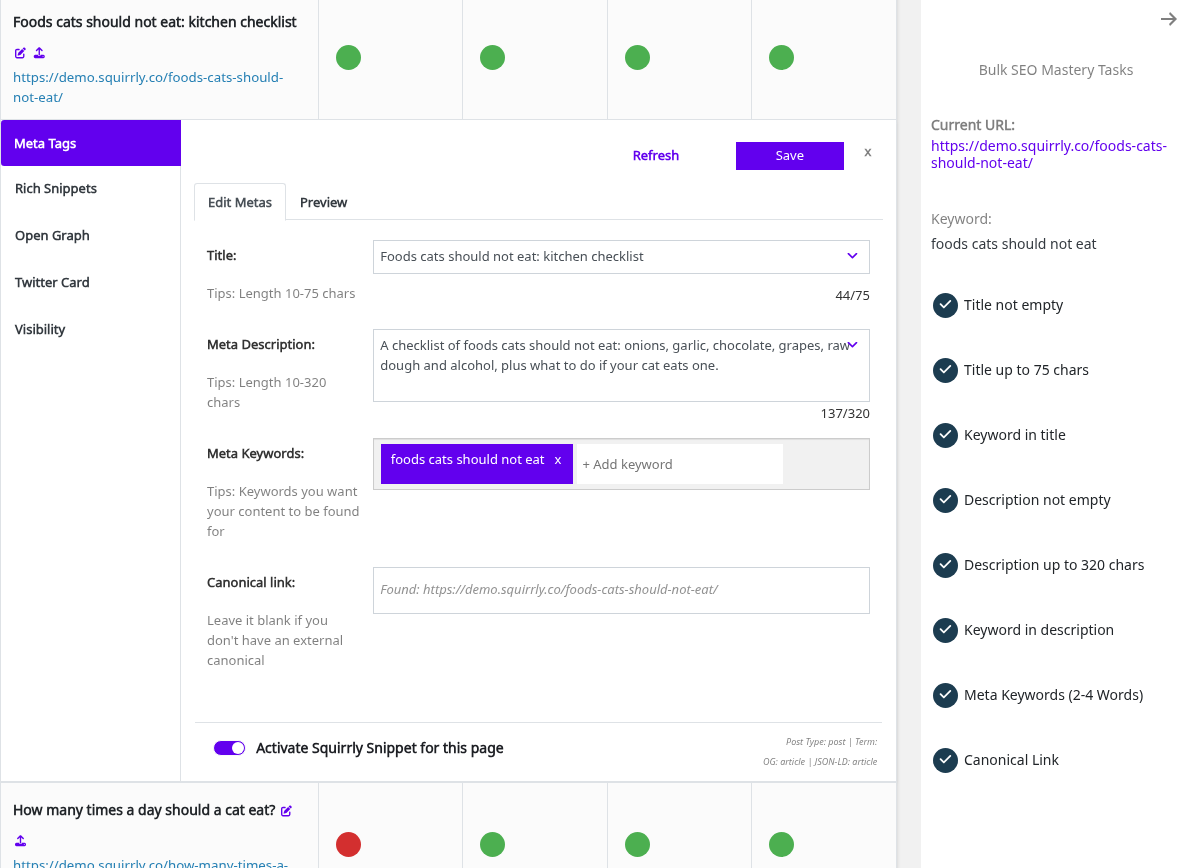
- Click the METAs dot of the page, then Edit Metas.
- Paste the full original address in Canonical link.
- Click Save.
The hint under the field says “Leave it blank if you don’t have an external canonical”. An empty field keeps the page’s own URL. In Bulk SEO, the Canonical Link task turns red while the canonical points to another URL, so you can find those pages later with Filter by Red Element.
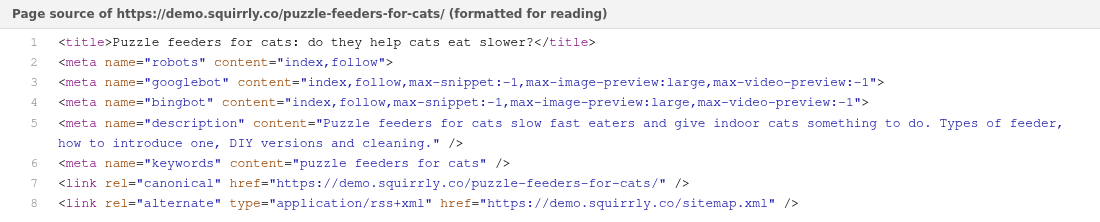
The page source then shows the line, for example:
<link rel="canonical" href="https://www.linkedin.com/pulse/your-article/" />Squirrly removes any other canonical, prev and next links from that page, so only its own canonical stays.
Example on the demo store
Leave Canonical link empty on a normal page: the field shows the URL Squirrly finds by itself, and that URL goes into the page source.
Change the canonical with the sq_canonical filter
Add the code to your child theme’s functions.php or a code snippets plugin. Change 123 to your post ID and the address to the original.
add_filter( 'sq_canonical', 'my_squirrly_canonical', 11 );
function my_squirrly_canonical( $canonical ) {
    if ( get_queried_object_id() === 123 ) {
        return esc_url( 'https://www.linkedin.com/pulse/your-article/' );
    }
    return $canonical;
}
At priority 11 the filter gets the URL only. Squirrly builds the <link> tag at priority 99. Return $canonical for the other pages, or they lose their canonical link.
Frequently asked questions
Why don’t I see the Canonical link field?
It only shows in SEO Expert mode, with Add Canonical Meta Link on.
Should I set the canonical to the page’s own URL?
No, leave the field empty and Squirrly writes the page’s own URL.
Does a custom canonical also redirect visitors?
No, for that use the 301 Redirect field in the Visibility tab of the snippet.
Related tutorials
- SEO Metas: the canonical, robots and other meta switches.
- Bulk SEO: the snippet of every page in one list.
- Add Custom Noindex Meta: keep a page out of search results instead.
- Check METAs with and without Squirrly SEO: see the canonical Squirrly writes.