Connect Tools
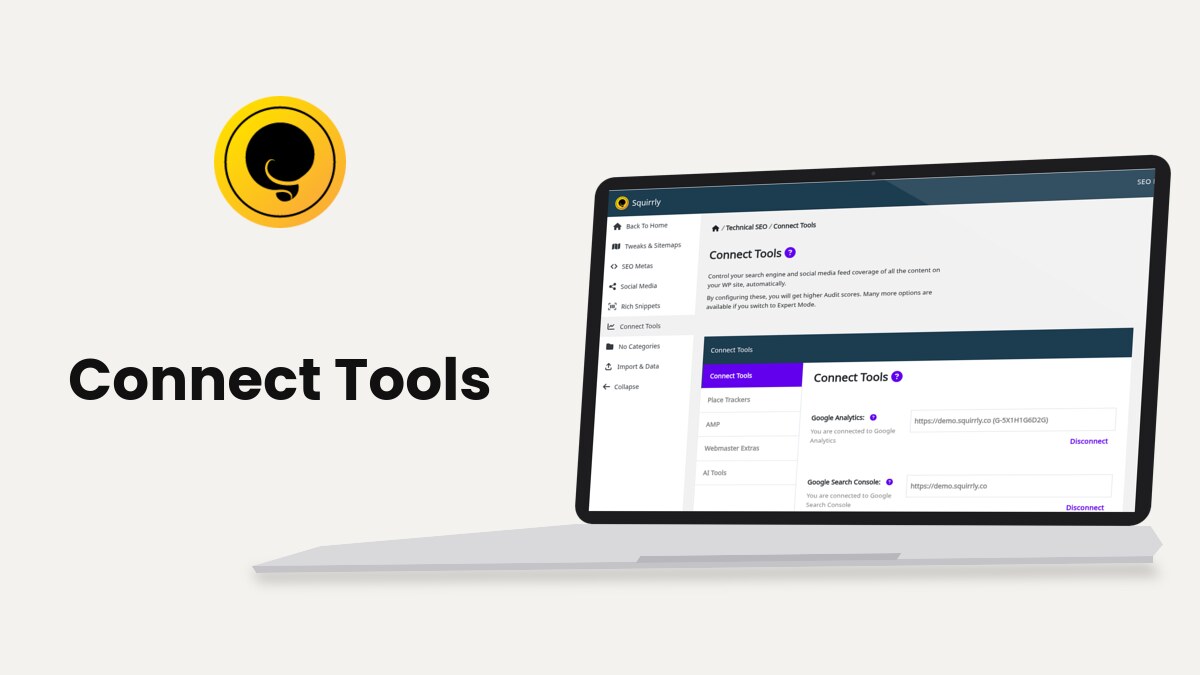
Connect Tools sits at Squirrly > Technical SEO > Connect Tools and links your site to Google Analytics and Google Search Console, places the tracking codes and adds the verification tags for other webmaster tools. The page has five tabs: Connect Tools, Place Trackers, AMP, Webmaster Extras and AI Tools.
The screenshots come from demo.squirrly.co, a test store for cat food, with Squirrly SEO 14.2.11 and the Advanced Pack 2.5.12.
What Connect Tools does
The first tab signs the site in to Google through Squirrly Cloud, so the plugin can read traffic from Google Analytics and clicks from Google Search Console. The other tabs only write code into your pages: the Google Analytics script, the Facebook Pixel and the verification meta tags.
The whole page needs the plugin connected to Squirrly Cloud. Fields marked for Expert Mode only show after you click SEO Expert in the top bar of any Squirrly screen.
Where to find it
Open Squirrly > Technical SEO and click Connect Tools in the left menu. Some tabs only appear when their feature is on in Squirrly > All Features.
| Tab | What you set there | Shows when |
|---|---|---|
| Connect Tools | Google Analytics and Google Search Console sign-in | Always |
| Place Trackers | Google Analytics ID, Facebook Pixel, Google Search Console code | Google Analytics Tracking, Facebook Pixel Tracking or Webmaster Tools is on |
| AMP | Load the AMP Support on AMP pages | Always |
| Webmaster Extras | Bing, Baidu, Yandex, Pinterest and Norton codes | Webmaster Tools is on |
| AI Tools | The connection for Claude, ChatGPT and other AI assistants | Always |
Connect Google Analytics and Google Search Console
- Go to Squirrly > Technical SEO > Connect Tools. The Connect Tools tab opens first.
- Next to Google Analytics, click Sign in. A Google window opens. Pick the Google account that owns the property.
- Back in WordPress, click Check connection. The line under the label changes to “You are connected to Google Analytics”.
- If the account has more than one property, pick yours in the list and confirm “Do you select this property?”. The list shows the properties whose address matches your site, or all of them when none match.
- Repeat steps 2 and 3 for Google Search Console. Add the site to Search Console first, as How To Add Your WordPress Site To Google Search Console shows.
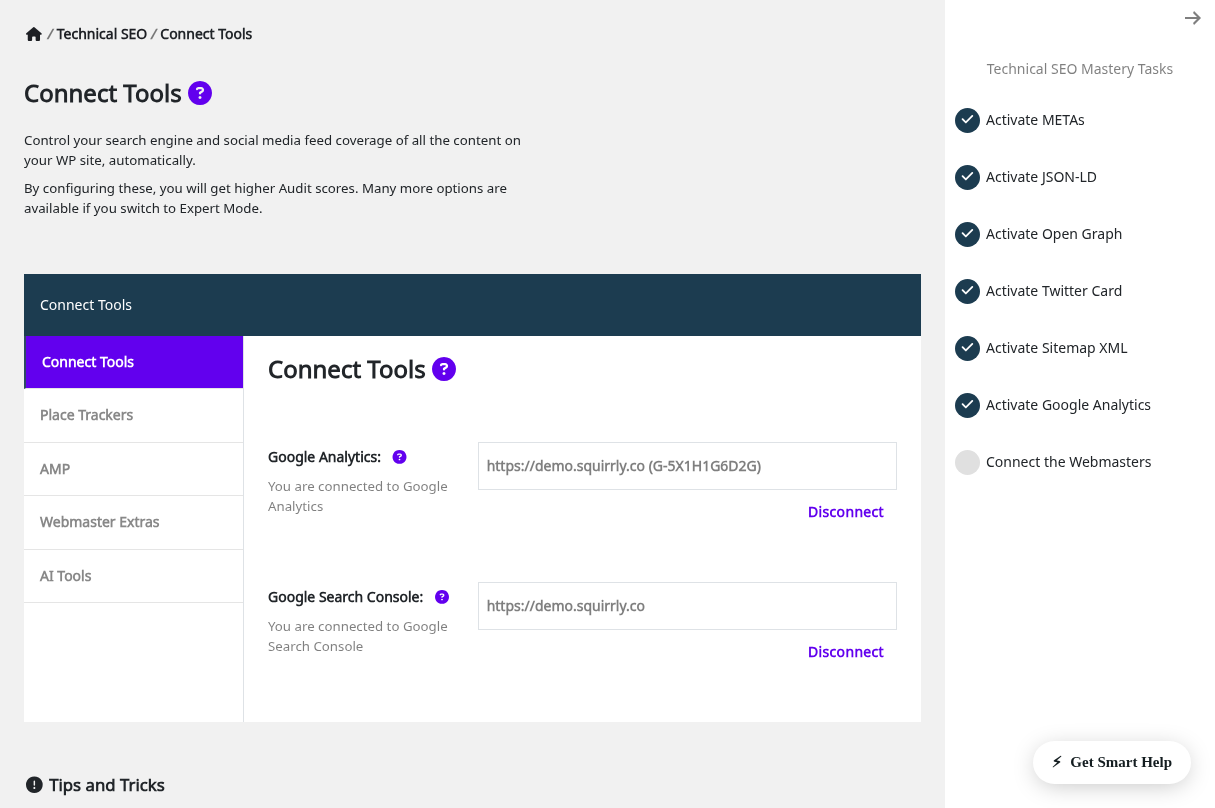
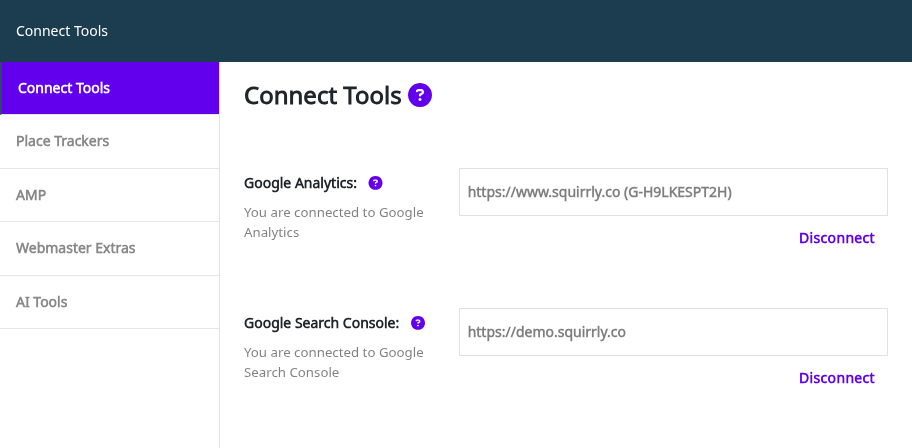
To remove a connection, click Disconnect under it and confirm “Are you sure?”. The message “Google Analytics account is disconnected.” or “Google Search Console account is disconnected.” confirms it.
The sign-in only gives Squirrly the data. It doesn’t add the tracking script to your pages. That part is on the next tab.
Place the tracking codes
The Place Trackers tab writes the Google Analytics script and the Facebook Pixel into the pages of your site.
- Go to Squirrly > All Features and turn on Google Analytics Tracking, Facebook Pixel Tracking or both.
- Go to Squirrly > Technical SEO > Connect Tools and open Place Trackers.
- Fill in the fields described below.
- Click Save Settings.
The scripts load on every post type that has them turned on in Automation, through Load Google Analytics Tracking Script and Load Facebook Pixel Tracking Script.
Google Analytics ID and tracking mode
Type the measurement ID in Google Analytics ID. The field takes “UA-XXXX or G-XXXX”. When Google Analytics is connected on the first tab, the Get GA Code button fills the ID for you.
Google Tracking Mode (Expert Mode) picks the script. An ID that starts with G- switches it to gtag.js, and an ID that starts with UA- switches it to analytics.js. The screen says to choose gtag.js for Google Tag Manager or Google Analytics 4.
If you paste the whole tracking snippet, the plugin keeps only the ID. Anything that isn’t a UA- or G- ID is rejected with “The code for Google Analytics is incorrect.” How to Get the Google Analytics Tracking Code shows where Google lists the ID.
Facebook Pixel
Type the Pixel ID in Facebook Pixel. It must be numbers only, otherwise you get “The code for Facebook Pixel must only contain numbers.”
Squirrly sends PageView, plus ViewContent on posts and products and Search on search results. On a WooCommerce store it also sends AddToCart when a product is added from its page, InitiateCheckout on the checkout page and Purchase on the order received page.
Google Search Console code
The Google Search Console field adds the google-site-verification meta tag to your home page. Click Get GSC Code to fetch it from a connected account, or paste the tag from Google. Webmaster Extras explains the field in more detail.
Load Tracking for Logged Users
This Expert Mode switch is off by default. While it’s off, logged-in visitors don’t load the Google Analytics script or the Pixel, so your own visits as an admin stay out of the reports. Turn it on for a membership site where logged-in members are the traffic you want to measure.
The switch below it, Track IP addresses in Google Analytics, is on by default. Turn it off and the script adds IP anonymization (anonymize_ip in gtag.js, anonymizeIp in analytics.js).
AMP support
The AMP tab has one switch, Load the AMP Support on AMP pages. With it on, AMP pages made with the AMP for WP or AMP plugins get the AMP versions of the trackers: an amp-analytics tag for Google Analytics and an amp-pixel tag for the Facebook Pixel. The normal scripts don’t run on AMP pages.
- Open Squirrly > Technical SEO > Connect Tools > AMP.
- Turn on Load the AMP Support on AMP pages.
- Click Save Settings.
The code default is off. The SEO Recommended Mode and SEO Expert Mode of the setup wizard turn it on. Is Squirrly SEO fully compatible with AMP? covers the rest of the AMP output.
Webmaster Extras
The Webmaster Extras tab adds verification meta tags for other search engines and services. Each code is printed only on the home page. Webmaster Extras has the steps for every service.
Bing Webmaster Tools
Adds the msvalidate.01 meta tag for Bing Webmaster Tools.
Baidu Webmaster Tools
Adds the baidu-site-verification meta tag for Baidu.
Yandex Webmaster Code
Adds the yandex-verification meta tag for Yandex Webmaster.
Pinterest Website Validator Code
Adds the p:domain_verify meta tag that claims your site on Pinterest. Alexa, which this section once covered, is no longer in the plugin, so the old link lands here.
Norton Safe Web Code
Adds the norton-safeweb-site-verification meta tag. This field shows in Expert Mode only.
AI Tools
The AI Tools tab lets an AI assistant read and update your SEO after you approve the connection from your WordPress login. The switch Allow AI assistants to connect with a sign-in is off by default. Connect Squirrly to AI Assistants walks through it.
Troubleshooting
“Error! Could not get the tracking code. Connect to Google Analytics and get the website tracking code from Admin area.”
Get GA Code found no property for the connected account. Check the connection on the Connect Tools tab, or copy the ID from Google Analytics and paste it in Google Analytics ID.
“Error! Could not get the code. Connect to Google Search Console and validate the connection.”
The site isn’t added to the connected Search Console account yet. Add it in Search Console, click Check connection, then try Get GSC Code again.
The Place Trackers or Webmaster Extras tab is missing
Turn on Google Analytics Tracking, Facebook Pixel Tracking or Webmaster Tools in Squirrly > All Features, then reload Connect Tools.
No visits from my own browser in Google Analytics
Load Tracking for Logged Users is off, so the script skips you while you’re logged in to WordPress. Check the site in a private window.
Frequently asked questions
Do I need the Google sign-in to place the Analytics script?
No, you can type the ID by hand, and the sign-in only adds the Get GA Code button and the traffic data in Squirrly.
Which tracking mode should I pick for a G- ID?
gtag.js, which the screen selects by itself when the ID starts with G-.
Does Squirrly add the verification codes on every page?
No, the verification meta tags are printed on the home page only.
Can I hide my own visits from Google Analytics?
Yes, leave Load Tracking for Logged Users off, which is the default.
Related tutorials
- Webmaster Extras: the verification codes for Bing, Baidu, Yandex, Pinterest and Norton.
- How do I connect Google Analytics: Both Tracking Code And the API Connection?: the two Google Analytics steps side by side.
- Need Help Connecting Google Search Console: the same for Search Console.
- Automation: turn the tracking scripts on or off for each post type.
- Connect Squirrly to AI Assistants: the AI Tools tab step by step.